Configure Active Directory Audit Policy: A Step-by-Step Guide
Summary
Active Directory audit policy is the set of advanced audit subcategories that decides which events domain controllers and member servers write to the Security log. Configure it in a dedicated GPO, force subcategory settings over the old categories, add SACLs for directory events, enlarge the Security log and forward the events with Windows Event Forwarding or a SIEM agent.
Quick steps
- Run the read-only script to compare the effective audit policy on every domain controller with the target table.
- Back up the effective policy with
auditpol /backupand the GPOs that set it withBackup-GPO. - Create a dedicated audit GPO, enable Audit: Force audit policy subcategory settings, and remove basic audit settings from other GPOs.
- Configure the advanced audit subcategories for domain controllers and for member servers.
- Add SACLs on the domain root and other sensitive objects so that events 4662 and 5136 appear.
- Raise the Security log size, then forward events with Windows Event Forwarding or a SIEM agent.
- Verify with
auditpol /get /category:*, and alert on audit policy changes (4719) and a cleared Security log (1102).
Applies to: Domain controllers and member servers running Windows Server 2016, 2019, 2022 and 2025 (as of November 2026). Microsoft states that basic and advanced audit policy settings are available in all supported versions of Windows.
What is Active Directory audit policy and why does it matter?
Active Directory audit policy is the part of Windows audit policy that you apply to domain controllers and member servers to choose which security events they record. You normally deploy it through Group Policy objects (GPOs). Windows offers it in two forms: nine basic categories and a longer list of advanced subcategories, each set to Success, Failure, both or neither.
Without it, most identity attacks leave little evidence on a domain controller. A DCSync replication request is logged only when Audit Directory Service Access is on and an auditing entry on the domain object matches the request. Kerberoasting shows up as service ticket requests only when Audit Kerberos Service Ticket Operations is on.
Changing the audit policy falls under MITRE ATT&CK T1685.001, Disable or Modify Windows Event Log, and clearing the Security log is T1685.005, Clear Windows Event Logs; ATT&CK uses these IDs from v19 on, and earlier versions list the techniques as T1562.002 and T1070.001. Windows always records a change to the system audit policy and a cleared Security log, so the last part of this guide shows how to alert on both.
Basic vs advanced audit policy: why shouldn't you mix them?
Basic and advanced settings overlap but are recorded and applied differently. Microsoft's advanced security auditing FAQ warns against using both, because the combination can cause unexpected results in audit reporting.
| Aspect | Basic audit policy | Advanced audit policy |
|---|---|---|
| GPO location | Security Settings > Local Policies > Audit Policy | Security Settings > Advanced Audit Policy Configuration |
| Granularity | Nine categories | Subcategories; for example, four advanced settings cover what one basic sign-in setting covers |
| How a GPO applies it | Written into the effective policy, where it stays until you remove it explicitly | The computer's audit settings are cleared before the advanced settings are applied |
Use the advanced policy only. Microsoft also asks you to enable Audit: Force audit policy subcategory settings (Windows Vista or later) to override audit policy category settings under Local Policies > Security Options, which makes Windows ignore basic category settings. Microsoft's reference for the setting lists its effective default as Enabled on domain controllers, member servers and clients, but a GPO can disable it, so set it explicitly. The setting is stored as the SCENoApplyLegacyAuditPolicy value under HKLM\SYSTEM\CurrentControlSet\Control\Lsa.

Force subcategory settings so basic categories can't override them
Before you start
Check five things before you change anything: permissions, tooling, event volume, sensitive data and your rollback point. Test the GPO in a lab domain first, because it changes what every domain controller records.
- Permissions: rights to create GPOs and link them to the Domain Controllers OU and your server OUs. Reading the policy with
auditpol /getneeds Read permission on the audit policy or the Manage auditing and security log user right, which Administrators hold by default. Changing system access control lists (SACLs) on directory objects needs the same user right. - Tools: the Group Policy Management Console and the ActiveDirectory and GroupPolicy PowerShell modules from the Remote Server Administration Tools (RSAT). The audit script uses PowerShell remoting, which Microsoft enables by default on Windows Server 2012 and later.
- Volume: Microsoft rates Directory Service Access, Directory Service Changes and Kerberos Service Ticket Operations as high-volume subcategories on domain controllers. Ask the owner of your security information and event management (SIEM) system for the ingestion budget before you turn them on.
- Sensitive data: if you include command lines in process creation events, anyone who can read the Security log can read them, and Microsoft notes that they can contain passwords.
- Rollback point: a backup of the effective audit policy on one domain controller per configuration, and a backup of every GPO you will edit. Step 3 covers both.
Step 1: Audit the current state
Start by measuring what each domain controller actually logs, not what the GPOs say. Microsoft notes in Monitoring Active Directory for signs of compromise that Group Policy doesn't always report the status of every enabled audit setting accurately, while auditpol.exe does.
The script below is read-only. For every domain controller, it runs auditpol /get /category:* /r over PowerShell remoting and compares each subcategory, by GUID, with the target in Step 2. The target includes the first three additions in Step 2.
The script also reads the force-subcategory registry value, the Security log size and mode, and the age of the oldest Security event. Run it on a management server with RSAT, as a member of Domain Admins or another account in the Administrators group of the domain controllers.
#Requires -Version 5.1
#Requires -Modules ActiveDirectory

<#
.SYNOPSIS
    Read-only comparison of the effective audit policy on domain controllers with a target table.

.DESCRIPTION
    For each domain controller, the script uses PowerShell remoting to run
    "auditpol.exe /get /category:* /r", to read the SCENoApplyLegacyAuditPolicy registry value,
    the Security log configuration and the time of the oldest event in the Security log.

    It matches each subcategory by its GUID, so the comparison doesn't depend on the display
    language of the subcategory names. The Success and Failure state is read from the English
    auditpol text ("No Auditing", "Success", "Failure", "Success and Failure"); any other text
    is reported as Unrecognized, and a subcategory that auditpol doesn't list as NotReported.

    Results go to two CSV files in OutputFolder. A summary object per domain controller is returned.

.PARAMETER DomainController
    Optional host names of the domain controllers to check, for example 'DC01.corp.example.com'.
    By default, every domain controller of the current domain is checked.

.PARAMETER OutputFolder
    Existing folder for the CSV reports, for example 'C:\Reports\AuditPolicy'.

.PARAMETER Server
    Optional domain controller to query for the list of domain controllers, for example '<DomainController>'.

.PARAMETER MinimumSecurityLogMB
    Smallest acceptable maximum size of the Security log, in MB. The default, 192 MB, matches the
    196,608 KB that the Windows security baseline in Azure Policy expects.

.EXAMPLE
    .\Get-DcAuditPolicyCompliance.ps1 -OutputFolder 'C:\Reports\AuditPolicy'

.EXAMPLE
    .\Get-DcAuditPolicyCompliance.ps1 -OutputFolder 'C:\Reports\AuditPolicy' -DomainController 'DC01.corp.example.com','DC02.corp.example.com' -MinimumSecurityLogMB 4096

.NOTES
    Read-only. Makes no change to Active Directory, Group Policy, the audit policy, the registry
    or the event logs. Writes only the two CSV report files to OutputFolder.
    Requires the ActiveDirectory module (RSAT) on the computer that runs it, PowerShell remoting
    to each domain controller, and an account in the Administrators group of the domain controllers.
    Expects English auditpol output on the domain controllers.
#>
[CmdletBinding()]
param(
    [string[]]$DomainController,

    [Parameter(Mandatory = $true)]
    [ValidateScript({ Test-Path -Path $_ -PathType Container })]
    [string]$OutputFolder,

    [string]$Server,

    [ValidateRange(20, 2097152)]
    [int]$MinimumSecurityLogMB = 192
)

Set-StrictMode -Version Latest
$ErrorActionPreference = 'Stop'

# Target for domain controllers: Microsoft's stronger recommendation for Windows Server, plus the
# subcategories that the detection rules in this guide need (Source = Detection).
$target = @(
    @{ Guid = '{0CCE923F-69AE-11D9-BED3-505054503030}'; Category = 'Account Logon';      Subcategory = 'Credential Validation';              Success = $true;  Failure = $true;  Source = 'Microsoft' }
    @{ Guid = '{0CCE9242-69AE-11D9-BED3-505054503030}'; Category = 'Account Logon';      Subcategory = 'Kerberos Authentication Service';    Success = $true;  Failure = $true;  Source = 'Microsoft' }
    @{ Guid = '{0CCE9240-69AE-11D9-BED3-505054503030}'; Category = 'Account Logon';      Subcategory = 'Kerberos Service Ticket Operations'; Success = $true;  Failure = $true;  Source = 'Microsoft' }
    @{ Guid = '{0CCE9236-69AE-11D9-BED3-505054503030}'; Category = 'Account Management'; Subcategory = 'Computer Account Management';        Success = $true;  Failure = $true;  Source = 'Microsoft' }
    @{ Guid = '{0CCE923A-69AE-11D9-BED3-505054503030}'; Category = 'Account Management'; Subcategory = 'Other Account Management Events';    Success = $true;  Failure = $true;  Source = 'Microsoft' }
    @{ Guid = '{0CCE9237-69AE-11D9-BED3-505054503030}'; Category = 'Account Management'; Subcategory = 'Security Group Management';          Success = $true;  Failure = $true;  Source = 'Microsoft' }
    @{ Guid = '{0CCE9235-69AE-11D9-BED3-505054503030}'; Category = 'Account Management'; Subcategory = 'User Account Management';            Success = $true;  Failure = $true;  Source = 'Microsoft' }
    @{ Guid = '{0CCE922D-69AE-11D9-BED3-505054503030}'; Category = 'Detailed Tracking';  Subcategory = 'DPAPI Activity';                     Success = $true;  Failure = $true;  Source = 'Microsoft' }
    @{ Guid = '{0CCE922B-69AE-11D9-BED3-505054503030}'; Category = 'Detailed Tracking';  Subcategory = 'Process Creation';                   Success = $true;  Failure = $true;  Source = 'Microsoft' }
    @{ Guid = '{0CCE923B-69AE-11D9-BED3-505054503030}'; Category = 'DS Access';          Subcategory = 'Directory Service Access';           Success = $true;  Failure = $true;  Source = 'Microsoft' }
    @{ Guid = '{0CCE923C-69AE-11D9-BED3-505054503030}'; Category = 'DS Access';          Subcategory = 'Directory Service Changes';          Success = $true;  Failure = $true;  Source = 'Microsoft' }
    @{ Guid = '{0CCE9217-69AE-11D9-BED3-505054503030}'; Category = 'Logon/Logoff';       Subcategory = 'Account Lockout';                    Success = $true;  Failure = $false; Source = 'Microsoft' }
    @{ Guid = '{0CCE9216-69AE-11D9-BED3-505054503030}'; Category = 'Logon/Logoff';       Subcategory = 'Logoff';                             Success = $true;  Failure = $false; Source = 'Microsoft' }
    @{ Guid = '{0CCE9215-69AE-11D9-BED3-505054503030}'; Category = 'Logon/Logoff';       Subcategory = 'Logon';                              Success = $true;  Failure = $true;  Source = 'Microsoft' }
    @{ Guid = '{0CCE921C-69AE-11D9-BED3-505054503030}'; Category = 'Logon/Logoff';       Subcategory = 'Other Logon/Logoff Events';          Success = $true;  Failure = $true;  Source = 'Microsoft' }
    @{ Guid = '{0CCE921B-69AE-11D9-BED3-505054503030}'; Category = 'Logon/Logoff';       Subcategory = 'Special Logon';                      Success = $true;  Failure = $true;  Source = 'Microsoft' }
    @{ Guid = '{0CCE922F-69AE-11D9-BED3-505054503030}'; Category = 'Policy Change';      Subcategory = 'Audit Policy Change';                Success = $true;  Failure = $true;  Source = 'Microsoft' }
    @{ Guid = '{0CCE9230-69AE-11D9-BED3-505054503030}'; Category = 'Policy Change';      Subcategory = 'Authentication Policy Change';       Success = $true;  Failure = $true;  Source = 'Microsoft' }
    @{ Guid = '{0CCE9232-69AE-11D9-BED3-505054503030}'; Category = 'Policy Change';      Subcategory = 'MPSSVC Rule-Level Policy Change';    Success = $true;  Failure = $false; Source = 'Microsoft' }
    @{ Guid = '{0CCE9213-69AE-11D9-BED3-505054503030}'; Category = 'System';             Subcategory = 'IPsec Driver';                       Success = $true;  Failure = $true;  Source = 'Microsoft' }
    @{ Guid = '{0CCE9210-69AE-11D9-BED3-505054503030}'; Category = 'System';             Subcategory = 'Security State Change';              Success = $true;  Failure = $true;  Source = 'Microsoft' }
    @{ Guid = '{0CCE9211-69AE-11D9-BED3-505054503030}'; Category = 'System';             Subcategory = 'Security System Extension';          Success = $true;  Failure = $true;  Source = 'Microsoft' }
    @{ Guid = '{0CCE9212-69AE-11D9-BED3-505054503030}'; Category = 'System';             Subcategory = 'System Integrity';                   Success = $true;  Failure = $true;  Source = 'Microsoft' }
    @{ Guid = '{0CCE9231-69AE-11D9-BED3-505054503030}'; Category = 'Policy Change';      Subcategory = 'Authorization Policy Change';        Success = $true;  Failure = $false; Source = 'Detection' }
    @{ Guid = '{0CCE9227-69AE-11D9-BED3-505054503030}'; Category = 'Object Access';      Subcategory = 'Other Object Access Events';         Success = $true;  Failure = $true;  Source = 'Detection' }
    @{ Guid = '{0CCE9214-69AE-11D9-BED3-505054503030}'; Category = 'System';             Subcategory = 'Other System Events';                Success = $true;  Failure = $true;  Source = 'Detection' }
)

# Runs on each domain controller. Every command in this block only reads.
$collect = {
    $auditPolicy = & "$env:SystemRoot\System32\auditpol.exe" /get /category:* /r
    $auditPolExit = $LASTEXITCODE
    $lsa = Get-ItemProperty -Path 'HKLM:\SYSTEM\CurrentControlSet\Control\Lsa' -ErrorAction SilentlyContinue
    $forceValue = $null
    if ($lsa -and ($lsa.PSObject.Properties.Name -contains 'SCENoApplyLegacyAuditPolicy')) {
        $forceValue = $lsa.SCENoApplyLegacyAuditPolicy
    }
    $log = Get-WinEvent -ListLog 'Security'
    $oldest = Get-WinEvent -LogName 'Security' -MaxEvents 1 -Oldest -ErrorAction SilentlyContinue
    [pscustomobject]@{
        AuditPolicyCsv  = @($auditPolicy)
        AuditPolExit    = $auditPolExit
        ForceSetting    = $forceValue
        LogMaxBytes     = $log.MaximumSizeInBytes
        LogMode         = [string]$log.LogMode
        OldestEventTime = if ($oldest) { $oldest.TimeCreated.ToUniversalTime() } else { $null }
    }
}

function ConvertTo-AuditState {
    param([string]$Text)
    switch -Regex ($Text.Trim()) {
        '^No Auditing$'          { return @{ Known = $true;  Success = $false; Failure = $false } }
        '^Success and Failure$'  { return @{ Known = $true;  Success = $true;  Failure = $true } }
        '^Success$'              { return @{ Known = $true;  Success = $true;  Failure = $false } }
        '^Failure$'              { return @{ Known = $true;  Success = $false; Failure = $true } }
        default                  { return @{ Known = $false; Success = $false; Failure = $false } }
    }
}

function Format-Expected {
    param([bool]$Success, [bool]$Failure)
    if ($Success -and $Failure) { return 'Success and Failure' }
    if ($Success) { return 'Success' }
    if ($Failure) { return 'Failure' }
    return 'No Auditing'
}

if (-not $DomainController) {
    $adParams = @{}
    if ($Server) { $adParams['Server'] = $Server }
    $DomainController = @(Get-ADDomainController @adParams -Filter * | Select-Object -ExpandProperty HostName)
}

$nowUtc = [DateTime]::UtcNow
$detailRows = New-Object System.Collections.Generic.List[object]
$summaryRows = New-Object System.Collections.Generic.List[object]

foreach ($dc in $DomainController) {
    try {
        $data = Invoke-Command -ComputerName $dc -ScriptBlock $collect
    }
    catch {
        $summaryRows.Add([pscustomobject]@{
            ComputerName             = $dc
            Reachable                = $false
            AuditPolSucceeded        = $false
            SubcategoriesChecked     = 0
            Meets                    = 0
            Missing                  = 0
            Unrecognized             = 0
            ForceSubcategorySettings = $null
            SecurityLogMaxMB         = $null
            SecurityLogMode          = $null
            SecurityLogHoursRetained = $null
            SecurityLogBelowMinimum  = $null
            Error                    = $_.Exception.Message
        })
        continue
    }

    $rows = @($data.AuditPolicyCsv | Where-Object { $_ -and $_.Trim() } |
        ConvertFrom-Csv -Header 'MachineName', 'PolicyTarget', 'Subcategory', 'SubcategoryGuid', 'InclusionSetting', 'ExclusionSetting', 'SettingValue' |
        Where-Object { $_.SubcategoryGuid -match '^\{[0-9A-Fa-f-]{36}\}$' })

    $byGuid = @{}
    foreach ($row in $rows) { $byGuid[$row.SubcategoryGuid.ToUpperInvariant()] = $row }

    $meets = 0; $missing = 0; $unrecognized = 0
    foreach ($item in $target) {
        $expected = Format-Expected -Success $item.Success -Failure $item.Failure
        $actualText = $null
        if ($byGuid.ContainsKey($item.Guid)) { $actualText = $byGuid[$item.Guid].InclusionSetting }

        if ($null -eq $actualText) {
            $status = 'NotReported'
            $unrecognized++
        }
        else {
            $state = ConvertTo-AuditState -Text $actualText
            if (-not $state.Known) {
                $status = 'Unrecognized'
                $unrecognized++
            }
            elseif ((-not $item.Success -or $state.Success) -and (-not $item.Failure -or $state.Failure)) {
                $status = 'Meets'
                $meets++
            }
            else {
                $status = 'Missing'
                $missing++
            }
        }

        $detailRows.Add([pscustomobject]@{
            ComputerName    = $dc
            Category        = $item.Category
            Subcategory     = $item.Subcategory
            SubcategoryGuid = $item.Guid
            Expected        = $expected
            Actual          = $actualText
            Status          = $status
            TargetSource    = $item.Source
        })
    }

    switch ($data.ForceSetting) {
        1       { $force = 'Enabled' }
        0       { $force = 'Disabled' }
        default { $force = 'NotSet' }
    }

    $logMaxMB = [math]::Round($data.LogMaxBytes / 1MB, 0)
    $hours = $null
    if ($data.OldestEventTime) { $hours = [math]::Round(($nowUtc - [DateTime]$data.OldestEventTime).TotalHours, 1) }

    $summaryRows.Add([pscustomobject]@{
        ComputerName             = $dc
        Reachable                = $true
        AuditPolSucceeded        = ($data.AuditPolExit -eq 0)
        SubcategoriesChecked     = $target.Count
        Meets                    = $meets
        Missing                  = $missing
        Unrecognized             = $unrecognized
        ForceSubcategorySettings = $force
        SecurityLogMaxMB         = $logMaxMB
        SecurityLogMode          = $data.LogMode
        SecurityLogHoursRetained = $hours
        SecurityLogBelowMinimum  = ($logMaxMB -lt $MinimumSecurityLogMB)
        Error                    = $null
    })
}

$detailRows | Export-Csv -Path (Join-Path -Path $OutputFolder -ChildPath 'audit-policy-by-subcategory.csv') -NoTypeInformation -Encoding UTF8
$summaryRows | Export-Csv -Path (Join-Path -Path $OutputFolder -ChildPath 'audit-policy-by-dc.csv') -NoTypeInformation -Encoding UTF8

$summaryRows
Run it for all domain controllers of the current domain:
.\Get-DcAuditPolicyCompliance.ps1 -OutputFolder 'C:\Reports\AuditPolicy'
Example output (the values are illustrative):
ComputerName             : DC01.corp.example.com
Reachable                : True
AuditPolSucceeded        : True
SubcategoriesChecked     : 26
Meets                    : 14
Missing                  : 12
Unrecognized             : 0
ForceSubcategorySettings : NotSet
SecurityLogMaxMB         : 128
SecurityLogMode          : Circular
SecurityLogHoursRetained : 9.5
SecurityLogBelowMinimum  : True
Error                    :
How to read the results:
- Missing: the subcategory logs less than the target. Open
audit-policy-by-subcategory.csvto see which ones, then find the GPO that sets them with the gpresult and RSoP audit guide. - Unrecognized: auditpol printed text the script can't map, for example because the domain controller runs another display language. Check those subcategories with
auditpol /getby hand. - ForceSubcategorySettings:
NotSetmeans no value is configured, which behaves as Enabled.Disabledmeans basic category settings can overwrite your subcategories. - SecurityLogHoursRetained: how far back the local Security log reaches. If your forwarder stops for longer than this, events are lost.
Step 2: Choose the target audit policy
Base the target on Microsoft's own recommendation, then add only what your detections need. Microsoft's system audit policy recommendations give a baseline and a stronger level for Windows Server. The table below uses the stronger level and splits it by role, with the events that each subcategory writes.
| Category | Subcategory | Microsoft stronger (Windows Server) | Domain controllers | Member servers | Key events |
|---|---|---|---|---|---|
| Account Logon | Audit Credential Validation | Success and Failure | Success and Failure | Success and Failure | 4776 |
| Account Logon | Audit Kerberos Authentication Service | Success and Failure | Success and Failure | Not needed (DCs only) | 4768, 4771 |
| Account Logon | Audit Kerberos Service Ticket Operations | Success and Failure | Success and Failure | Not needed (DCs only) | 4769, 4770 |
| Account Management | Audit Computer Account Management | Success and Failure | Success and Failure | Not needed (DCs only) | 4741, 4742, 4743 |
| Account Management | Audit Other Account Management Events | Success and Failure | Success and Failure | Success and Failure | 4782, 4793 |
| Account Management | Audit Security Group Management | Success and Failure | Success and Failure | Success and Failure | 4728, 4732, 4756, 4799 |
| Account Management | Audit User Account Management | Success and Failure | Success and Failure | Success and Failure | 4720, 4724, 4738, 4740 |
| Detailed Tracking | Audit DPAPI Activity | Success and Failure | Success and Failure | Success and Failure | 4692, 4693 |
| Detailed Tracking | Audit Process Creation | Success and Failure | Success and Failure | Success and Failure | 4688 |
| DS Access | Audit Directory Service Access | Success and Failure on DCs | Success and Failure | Not applicable | 4662 |
| DS Access | Audit Directory Service Changes | Success and Failure on DCs | Success and Failure | Not applicable | 5136, 5137, 5141 |
| Logon/Logoff | Audit Account Lockout | Success | Success | Success | 4625 |
| Logon/Logoff | Audit Logoff | Success | Success | Success | 4634, 4647 |
| Logon/Logoff | Audit Logon | Success and Failure | Success and Failure | Success and Failure | 4624, 4625, 4648 |
| Logon/Logoff | Audit Other Logon/Logoff Events | Success and Failure | Success and Failure | Success and Failure | 4649, 4778, 4779 |
| Logon/Logoff | Audit Special Logon | Success and Failure | Success and Failure | Success and Failure | 4672, 4964 |
| Policy Change | Audit Audit Policy Change | Success and Failure | Success and Failure | Success and Failure | 4719, 4907, 4912 |
| Policy Change | Audit Authentication Policy Change | Success and Failure | Success and Failure | Success and Failure | 4706, 4713, 4739 |
| Policy Change | Audit MPSSVC Rule-Level Policy Change | Success | Success | Success | Windows Firewall rule changes |
| System | Audit IPsec Driver | Success and Failure | Success and Failure | Success and Failure | IPsec driver events |
| System | Audit Security State Change | Success and Failure | Success and Failure | Success and Failure | 4608, 4616 |
| System | Audit Security System Extension | Success and Failure | Success and Failure | Success and Failure | 4697 |
| System | Audit System Integrity | Success and Failure | Success and Failure | Success and Failure | 4612 |
Three notes on Microsoft's own pages:
- The recommendations table also lists Audit Other Account Logon Events, but the subcategory's own page says it contains no events and is intended for future use, so the table leaves it out. Audit IPsec Main Mode is recommended only when needed.
- For Audit Directory Service Access, the subcategory page recommends Failure only on domain controllers and points to Directory Service Changes for tracking changes. This guide keeps Success on, because the DCSync, LAPS password read and gMSA password read rules read Success events, and Step 5 keeps the volume down with targeted SACLs.
- Several subcategories, such as Computer Account Management and Security Group Management, have no failure events. Setting Failure costs nothing, and the table keeps Microsoft's value.
Microsoft states that 4719 and 4912 are logged regardless of the Audit Policy Change setting. Event 1102, a cleared Security log, belongs to Other Events, which Windows generates automatically.
Which extra subcategories do identity detections need?
The detection rules library reads a few events outside Microsoft's stronger set. Add them where you use those rules; the last four are high volume or need extra configuration.
| Subcategory or setting | Where | Setting | Events | Why |
|---|---|---|---|---|
| Audit Authorization Policy Change | DCs and member servers | Success | 4704, 4705 | User rights assigned or removed, for example on a domain controller |
| Audit Other Object Access Events | DCs and member servers | Success and Failure | 4698, 4702 | Scheduled tasks created or updated |
| Audit Other System Events | DCs and member servers | Success and Failure | 5059 | Key migration operations, which the CA private key export rules read |
| Audit Detailed File Share | DCs | Success and Failure | 5145 | Reads of Group Policy Preferences files in SYSVOL. Microsoft rates it high on DCs |
| Audit SAM | DCs | Success | 4661 | Enumeration of privileged groups over SAM. Microsoft makes no general recommendation for it |
| Audit Registry | Where needed | Success | 4657 | Registry value changes, only on keys that have a SACL |
| Audit Certification Services | AD CS servers | Success and Failure | 4886, 4887 | Certificate requests and issuance; also needs the CA audit filter |
NTLM authentication isn't part of the Security log policy. On domain controllers, Network security: Restrict NTLM: Audit NTLM authentication in this domain set to Enable all writes event 8004 to the NTLM operational log; the NTLMv1 guide covers that setting and its events.
Step 3: Back up the current audit policy
Take two backups before any change: the effective policy on a domain controller and the GPOs that set it. Run this on one domain controller per audit configuration, in an elevated prompt:
auditpol /backup /file:C:\Backups\AuditPolicy\DC01-before.csv
The CSV file holds the system audit policy, per-user audit policy for all users and the auditing options. According to the auditpol backup reference, auditpol /backup needs Write or Full Control on the audit policy, or the Manage auditing and security log user right. The script in Step 4 backs up the GPOs with Backup-GPO, and both backups are used in Roll back.
Step 4: Configure the advanced audit policy with Group Policy
Put the audit policy in its own GPO, linked to the Domain Controllers OU, and a second GPO for member servers. A dedicated GPO keeps audit settings in one place and makes the change easy to reverse.
The script below backs up the GPOs you name, creates the new GPO and links it to the target OU with the link disabled, so it applies to nothing until you enable it. It changes configuration and supports -WhatIf and -Confirm. Run it on a management host with the GroupPolicy module, as an account that can create GPOs and link them to the OU.
#Requires -Version 5.1
#Requires -Modules GroupPolicy

<#
.SYNOPSIS
    Backs up existing GPOs, then creates a dedicated audit policy GPO and links it, disabled, to an OU.

.DESCRIPTION
    The script runs these GroupPolicy module cmdlets in order:
      1. Backup-GPO  : backs up each GPO named in BackupGpoName to BackupPath.
      2. New-GPO     : creates the new GPO named GpoName, if it doesn't exist yet.
      3. New-GPLink  : links the GPO to TargetOU with the link disabled, so it applies to nothing
                       until you have edited it and enabled the link with Set-GPLink.
    The audit settings themselves are configured afterward in the Group Policy Management Editor,
    under Advanced Audit Policy Configuration. Run the script with -WhatIf first.

.PARAMETER GpoName
    Name of the new GPO, for example 'Tier 0 - Domain Controllers - Audit Policy'.

.PARAMETER TargetOU
    Distinguished name of the OU to link the GPO to, for example 'OU=Domain Controllers,DC=corp,DC=example,DC=com'.

.PARAMETER BackupPath
    Existing folder for the GPO backups, for example 'C:\Backups\GPO'.

.PARAMETER BackupGpoName
    GPOs to back up before the change, for example 'Default Domain Controllers Policy'.

.PARAMETER Server
    Optional domain controller to write to, for example '<DomainController>'.

.EXAMPLE
    .\New-AuditPolicyGpo.ps1 -GpoName 'Tier 0 - Domain Controllers - Audit Policy' -TargetOU 'OU=Domain Controllers,DC=corp,DC=example,DC=com' -BackupPath 'C:\Backups\GPO' -BackupGpoName 'Default Domain Controllers Policy' -WhatIf

.NOTES
    Changes configuration. Creates GPO backups in BackupPath, one GPO and one disabled GPO link.
    Run it as an account that can create GPOs in the domain and link GPOs to TargetOU.
    Roll back with Remove-GPLink and Remove-GPO, or restore a backup with Restore-GPO.
#>
[CmdletBinding(SupportsShouldProcess = $true, ConfirmImpact = 'Medium')]
param(
    [Parameter(Mandatory = $true)]
    [ValidateNotNullOrEmpty()]
    [string]$GpoName,

    [Parameter(Mandatory = $true)]
    [ValidateNotNullOrEmpty()]
    [string]$TargetOU,

    [Parameter(Mandatory = $true)]
    [ValidateScript({ Test-Path -Path $_ -PathType Container })]
    [string]$BackupPath,

    [Parameter(Mandatory = $true)]
    [ValidateNotNullOrEmpty()]
    [string[]]$BackupGpoName,

    [string]$Server
)

Set-StrictMode -Version Latest
$ErrorActionPreference = 'Stop'

$common = @{}
if ($Server) { $common['Server'] = $Server }

foreach ($name in $BackupGpoName) {
    if ($PSCmdlet.ShouldProcess($name, "Back up the GPO to $BackupPath")) {
        $backup = Backup-GPO @common -Name $name -Path $BackupPath -Comment "Before audit policy change on $((Get-Date).ToString('yyyy-MM-dd'))"
        [pscustomobject]@{ Step = 'Backup-GPO'; Target = $name; Result = "BackupId $($backup.Id)" }
    }
}

$existing = $null
try { $existing = Get-GPO @common -Name $GpoName }
catch { $existing = $null }
if ($existing) {
    [pscustomobject]@{ Step = 'New-GPO'; Target = $GpoName; Result = 'Already exists, not created' }
}
elseif ($PSCmdlet.ShouldProcess($GpoName, 'Create the audit policy GPO')) {
    $null = New-GPO @common -Name $GpoName -Comment 'Advanced audit policy. Edit under Computer Configuration > Policies > Windows Settings > Security Settings > Advanced Audit Policy Configuration.'
    [pscustomobject]@{ Step = 'New-GPO'; Target = $GpoName; Result = 'Created' }
}

if ($PSCmdlet.ShouldProcess($TargetOU, "Link GPO '$GpoName' with the link disabled")) {
    $null = New-GPLink @common -Name $GpoName -Target $TargetOU -LinkEnabled No
    [pscustomobject]@{ Step = 'New-GPLink'; Target = $TargetOU; Result = 'Linked, link disabled' }
}
Preview the changes:
.\New-AuditPolicyGpo.ps1 -GpoName 'Tier 0 - Domain Controllers - Audit Policy' -TargetOU 'OU=Domain Controllers,DC=corp,DC=example,DC=com' -BackupPath 'C:\Backups\GPO' -BackupGpoName 'Default Domain Controllers Policy' -WhatIf
What if: Performing the operation "Back up the GPO to C:\Backups\GPO" on target "Default Domain Controllers Policy".
What if: Performing the operation "Create the audit policy GPO" on target "Tier 0 - Domain Controllers - Audit Policy".
What if: Performing the operation "Link GPO 'Tier 0 - Domain Controllers - Audit Policy' with the link disabled" on target "OU=Domain Controllers,DC=corp,DC=example,DC=com".
Run it again without -WhatIf, then edit the new GPO in the Group Policy Management Editor:
- Go to Computer Configuration > Policies > Windows Settings > Security Settings > Advanced Audit Policy Configuration > Audit Policies. Configure each subcategory from Step 2 by selecting Configure the following audit events and Success, Failure or both. The Advanced Audit Policy Configuration reference describes each subcategory and its events.
- Go to Computer Configuration > Policies > Windows Settings > Security Settings > Local Policies > Security Options and set Audit: Force audit policy subcategory settings (Windows Vista or later) to override audit policy category settings to Enabled.
- If you want command lines in event 4688, enable Include command line in process creation events under Computer Configuration > Policies > Administrative Templates > System > Audit Process Creation.
- In every other GPO that reaches the domain controllers, including the Default Domain Controllers Policy, set the nine settings under Local Policies > Audit Policy to Not Defined.
- Enable the link with
Set-GPLink -Name '<GPO>' -Target '<OU-DN>' -LinkEnabled Yes, then rungpupdate /forceon one domain controller and check it with the script from Step 1.
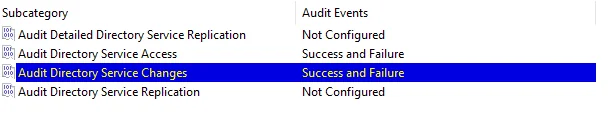
Configure each subcategory under Advanced Audit Policy Configuration
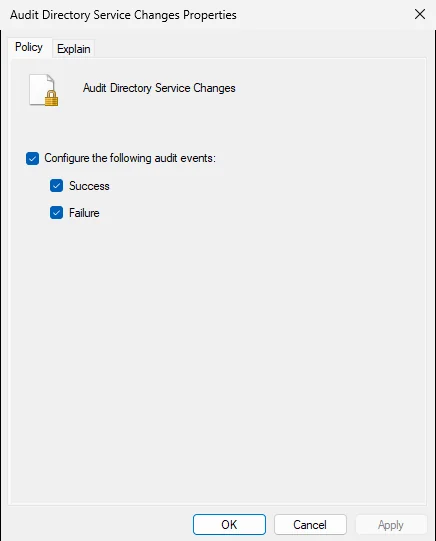
Select Configure the following audit events, then Success and Failure
Repeat for member servers with a GPO linked to the server OUs and the member server column of the table. Microsoft points out that early signs of an attack often appear on workstations, so give them an audit GPO as well. If audit settings come from several GPOs, Group Policy merges them per subcategory, and the GPO with the higher precedence wins a conflict.
The audit policy GPO is now worth protecting: anyone who can edit it can switch auditing off on every domain controller. The Group Policy Object modification rules watch for such changes.
Step 5: Add SACLs for directory service access and change events
Audit Directory Service Access and Audit Directory Service Changes don't log anything by themselves. Microsoft states that their events are generated only for objects whose system access control list (SACL) has an entry that matches the operation, so a rule that never fires may have no SACL behind it.
The default SACL of the domain object, as Microsoft's schema reference defines it for Windows Server 2003 and later, audits property writes, permission and owner changes on the domain object itself, and writes to gPLink and gPOptions on OUs. It also audits the use of extended rights on the domain object by Domain Users and Administrators, so replication requests from members of those groups are logged and requests from an account in neither group aren't. Everything else depends on the entries you add.
| Object | Auditing entry | Events it enables | Source |
|---|---|---|---|
| Domain root, for descendant User, Group, Computer, msDS-GroupManagedServiceAccount and msDS-ManagedServiceAccount objects (and msDS-DelegatedManagedServiceAccount with a Windows Server 2025 DC) | Everyone, Success, Full control minus List contents, Read all properties and Read permissions; one entry per object type | 5136 and 4662 for writes, deletions and permission changes on accounts and groups | Microsoft Defender for Identity guidance |
Configuration partition (CN=Configuration,...) |
Everyone, All, This object and all descendant objects, Write all properties | 5136 for configuration changes | Microsoft Defender for Identity guidance, for forests that have or had Exchange |
| AD FS container (Program Data > Microsoft > ADFS) | Everyone, All, This object and all descendant objects, Read all properties and Write all properties | 4662 for reads and writes of AD FS objects | Microsoft Defender for Identity guidance |
| Windows LAPS OUs | Set-LapsADAuditing on each OU |
4662 for password reads | Windows LAPS guide |
| gMSA objects and the Master Root Keys container | Read Property entries on the password and root key attributes | 4662 for gMSA password and KDS root key reads | gMSA guide |
To add an entry, open Active Directory Users and Computers, select View > Advanced Features, open the object's Properties > Security > Advanced > Auditing, and select Add. Use ADSI Edit for the Configuration partition. Microsoft's Defender for Identity auditing guide shows each dialog.
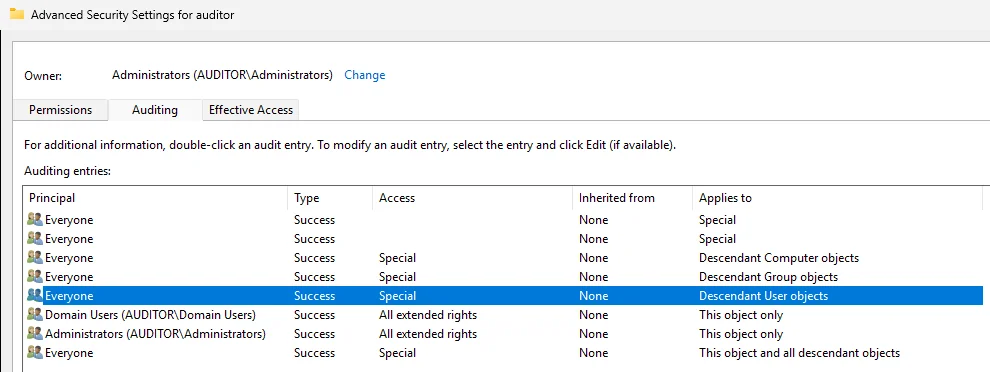
The domain root's SACL, with entries for descendant users, groups and computers
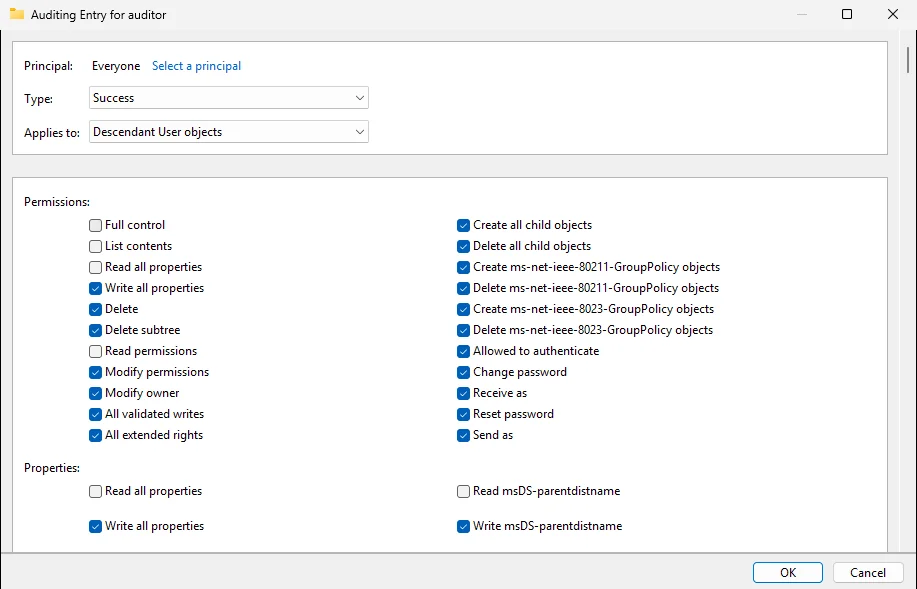
One auditing entry per object type, as Microsoft's Defender for Identity guidance describes
Audit reads only where a rule needs them. Microsoft's Audit Directory Service Access reference advises a SACL design limited to specific important objects, classes and operations. A read entry for Everyone on every object would log a large share of ordinary LDAP queries. The GPO change rules also need entries on the Group Policy containers, which the gpresult guide linked in Step 1 describes in its monitoring section.
Step 6: Size the Security log and set retention
The local Security log is the only buffer between an event and your collector, so make it large enough to survive a forwarding outage. Without the policy, the log keeps its locally configured size, which Microsoft's policy reference gives as 20 MB by default, and overwrites the oldest events when it fills.
Set these in the domain controller audit GPO under Computer Configuration > Policies > Administrative Templates > Windows Components > Event Log Service > Security:
| Setting | Path (GPO / registry) | Value | Default | Effect |
|---|---|---|---|---|
| Specify the maximum log file size (KB) | GPO path above / HKLM\Software\Policies\Microsoft\Windows\EventLog\Security, MaxSize |
196,608 KB or more; size it to your forwarding outage window | Not configured (local value; Microsoft lists 20 MB) | Allowed range 20,480 KB to 2,147,483,647 KB |
| Control Event Log behavior when the log file reaches its maximum size | GPO path above / same key, Retention |
Disabled | Not configured (overwrite) | Disabled or not configured: new events overwrite old ones. Enabled: new events are lost when the log is full |
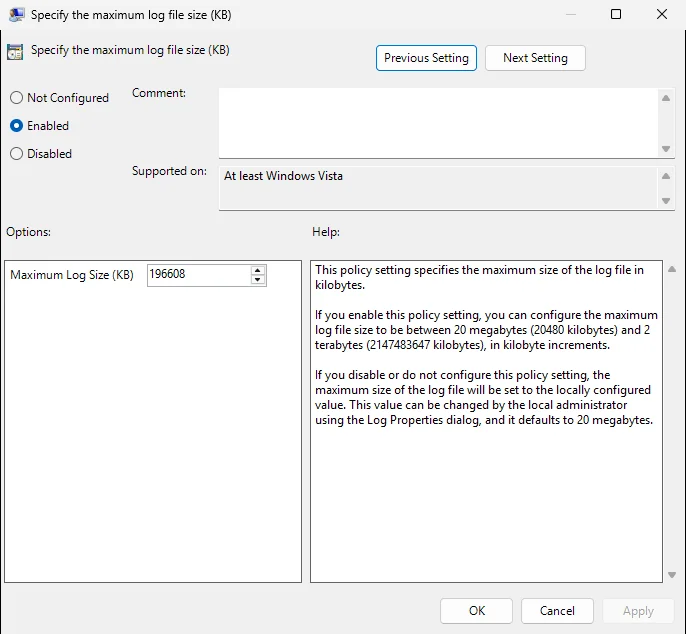
Set the Security log size in the domain controller audit GPO
The 196,608 KB figure is what the Windows security baseline in Azure Policy expects for the Security log. The SecurityLogHoursRetained value from Step 1 tells you whether your size is enough: it should exceed the longest outage of your forwarder. Windows writes event 1104 when the Security log is full.
Step 7: Centralize events with Windows Event Forwarding
Forward the Security log from every domain controller, because events that stay on a domain controller can be cleared there. Windows Event Forwarding (WEF) is the agentless option built into Windows: each domain controller pushes the events you choose to a Windows Event Collector (WEC) server, as Microsoft's WEF guidance for intrusion detection describes.
WEF only reads events that already exist. Microsoft states that it can't change log sizes or adjust a security audit policy, so Steps 4 to 6 must be in place first. Set up a source-initiated subscription:
- Collector: on the WEC server, run
wecutil qc /qin an elevated prompt to configure the Windows Event Collector service. - Read access on the sources: forwarding the Security log needs the NETWORK SERVICE account in the Event Log Readers group. On domain controllers, that group is the built-in domain local group in the Builtin container, so add Network Service to it once in Active Directory Users and Computers. Microsoft's Defender for Identity event forwarding guide says to restart the domain controllers afterward for the change to take effect.
- Target policy: in the domain controller audit GPO, enable Configure target Subscription Manager under Computer Configuration > Policies > Administrative Templates > Windows Components > Event Forwarding, with the value
Server=http://<collector FQDN>:5985/wsman/SubscriptionManager/WEC,Refresh=<seconds>. - Subscription: on the collector, open Event Viewer, right-click Subscriptions and select Create Subscription. Keep Forwarded Events as the destination log, choose Source computer initiated, add your domain controllers (or a group that contains their computer accounts) under Select Computer Groups, and select the Security log and the event IDs you need.
- Format and delivery: run
wecutil ss "<subscription>" /cf:Eventsto send events in binary XML instead of rendered text; Microsoft says this can more than double the volume one collector handles. The Minimize latency delivery option sends events within 30 seconds.
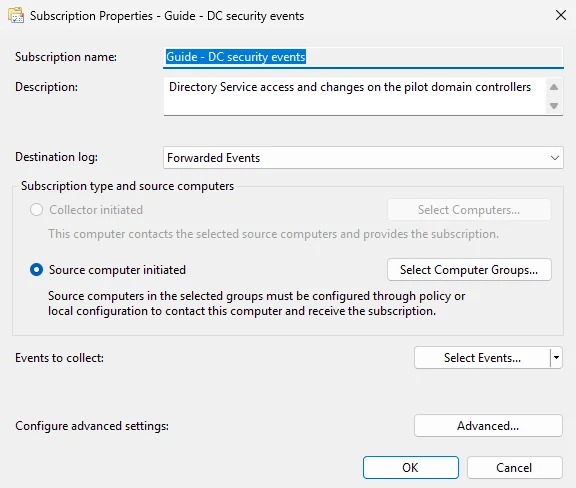
A source-initiated subscription that collects Security events from domain controllers
In a domain, WEF traffic is encrypted with Kerberos by default, even over HTTP. Microsoft plans for about 3,000 events per second on average per WEC server on commodity hardware, and warns that WEF sends no notice when a source overwrites events before forwarding them. A new subscription forwards only events created after the source received it, unless you enable reading existing events.
SIEM notes
- Microsoft Sentinel: the Windows Security Events via AMA connector writes to the
SecurityEventtable, and the Windows Forwarded Events connector writes toWindowsEvent. Check which table a rule queries. - Sentinel event sets: as of November 2026, Microsoft's list of Sentinel event sets shows that the Common set doesn't include 4769, 4776 or 4741, and Minimal includes even fewer. Use All or a custom set for domain controllers if you rely on Kerberoasting or computer account rules.
- Other SIEMs: forward the Security log in XML or keep the event fields intact. Event 1102 stores its subject under
UserData, notEventData, so check that your parser reads it.
The detection sources library lists each event's fields, its audit subcategory and the rules that read it.
Verify
Verify on three levels: the effective policy, the log and the pipeline. Start on one domain controller:
auditpol /get /subcategory:"Directory Service Changes"
System audit policy
Category/Subcategory                      Setting
DS Access
  Directory Service Changes               Success and Failure
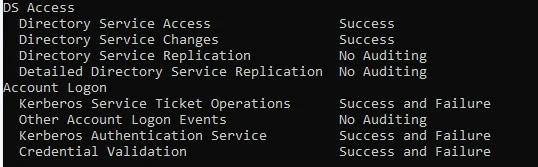
auditpol shows the effective policy, whatever the GPOs say
| Check | Command | Expected result |
|---|---|---|
| Effective policy | auditpol /get /category:* |
Each subcategory from Step 2 shows the target setting |
| All domain controllers | .\Get-DcAuditPolicyCompliance.ps1 -OutputFolder 'C:\Reports\AuditPolicy' |
Missing and Unrecognized at 0 on every DC, ForceSubcategorySettings Enabled or NotSet |
| Security log | (Get-WinEvent -ListLog Security).MaximumSizeInBytes |
Your target size, in bytes |
| SACL coverage | Change the description of a test user in a lab OU | Event 5136 on the DC that processed the change |
| Forwarding | wecutil gr "<subscription>" on the collector |
Every domain controller listed as Active |
| SIEM | The coverage query in Monitor and detect | No domain controller missing an expected event ID |
Each applied subcategory change also writes event 4719 on the domain controller, which is a useful test of your tampering alert.
Roll back
Most audit changes can be reversed quickly; the events you didn't record while auditing was off can't be recovered. Roll back in the GPO first, because a local change is overwritten at the next Group Policy refresh.
| Change | How to roll back | Notes |
|---|---|---|
| Audit policy GPO | Set-GPLink -Name '<GPO>' -Target '<OU-DN>' -LinkEnabled No, or Restore-GPO -Name '<GPO>' -Path 'C:\Backups\GPO' -WhatIf first, then without -WhatIf |
Run gpupdate /force on the domain controllers afterward |
| Effective policy on one DC | auditpol /restore /file:C:\Backups\AuditPolicy\DC01-before.csv |
Lasts until the next refresh if a GPO still sets audit policy |
| Return to basic audit policy | Set all advanced subcategories to Not configured, delete the audit.csv files from SYSVOL, then reapply the basic settings | Microsoft's FAQ lists these three steps; skipping one leaves the basic settings unrestored |
| SACL entries | Remove the entry on the object's Auditing tab | Keep a record of each entry you add so you can remove it |
| Security log size | Set the policy back to Not configured | Events already overwritten can't be recovered |
| WEF | Disable or delete the subscription; remove the Subscription Manager setting and the Network Service membership | Events already forwarded stay on the collector |
Every rollback of a subcategory writes event 4719, so tell your security operations center (SOC) before you start.
Monitor and detect
Watch two things: attempts to blind the audit trail, and domain controllers that go quiet. The first are single events, most of which Windows writes regardless of the audit policy; the second shows up only as missing data.
| Event | Source | What it tells you | Related rules |
|---|---|---|---|
| 4719 | Security, always logged | System audit policy changed, one event per subcategory with the change (success or failure added or removed) | Audit policy tampering rules |
| 4912 | Security, always logged | Per-user audit policy changed; an exclusion suppresses audits for one account, except members of the local Administrators group | Same rules |
| 1102 | Security, Other Events | The Security log was cleared | Security log cleared rules |
| 1100 | Security, Other Events | The event logging service shut down | Correlate with a restart |
| 1104 | Security, Other Events | The Security log is full | Size the log (Step 6) |
| 4907 | Security, Audit Audit Policy Change | Auditing settings on an object were changed | Review against change records |
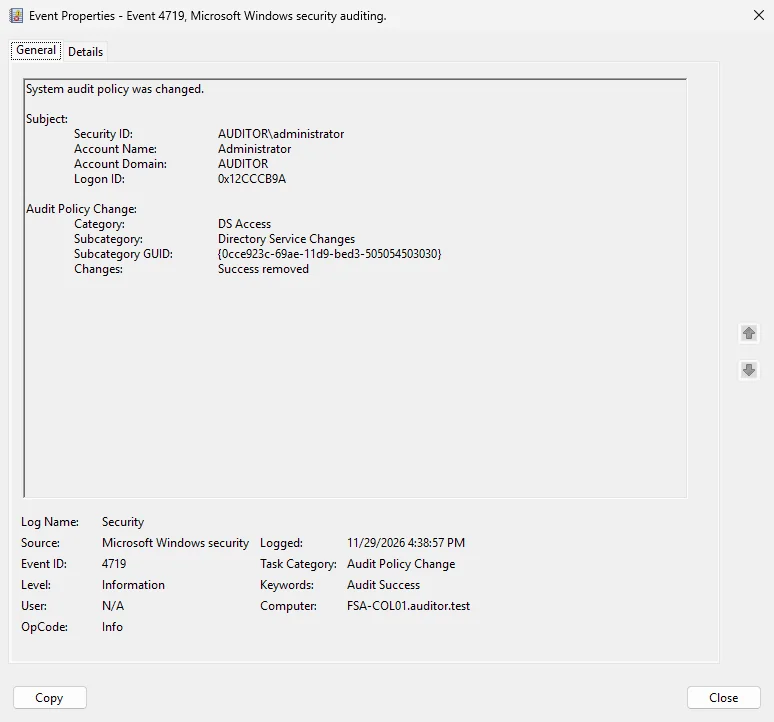
Every audit policy change leaves event 4719, whatever the policy says
Once these subcategories and SACLs are in place, the rest of the library can see the attacks it targets, from the DCSync rules and Kerberoasting rules to the privileged group membership change rules.
The first query lists tampering events from the last seven days in a Microsoft Sentinel or Log Analytics workspace that receives domain controller events in SecurityEvent:
// Audit policy changes (4719), per-user audit policy changes (4912), Security log cleared (1102),
// event logging service shut down (1100) and Security log full (1104), newest first.
// Windows writes 4719, 4912 and 1102 whatever the audit policy says.
SecurityEvent
| where TimeGenerated > ago(7d)
| where EventID in (1100, 1102, 1104, 4719, 4912)
| project TimeGenerated, Computer, EventID, Activity, SubjectDomainName, SubjectUserName,
    SubjectLogonId, SubcategoryGuid, AuditPolicyChanges
| order by TimeGenerated desc
The second query finds domain controllers that didn't send an event ID that they should produce every day. A gap means an audit policy, SACL or collection problem on that domain controller:
// Key events that each domain controller did NOT send in the last 24 hours.
// Replace the names with your domain controllers, in lowercase, as they appear in Computer.
let dcs = datatable(Computer: string) ["dc01.corp.example.com", "dc02.corp.example.com"];
let expected = datatable(EventID: int) [4624, 4662, 4688, 4768, 4769, 4776, 5136];
let seen = SecurityEvent
    | where TimeGenerated > ago(1d)
    | where EventID in (4624, 4662, 4688, 4768, 4769, 4776, 5136)
    | summarize LastSeen = max(TimeGenerated) by Computer = tolower(Computer), EventID;
dcs
| extend Key = 1
| join kind=inner (expected | extend Key = 1) on Key
| project Computer, EventID
| join kind=leftouter seen on Computer, EventID
| where isnull(LastSeen)
| project Computer, MissingEventID = EventID
| order by Computer asc, MissingEventID asc
The same two checks in Splunk use only EventCode and the default host field, because other field names depend on the Windows add-on and input format you use:
index=<windows_security_index> EventCode IN (1100, 1102, 1104, 4719, 4912)
| stats count AS events, min(_time) AS first_seen, max(_time) AS last_seen BY host, EventCode
| sort - last_seen
| convert ctime(first_seen) ctime(last_seen)
index=<windows_security_index> host IN ("DC01*", "DC02*") EventCode IN (4624, 4662, 4688, 4768, 4769, 4776, 5136) earliest=-24h
| stats count AS events BY host, EventCode
| xyseries host EventCode events
| fillnull value=0
A zero in the second result marks a domain controller that didn't log that event in the last 24 hours. A domain controller that sent none of these events has no row at all, so compare the rows with your list of domain controllers. The RC4 and AES guide relies on the same 4768 and 4769 events to find RC4 use.
Troubleshooting
The read-only script and auditpol show whether a problem lies in the policy, the SACLs or the log.
| Symptom | Cause | Fix |
|---|---|---|
The GPO shows a subcategory as configured, but auditpol shows No Auditing |
Another GPO with higher precedence sets it, or basic audit settings overwrite subcategories | Find the winning GPO with gpresult; enable the force-subcategory setting and set basic audit settings to Not Defined |
| Event 4719 appears for subcategories you didn't change | Basic audit settings overwrite the advanced settings; Microsoft notes that 4719 is logged when that happens | Remove the basic audit settings from every GPO that reaches the computer |
Subcategories applied locally with auditpol keep reverting |
A domain GPO applies advanced audit policy and clears the local settings first | Make the change in the GPO instead |
| No 4662 or 5136 events although DS Access is on | No SACL entry matches the operation | Add the entries from Step 5 and test with a change in a lab OU |
| Too many 4662 events | A read entry for Everyone on broad scopes | Limit read auditing to the attributes your rules need |
| The Security log covers only a few hours | The log is at its default size | Raise the maximum size in the GPO (Step 6) |
| The WEF subscription shows no events from domain controllers | Network Service isn't in Event Log Readers, or the DCs weren't restarted after the change | Add Network Service in the Builtin container, restart, and check the Eventlog-ForwardingPlugin operational log on a DC |
| Forwarded events don't trigger Sentinel rules | Events land in WindowsEvent, while the rules query SecurityEvent |
Use the Windows Security Events via AMA connector, or adapt the rules |
| 4769 events are missing in Sentinel | The connector uses the Common or Minimal event set | Switch domain controllers to All or a custom set |
The audit script reports Unrecognized |
The domain controller prints auditpol in another display language | Check those subcategories by GUID with auditpol /get |
How Forestall helps
Forestall's GPO Audit compares the settings that each GPO applies with Microsoft, CIS, STIG, Forestall and custom baselines. RSoP Comparison resolves link order, precedence and inheritance to show the resultant settings of each computer and the winning GPO for each setting. The Over-Privilege Analysis (Beta) module reports object-level audit coverage, because a permission can be shown as in use only when the object's SACL audits it, and the DCSync edge models who holds the replication rights that event 4662 records. Forestall Compliance turns these GPO and RSoP comparisons into compliance evidence for frameworks such as ISO 27001 and NCA ECC.
Frequently Asked Questions
What is the difference between basic and advanced audit policy?
Basic audit policy has nine broad categories under Local Policies > Audit Policy, while advanced audit policy splits them into subcategories under Advanced Audit Policy Configuration. Advanced settings let you audit, for example, Kerberos service tickets without every other sign-in event. Microsoft says not to use both, because they can produce unexpected results. Use advanced settings only and enable the force-subcategory setting.
Which events should I audit on domain controllers?
On domain controllers, start with Microsoft's stronger recommendation for Windows Server: credential validation, both Kerberos subcategories, account and group management, process creation, Directory Service Access and Changes, logon events, audit and authentication policy changes, and the system subcategories. Then add what your detections need, such as Authorization Policy Change for user rights. Directory events also need SACLs on the objects you care about.
How do I check the audit policy on a domain controller?
Run auditpol /get /category:* in an elevated prompt on the domain controller. It shows the effective setting of every subcategory, which can differ from what a single GPO says. To check many domain controllers at once, the read-only script in this guide runs the same command over PowerShell remoting and compares the result with a target table.
How do I audit Group Policy changes?
To audit Group Policy changes, turn on Audit Directory Service Changes (Success) on domain controllers, then make sure the Group Policy containers and the OUs whose links you watch have auditing entries for writes. Changes then appear as event 5136, and new GPOs as event 5137. The default domain SACL already audits writes to gPLink and gPOptions on OUs, so link changes on OUs are audited out of the box.
Does Windows Event Forwarding need an agent?
No. Windows Event Forwarding is built into Windows and uses WinRM, so domain controllers forward events to a Windows Event Collector server without extra software. You configure the sources with a Group Policy setting that names the collector, add Network Service to Event Log Readers for the Security log, and create a subscription on the collector. Microsoft Sentinel can read the collected events with its Windows Forwarded Events connector.
How large should the Security event log be on a domain controller?
The Security event log on a domain controller should be large enough to hold events for longer than your longest forwarding outage. Microsoft's policy reference gives the local default as 20 MB, while the Windows security baseline in Azure Policy expects at least 196,608 KB. Measure how many hours your log holds with the audit script, then raise the GPO value until it exceeds your outage window.
Related guides
- Active Directory hardening, every step in order: where audit policy fits in the full hardening sequence.
- Audit Group Policy with gpresult and RSoP: find which GPO sets each audit subcategory.
- Windows LAPS in Active Directory: audit entries that log LAPS password reads.
- Enforce LDAP signing and channel binding: Directory Service log events that show which clients bind without signing.
- Disable RC4 and enforce AES: a project that depends on Kerberos ticket events.
References
- System audit policy recommendations (Microsoft Learn)
- Advanced Audit Policy Configuration (Microsoft Learn)
- Advanced security auditing FAQ (Microsoft Learn)
- Audit: Force audit policy subcategory settings to override audit policy category settings (Microsoft Learn)
- auditpol backup (Microsoft Learn)
- Audit Directory Service Access (Microsoft Learn)
- Configure Windows event auditing for Microsoft Defender for Identity (Microsoft Learn)
- Use Windows Event Forwarding to help with intrusion detection (Microsoft Learn)
- Setting up a source initiated subscription (Microsoft Learn)
- Windows security event sets that can be sent to Microsoft Sentinel (Microsoft Learn)
- Disable or Modify Tools: Disable or Modify Windows Event Log, T1685.001 (MITRE ATT&CK)
- Disable or Modify Tools: Clear Windows Event Logs, T1685.005 (MITRE ATT&CK)
See your identity exposure clearly.
Start with a 1-day Proof of Value in your own environment.