Audit Group Policy with gpresult and RSoP: A Step-by-Step Guide
Summary
gpresult is the Windows command that shows the Resultant Set of Policy (RSoP): the Group Policy Objects (GPOs) and settings that actually applied to a computer and its user. Run it elevated to see applied and filtered GPOs, then audit who can edit or link GPOs, remove stored Group Policy Preferences passwords and compare your GPOs with a baseline.
Quick steps
- Run
gpresult /hfrom an elevated command prompt on the affected computer and save the report. - Read the applied GPOs, the filtered GPOs and the reason each one was filtered.
- Export RSoP for a list of computers with the read-only
Get-GPResultantSetOfPolicyscript. - Run the read-only GPO audit script to find unlinked and empty GPOs, unexpected editors and accounts that can write
gPLink. - Search SYSVOL for Group Policy Preferences items that still hold a password, without reading the value out.
- Lower unexpected edit rights with
Set-GPPermission, starting with-WhatIf. - Compare your GPOs with a Microsoft security baseline in Policy Analyzer.
- Alert on GPO and link changes with event 5136, event 5137 and event 5141.
Applies to: gpresult on Windows 10, Windows 11 and Windows Server 2016, 2019, 2022 and 2025; Group Policy Results and Group Policy Modeling in the Group Policy Management Console (GPMC) on Windows Server 2016 to 2025; Active Directory Domain Services; Policy Analyzer from the Microsoft Security Compliance Toolkit (as of November 2026).
What is gpresult and RSoP, and why does a Group Policy audit matter?
gpresult is a built-in Windows command that displays RSoP data for a user and a computer. RSoP is the net result of every GPO the Group Policy service processed, after links, inheritance, filtering and precedence. Group Policy sets security options, user rights, scripts and software across a domain, so the policy that reaches a computer is itself a security control.
Microsoft's gpresult command reference describes the output as the policy settings enforced on the computer for the user at sign-in.
Attackers look at who can change Group Policy. An account that can edit a GPO can push settings or scripts to every computer in scope, and so can an account that can write the gPLink attribute of an OU and controls a GPO to link there. MITRE ATT&CK tracks this as Group Policy Modification (T1484.001), and it makes GPO editors a common shadow admin path to privilege escalation. Old Group Policy Preferences items can also hold passwords in SYSVOL, tracked as Unsecured Credentials: Group Policy Preferences (T1552.006).
A Group Policy audit answers two questions: what actually applies, and who could change it.
gpresult, rsop.msc, GPMC or PowerShell: which tool should I use?
Use gpresult or Group Policy Results in GPMC for actual results, and Group Policy Modeling, which simulates what would apply, only for planning. Microsoft's Group Policy troubleshooting training compares the tools this way:
| Tool | Answers | Limits |
|---|---|---|
gpresult |
Which RSoP data is recorded on the local or a remote computer | Doesn't prove that every setting took effect |
| Group Policy Results (GPMC) | Which RSoP data a target computer recorded, as an HTML report | Needs remote access; can reflect an earlier processing cycle |
Get-GPResultantSetOfPolicy |
The same RSoP data written to an HTML or XML file from PowerShell | Logging mode only; no modeling |
| Group Policy Modeling (GPMC) | What should apply for a simulated user, computer, site, group or loopback mode | Doesn't evaluate local GPOs or what the client actually did |
rsop.msc |
An interactive view with a precedence tab for each setting | Doesn't show all Group Policy settings |
GPO report (Get-GPOReport) |
What one GPO configures | Doesn't calculate scope or client state |
Since Windows Vista Service Pack 1, the RSoP snap-in doesn't show every Group Policy setting, and Microsoft points to gpresult for the full set.
In which order does Group Policy apply?
Group Policy applies the local GPO first, then GPOs linked to the site, the domain and each OU from parent to child, the order known as LSDOU. When two GPOs set the same value, the one processed later wins; Microsoft's Group Policy scope article calls this "last-writer-wins". Link options, inheritance and filtering then change which GPOs take part.
| Element | Rule | Effect on the result |
|---|---|---|
| Local GPO | Applied first | Any domain-based GPO can override it |
| Site, domain, OU | Applied in that order; nested OUs from parent to child | The container closest to the object wins a conflict |
| Link order | At one site, domain or OU, link order 1 has the highest precedence | The client processes the other links first, then link order 1 |
| Enforced (link property) | Lower containers can't override it; it also passes Block Inheritance | Its settings win over conflicting settings from lower containers |
| Block Inheritance (container property) | Stops non-enforced links inherited from higher containers | Doesn't stop GPOs linked to the container itself or enforced parent links |
| Security filtering | The user or computer needs Read and Apply Group Policy | Without both, the GPO is filtered out |
| WMI filter | Its Windows Management Instrumentation (WMI) query runs on the target computer | The GPO applies only if the query returns true |
| Loopback, Merge | User GPOs first, then the user settings of GPOs that apply to the computer | The computer's GPOs win a conflict |
| Loopback, Replace | Only the user settings of GPOs that apply to the computer | The user's normal GPO list is ignored |
Configure loopback with Configure user Group Policy loopback processing mode under Computer Configuration\Policies\Administrative Templates\System\Group Policy. The Group Policy processing article covers refresh timing: by default, every 90 minutes with a random offset of up to 30 minutes, and every five minutes on domain controllers.
Before you start
An audit needs read access, the right to collect RSoP from target computers and the Remote Server Administration Tools (RSAT). Only the cleanup at the end of Step 4, Step 5, the policy refresh in Verify and some troubleshooting commands change anything, and each one is marked. Test the cleanup steps in a lab first.
- Tools: install the Group Policy Management feature (GPMC and the GroupPolicy PowerShell module) and the Active Directory module on a management workstation or server.
- Read rights: read permission on the directory and on the GPOs is enough for the audit.
- Remote RSoP: collecting results from another computer needs the Remotely access Group Policy Results data permission on its domain or OU (GPMC Delegation tab), or local Administrators membership on that computer. It also needs network connectivity, WMI, Remote Procedure Call (RPC) and inbound firewall rules on the target.
- Modeling: Group Policy Modeling needs the Perform Group Policy Modeling analyses permission on the domain or OU of the objects you simulate.
- Server Core:
gpresult /hneeds the GPMC interfaces on the local system, so run HTML reports for a Server Core computer from another computer. - Changes:
gpupdate,Invoke-GPUpdate,Set-GPPermission,Set-GPLink,Restore-GPOand removing preference items all change state. Collect your evidence before you refresh policy. - Security operations: tell your security operations team before you scan SYSVOL over the network share.
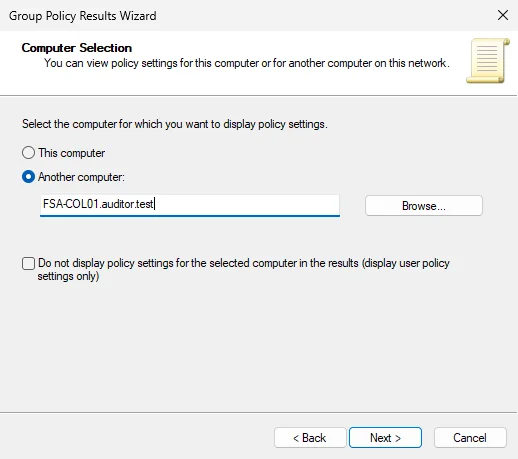
Group Policy Results collects RSoP from a target computer
Step 1: Check what applies with gpresult
Run gpresult from an elevated command prompt on the computer you're investigating and save an HTML report. Microsoft's Group Policy troubleshooting guidance runs the same command on the affected client, because the report shows why a GPO isn't applied.
gpresult /h C:\Reports\WS01-gpresult.html /f
The /f switch overwrites an existing file of that name.
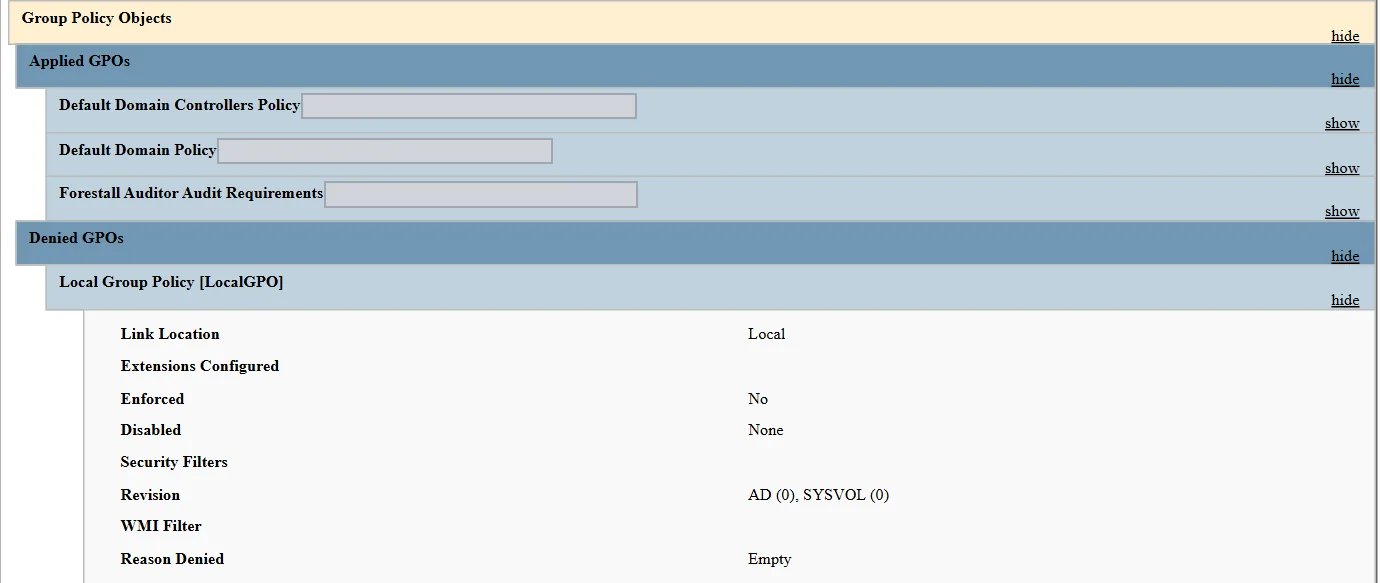
The HTML report lists applied and denied GPOs
Which gpresult switch should I use?
Every gpresult run needs one output option: /r, /v, /z, /x or /h. The other switches choose the target and the scope.
| Switch | What it does | Note |
|---|---|---|
/r |
Displays RSoP summary data | The quickest view of applied and filtered GPOs |
/v |
Displays verbose policy information, including settings applied with precedence 1 | Redirect to a text file |
/z |
Displays all available information, including settings applied with precedence 1 and higher | Shows settings defined in more than one GPO; large output |
/h <file> |
Saves the report as HTML | Can't be combined with /u, /p, /r, /v or /z |
/x <file> |
Saves the report as XML | Same restriction as /h; easier to compare and parse |
/f |
Overwrites the file named in /h or /x |
|
/scope user or /scope computer |
Shows only the user or only the computer part | Without it, gpresult shows both |
/s <system> |
Queries a remote computer by name or IP address | Don't use backslashes; the default is the local computer |
/user [<domain>\]<user> |
Shows RSoP data for that user | The user must have signed in to the target computer |
/u <user> and /p |
Runs the command with other credentials | If /p is omitted, gpresult prompts for the password; /p can't be used with /x or /h |
On ARM64 versions of Windows, only the gpresult in SysWow64 works with /h. These examples cover the usual audit cases:
gpresult /r /scope computer
gpresult /scope user /v > C:\Reports\WS01-user-verbose.txt
gpresult /s WS01 /user CORP\jdoe /scope user /z > C:\Reports\WS01-jdoe.txt
gpresult /x C:\Reports\WS01-gpresult.xml /f
Don't type a password on the command line.
Why run gpresult from an elevated prompt?
gpresult reads RSoP data that Windows logs. Under User Account Control (UAC), an administrator's unelevated session runs with a standard user token, so a prompt that isn't elevated doesn't use the administrator's rights.
Microsoft's troubleshooting steps run gpresult from an elevated prompt, so do the same whenever you need the computer part of the report. If a report from an unelevated prompt has no computer data, rerun it elevated before you conclude that no computer policy applied. For user results, the user needs RSoP data on that computer; GPMC lists only users who have signed in there.
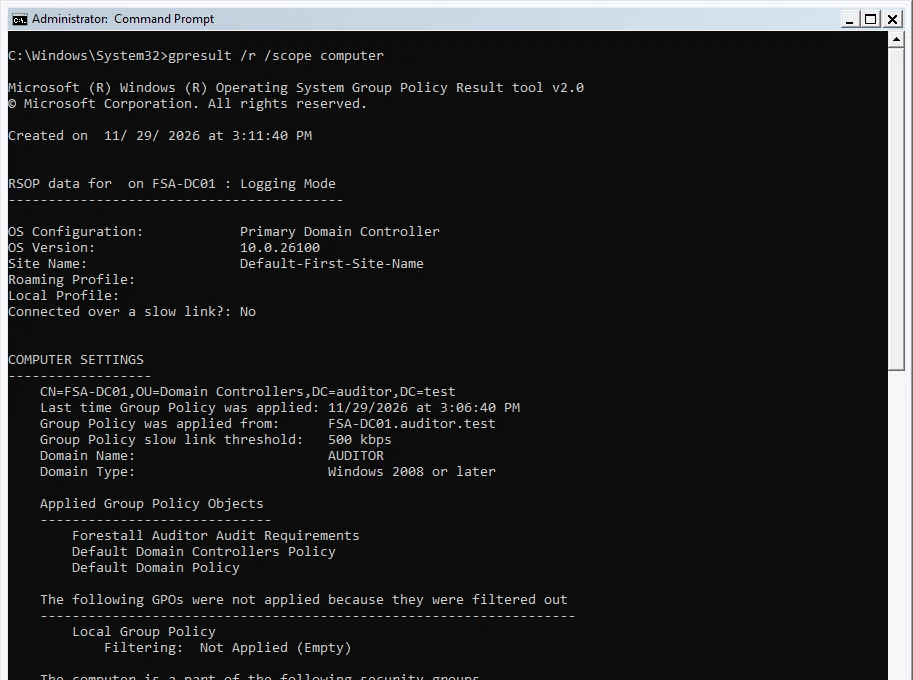
Run gpresult from an elevated prompt, as Microsoft's troubleshooting steps do
How do I export RSoP for a list of computers?
The script below runs Get-GPResultantSetOfPolicy for each computer in a list and saves one HTML or XML report per computer. It's read-only: it changes no policy, though each report uses an RSoP query namespace in WMI on the target (the Namespace value in the cmdlet's output).
Run it on a management workstation with the GroupPolicy module, as an account that is a local administrator on the targets or holds Remotely access Group Policy Results data on their OU.
#Requires -Version 5.1
#Requires -Modules GroupPolicy

<#
.SYNOPSIS
    Saves the logged Resultant Set of Policy (RSoP) of each computer in a list as an XML or HTML report.

.DESCRIPTION
    For every computer in ComputerName (or in the file named by ComputerListPath), the script
    calls Get-GPResultantSetOfPolicy, which returns logging-mode RSoP, and writes one report
    file per computer to OutputFolder. Add -User to include the user part of the RSoP for a
    user who has signed in to that computer. A computer that can't be reached, or that has no
    RSoP data, is reported with its error message and the script continues with the next one.

    One summary row per computer is written to rsop-export-summary.csv in OutputFolder and returned.

.PARAMETER ComputerName
    Computer names to report on, for example 'WS01.corp.example.com'.

.PARAMETER ComputerListPath
    Text file with one computer name per line, used instead of ComputerName.

.PARAMETER User
    Optional user whose RSoP to include, for example 'CORP\jdoe'. The user must have signed in
    to each computer. Without it, the report covers the computer part only.

.PARAMETER OutputFolder
    Existing folder for the reports, for example 'C:\Reports\RSoP'.

.PARAMETER ReportType
    Xml (default, easier to compare) or Html (easier to read).

.EXAMPLE
    .\Export-GpResultReports.ps1 -ComputerName 'WS01.corp.example.com','WS02.corp.example.com' -OutputFolder 'C:\Reports\RSoP'

.EXAMPLE
    .\Export-GpResultReports.ps1 -ComputerListPath 'C:\Reports\pilot.txt' -User 'CORP\jdoe' -ReportType Html -OutputFolder 'C:\Reports\RSoP'

.NOTES
    Read-only. Changes no Group Policy setting, GPO, link or directory object.
    Writes only the report files and rsop-export-summary.csv to OutputFolder.
    Each report uses an RSoP query namespace in WMI on the target computer (the Namespace value
    in the cmdlet's output).
    Requires the GroupPolicy module (Group Policy Management feature or RSAT).
    Run it from a management workstation as an account that is a local administrator on the
    targets or holds "Remotely access Group Policy Results data" on their OU. The targets must
    accept remote WMI and RPC connections through their firewall.
#>
[CmdletBinding(DefaultParameterSetName = 'ByName')]
param(
    [Parameter(Mandatory = $true, ParameterSetName = 'ByName')]
    [ValidateNotNullOrEmpty()]
    [string[]]$ComputerName,

    [Parameter(Mandatory = $true, ParameterSetName = 'ByFile')]
    [ValidateScript({ Test-Path -Path $_ -PathType Leaf })]
    [string]$ComputerListPath,

    [string]$User,

    [Parameter(Mandatory = $true)]
    [ValidateScript({ Test-Path -Path $_ -PathType Container })]
    [string]$OutputFolder,

    [ValidateSet('Xml', 'Html')]
    [string]$ReportType = 'Xml'
)

Set-StrictMode -Version Latest
$ErrorActionPreference = 'Stop'

if ($PSCmdlet.ParameterSetName -eq 'ByFile') {
    $ComputerName = @(Get-Content -Path $ComputerListPath | ForEach-Object { $_.Trim() } | Where-Object { $_ -ne '' })
}

if ($ReportType -eq 'Xml') { $extension = 'xml' } else { $extension = 'html' }
$stamp = (Get-Date).ToUniversalTime().ToString('yyyyMMddTHHmmssZ')

$rows = @(foreach ($computer in $ComputerName) {
    $safeName = $computer -replace '[^A-Za-z0-9._-]', '_'
    $reportPath = Join-Path -Path $OutputFolder -ChildPath ('{0}-{1}.{2}' -f $safeName, $stamp, $extension)
    $rsopParams = @{
        Computer   = $computer
        ReportType = $ReportType
        Path       = $reportPath
    }
    if ($User) { $rsopParams['User'] = $User }

    try {
        $result = Get-GPResultantSetOfPolicy @rsopParams
        [pscustomobject]@{
            Computer    = $computer
            User        = $User
            Status      = 'Saved'
            LoggingMode = [string]$result.LoggingMode
            ReportPath  = $reportPath
            Error       = $null
        }
    }
    catch {
        [pscustomobject]@{
            Computer    = $computer
            User        = $User
            Status      = 'Failed'
            LoggingMode = $null
            ReportPath  = $null
            Error       = $_.Exception.Message
        }
    }
})

$rows | Export-Csv -Path (Join-Path -Path $OutputFolder -ChildPath 'rsop-export-summary.csv') -NoTypeInformation -Encoding UTF8
$rows
Run it for a pilot list:
.\Export-GpResultReports.ps1 -ComputerName 'WS01.corp.example.com','WS02.corp.example.com' -OutputFolder 'C:\Reports\RSoP'
Example output (the values are illustrative):
Computer    : WS01.corp.example.com
User        :
Status      : Saved
LoggingMode : Computer
ReportPath  : C:\Reports\RSoP\WS01.corp.example.com-20261128T091500Z.xml
Error       :

Computer    : WS02.corp.example.com
User        :
Status      : Failed
LoggingMode :
ReportPath  :
Error       : <error message returned by Get-GPResultantSetOfPolicy>
Compare the XML report of an affected computer with a healthy peer in the same OU. A GPO that is applied on one and filtered on the other shows where to look first.
Step 2: Read applied and filtered GPOs
A gpresult report lists the GPOs that applied and, separately, the GPOs that were filtered out with a reason. Each reason points to a different fix, so read it before you change a link or a filter. A filtered GPO isn't automatically an error: a WMI filter that returns false is the intended result if the filter is right.
| Filter reason | What it means | How to confirm | Fix |
|---|---|---|---|
| Security filtering | The account lacks Read or Apply Group Policy on the GPO, or a deny entry applies | Get-GPPermission -Name '<GPO>' -All, the GPMC Delegation tab, whoami /groups for the current token |
Add the account's group to the filter; keep Read for computers on user GPOs |
| WMI filter | The filter's query returned false on the target | The Group Policy operational log on the target | None if intended; otherwise fix the query |
| Disabled link | The link to this GPO is disabled | The link state in GPMC | Enable the link if the GPO should apply |
| Disabled GPO or side | The GPO, or its user or computer settings, are disabled | GpoStatus in Get-GPO |
Enable the side that holds the settings |
| Empty | The GPO has no settings for this side | The user or computer part of the GPO report | Link user settings to user OUs and computer settings to computer OUs, or use loopback |
| Inaccessible or access denied | The client couldn't read the GPO from the directory or from SYSVOL | System events 1006, 1030 or 1058 and the Group Policy operational log | Restore Read for computers, then check SYSVOL replication and permissions |
User GPOs have a trap. Since security update MS16-072 (June 14, 2016), Windows retrieves user policy in the computer's security context, so computers need Read on every GPO that applies to their users. Microsoft's article on GPO Read permissions for computers describes the failure after Authenticated Users is removed from security filtering. Give the user group Read and Apply Group Policy, and keep Read without Apply for Authenticated Users or Domain Computers.
Group membership changes also need a new token. User group changes generally take effect at the next sign-in, and computer group changes at the next restart.
An applied GPO means the Group Policy service selected it, not that every setting took effect. Check the effective state with the tool of the subsystem that owns the setting:
- Audit policy:
auditpol /get /category:* - Security policy:
secedit /export /mergedpolicy /cfg <file> - Administrative Templates: the managed registry value
- Services and firewall:
Get-Service,Get-NetFirewallRule -PolicyStore ActiveStore
Use these checks to confirm that hardening GPOs reached their targets, such as those in the NTLMv1 guide, the RC4 and AES guide and the LLMNR and NBT-NS guide.
Step 3: Audit who can change Group Policy
Group Policy security depends as much on who can edit or link GPOs as on the settings they apply. Audit four things: unexpected editors, accounts that can write gPLink, GPOs that are unlinked or empty, and user GPOs that computers can't read.
Who can edit a GPO?
Get-GPPermission -All lists the permission level of every trustee on a GPO. In the Get-GPPermission reference example, Authenticated Users holds GpoApply, Domain Admins, Enterprise Admins and SYSTEM hold GpoEditDeleteModifySecurity, and Enterprise Domain Controllers holds GpoRead.
Get-GPPermission -Name 'Default Domain Policy' -All
Any other trustee with GpoEdit or GpoEditDeleteModifySecurity can change what the GPO does on every computer in scope. Forestall documents this right as the GPOWrite edge. The cmdlet reports standard permission levels only and shows custom permissions as GpoCustom, so review GpoCustom entries, special rights and exact access control entries with Delegation > Advanced in GPMC.
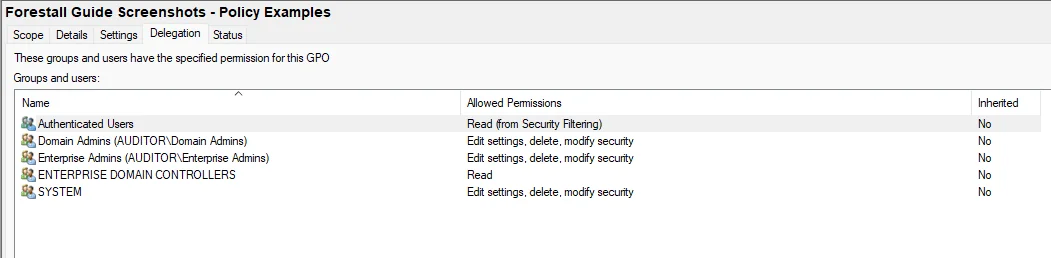
Review edit rights on the Delegation tab
Who can link a GPO?
Write access to the gPLink attribute of a domain, OU or site lets an account link any GPO it controls there. By default, only Domain Admins and Enterprise Admins can link GPOs to domains and OUs; for sites, Enterprise Admins and the Domain Admins of the forest root domain can. Forestall documents this right as the ManageGPLink edge, on the attribute GUID f30e3bbe-9ff0-11d1-b603-0000f80367c1.
OU delegation can grant this right to help desk or regional admin groups. Write access to all properties of an OU includes gPLink, so the script below reports both.
Unlinked, empty and disabled GPOs
An unlinked GPO applies nowhere, but anyone who can link it can make it apply. An empty GPO has no client-side extensions in gPCMachineExtensionNames or gPCUserExtensionNames, so clients have nothing to process. Review both with their owners, then delete them or record why they stay.
Run the GPO audit script
The script reads every GPO, its Group Policy container attributes, every link on the domain, OUs and sites, every GPO permission and the gPLink write rights on the domain and OUs. It's read-only and writes four CSV files. Run it on a management server with the Active Directory and GroupPolicy modules, as a GPO administrator so that every permission is visible.
#Requires -Version 5.1
#Requires -Modules ActiveDirectory, GroupPolicy

<#
.SYNOPSIS
    Read-only audit of every GPO in one domain: links, empty or disabled GPOs, who can edit them and who can link them.

.DESCRIPTION
    The script collects, for one domain:
      1. Every GPO (Get-GPO -All) with its owner and status, and the attributes of its Group
         Policy container: the two client-side extension lists, versionNumber, flags and the
         WMI filter reference.
      2. Every link stored in the gPLink attribute of the domain, of every OU and of every
         site, with its position in the attribute (counted from the left) and its link options
         (0x1 disabled, 0x2 enforced; the disabled bit wins).
      3. The permission level of every trustee on every GPO (Get-GPPermission -All). Trustees
         that hold GpoEdit, GpoEditDeleteModifySecurity or GpoCustom and are not in the expected
         list get Expected = False.
      4. Allow entries on the domain object and on every OU that grant write access to gPLink,
         on that attribute or on all properties, with Expected = False for unexpected principals.

    Results go to four CSV files in OutputFolder. A summary object is returned.

.PARAMETER OutputFolder
    Existing folder for the CSV reports, for example 'C:\Reports\GPO'.

.PARAMETER Server
    Optional domain controller to query, for example '<DomainController>'.

.PARAMETER ExpectedEditors
    Optional SIDs of principals you approved to edit or link GPOs, for example the SID of
    'CORP\GPO-Admins'. SYSTEM, Administrators, Domain Admins and Enterprise Admins are always
    treated as expected.

.EXAMPLE
    .\Get-GpoSecurityAudit.ps1 -OutputFolder 'C:\Reports\GPO'

.EXAMPLE
    .\Get-GpoSecurityAudit.ps1 -OutputFolder 'C:\Reports\GPO' -Server '<DomainController>' -ExpectedEditors 'S-1-5-21-1111111111-2222222222-3333333333-1105'

.NOTES
    Read-only. Makes no change to Active Directory, SYSVOL or any GPO.
    Writes only the four CSV report files to OutputFolder.
    Requires the ActiveDirectory and GroupPolicy modules (RSAT).
    Run it on a management server or admin workstation as a GPO administrator, so that every
    permission on every GPO is visible.
#>
[CmdletBinding()]
param(
    [Parameter(Mandatory = $true)]
    [ValidateScript({ Test-Path -Path $_ -PathType Container })]
    [string]$OutputFolder,

    [string]$Server,

    [string[]]$ExpectedEditors = @()
)

Set-StrictMode -Version Latest
$ErrorActionPreference = 'Stop'

$adParams = @{}
if ($Server) { $adParams['Server'] = $Server }

function Get-PropertyValue {
    param($InputObject, [string]$Name)
    if ($null -eq $InputObject) { return $null }
    $property = $InputObject.PSObject.Properties[$Name]
    if ($null -ne $property) { return $property.Value }
    return $null
}

# 1. Domain, forest and the SIDs that are always expected
$domain = Get-ADDomain @adParams
$forest = Get-ADForest @adParams
$rootDse = Get-ADRootDSE @adParams
if ($forest.RootDomain -eq $domain.DNSRoot) { $rootSid = $domain.DomainSID }
else { $rootSid = (Get-ADDomain -Identity $forest.RootDomain -Server $forest.RootDomain).DomainSID }

$expected = @(
    'S-1-5-18',
    'S-1-5-32-544',
    ('{0}-512' -f $domain.DomainSID.Value),
    ('{0}-519' -f $rootSid.Value)
) + $ExpectedEditors
$computerReaders = @('S-1-5-11', ('{0}-515' -f $domain.DomainSID.Value))

$gpParams = @{ Domain = $domain.DNSRoot }
if ($Server) { $gpParams['Server'] = $Server }

# 2. GPOs and their Group Policy container attributes
$gpos = @(Get-GPO -All @gpParams)
$policiesDn = 'CN=Policies,CN=System,{0}' -f $domain.DistinguishedName
$gpcProperties = @('displayName', 'gPCMachineExtensionNames', 'gPCUserExtensionNames', 'versionNumber', 'flags', 'gPCWQLFilter')
$containers = @{}
foreach ($gpc in @(Get-ADObject @adParams -SearchBase $policiesDn -SearchScope OneLevel -LDAPFilter '(objectClass=groupPolicyContainer)' -Properties $gpcProperties)) {
    $containers[$gpc.Name.Trim('{}').ToLowerInvariant()] = $gpc
}

# 3. Links from gPLink on the domain, every OU and every site
$soms = @()
$soms += Get-ADObject @adParams -Identity $domain.DistinguishedName -Properties gPLink, gPOptions
$soms += @(Get-ADOrganizationalUnit @adParams -Filter * -Properties gPLink, gPOptions)
$soms += @(Get-ADObject @adParams -SearchBase ('CN=Sites,{0}' -f $rootDse.configurationNamingContext) -LDAPFilter '(objectClass=site)' -Properties gPLink, gPOptions)

$linkPattern = '\[LDAP://[^;\]]*\{([0-9A-Fa-f-]{36})\}[^;\]]*;(\d+)\]'
$linkRows = @(foreach ($som in $soms) {
    $gpLink = [string](Get-PropertyValue -InputObject $som -Name 'gPLink')
    if ([string]::IsNullOrWhiteSpace($gpLink)) { continue }
    $position = 0
    foreach ($match in [regex]::Matches($gpLink, $linkPattern, [System.Text.RegularExpressions.RegexOptions]::IgnoreCase)) {
        $position++
        $options = [int]$match.Groups[2].Value
        [pscustomobject]@{
            SomDN          = $som.DistinguishedName
            SomClass       = $som.ObjectClass
            GpLinkPosition = $position
            GpoId          = $match.Groups[1].Value.ToLowerInvariant()
            LinkEnabled    = -not ($options -band 1)
            Enforced       = (($options -band 3) -eq 2)
        }
    }
})

# 4. Inventory and permissions per GPO
$editLevels = @('GpoEdit', 'GpoEditDeleteModifySecurity', 'GpoCustom')
$readLevels = @('GpoRead', 'GpoApply', 'GpoEdit', 'GpoEditDeleteModifySecurity', 'GpoCustom')
$inventoryRows = New-Object System.Collections.Generic.List[object]
$permissionRows = New-Object System.Collections.Generic.List[object]

foreach ($gpo in $gpos) {
    $id = $gpo.Id.ToString().ToLowerInvariant()
    $gpc = $containers[$id]
    $machineCse = [string](Get-PropertyValue -InputObject $gpc -Name 'gPCMachineExtensionNames')
    $userCse = [string](Get-PropertyValue -InputObject $gpc -Name 'gPCUserExtensionNames')
    $links = @($linkRows | Where-Object { $_.GpoId -eq $id })
    $enabledLinks = @($links | Where-Object { $_.LinkEnabled })

    $computerCanRead = $false
    foreach ($perm in @(Get-GPPermission @gpParams -Guid $gpo.Id -All)) {
        if (($null -eq $perm.PSObject.Properties['Permission']) -or ($null -eq $perm.PSObject.Properties['Trustee'])) {
            throw 'Get-GPPermission returned an object without a Permission or Trustee property; check the GroupPolicy module before trusting this report.'
        }
        $trustee = Get-PropertyValue -InputObject $perm -Name 'Trustee'
        $sid = [string](Get-PropertyValue -InputObject $trustee -Name 'Sid')
        $level = [string](Get-PropertyValue -InputObject $perm -Name 'Permission')
        $denied = [bool](Get-PropertyValue -InputObject $perm -Name 'Denied')
        if (($computerReaders -contains $sid) -and ($readLevels -contains $level) -and -not $denied) { $computerCanRead = $true }
        $permissionRows.Add([pscustomobject]@{
            GpoName     = $gpo.DisplayName
            GpoId       = $id
            Trustee     = [string](Get-PropertyValue -InputObject $trustee -Name 'Name')
            TrusteeSid  = $sid
            TrusteeType = [string](Get-PropertyValue -InputObject $trustee -Name 'SidType')
            Permission  = $level
            Denied      = $denied
            Inherited   = [bool](Get-PropertyValue -InputObject $perm -Name 'Inherited')
            CanEdit     = ($editLevels -contains $level) -and -not $denied
            Expected    = ($expected -contains $sid) -or -not ($editLevels -contains $level)
        })
    }

    $inventoryRows.Add([pscustomobject]@{
        GpoName             = $gpo.DisplayName
        GpoId               = $id
        Owner               = $gpo.Owner
        GpoStatus           = [string]$gpo.GpoStatus
        ModificationTime    = $gpo.ModificationTime
        VersionNumber       = Get-PropertyValue -InputObject $gpc -Name 'versionNumber'
        Flags               = Get-PropertyValue -InputObject $gpc -Name 'flags'
        HasComputerSettings = -not [string]::IsNullOrWhiteSpace($machineCse)
        HasUserSettings     = -not [string]::IsNullOrWhiteSpace($userCse)
        IsEmpty             = [string]::IsNullOrWhiteSpace($machineCse) -and [string]::IsNullOrWhiteSpace($userCse)
        WmiFilter           = [string](Get-PropertyValue -InputObject $gpc -Name 'gPCWQLFilter')
        Links               = $links.Count
        EnabledLinks        = $enabledLinks.Count
        ComputerReadMissing = (-not [string]::IsNullOrWhiteSpace($userCse)) -and -not $computerCanRead
    })
}

# 5. Who can write gPLink on the domain object and on every OU
$gpLinkGuid = [Guid]'f30e3bbe-9ff0-11d1-b603-0000f80367c1'
$writeProperty = [System.DirectoryServices.ActiveDirectoryRights]::WriteProperty
$inheritOnly = [System.Security.AccessControl.PropagationFlags]::InheritOnly
$aclTargets = @($domain.DistinguishedName) + @($soms | Where-Object { $_.ObjectClass -eq 'organizationalUnit' } | ForEach-Object { $_.DistinguishedName })

$linkWriterRows = @(foreach ($dn in $aclTargets) {
    $object = Get-ADObject @adParams -Identity $dn -Properties nTSecurityDescriptor
    foreach ($rule in $object.nTSecurityDescriptor.GetAccessRules($true, $true, [System.Security.Principal.SecurityIdentifier])) {
        if ($rule.AccessControlType -ne [System.Security.AccessControl.AccessControlType]::Allow) { continue }
        if (-not ($rule.ActiveDirectoryRights -band $writeProperty)) { continue }
        if (($rule.ObjectType -ne $gpLinkGuid) -and ($rule.ObjectType -ne [Guid]::Empty)) { continue }
        if ($rule.PropagationFlags -band $inheritOnly) { continue }
        $sid = $rule.IdentityReference.Value
        try { $name = $rule.IdentityReference.Translate([System.Security.Principal.NTAccount]).Value }
        catch { $name = $sid }
        [pscustomobject]@{
            ObjectDN   = $dn
            Principal  = $name
            Sid        = $sid
            Rights     = [string]$rule.ActiveDirectoryRights
            Scope      = $(if ($rule.ObjectType -eq $gpLinkGuid) { 'gPLink' } else { 'AllProperties' })
            Inherited  = $rule.IsInherited
            Expected   = ($expected -contains $sid)
        }
    }
})

# 6. Reports and summary
$inventoryRows | Export-Csv -Path (Join-Path -Path $OutputFolder -ChildPath 'gpo-inventory.csv') -NoTypeInformation -Encoding UTF8
$linkRows | Export-Csv -Path (Join-Path -Path $OutputFolder -ChildPath 'gpo-links.csv') -NoTypeInformation -Encoding UTF8
$permissionRows | Export-Csv -Path (Join-Path -Path $OutputFolder -ChildPath 'gpo-permissions.csv') -NoTypeInformation -Encoding UTF8
$linkWriterRows | Export-Csv -Path (Join-Path -Path $OutputFolder -ChildPath 'gplink-write-rights.csv') -NoTypeInformation -Encoding UTF8

[pscustomobject]@{
    Domain              = $domain.DNSRoot
    GPOs                = $gpos.Count
    Unlinked            = @($inventoryRows | Where-Object { $_.Links -eq 0 }).Count
    OnlyDisabledLinks   = @($inventoryRows | Where-Object { $_.Links -gt 0 -and $_.EnabledLinks -eq 0 }).Count
    Empty               = @($inventoryRows | Where-Object { $_.IsEmpty }).Count
    AllSettingsDisabled = @($inventoryRows | Where-Object { $_.Flags -eq 3 }).Count
    ComputerReadMissing = @($inventoryRows | Where-Object { $_.ComputerReadMissing }).Count
    EditorsToReview     = @($permissionRows | Where-Object { -not $_.Expected } | Select-Object -ExpandProperty TrusteeSid -Unique).Count
    LinkWritersToReview = @($linkWriterRows | Where-Object { -not $_.Expected } | Select-Object -ExpandProperty Sid -Unique).Count
    ReportFolder        = $OutputFolder
}
Run it for the domain of your account:
.\Get-GpoSecurityAudit.ps1 -OutputFolder 'C:\Reports\GPO'
Example output (the values are illustrative):
Domain              : corp.example.com
GPOs                : 84
Unlinked            : 9
OnlyDisabledLinks   : 3
Empty               : 5
AllSettingsDisabled : 2
ComputerReadMissing : 1
EditorsToReview     : 4
LinkWritersToReview : 2
ReportFolder        : C:\Reports\GPO
How to read the results:
- gpo-permissions.csv: rows with
Expected = Falseare trustees outside SYSTEM, Administrators, Domain Admins, Enterprise Admins and your-ExpectedEditorsthat hold GpoEdit, GpoEditDeleteModifySecurity or GpoCustom on the GPO. - gplink-write-rights.csv: rows with
Expected = Falsecan link GPOs on that domain or OU. Start with the domain root and the OU that holds domain controllers. - gpo-inventory.csv:
Links = 0marks unlinked GPOs andIsEmpty = Truemarks GPOs with no settings.ComputerReadMissing = Truemarks a GPO with user settings that neither Authenticated Users nor Domain Computers can read. - gpo-links.csv: one row per link, with
LinkEnabledandEnforced. Export it before any cleanup, because a GPO backup doesn't keep links.
Step 4: Find Group Policy Preferences passwords in SYSVOL
Group Policy Preferences (GPP) once let administrators save a password in a preference item. Microsoft removed that ability in MS14-025 (May 13, 2014) because the password was stored insecurely. Items saved before the update keep their password until someone removes them.
The update covers Drive Maps, Local Users and Groups, Scheduled Tasks, Services and Data Sources, which keep a stored password in a cpassword attribute. By default Authenticated Users can read every GPO, and anyone who can read a GPO can read its preference files. Treat a stored value as exposed to every account that can read the GPO, which makes it a direct path to credential theft.
The read-only script below lists every preference item whose cpassword attribute isn't empty, and never prints, stores, exports or decodes the value. Run it on a domain controller against the local SYSVOL folder, or against a folder of GPO backups.
#Requires -Version 5.1

<#
.SYNOPSIS
    Read-only search for Group Policy Preferences items that still carry a cpassword attribute.

.DESCRIPTION
    Scans every .xml file under Path (the domain folder of SYSVOL, or a folder of GPO backups)
    and reports each preference item whose cpassword attribute is present and not empty.
    For each item it reports the file, the GUID in the folder path (the GPO GUID in SYSVOL,
    the backup ID in a backup folder), the side (Machine or User), the preference file name and
    the item name. It only tests whether the attribute is empty. It never prints, stores,
    exports or decodes the attribute value.

    Results go to gpp-cpassword-items.csv in OutputFolder. A summary object is returned.

.PARAMETER Path
    Folder to scan, for example 'C:\Windows\SYSVOL\domain' on a domain controller or a folder
    that holds GPO backups.

.PARAMETER OutputFolder
    Existing folder for the CSV report, for example 'C:\Reports\GPP'.

.PARAMETER ResolveGpoNames
    Looks up each GPO display name with Get-GPO. Needs the GroupPolicy module. Use it only when
    Path is SYSVOL, because a backup folder carries backup IDs instead of GPO GUIDs.

.EXAMPLE
    .\Find-GppCpassword.ps1 -Path 'C:\Windows\SYSVOL\domain' -OutputFolder 'C:\Reports\GPP' -ResolveGpoNames

.EXAMPLE
    .\Find-GppCpassword.ps1 -Path 'D:\GpoBackups' -OutputFolder 'C:\Reports\GPP'

.NOTES
    Read-only. Opens files for reading only and changes nothing in SYSVOL, in the directory or
    on disk, except the CSV report in OutputFolder.
    Never writes, displays, exports or decodes a cpassword value.
    Needs read access to the files only. Run it on a domain controller against the local path;
    with Audit Detailed File Share on, reads through the SYSVOL share raise share access events
    (5145) that the Group Policy Preferences detection rule watches, so tell your security
    operations team first if you scan the share.
#>
[CmdletBinding()]
param(
    [Parameter(Mandatory = $true)]
    [ValidateScript({ Test-Path -Path $_ -PathType Container })]
    [string]$Path,

    [Parameter(Mandatory = $true)]
    [ValidateScript({ Test-Path -Path $_ -PathType Container })]
    [string]$OutputFolder,

    [switch]$ResolveGpoNames
)

Set-StrictMode -Version Latest
$ErrorActionPreference = 'Stop'

if ($ResolveGpoNames) { Import-Module -Name GroupPolicy }

$readerSettings = New-Object System.Xml.XmlReaderSettings
$readerSettings.DtdProcessing = [System.Xml.DtdProcessing]::Prohibit
$readerSettings.XmlResolver = $null
$readerSettings.IgnoreComments = $true

$guidPattern = '\{([0-9A-Fa-f]{8}-[0-9A-Fa-f]{4}-[0-9A-Fa-f]{4}-[0-9A-Fa-f]{4}-[0-9A-Fa-f]{12})\}'
$gpoNames = @{}
$files = @(Get-ChildItem -LiteralPath $Path -Recurse -File -Filter '*.xml' -ErrorAction SilentlyContinue)
$rows = New-Object System.Collections.Generic.List[object]
$parseErrors = 0

foreach ($file in $files) {
    $items = New-Object System.Collections.Generic.List[string]
    $stream = $null
    $reader = $null
    try {
        $stream = [System.IO.File]::Open($file.FullName, [System.IO.FileMode]::Open, [System.IO.FileAccess]::Read, [System.IO.FileShare]::Read)
        $reader = [System.Xml.XmlReader]::Create($stream, $readerSettings)
        $names = @{}
        while ($reader.Read()) {
            if ($reader.NodeType -ne [System.Xml.XmlNodeType]::Element) { continue }
            $depth = $reader.Depth
            $names[$depth] = $reader.GetAttribute('name')
            # Only test for an empty value; the value itself is never kept.
            if (-not [string]::IsNullOrEmpty($reader.GetAttribute('cpassword'))) {
                $label = $null
                for ($d = $depth; $d -ge 0 -and -not $label; $d--) {
                    if ($names.ContainsKey($d)) { $label = $names[$d] }
                }
                $items.Add([string]$label)
            }
        }
    }
    catch {
        $parseErrors++
        continue
    }
    finally {
        if ($null -ne $reader) { $reader.Close() }
        if ($null -ne $stream) { $stream.Dispose() }
    }

    if ($items.Count -eq 0) { continue }

    $folderGuid = $null
    $guidMatch = [regex]::Match($file.FullName, $guidPattern)
    if ($guidMatch.Success) { $folderGuid = $guidMatch.Groups[1].Value.ToLowerInvariant() }

    $gpoName = $null
    if ($ResolveGpoNames -and $folderGuid) {
        if (-not $gpoNames.ContainsKey($folderGuid)) {
            try { $gpoNames[$folderGuid] = (Get-GPO -Guid $folderGuid).DisplayName }
            catch { $gpoNames[$folderGuid] = $null }
        }
        $gpoName = $gpoNames[$folderGuid]
    }

    if ($file.FullName -match '\\Machine\\') { $side = 'Machine' }
    elseif ($file.FullName -match '\\User\\') { $side = 'User' }
    else { $side = 'Unknown' }

    foreach ($item in $items) {
        $rows.Add([pscustomobject]@{
            FolderGuid       = $folderGuid
            GpoName          = $gpoName
            Side             = $side
            PreferenceFile   = $file.Name
            ItemName         = $item
            LastWriteTimeUtc = $file.LastWriteTimeUtc
            FilePath         = $file.FullName
        })
    }
}

$reportPath = Join-Path -Path $OutputFolder -ChildPath 'gpp-cpassword-items.csv'
$rows | Export-Csv -Path $reportPath -NoTypeInformation -Encoding UTF8

[pscustomobject]@{
    Path               = $Path
    FilesScanned       = $files.Count
    FilesWithCpassword = @($rows | Select-Object -ExpandProperty FilePath -Unique).Count
    ItemsWithCpassword = $rows.Count
    FoldersAffected    = @($rows | Select-Object -ExpandProperty FolderGuid -Unique).Count
    ParseErrors        = $parseErrors
    ReportPath         = $reportPath
}
Run it on a domain controller:
.\Find-GppCpassword.ps1 -Path 'C:\Windows\SYSVOL\domain' -OutputFolder 'C:\Reports\GPP' -ResolveGpoNames
Example output (the values are illustrative):
Path               : C:\Windows\SYSVOL\domain
FilesScanned       : 212
FilesWithCpassword : 2
ItemsWithCpassword : 3
FoldersAffected    : 2
ParseErrors        : 0
ReportPath         : C:\Reports\GPP\gpp-cpassword-items.csv
Run it against your GPO backup folders too, because a restored backup brings old items back. To remove what you find, follow the MS14-025 procedure in GPMC. This changes the GPOs:
- Open the preference item that contains the password.
- Change its action to Delete or Disable, as the preference allows, and save it.
- Wait one or two Group Policy refresh cycles so that clients process the change.
- After all clients have applied it, delete the preference item.
- Rerun the script until
ItemsWithCpasswordis 0.
Removing the item doesn't change the password that was exposed. Change it on every account it was stored for, and manage local administrator passwords with Windows LAPS instead.
Step 5: Fix unexpected edit and link rights
Removing an unexpected editor changes the GPO's security, so back up first and start with -WhatIf. Backup-GPO needs an existing folder and supports -WhatIf itself:
Backup-GPO -Guid '<GPO-GUID>' -Path 'C:\GpoBackups' -Comment 'Before permission cleanup' -WhatIf
Restoring a GPO backup in the same domain can bring back the GPO's settings, permissions and WMI filter link. The backup doesn't keep the links to sites, domains and OUs, their order, the enabled and enforced flags or Block Inheritance, so keep gpo-links.csv from Step 3.
The script below lowers one trustee's level on one GPO to GpoRead, or to GpoApply if the trustee must stay in the security filter. It changes configuration, supports -WhatIf and -Confirm, and writes the previous level to a rollback file first. It skips GpoCustom, which isn't among the acceptable values that the Set-GPPermission reference describes for -PermissionLevel (GpoRead, GpoApply, GpoEdit, GpoEditDeleteModifySecurity and None), so review custom rights in GPMC. Run it on a management workstation with the GroupPolicy module, as an account with GpoEditDeleteModifySecurity on the GPO.
#Requires -Version 5.1
#Requires -Modules GroupPolicy

<#
.SYNOPSIS
    Lowers one trustee's permission on one GPO to GpoRead or GpoApply, after saving the previous level.

.DESCRIPTION
    For each input, the script reads the trustee's current permission level on the GPO with
    Get-GPPermission. If the level is GpoEdit or GpoEditDeleteModifySecurity, it appends the
    previous level to RollbackFile and then replaces it with PermissionLevel by running
    Set-GPPermission -Replace. A GpoCustom level is skipped with a warning, because it isn't
    among the acceptable values the reference describes for -PermissionLevel; review those
    rights in GPMC instead.
    Input can come from the pipeline, for example a reviewed CSV with the columns GpoId,
    TargetName and TargetType.
    Run it with -WhatIf first. Each change asks for confirmation unless you pass -Confirm:$false.

.PARAMETER GpoId
    GUID of the GPO, for example '<GPO-GUID>'.

.PARAMETER TargetName
    Trustee to change, for example 'CORP\Helpdesk'.

.PARAMETER TargetType
    User, Group or Computer.

.PARAMETER PermissionLevel
    New level: GpoRead (default) or GpoApply. Use GpoApply when the trustee must stay in the
    security filter of the GPO.

.PARAMETER RollbackFile
    CSV file that receives the previous level of every trustee the script changes, for example
    'C:\Reports\GPO\gpo-permission-rollback.csv'.

.PARAMETER Server
    Optional domain controller to use, for example '<DomainController>'.

.EXAMPLE
    .\Set-GpoPermissionToRead.ps1 -GpoId '<GPO-GUID>' -TargetName 'CORP\Helpdesk' -TargetType Group -RollbackFile 'C:\Reports\GPO\gpo-permission-rollback.csv' -WhatIf

.EXAMPLE
    Import-Csv -Path 'C:\Reports\GPO\editors-to-remove.csv' | .\Set-GpoPermissionToRead.ps1 -RollbackFile 'C:\Reports\GPO\gpo-permission-rollback.csv'

.NOTES
    Changes configuration: Set-GPPermission rewrites the permissions of the GPO.
    Supports -WhatIf and -Confirm. The rollback file is written only for changes that are made.
    Requires the GroupPolicy module and the GpoEditDeleteModifySecurity permission on the GPO.
#>
[CmdletBinding(SupportsShouldProcess = $true, ConfirmImpact = 'High')]
param(
    [Parameter(Mandatory = $true, ValueFromPipelineByPropertyName = $true)]
    [Guid]$GpoId,

    [Parameter(Mandatory = $true, ValueFromPipelineByPropertyName = $true)]
    [ValidateNotNullOrEmpty()]
    [string]$TargetName,

    [Parameter(Mandatory = $true, ValueFromPipelineByPropertyName = $true)]
    [ValidateSet('User', 'Group', 'Computer')]
    [string]$TargetType,

    [ValidateSet('GpoRead', 'GpoApply')]
    [string]$PermissionLevel = 'GpoRead',

    [Parameter(Mandatory = $true)]
    [ValidateNotNullOrEmpty()]
    [string]$RollbackFile,

    [string]$Server
)

begin {
    Set-StrictMode -Version Latest
    $ErrorActionPreference = 'Stop'
    $gpParams = @{}
    if ($Server) { $gpParams['Server'] = $Server }
    $editLevels = @('GpoEdit', 'GpoEditDeleteModifySecurity')
}

process {
    try {
        $gpo = Get-GPO @gpParams -Guid $GpoId
        $current = Get-GPPermission @gpParams -Guid $GpoId -TargetName $TargetName -TargetType $TargetType
    }
    catch {
        Write-Warning ('Skipped {0} on {1}: {2}' -f $TargetName, $GpoId, $_.Exception.Message)
        return
    }

    $previous = [string]$current.Permission
    if ($previous -eq 'GpoCustom') {
        Write-Warning ('Skipped {0} on {1}: GpoCustom rights must be reviewed in GPMC (Delegation > Advanced).' -f $TargetName, $gpo.DisplayName)
        return
    }
    if ($editLevels -notcontains $previous) {
        Write-Verbose ('{0} on {1} already has {2}; nothing to change.' -f $TargetName, $gpo.DisplayName, $previous)
        return
    }

    $action = 'Replace {0} with {1} for {2}' -f $previous, $PermissionLevel, $TargetName
    if ($PSCmdlet.ShouldProcess($gpo.DisplayName, $action)) {
        [pscustomobject]@{
            TimeUtc            = (Get-Date).ToUniversalTime().ToString('o')
            GpoId              = $GpoId.ToString()
            GpoName            = $gpo.DisplayName
            TargetName         = $TargetName
            TargetType         = $TargetType
            PreviousPermission = $previous
            NewPermission      = $PermissionLevel
        } | Export-Csv -Path $RollbackFile -Append -NoTypeInformation -Encoding UTF8 -Confirm:$false

        Set-GPPermission @gpParams -Guid $GpoId -TargetName $TargetName -TargetType $TargetType -PermissionLevel $PermissionLevel -Replace -Confirm:$false | Out-Null
        Get-GPPermission @gpParams -Guid $GpoId -TargetName $TargetName -TargetType $TargetType
    }
}
Preview the change first:
.\Set-GpoPermissionToRead.ps1 -GpoId '<GPO-GUID>' -TargetName 'CORP\Helpdesk' -TargetType Group -RollbackFile 'C:\Reports\GPO\gpo-permission-rollback.csv' -WhatIf
Example output (the values are illustrative):
What if: Performing the operation "Replace GpoEdit with GpoRead for CORP\Helpdesk" on target "Workstation Settings".
For unexpected gPLink writers, remove the entry in the OU's Advanced Security Settings in Active Directory Users and Computers, with Advanced Features turned on. Microsoft's training warns against writing gPLink or gPOptions directly, so change links with GPMC or the GroupPolicy cmdlets. To stop an unused GPO from applying while you confirm with its owner, disable its link (this is a change):
Set-GPLink -Guid '<GPO-GUID>' -Target '<OU-DN>' -LinkEnabled No -WhatIf
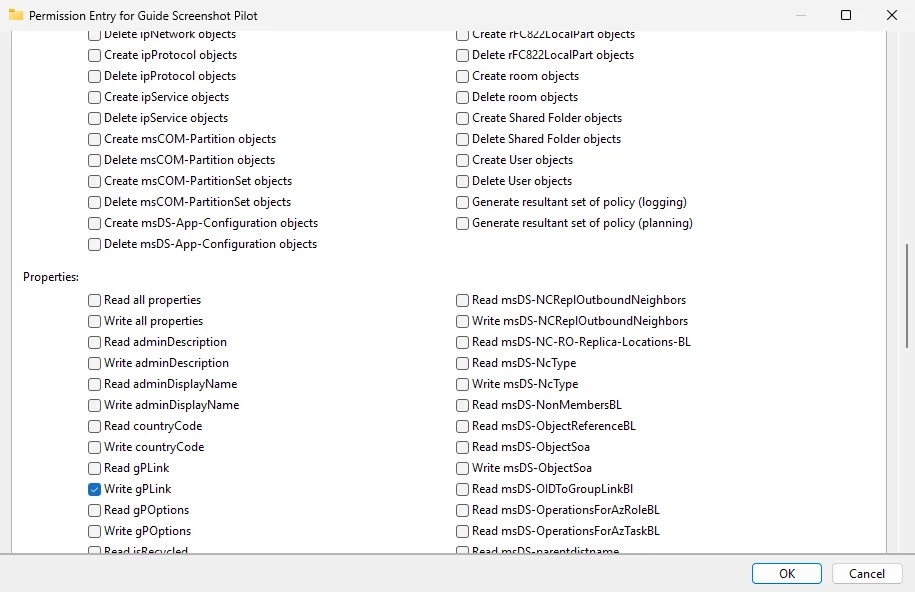
Find accounts that can link GPOs to an OU
Step 6: Compare your GPOs with a baseline
A baseline comparison shows which settings differ from a reference, such as a Microsoft security baseline. Use Policy Analyzer from the Microsoft Security Compliance Toolkit (SCT).
As of November 2026, Microsoft's SCT page lists security baselines for Windows 11 (23H2 to 26H2), Windows 10, Windows Server 2016 to 2025, Microsoft 365 Apps and Microsoft Edge. Its tools are Policy Analyzer, LGPO, Set Object Security and GPO to Policy Rules, and the download page offers Policy Analyzer as PolicyAnalyzer.zip. Policy Analyzer can:
- show redundant settings and internal inconsistencies across a set of GPOs;
- show the differences between versions or sets of GPOs;
- compare GPOs with the local policy and registry settings of the computer it runs on;
- export the results to a Microsoft Excel spreadsheet.
Back up the GPOs you want to compare with Backup-GPO or GPMC. GPO2PolicyRules, included with Policy Analyzer, converts a GPO backup into a .PolicyRules file from the command line. Load your GPOs and the baseline into Policy Analyzer and treat each difference as a decision: accept the baseline value, or record why yours differs. Policy Analyzer can also capture a baseline and compare a later snapshot with it.
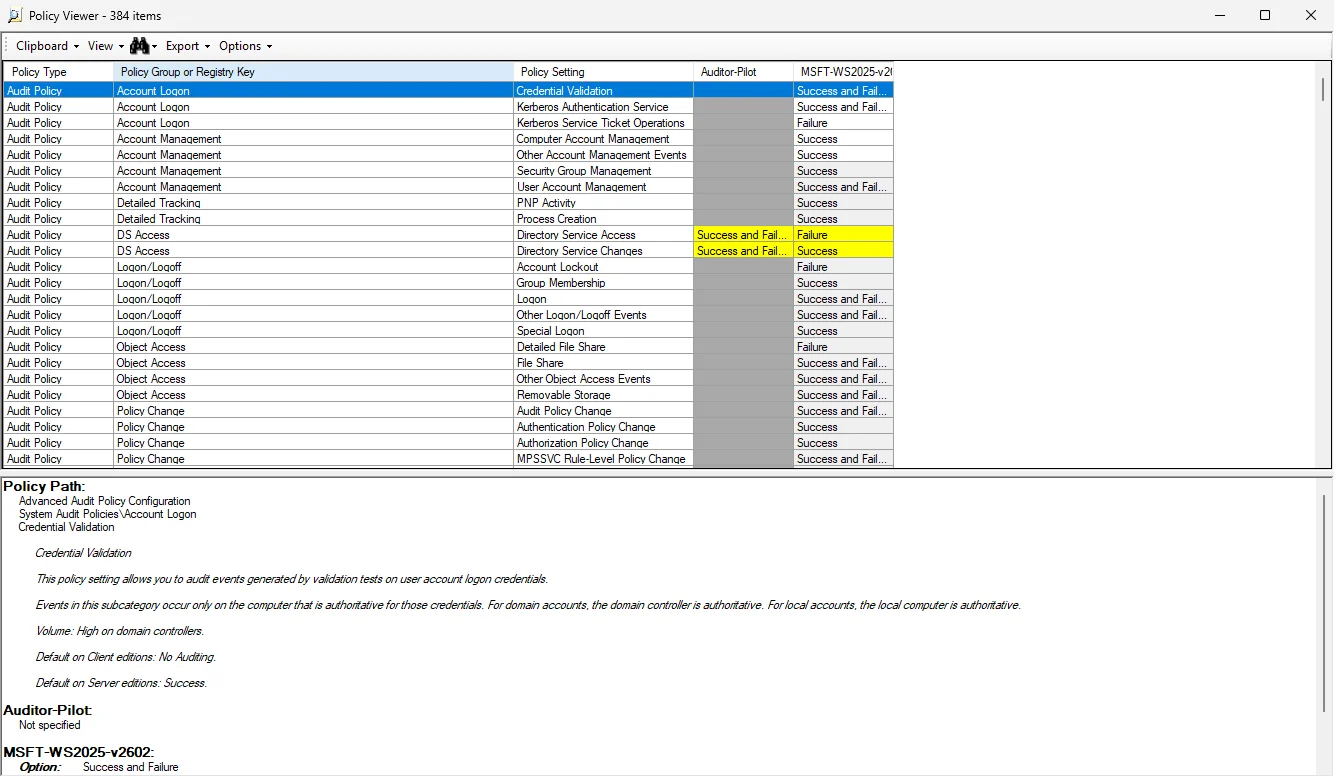
Compare GPOs with a baseline in Policy Analyzer
Verify
Check each step with a fresh report. Refreshing policy is itself a change: it starts a new processing cycle with a new Activity ID, and gpupdate /force can also trigger scripts or preference items.
| Check | Command | Expected result |
|---|---|---|
| Policy on a pilot computer | gpresult /h from an elevated prompt |
The GPOs you expect are applied; any filtered GPO has the reason you expect |
| GPO permissions | Rerun Get-GpoSecurityAudit.ps1 |
EditorsToReview and LinkWritersToReview are 0, or list only approved principals |
| Computer read access | Same script | ComputerReadMissing is 0 |
| GPP passwords | Rerun Find-GppCpassword.ps1 on SYSVOL and backups |
ItemsWithCpassword is 0 |
| One permission change | Get-GPPermission -Guid '<GPO-GUID>' -TargetName 'CORP\Helpdesk' -TargetType Group |
Permission shows GpoRead or GpoApply |
| Effective state | auditpol, secedit or the registry, as in Step 2 |
The value the GPO sets |
To refresh policy on a pilot computer before the check (this is a change):
gpupdate /target:computer
gpupdate /target:user
gpupdate /force reapplies every setting, not only changed ones. Software installation and folder redirection process only at startup or sign-in, which is what gpupdate /boot and gpupdate /logoff are for. Invoke-GPUpdate schedules the same refresh on remote computers, so treat it as a change too.
Roll back
The audit itself changes nothing, so it has nothing to roll back. The optional changes can be reversed, except the removal of a stored preference password and the new account password, which you shouldn't undo.
| Change | How to roll back | Notes |
|---|---|---|
Permission lowered by Set-GpoPermissionToRead.ps1 |
Replay the rollback file with Set-GPPermission -Replace (below) |
GpoCustom levels were skipped, so there is nothing to restore for them |
| GPO link disabled | Set-GPLink -Guid '<GPO-GUID>' -Target '<OU-DN>' -LinkEnabled Yes |
Supports -WhatIf |
| GPO edited or permissions changed by mistake | Restore-GPO -Guid '<GPO-GUID>' -Path 'C:\GpoBackups' |
Restores to the original domain; links aren't in the backup |
| Preference item with a password removed | Don't restore it | A backup taken before the cleanup brings the stored password back |
gpupdate or Invoke-GPUpdate run |
Can't be undone | The next refresh applies whatever policy is current |
| Group Policy Service debug logging turned on | Set GPSvcDebugLevel back to 0 (see Troubleshooting) |
Remove the log file once you have collected it |
Replay the rollback file with -WhatIf first, then without it:
Import-Csv -Path 'C:\Reports\GPO\gpo-permission-rollback.csv' | ForEach-Object {
    Set-GPPermission -Guid $_.GpoId -TargetName $_.TargetName -TargetType $_.TargetType -PermissionLevel $_.PreviousPermission -Replace -WhatIf
}
Monitor and detect
Watch the directory, where GPO containers and links change, and SYSVOL, where GPO settings files live. Domain controllers log both in the Security log once the audit subcategories and auditing entries are in place.
| Event | Log and requirement | What it tells you | Related page |
|---|---|---|---|
| 5136 | Security on DCs; Audit Directory Service Changes and an auditing entry on the object | A GPO attribute changed (extension lists, versionNumber, flags, gPCFileSysPath), or a gPLink on a domain, OU or site |
Group Policy Object modification rules |
| 5137 | Same, with the auditing entry on the parent container | A new groupPolicyContainer was created |
Same rules |
| 5141 | Same | A GPO was deleted | Same rules |
| 5145 | Security on DCs; Audit Detailed File Share | A file in SYSVOL was accessed over the share, including preference files and scripts | Group Policy Preferences password rules |
| 4016, 5016, 6016, 7016 | Microsoft-Windows-GroupPolicy/Operational on the client |
A client-side extension started, then completed, completed with a warning or failed | Group Policy troubleshooting guidance |
| 5312, 5313 | Same | The applicable GPOs, and the GPOs filtered out | Same |
| 1006, 1030, 1058, 1129 | System on the client | LDAP bind failed, GPO list query failed, gpt.ini read failed, no domain controller connectivity |
Same |
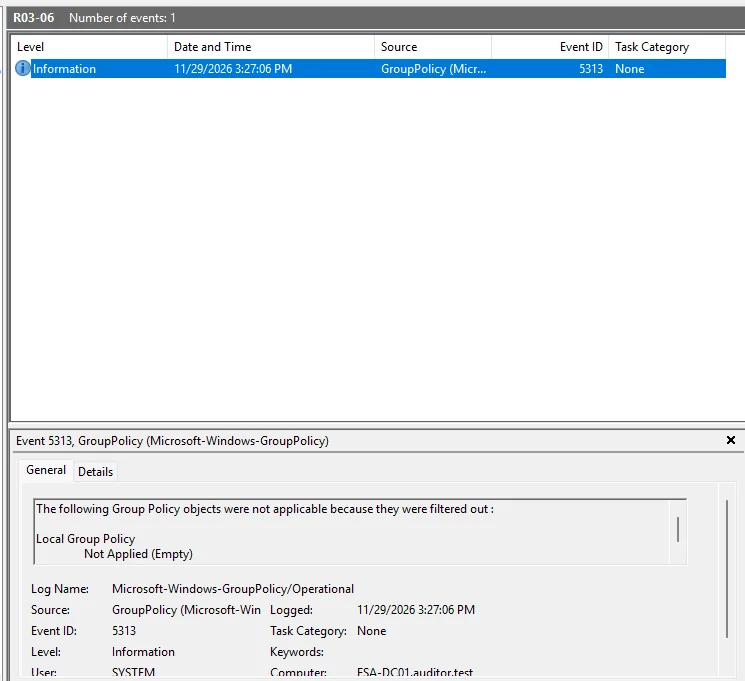
Event 5313 lists the GPOs that were filtered out
The directory events need auditing entries on CN=Policies,CN=System and on the OUs whose links you watch; the audit policy guide sets up the subcategories. A change made directly to a file in SYSVOL leaves no directory event, and event 5145 sees it only when it comes through the share. A malicious GPO can grant user rights or weaken audit settings, which the rules for sensitive user rights on domain controllers and the audit policy tampering rules watch on the computers themselves.
The first query counts GPO and link changes per writer. Run it in Microsoft Sentinel or a Log Analytics workspace that receives domain controller Security events in the SecurityEvent table.
// GPO containers created, changed or deleted, and gPLink writes, per writer (events 5136, 5137, 5141).
// Needs Audit Directory Service Changes (Success) on DCs and auditing entries on CN=Policies,CN=System and on OUs.
SecurityEvent
| where TimeGenerated > ago(7d)
| where EventID in (5136, 5137, 5141)
| extend ObjectClass = extract(@'Name="ObjectClass">([^<]*)<', 1, EventData),
         ObjectDN = extract(@'Name="ObjectDN">([^<]*)<', 1, EventData),
         Attribute = extract(@'Name="AttributeLDAPDisplayName">([^<]*)<', 1, EventData),
         Operation = extract(@'Name="OperationType">([^<]*)<', 1, EventData)
| where ObjectClass =~ "groupPolicyContainer" or Attribute =~ "gPLink"
| where EventID != 5136 or Operation == "%%14674" or OperationType in~ ("%%14674", "Value Added")
| summarize Changes = count(), Objects = make_set(ObjectDN, 25), Attributes = make_set(Attribute, 10),
    FirstSeen = min(TimeGenerated), LastSeen = max(TimeGenerated)
    by SubjectDomainName, SubjectUserName, EventID
| order by Changes desc
The second query finds user accounts that read computer-side preference files, the files that held passwords. It needs Audit Detailed File Share, which is high volume.
// Computer-side Group Policy Preferences files read from SYSVOL by user accounts (event 5145).
// Needs Audit Detailed File Share (Success) on DCs; this subcategory is high volume.
SecurityEvent
| where TimeGenerated > ago(1d)
| where EventID == 5145
| where ShareName endswith "\\SYSVOL" and RelativeTargetName contains "\\Machine\\"
| where RelativeTargetName has_any ("Groups.xml", "ScheduledTasks.xml", "Services.xml", "DataSources.xml")
| where SubjectUserName !endswith "$"
| summarize Files = dcount(RelativeTargetName), FirstRead = min(TimeGenerated), LastRead = max(TimeGenerated)
    by SubjectDomainName, SubjectUserName, IpAddress
| order by Files desc
Alert on a writer outside your GPO administrators, a new link on the domain root or the domain controllers' OU, or one account reading preference files across many GPO folders.
Troubleshooting
Most Group Policy problems show up first in the gpresult report or the System log. To follow one processing cycle, filter the Microsoft-Windows-GroupPolicy/Operational log by the Activity ID from the Details tab of the System event.
| Symptom | Cause | Fix |
|---|---|---|
gpresult /h fails on Server Core with "ERROR: The Parameter is incorrect." |
/h needs the GPMC interfaces, which Server Core doesn't have |
Run the report remotely from a computer with GPMC |
| The report has no computer data, or no data for a user | The report may come from an unelevated prompt, or the user hasn't signed in to that computer | Rerun elevated; choose a user who has signed in there |
| Remote gpresult or Group Policy Results fails | Missing Remotely access Group Policy Results data or local administrator rights, or blocked WMI and RPC | Grant the permission on the OU; open the firewall rules |
| A user GPO is filtered or inaccessible although the user is in the filter group | Computers can't read the GPO since Authenticated Users was removed (MS16-072), or the token predates the group change | Give Authenticated Users or Domain Computers Read; sign out and in, or restart |
| A GPO is applied but a setting isn't in effect | A client-side extension failed, the setting isn't supported on that build, or another authority such as mobile device management (MDM) sets it | Check events 5016, 6016 and 7016; read the effective state; check MDM policy |
| Some settings are missing on a remote or VPN computer | Group Policy detected a slow link, below 500 kbps by default, and ran only the extensions set to process over slow links | Check event 5314; review Configure Group Policy slow link detection |
Software installation or folder redirection doesn't apply after gpupdate |
These extensions process only at startup or sign-in | Use gpupdate /boot or gpupdate /logoff (a change) |
| System event 1058 | The client can't read gpt.ini from SYSVOL |
Test \\<DomainController>\SYSVOL\<domain>\Policies\<GPO-GUID>\gpt.ini; check SYSVOL replication and permissions |
| System event 1129 or 1006 | No connectivity to a domain controller, or the LDAP bind failed | Check LDAP port 389, DNS and the error code on the event's Details tab |
| The directory and SYSVOL versions of a GPO differ | Active Directory or SYSVOL replication hasn't converged | Compare Get-GPO versions on each domain controller; check replication |
If the logs don't show the failed operation, Group Policy Service (GPSvc) debug logging adds detail in %windir%\debug\usermode\gpsvc.log. It changes the registry and can slow the computer, so enable it only while you reproduce the problem:
md %windir%\debug\usermode
reg add "HKLM\Software\Microsoft\Windows NT\CurrentVersion\Diagnostics" /v GPSvcDebugLevel /t REG_DWORD /d "0x00030002"
Turn it off when you're done:
reg add "HKLM\Software\Microsoft\Windows NT\CurrentVersion\Diagnostics" /v GPSvcDebugLevel /t REG_DWORD /d "0x00000000" /f
How Forestall helps
Among Forestall's GPO Audit features, GPO Comparison compares the settings of each GPO with Microsoft, CIS, STIG, Forestall and custom baselines. RSoP Comparison resolves link order, precedence and inheritance to show the applied settings of each computer and user, with the winning GPO for each setting. The GPO details page lists the linked and applied OUs, the applied computers and users and the scripts of each GPO, while edit and link rights appear as GPOWrite and ManageGPLink attack path edges. Forestall Identity Risk Assessment scores these findings by exploitation certainty, required privilege and ease of mitigation.
Frequently Asked Questions
What does gpresult /r show?
gpresult /r displays RSoP summary data for the computer and the signed-in user. It shows which GPOs were applied and which were filtered out, with the reason for each. Add /scope computer or /scope user to show one part only. For every setting and the GPO that set it, use /v, /z or an HTML report with /h.
Why doesn't gpresult show computer settings?
If gpresult shows no computer settings, check elevation first. Under User Account Control, an administrator's unelevated session uses a standard user token, and Microsoft's troubleshooting steps run gpresult from an elevated prompt. Rerun gpresult from a command prompt opened with Run as administrator. If the computer data is still missing, check the System log for Group Policy errors.
What is the difference between gpresult and rsop.msc?
gpresult and rsop.msc both read the RSoP data that Windows logs, but they show different amounts of it. Since Windows Vista Service Pack 1, the RSoP snap-in (rsop.msc) doesn't show all Group Policy settings, and Microsoft recommends gpresult for the full set. rsop.msc still helps with its precedence tab, which shows the GPOs that tried to set a supported setting.
How do I run gpresult for a remote computer?
To run gpresult for a remote computer, use /s with the computer name and /user for a user who has signed in there, for example gpresult /s WS01 /user CORP\jdoe /r. You need local administrator rights on the target or the Remotely access Group Policy Results data permission, and its firewall must allow WMI and RPC. For many computers, Get-GPResultantSetOfPolicy -Computer writes an HTML or XML report per computer.
How do I find Group Policy Preferences passwords in SYSVOL?
To find Group Policy Preferences passwords, search the XML files under SYSVOL and your GPO backups for preference items with a non-empty cpassword attribute, without reading the value out. The read-only script in this guide does that. Then set each item's action to Delete or Disable, let clients process the change, delete the item, and change the password of every account that was stored. MS14-025 stopped new passwords from being saved in 2014.
What does a slow link in a gpresult report mean?
A slow link in a gpresult report means Group Policy measured the connection to the domain controller as slower than the slow link threshold, which is 500 kbps by default. Over a slow link, Group Policy processes only the client-side extensions configured to run across slow links, so some settings can be missing. Event 5314 in the Group Policy operational log records the estimated bandwidth and the threshold.
Related guides
- Active Directory hardening, every step in order: where the Group Policy audit fits in the full hardening sequence.
- Configure Active Directory audit policy: the audit subcategories and auditing entries that directory change events depend on.
- Windows LAPS in Active Directory: the supported replacement for local administrator passwords in preferences.
- Combined attack path analysis with BloodHound and Kangal: how edit and link rights on GPOs become attack paths.
References
- gpresult (Microsoft Learn)
- Group Policy Modeling and Group Policy Results (Microsoft Learn)
- Group Policy processing (Microsoft Learn)
- Group Policy scope (Microsoft Learn)
- Applying Group Policy troubleshooting guidance (Microsoft Learn)
- Analyze resultant policy and effective state, Advanced Group Policy troubleshooting (Microsoft Learn)
- Get-GPPermission (Microsoft Learn)
- Can't apply user Group Policy settings if computer objects don't have GPO Read permissions (Microsoft Learn)
- MS14-025: Vulnerability in Group Policy Preferences could allow elevation of privilege (Microsoft Support)
- Microsoft Security Compliance Toolkit: How to use (Microsoft Learn)
- Domain or Tenant Policy Modification: Group Policy Modification, T1484.001 (MITRE ATT&CK)
- Unsecured Credentials: Group Policy Preferences, T1552.006 (MITRE ATT&CK)
See your identity exposure clearly.
Start with a 1-day Proof of Value in your own environment.