Disable LLMNR and NBT-NS in Active Directory: A Step-by-Step Guide
Summary
LLMNR and NBT-NS are fallback name resolution protocols that Windows uses when DNS can't answer, and any device on the local network can answer them. To disable them, fix the DNS gaps first, turn off multicast name resolution with Group Policy or Intune, then disable NetBIOS over TCP/IP through DHCP or on each adapter.
Quick steps
- Run the read-only audit script to record the LLMNR policy, NetBIOS mode and WINS servers on each computer.
- Find the names that resolve only through broadcast or WINS, and register them in DNS.
- Enable Turn off multicast name resolution in a GPO, or rely on the Microsoft security baseline for Windows in Intune.
- Set the 001 Microsoft Disable Netbios Option to
0x2on your Windows DHCP scopes. - Disable NetBIOS over TCP/IP on static and remaining adapters with the CIM script or an Intune remediation.
- Turn off WinHTTP proxy auto-discovery where you don't need it, and keep
wpadon the DNS global query block list. - Verify with the audit script and
net config redirector, then monitor NTLM logons and configuration drift.
Applies to: Windows 11, Windows 10, and Windows Server 2016, 2019, 2022 and 2025 computers in an Active Directory domain, managed with Group Policy or Microsoft Intune (as of November 2026).
What are LLMNR, NBT-NS and mDNS, and why do they matter?
LLMNR (Link-Local Multicast Name Resolution) is a name resolution protocol that sends name queries by multicast to every host on the local link, so any host on that link can answer. NBT-NS, the name service of NetBIOS over TCP/IP (NetBT), resolves NetBIOS names by broadcast or through a Windows Internet Name Service (WINS) server. Multicast DNS (mDNS) resolves names that end in .local by multicast in the same way.
| Protocol | Transport | What it resolves | Windows control |
|---|---|---|---|
| LLMNR | UDP 5355 to 224.0.0.252 or FF02::1:3 | Names that DNS can't resolve, on the local link | Turn off multicast name resolution policy |
| NBT-NS | UDP 137, broadcast or WINS | Single-label NetBIOS names (by default) | NetBIOS setting per adapter, or DHCP option 001 |
| mDNS | UDP 5353 to 224.0.0.251 or FF02::FB | Names that end in .local |
Configure multicast DNS (mDNS) protocol policy for the DNS client, and the mDNS (UDP-In) firewall rules (Step 6) |
When does Windows fall back to LLMNR and NetBIOS?
The DNS client uses DNS, LLMNR and NetBT to resolve a name. Microsoft's Policy CSP reference for the DNS client explains the order. By default, a client with several network connections optimizes by sending DNS, LLMNR and NetBT queries in parallel across networks. When you turn that optimization off, it queries DNS first, then LLMNR if DNS fails, then NetBT if LLMNR fails.
Two more defaults shape the exposure. NetBT queries go out only for single-label names such as fileserver, and on non-domain networks the client prefers link-local answers for those flat names. A typo, a retired server name or a laptop on a hotel network can therefore produce a multicast or broadcast query.
How does LLMNR poisoning work?
LLMNR and NBT-NS poisoning works because the requester accepts the first plausible answer on its local link. The LLMNR specification, RFC 4795, sends queries by multicast to every host on the link, and its security section says the pseudo-random query ID gives some protection against off-link responders only. A host on the same link receives the query, ID included, and can answer it. When the name doesn't exist anywhere, no legitimate reply competes.
MITRE ATT&CK tracks this as T1557.001, Adversary-in-the-Middle: Name Resolution Poisoning and SMB Relay, covering LLMNR, NBT-NS and mDNS. If the requested resource requires authentication, the victim then sends its username and an NTLM challenge-response to the attacker's system. The attacker cracks the response offline or forwards it in real time, which is NTLM relay, to SMB, LDAP, HTTP or Microsoft SQL Server.
Unlike pass-the-hash, which reuses a stolen password hash, this is credential theft straight off the network. A cracked password or a relayed session gives the attacker a foothold for lateral movement.
What is Microsoft's position on NetBIOS and LLMNR?
Microsoft is ramping down both protocols and recommends DNS for name resolution. The published milestones, as of November 2026:
- April 22, 2022: the Windows networking team announced that Windows is ramping down NetBIOS name resolution and LLMNR in favor of mDNS. Insider builds moved NetBIOS to a "learning mode" fallback. LLMNR defaults didn't change, and the stated goal is mDNS as the only multicast name resolution protocol on by default. The post gives no dates.
- Security baselines: the Microsoft security baselines for Windows in Intune, versions 23H2 through 26H2, set Turn off multicast name resolution to Enabled. The Windows Server 2025 security baseline disables LLMNR and NetBIOS over TCP/IP and relies on DNS alone.
- WINS: deprecated in Windows Server 2022. Microsoft calls Windows Server 2025 the last LTSC release that includes Windows Internet Name Service (WINS), and WINS is removed in Windows Server 2028 Preview.
- DC location: beginning with Windows Server 2025, the DC locator blocks NetBIOS-based domain controller discovery by default through the
BlockNetBIOSDiscoverypolicy.
The DNS client policy Configure NetBIOS settings exists, and Microsoft's announcement of the Windows 11, version 25H2 security baseline says the baseline uses it to disable NetBIOS name resolution on all network adapters. Microsoft's CSP reference lists the policy as applicable to Windows Insider Preview builds only (as of November 2026). The per-adapter setting and the DHCP option are documented for every Windows version this guide covers, so the steps below use them.
Before you start
Disabling both protocols changes how every computer resolves short names, so plan the rollout like any other infrastructure change. Test in a lab first, then move through pilot OUs before you apply the settings domain wide.
Permissions you need
- Rights to create, edit and link GPOs on the target OUs.
- Rights to manage scope options on your Windows DHCP servers.
- Local administrator rights on the computers where you change adapter settings.
- For Intune Remediations: devices that are Microsoft Entra joined or hybrid joined and enrolled in Intune or co-managed, and users licensed for Windows Enterprise E3 or E5, Windows Education A3 or A5, or Windows Virtual Desktop Access.
What can break
| Dependency | Why it breaks | What to do |
|---|---|---|
| Short names that exist only in WINS, LMHOSTS or by broadcast | Clients can no longer resolve them | Register them in DNS before the change (Step 2) |
| SMB to operating systems that need NetBIOS over TCP/IP | Windows uses direct-hosted SMB on TCP 445 once NetBT is off | Retire or isolate those systems |
| Programs that use NetBIOS names or NetBIOS sessions | They stop working when NetBT is off | Inventory them in Step 2 |
Domain controller promotion with short credentials such as CORP\administrator |
DC location can't map the short domain name without NetBIOS (a known issue documented for Windows Server 2012 R2) | Use DNS-style credentials such as corp.example.com\administrator |
Proxy auto-discovery that finds wpad only through NetBIOS |
The name no longer resolves | Configure proxy settings explicitly (Step 7) |
Microsoft's direct host SMB article warns that disabling NetBT stops SMB communication with earlier operating systems that rely on it. Direct-hosted SMB itself keeps working, because it doesn't depend on NetBIOS.
Plan the change window
- Pick pilot OUs that contain each device type: workstations, member servers, laptops that connect over VPN and, separately, domain controllers.
- Keep the backup CSV that the adapter script writes in Step 5. It records the previous NetBIOS mode of every adapter.
- Schedule restarts. The NetBIOS method can report that a restart completes the change.
Step 1: Audit the current state
Start with a read-only inventory of the LLMNR policy, the NetBIOS mode of every adapter and any WINS or LMHOSTS dependency. The script reads registry values and WMI properties only. Run it in an elevated session on each computer, or across many computers with Invoke-Command from a management server.
#Requires -Version 5.1

<#
.SYNOPSIS
    Read-only report of LLMNR, NetBIOS over TCP/IP and WPAD settings on the local computer.

.DESCRIPTION
    Reads the LLMNR policy value (EnableMulticast), the DNS client EnableNetbios value that
    Microsoft introduced in Windows Insider builds, the WinHTTP DisableWpad value, and the
    NetBIOS over TCP/IP mode, WINS servers and LMHOSTS lookup of every IP-enabled adapter.
    Returns one object per adapter. Reads the registry and WMI only.

.EXAMPLE
    .\Get-NameResolutionFallbackStatus.ps1 | Format-List

.EXAMPLE
    Invoke-Command -ComputerName WS01, SRV01 -FilePath .\Get-NameResolutionFallbackStatus.ps1 |
        Export-Csv -Path 'C:\Reports\name-resolution.csv' -NoTypeInformation -Encoding UTF8

.NOTES
    Read-only. Makes no change to the registry, the network adapters or any service.
    Run it in an elevated session, locally or through Invoke-Command.
#>
[CmdletBinding()]
param()

Set-StrictMode -Version Latest
$ErrorActionPreference = 'Stop'

function Get-RegistryDword {
    param([string]$Path, [string]$Name)
    if (-not (Test-Path -Path $Path)) { return $null }
    $property = (Get-ItemProperty -Path $Path).PSObject.Properties[$Name]
    if ($null -eq $property) { return $null }
    return [int]$property.Value
}

$llmnrValue = Get-RegistryDword -Path 'HKLM:\SOFTWARE\Policies\Microsoft\Windows NT\DNSClient' -Name 'EnableMulticast'
$dnsClientNetbios = Get-RegistryDword -Path 'HKLM:\SYSTEM\CurrentControlSet\Services\Dnscache\Parameters' -Name 'EnableNetbios'
$disableWpad = Get-RegistryDword -Path 'HKLM:\SOFTWARE\Microsoft\Windows\CurrentVersion\Internet Settings\WinHttp' -Name 'DisableWpad'

if ($llmnrValue -eq 0) { $llmnrState = 'DisabledByPolicy' }
elseif ($null -eq $llmnrValue) { $llmnrState = 'Enabled (no policy)' }
else { $llmnrState = 'Enabled (policy value {0})' -f $llmnrValue }

$netbiosModes = @{ 0 = 'UseDhcpSetting'; 1 = 'Enabled'; 2 = 'Disabled' }
$os = Get-CimInstance -ClassName Win32_OperatingSystem
$adapters = @(Get-CimInstance -ClassName Win32_NetworkAdapterConfiguration -Filter 'IPEnabled = True')

foreach ($adapter in $adapters) {
    $mode = $adapter.TcpipNetbiosOptions
    $modeName = 'Unknown'
    if ($null -ne $mode -and $netbiosModes.ContainsKey([int]$mode)) { $modeName = $netbiosModes[[int]$mode] }

    [pscustomobject]@{
        ComputerName           = $env:COMPUTERNAME
        OSVersion              = $os.Version
        LlmnrPolicyValue       = $llmnrValue
        LlmnrState             = $llmnrState
        DnsClientEnableNetbios = $dnsClientNetbios
        WinHttpDisableWpad     = $disableWpad
        Adapter                = $adapter.Description
        InterfaceGuid          = $adapter.SettingID
        DhcpEnabled            = $adapter.DHCPEnabled
        NetbiosOptions         = $mode
        NetbiosMode            = $modeName
        WinsPrimaryServer      = $adapter.WINSPrimaryServer
        WinsSecondaryServer    = $adapter.WINSSecondaryServer
        LmhostsLookup          = $adapter.WINSEnableLMHostsLookup
        NeedsAction            = (($llmnrValue -ne 0) -or ($mode -ne 2))
    }
}
Run it locally, or collect results from a group of computers:
Invoke-Command -ComputerName WS01, SRV01 -FilePath .\Get-NameResolutionFallbackStatus.ps1 |
    Export-Csv -Path 'C:\Reports\name-resolution.csv' -NoTypeInformation -Encoding UTF8
Example output for one adapter (the values are illustrative):
ComputerName           : WS01
OSVersion              : 10.0.26100
LlmnrPolicyValue       :
LlmnrState             : Enabled (no policy)
DnsClientEnableNetbios :
WinHttpDisableWpad     :
Adapter                : Intel(R) Ethernet Connection
InterfaceGuid          : {00000000-0000-0000-0000-000000000000}
DhcpEnabled            : True
NetbiosOptions         : 0
NetbiosMode            : UseDhcpSetting
WinsPrimaryServer      :
WinsSecondaryServer    :
LmhostsLookup          : True
NeedsAction            : True
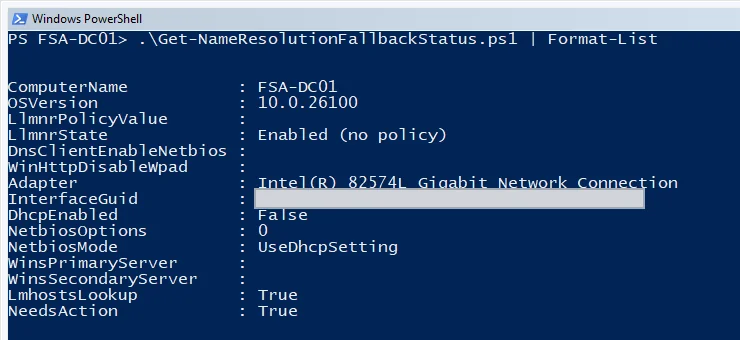
The audit script reports LLMNR and NetBIOS settings per adapter
How to read the results:
- LlmnrState:
DisabledByPolicymeans the policy valueEnableMulticastis0. Any other result means LLMNR is on. - NetbiosMode:
Disabledis the target.UseDhcpSettingfollows the DHCP server, so the adapter is disabled only if the scope sends option 001 with the value 2.Enabledturns NetBIOS on regardless of DHCP. - WinsPrimaryServer and WinsSecondaryServer: a value means the computer still registers with or queries WINS. List these computers for Step 2.
- LmhostsLookup:
Truemeans the computer can read a local LMHOSTS file. Check whether one exists before you rely on DNS alone. - DnsClientEnableNetbios: reports the local DNS client value from Microsoft's 2022 announcement, covered in Step 5. An empty result means the value isn't set.
Step 2: Find what still depends on fallback name resolution
Fix DNS before you remove the fallback, so that no user notices the change. Three checks find most dependencies: WINS clients from the audit, a short packet capture, and a DNS-only test of the names your applications use.
Capture LLMNR and NBT-NS queries on sample devices
Packet Monitor (pktmon) is built into recent versions of Windows 10, Windows 11 and Windows Server. Run it in an elevated session on a few workstations and servers during a normal business day:
pktmon filter add LLMNR -t UDP -p 5355
pktmon filter add NBTNS -t UDP -p 137
pktmon start --capture --file-name C:\Reports\fallback.etl
Stop the capture, convert it to text and remove the filters:
pktmon stop
pktmon etl2txt C:\Reports\fallback.etl --out C:\Reports\fallback.txt
pktmon filter remove
Every name in the capture is either a DNS gap to fix or a typo that an attacker could answer. The capture contains host names and addresses, so store it like any other sensitive log and delete it when you're done.
Test the names you depend on against DNS only
Resolve-DnsName -DnsOnly resolves a name with DNS alone, without LLMNR or NetBIOS. Test each server, printer and application name exactly as users and configurations type it:
'fileserver01', 'printsrv02', 'app01.corp.example.com' | ForEach-Object {
    [pscustomobject]@{
        Name          = $_
        ResolvesInDns = [bool](Resolve-DnsName -Name $_ -DnsOnly -ErrorAction SilentlyContinue)
    }
}
Name                   ResolvesInDns
----                   -------------
fileserver01                    True
printsrv02                     False
app01.corp.example.com          True
Close the DNS gaps
- Register missing hosts. Create DNS records for every name that failed, or enable dynamic DNS registration on those hosts.
- Fix short names. The DNS suffix search list policy (Network > DNS Client) tells clients which suffixes to append to unqualified names. For single-label names that must work across the forest, the Windows DNS server supports a GlobalNames zone.
- Retire WINS. Point remaining WINS clients to DNS, then decommission WINS, as Microsoft recommends.
- Remove LMHOSTS entries that duplicate names now in DNS.
Step 3: Disable LLMNR with Group Policy
A Group Policy Object (GPO) is the simplest way to turn LLMNR off on domain-joined computers. The setting ships in the DnsClient administrative template and writes a single registry value.
| Setting | Path (GPO / registry / CSP) | Value | Default | Effect |
|---|---|---|---|---|
| Turn off multicast name resolution | GPO: Computer Configuration > Policies > Administrative Templates > Network > DNS Client | Enabled | Not configured | LLMNR is disabled on all network adapters |
EnableMulticast |
Registry: HKLM\SOFTWARE\Policies\Microsoft\Windows NT\DNSClient |
0 (REG_DWORD) |
Not present | Same effect; written by the policy |
Turn_Off_Multicast |
CSP: ./Device/Vendor/MSFT/Policy/Config/ADMX_DnsClient/Turn_Off_Multicast |
<enabled/> |
Not configured | Same effect through MDM |
Apply it in this order:
- In the Group Policy Management Console, create a GPO such as
Disable LLMNRand link it to a pilot OU. - Edit the GPO, open Computer Configuration > Policies > Administrative Templates > Network > DNS Client, set Turn off multicast name resolution to Enabled and close the editor.
- On a pilot computer, run
gpupdate /force, then run the audit script and confirmLlmnrState : DisabledByPolicy. - Link the GPO to the remaining OUs in waves, including the Domain Controllers OU.
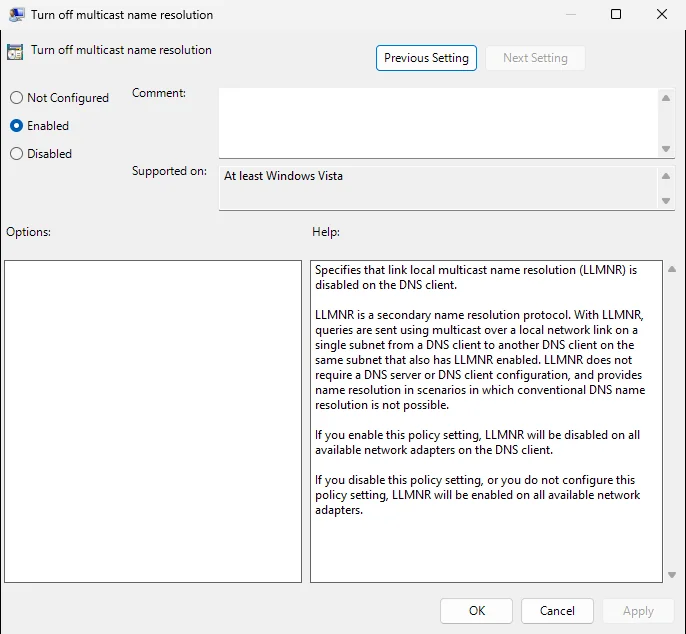
Turn off LLMNR with one Group Policy setting
To confirm which GPO set the value, use the gpresult and RSoP audit guide.
Computers outside Group Policy
For a workgroup server or an image that you prepare before the domain join, write the same policy value directly. These commands change the registry, so preview them with -WhatIf first:
$path = 'HKLM:\SOFTWARE\Policies\Microsoft\Windows NT\DNSClient'
if (-not (Test-Path -Path $path)) { New-Item -Path $path -Force -WhatIf }
New-ItemProperty -Path $path -Name 'EnableMulticast' -PropertyType DWord -Value 0 -Force -WhatIf
Run them again without -WhatIf to apply the change. On domain-joined computers, use the GPO instead, so that one source owns the value.
Step 4: Disable LLMNR with Microsoft Intune
Intune manages the same setting through the ADMX_DnsClient policy CSP, which applies to Windows 11 and to Windows 10 versions 2004, 20H2 and 21H1 with KB5005101 or later. Use one of two routes:
- Security baseline: the Microsoft security baseline for Windows (versions 23H2 through 26H2) sets Turn off multicast name resolution to Enabled. If you already assign it, LLMNR is covered.
- Custom profile: create a Windows custom profile (Templates > Custom) with an OMA-URI setting. Use the OMA-URI
./Device/Vendor/MSFT/Policy/Config/ADMX_DnsClient/Turn_Off_Multicast, the data type String and the value<enabled/>.
Assign the profile to device groups, and don't let a GPO and an Intune profile set different values on the same device.
Step 5: Disable NetBIOS over TCP/IP
NetBIOS over TCP/IP is a per-adapter setting, not a policy. Each adapter holds one of three values, and the DHCP option only changes adapters that follow the DHCP server.
| Value | Name | Meaning |
|---|---|---|
0 |
EnableNetbiosViaDhcp | Use the NetBIOS setting from the DHCP server, if one is available |
1 |
EnableNetbios | NetBIOS over TCP/IP is enabled |
2 |
DisableNetbios | NetBIOS over TCP/IP is disabled |
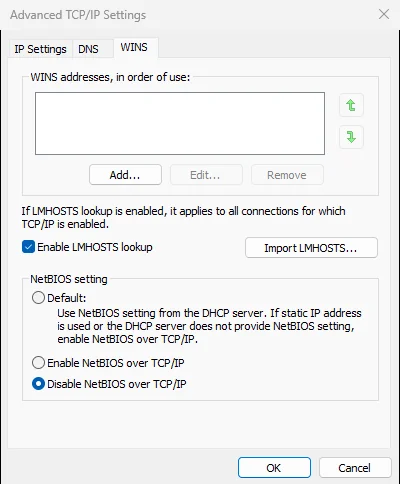
The per-adapter NetBIOS setting that the script changes
Option A: Use the DHCP server option
On a Windows DHCP server, the Microsoft vendor-class option 001 turns NetBIOS off for every client that uses value 0. Microsoft's DHCP procedure uses the DHCP console:
- Open DHCP, expand the server and the scope, right-click Scope Options and select Configure Options.
- On the Advanced tab, select Microsoft Options in Vendor class and keep Default User Class in User class.
- Select 001 Microsoft Disable Netbios Option, type
0x2in the Long box and select OK.
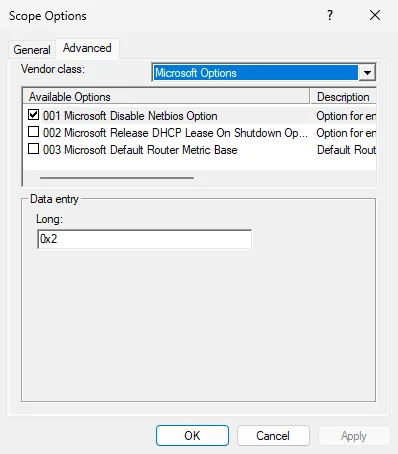
DHCP option 001 turns NetBIOS off for clients that follow the DHCP server
The same change in PowerShell, previewed with -WhatIf (192.0.2.0 is a documentation scope ID):
Set-DhcpServerv4OptionValue -ComputerName '<DhcpServer>' -ScopeId 192.0.2.0 -VendorClass 'Microsoft Options' -OptionId 1 -Value 2 -WhatIf
Clients pick up the option when they renew their lease. Statically addressed adapters and adapters set to 1 don't use it, so Option B or C must cover them.
Option B: Change each adapter with PowerShell
The script below calls the documented SetTcpipNetbios method on each IP-enabled adapter. It changes configuration, supports -WhatIf and -Confirm, and writes the previous mode of every adapter to a CSV file before the first change. Run it in an elevated session on the computer you change, for example through your software distribution tool or a GPO startup script. Each change asks for confirmation, so add -Confirm:$false when the script runs unattended.
#Requires -Version 5.1

<#
.SYNOPSIS
    Sets the NetBIOS over TCP/IP mode on the IP-enabled network adapters of the local computer.

.DESCRIPTION
    Calls the SetTcpipNetbios method of Win32_NetworkAdapterConfiguration on each IP-enabled
    adapter whose current mode differs from the requested one. Before the first change it
    writes the current mode of every selected adapter to BackupPath, so that you can restore it.
    Supports -WhatIf and -Confirm.

.PARAMETER Mode
    Disable (2), Enable (1) or UseDhcp (0, use the NetBIOS setting from the DHCP server).

.PARAMETER BackupPath
    CSV file that receives the current adapter modes, for example 'C:\Reports\netbios-before.csv'.

.PARAMETER InterfaceGuid
    Optional SettingID values (adapter GUIDs) that limit the change to specific adapters.

.EXAMPLE
    .\Set-NetbiosOverTcpip.ps1 -Mode Disable -BackupPath 'C:\Reports\netbios-before.csv' -WhatIf

.EXAMPLE
    .\Set-NetbiosOverTcpip.ps1 -Mode UseDhcp -BackupPath 'C:\Reports\netbios-rollback.csv' -InterfaceGuid '{00000000-0000-0000-0000-000000000000}'

.NOTES
    Changes configuration. Run it in an elevated session on the computer you change.
    A ReturnValue of 1 means the change succeeded and needs a restart.
#>
[CmdletBinding(SupportsShouldProcess = $true, ConfirmImpact = 'High')]
param(
    [Parameter(Mandatory = $true)]
    [ValidateSet('Disable', 'Enable', 'UseDhcp')]
    [string]$Mode,

    [Parameter(Mandatory = $true)]
    [ValidateNotNullOrEmpty()]
    [string]$BackupPath,

    [string[]]$InterfaceGuid = @()
)

Set-StrictMode -Version Latest
$ErrorActionPreference = 'Stop'

$targetValues = @{ UseDhcp = 0; Enable = 1; Disable = 2 }
$target = [uint32]$targetValues[$Mode]

$adapters = @(Get-CimInstance -ClassName Win32_NetworkAdapterConfiguration -Filter 'IPEnabled = True')
if ($InterfaceGuid.Count -gt 0) {
    $adapters = @($adapters | Where-Object { $InterfaceGuid -contains $_.SettingID })
}

if ($PSCmdlet.ShouldProcess($BackupPath, 'Write the current NetBIOS over TCP/IP mode of each adapter')) {
    $adapters |
        Select-Object @{ Name = 'ComputerName'; Expression = { $env:COMPUTERNAME } }, Description, SettingID, TcpipNetbiosOptions |
        Export-Csv -Path $BackupPath -NoTypeInformation -Encoding UTF8 -Confirm:$false
}

foreach ($adapter in $adapters) {
    $current = $adapter.TcpipNetbiosOptions
    if ($null -ne $current -and [uint32]$current -eq $target) {
        [pscustomobject]@{ Adapter = $adapter.Description; InterfaceGuid = $adapter.SettingID; From = $current; To = $target; Status = 'AlreadySet' }
        continue
    }

    $action = 'Set NetBIOS over TCP/IP mode from {0} to {1}' -f $current, $target
    if ($PSCmdlet.ShouldProcess(('{0} {1}' -f $adapter.Description, $adapter.SettingID), $action)) {
        $result = Invoke-CimMethod -InputObject $adapter -MethodName SetTcpipNetbios -Arguments @{ TcpipNetbiosOptions = $target } -Confirm:$false
        $code = [int]$result.ReturnValue
        if ($code -eq 0) { $status = 'Applied' }
        elseif ($code -eq 1) { $status = 'AppliedRestartRequired' }
        else { $status = 'Failed ({0})' -f $code }
        [pscustomobject]@{ Adapter = $adapter.Description; InterfaceGuid = $adapter.SettingID; From = $current; To = $target; Status = $status }
    }
}
Preview the change:
.\Set-NetbiosOverTcpip.ps1 -Mode Disable -BackupPath 'C:\Reports\netbios-before.csv' -WhatIf
What if: Performing the operation "Write the current NetBIOS over TCP/IP mode of each adapter" on target "C:\Reports\netbios-before.csv".
What if: Performing the operation "Set NetBIOS over TCP/IP mode from 0 to 2" on target "Intel(R) Ethernet Connection {00000000-0000-0000-0000-000000000000}".
Run it again without -WhatIf to apply it. A ReturnValue of 0 means success, 1 means success after a restart, and other values are WMI errors such as 91 (access denied). The setting belongs to each adapter, so a network adapter, VPN adapter or virtual switch added later needs the same treatment. Schedule the script, or use Option C.
Option C: Enforce it with Intune Remediations
Remediations run a detection script on the schedule you assign and run the paired remediation script only when the detection script exits with code 1. Create a script package under Devices > Manage devices > Scripts and remediations, and set Run this script using the logged-on credentials to No so both scripts run in the system context.
Detection script (read-only):
#Requires -Version 5.1

<#
.SYNOPSIS
    Intune Remediations detection script: finds IP-enabled adapters where NetBIOS over TCP/IP is not disabled.

.DESCRIPTION
    Exits with code 1 when at least one IP-enabled adapter has a TcpipNetbiosOptions value other
    than 2 (DisableNetbios), so that Intune runs the paired remediation script. Exits with 0 otherwise.
    Writes one short line for the Intune report.

.EXAMPLE
    .\Detect-NetbiosOverTcpip.ps1

.NOTES
    Read-only. In Intune, set Run this script using the logged-on credentials to No so that it
    runs in the system context.
#>
[CmdletBinding()]
param()

Set-StrictMode -Version Latest
$ErrorActionPreference = 'Stop'

$adapters = @(Get-CimInstance -ClassName Win32_NetworkAdapterConfiguration -Filter 'IPEnabled = True')
$notDisabled = @($adapters | Where-Object { $_.TcpipNetbiosOptions -ne 2 })

if ($notDisabled.Count -gt 0) {
    Write-Output ('NetBIOS over TCP/IP not disabled on {0} of {1} adapters' -f $notDisabled.Count, $adapters.Count)
    exit 1
}

Write-Output ('NetBIOS over TCP/IP disabled on all {0} adapters' -f $adapters.Count)
exit 0
Remediation script (changes configuration):
#Requires -Version 5.1

<#
.SYNOPSIS
    Intune Remediations script: disables NetBIOS over TCP/IP on every IP-enabled adapter.

.DESCRIPTION
    Calls SetTcpipNetbios with the value 2 (DisableNetbios) on each IP-enabled adapter where
    NetBIOS over TCP/IP is not already disabled. Writes one short line for the Intune report
    and exits with 1 if any adapter returned an error code.
    Supports -WhatIf and -Confirm when you test it by hand.

.EXAMPLE
    .\Remediate-NetbiosOverTcpip.ps1 -WhatIf

.NOTES
    Changes configuration. Intune runs it only after the paired detection script exits with 1.
    Set Run this script using the logged-on credentials to No so that it runs in the system
    context. A ReturnValue of 1 means a restart completes the change.
#>
[CmdletBinding(SupportsShouldProcess = $true)]
param()

Set-StrictMode -Version Latest
$ErrorActionPreference = 'Stop'

$changed = 0
$restart = 0
$failed = 0

foreach ($adapter in @(Get-CimInstance -ClassName Win32_NetworkAdapterConfiguration -Filter 'IPEnabled = True')) {
    if ($adapter.TcpipNetbiosOptions -eq 2) { continue }
    if ($PSCmdlet.ShouldProcess($adapter.Description, 'Disable NetBIOS over TCP/IP')) {
        $result = Invoke-CimMethod -InputObject $adapter -MethodName SetTcpipNetbios -Arguments @{ TcpipNetbiosOptions = [uint32]2 } -Confirm:$false
        $code = [int]$result.ReturnValue
        if ($code -eq 0) { $changed++ }
        elseif ($code -eq 1) { $changed++; $restart++ }
        else { $failed++ }
    }
}

Write-Output ('Changed {0} adapters, {1} need a restart, {2} failed' -f $changed, $restart, $failed)
if ($failed -gt 0) { exit 1 }
exit 0
What about the Configure NetBIOS settings policy?
Microsoft's 2022 announcement describes a DNS client value, EnableNetbios under HKLM\SYSTEM\CurrentControlSet\Services\Dnscache\Parameters, with four modes: 0 disabled, 1 allowed, 2 disabled on public networks and 3 learning mode.
The matching Group Policy setting, Configure NetBIOS settings under Network > DNS Client, writes EnableNetbios with the same four values under HKLM\SOFTWARE\Policies\Microsoft\Windows NT\DNSClient. Microsoft's Group Policy settings reference spreadsheet lists it as new in the Windows 11, version 22H2 templates. Microsoft's Windows 11, version 25H2 security baseline announcement says the baseline uses this policy to disable NetBIOS name resolution on all network adapters, including those on private and domain networks.
Microsoft's CSP reference lists the same policy for Windows Insider Preview builds only, as of November 2026. The policy text describes name resolution by the DNS client and doesn't mention the per-adapter NetBIOS over TCP/IP setting that this guide audits, so this guide doesn't rely on it. The audit script reports the local Dnscache value so that you notice when it appears.
Step 6: Decide what to do about mDNS
Windows has a Group Policy setting for mDNS in the DNS client, and Microsoft's networking team recommends the firewall as the control to use.
The administrative templates for Windows 11, version 24H2 and later include Configure multicast DNS (mDNS) protocol under Computer Configuration > Policies > Administrative Templates > Network > DNS Client. Microsoft's Group Policy settings reference spreadsheet lists it with the registry value EnableMDNS under HKLM\SOFTWARE\Policies\Microsoft\Windows NT\DNSClient, supported on Windows 10, version 1703 and Windows Server 2016 or later. In the template, Enabled writes 1 and Disabled writes 0. The policy text says that Enabled makes the DNS client use mDNS, and that Disabled or Not configured leaves the DNS client on its locally configured settings. The ADMX_DnsClient policy CSP has no entry for this setting, so there is no OMA-URI for it in Intune (as of November 2026).
The policy covers the Windows DNS client only. In mDNS in the Enterprise, Microsoft's networking team explains that turning mDNS off in the DNS client resolver doesn't stop other mDNS resolvers, such as the one in Chromium-based browsers. The post recommends Windows Defender Firewall instead:
- To turn mDNS off inside corporate offices only, disable the inbound mDNS (UDP-In) rule for the Domain profile.
- To lock mDNS down completely, disable the inbound mDNS (UDP-In) rules for the Domain, Private and Public profiles. The post doesn't recommend this for mobile workers, who use mDNS at home and at other sites.
The same post warns that wireless screen sharing in meeting rooms and access to printers can stop working, so pilot either change first.
mDNS remains on the MITRE list of poisonable protocols, but its scope is narrower: RFC 6762 designs it for names in the .local domain. Whatever you decide, keep the compensating controls in Step 8, which limit what a poisoned answer can achieve.
Step 7: Close the WPAD gap
Web Proxy Auto-Discovery (WPAD) looks up a host named wpad to find a proxy configuration script, so a spoofed answer for that name can point clients to an attacker's script. MS16-077, released June 14, 2016, fixed CVE-2016-3213, where an attacker answered NetBIOS name requests for WPAD. The bulletin listed disabling NetBIOS over TCP/IP as a workaround.
Two settings close the remaining gap:
- Turn off WinHTTP auto-discovery where you configure proxies explicitly. Starting with Windows 10 version 1809 and Windows Server 2019, the REG_DWORD value
DisableWpad=1underHKLM\SOFTWARE\Microsoft\Windows\CurrentVersion\Internet Settings\WinHttpstops WPAD detection for WinHTTP callers. Microsoft's proxy article says to also turn off automatic detection in Windows Settings, because browsers and other apps rely on those settings. - Keep
wpadblocked in DNS. The Windows DNS server's global query block list containswpadandisatapby default. Check it on each DNS server withGet-DnsServerGlobalQueryBlockList.
An attacker with a domain account can also add a wpad or wildcard record to Active Directory-integrated DNS zones. The AD-integrated DNS record abuse rules detect that as event 5137, the creation of a dnsNode object.
Step 8: Add compensating controls
Disabling LLMNR and NBT-NS removes the easiest way to collect NTLM authentication, not NTLM relay itself. Attackers can still coerce a server to authenticate, or abuse DNS records, as the CVE-2025-33073 reflective NTLM relay research shows. Pair this change with:
- SMB signing, which stops relay to SMB. Windows Server 2025 requires signing for all outbound SMB connections by default; the SMB signing guide covers the rest of the estate.
- LDAP signing and channel binding on domain controllers: signing protects LDAP messages from tampering, and channel binding stops NTLM relay to LDAPS. See the LDAP signing and channel binding guide.
- NTLM reduction. Remove NTLMv1 first with the NTLMv1 step-by-step guide and the NTLMv1 roadmap white paper. Microsoft announced in January 2026 that it plans to block network NTLM by default in the next major Windows Server release.
Verify
Verify on three levels: the policy, the adapters and the network. Run the audit script again on each pilot computer and compare the results with the table below.
.\Get-NameResolutionFallbackStatus.ps1 | Select-Object ComputerName, Adapter, LlmnrState, NetbiosMode, NeedsAction
ComputerName Adapter                      LlmnrState       NetbiosMode NeedsAction
------------ -------                      ----------       ----------- -----------
WS01         Intel(R) Ethernet Connection DisabledByPolicy Disabled          False
Confirm the transport bindings with the documented net config redirector command. Its output lists a NetBT_Tcpip entry for each adapter that still has NetBIOS over TCP/IP bound, while NetbiosSmb is the global direct-hosted SMB transport and stays.
net config redirector
Workstation active on
        NetbiosSmb (000000000000)
Confirm that the LLMNR GPO applies to the computer:
gpresult /r /scope computer
| Check | Expected result |
|---|---|
LlmnrState |
DisabledByPolicy on every computer |
NetbiosMode |
Disabled on every IP-enabled adapter, or UseDhcpSetting on DHCP adapters whose scope sends option 001 with value 2 |
net config redirector |
No NetBT_Tcpip entry for disabled adapters |
gpresult /r /scope computer |
Your LLMNR GPO in the summary of applied GPOs |
| Intune Remediations report | No device still reports the issue after remediation |
| Repeat the pktmon capture | No LLMNR or NBT-NS queries from changed computers |
Roll back
Every change in this guide can be reversed. Roll back one computer or one pilot OU at a time, and use the backup CSV to restore adapters to their exact previous mode.
| Change | How to roll back | Notes |
|---|---|---|
| LLMNR GPO | Set Turn off multicast name resolution to Not configured, or unlink the GPO | LLMNR returns after the next policy refresh |
Local EnableMulticast value |
Remove the value | Command below |
| Intune profile or baseline | Unassign the profile, or set the baseline setting to Not configured | Check that no other profile still sets it |
| DHCP option 001 | Remove the option from the scope | Clients pick up the change at lease renewal |
| Adapter setting | Run the adapter script with the previous mode | Use the backup CSV, command below |
| Intune Remediations | Unassign the script package | Unassigning doesn't revert adapters; run the adapter script |
DisableWpad |
Remove the value | Reconfigure proxy auto-discovery if you used it |
Restore every adapter from the backup file, previewing first:
$before = Import-Csv -Path 'C:\Reports\netbios-before.csv'
$modes = @{ '0' = 'UseDhcp'; '1' = 'Enable'; '2' = 'Disable' }
foreach ($group in ($before | Group-Object -Property TcpipNetbiosOptions)) {
    .\Set-NetbiosOverTcpip.ps1 -Mode $modes[$group.Name] -BackupPath ('C:\Reports\netbios-rollback-{0}.csv' -f $group.Name) -InterfaceGuid $group.Group.SettingID -WhatIf
}
Remove the DHCP option and the local registry values, previewing first:
Remove-DhcpServerv4OptionValue -ComputerName '<DhcpServer>' -ScopeId 192.0.2.0 -VendorClass 'Microsoft Options' -OptionId 1 -WhatIf
Remove-ItemProperty -Path 'HKLM:\SOFTWARE\Policies\Microsoft\Windows NT\DNSClient' -Name 'EnableMulticast' -WhatIf
Remove-ItemProperty -Path 'HKLM:\SOFTWARE\Microsoft\Windows\CurrentVersion\Internet Settings\WinHttp' -Name 'DisableWpad' -WhatIf
Monitor and detect
Watch two things after the rollout: the settings drifting back, and the NTLM activity that poisoning feeds. The table maps each signal to its event page and to the related detection rules.
| Signal | Event | Where it's logged | Related pages |
|---|---|---|---|
| NTLM network logon on a server | 4624, logon type 3, authentication package NTLM | Security log of the target computer | NTLMv1 authentication rules |
| NTLM authentication processed by a domain controller | 8004 | Microsoft-Windows-NTLM/Operational on DCs, with NTLM auditing on |
NTLM relay rules |
| Coerced authentication through named pipes | 5145 | Security log of the coerced server | Authentication coercion rules |
EnableMulticast changed |
4657 | Security log, with Audit Registry and a Set Value SACL on the key | Configuration drift query below |
| GPO changed | 5136 | Security log of domain controllers | GPO modification rules |
Event 4657 needs the Audit Registry subcategory and a SACL with Set Value auditing on HKLM\SOFTWARE\Policies\Microsoft\Windows NT\DNSClient. Without them, use the Microsoft Defender for Endpoint query below.
The first query finds changes to the LLMNR policy value and to the per-adapter NetBT keys. Run it in Microsoft Defender XDR advanced hunting, or in Microsoft Sentinel if you stream the DeviceRegistryEvents table.
// LLMNR and NetBIOS over TCP/IP settings changed on devices (Microsoft Defender for Endpoint).
// EnableMulticast = 0 keeps LLMNR off; any other value, or a deleted value, turns it back on.
DeviceRegistryEvents
| where Timestamp > ago(7d)
| where (RegistryKey contains @"\Policies\Microsoft\Windows NT\DNSClient" and RegistryValueName =~ "EnableMulticast")
    or (RegistryKey contains @"\Services\NetBT\Parameters\Interfaces" and not(RegistryValueName startswith "Dhcp"))
| where not(RegistryValueName =~ "EnableMulticast" and RegistryValueData == "0")
| project Timestamp, DeviceName, ActionType, RegistryKey, RegistryValueName, PreviousRegistryValueData,
    RegistryValueData, InitiatingProcessAccountName, InitiatingProcessFileName
| order by Timestamp desc
The second query summarizes NTLM network logons by account and source in the SecurityEvent table. The count should fall as you remove the fallback protocols, so review new sources and computer accounts (names ending in $) that log on over the network with NTLM.
// NTLM network logons (event 4624, logon type 3) per account and source over 7 days.
// Expect fewer after the rollout; review new sources and computer accounts (names ending in $).
SecurityEvent
| where TimeGenerated > ago(7d)
| where EventID == 4624 and LogonType == 3
| where AuthenticationPackageName == "NTLM"
| summarize Logons = count(), Targets = dcount(Computer), FirstSeen = min(TimeGenerated), LastSeen = max(TimeGenerated)
    by TargetDomainName, TargetUserName, LmPackageName, IpAddress, WorkstationName
| order by Logons desc
None of the events above records an LLMNR or NBT-NS query itself, so detect poisoning through its effects: unexpected NTLM logons, coerced authentication and new DNS records.
Troubleshooting
Most problems after the change are names that only the fallback protocols could resolve. The table maps common symptoms to their fix.
| Symptom | Cause | Fix |
|---|---|---|
| Users can't reach a server or printer by its short name | The name exists only in WINS, LMHOSTS or by broadcast | Create a DNS record, add the suffix to the DNS suffix search list, or use a GlobalNames zone |
Audit still shows UseDhcpSetting and NBT-NS traffic continues |
The scope doesn't send option 001, or the lease hasn't renewed | Check the scope option; renew the lease with ipconfig /renew |
Status : Failed (91) from the adapter script |
Access denied, for example because the session isn't elevated | Run the script as a local administrator |
Status : AppliedRestartRequired |
The adapter needs a restart to apply the change | Restart the computer in the change window |
| NBT-NS traffic returns on a laptop | A new adapter, VPN client or virtual switch has its own NetBIOS setting, which the earlier change didn't cover | Run the script on a schedule, or deploy the Intune remediation |
| Domain controller promotion stops responding | NetBIOS is off and the wizard received short DOMAIN\user credentials (a known issue documented for Windows Server 2012 R2) |
Use DNS-style credentials, or join the server to the domain first |
| SMB access fails to an old device | The device needs NetBIOS over TCP/IP | Retire it, or isolate it and re-enable NetBIOS only on the adapter that reaches it |
| LLMNR stays on although the GPO is linked | Another GPO or an Intune profile sets the policy to Disabled, or the GPO doesn't apply | Find the GPO that sets the value with gpresult /v /scope computer |
Proxy configuration fails after DisableWpad |
Clients relied on WPAD auto-discovery | Configure the proxy explicitly, or remove the value |
How Forestall helps
Forestall's GPO Audit checks what your Group Policy Objects actually configure. GPO Comparison compares each GPO's settings with Microsoft, CIS, STIG and Forestall baselines, and marks a setting that a baseline expects but the GPO doesn't define as Not configured. Custom baselines accept Registry Settings checks, so you can add your own target such as EnableMulticast = 0. To rank misconfigurations like these by impact, see Forestall Identity Risk Assessment.
Frequently Asked Questions
What is LLMNR used for?
LLMNR resolves host names on the local link when DNS can't answer, without any server or configuration. Windows sends the query by multicast to UDP port 5355, and any host on the same link can reply. It suits small networks without DNS. In an Active Directory domain with working DNS it rarely helps, and Microsoft's security baselines for Windows turn it off.
How do I check if LLMNR is enabled?
To check whether LLMNR is enabled, read the registry value EnableMulticast under HKLM\SOFTWARE\Policies\Microsoft\Windows NT\DNSClient. A value of 0 means the Turn off multicast name resolution policy is enabled and LLMNR is off. A missing value or any other value means LLMNR is on. The read-only audit script in this guide reports the result as LlmnrState for every computer you scan.
How do I detect LLMNR poisoning?
Detect LLMNR poisoning through its effects, because the Security log events in this guide don't record LLMNR or NBT-NS queries. Look for unexpected NTLM network logons (event 4624 with the NTLM package), computer accounts that authenticate with NTLM, and NTLM audit events on domain controllers. A short packet capture with pktmon on UDP 5355 and 137 also shows which names devices still query.
Is it safe to disable NetBIOS over TCP/IP on domain controllers?
Disabling NetBIOS over TCP/IP on domain controllers is safe after you confirm that no client or application still locates domain controllers or shares through NetBIOS. Microsoft's Windows Server 2025 security baseline disables it, and Windows Server 2025 blocks NetBIOS-based domain controller discovery by default. One known issue, documented for Windows Server 2012 R2, applies: domain controller promotion can stop responding when you give the wizard short DOMAIN\user credentials, so use DNS-style names.
Does disabling LLMNR and NBT-NS stop NTLM relay?
No, disabling LLMNR and NBT-NS doesn't stop NTLM relay. It removes the easiest way to make a victim authenticate to an attacker, but relay still works through authentication coercion, malicious DNS records and other adversary-in-the-middle positions. Block relay targets with SMB signing and LDAP channel binding, require LDAP signing, and reduce NTLM use overall. Treat disabling the fallback protocols as one layer of that plan, not the whole plan.
Should I disable mDNS as well?
Decide it per network, and pilot first. Windows has a Group Policy setting for mDNS in the DNS client, Configure multicast DNS (mDNS) protocol, in the Windows 11, version 24H2 templates and later. Microsoft's networking team recommends disabling the inbound mDNS (UDP-In) firewall rules instead, because other apps such as Chromium-based browsers have their own mDNS resolver, and warns that wireless screen sharing and printers can stop working. Microsoft also names mDNS as the only multicast name resolution protocol it plans to keep on by default. mDNS is designed for names in the .local domain, so its reach is narrower. Keep SMB signing, LDAP signing and NTLM reduction in place to limit what a poisoned answer can do.
Related guides
- Active Directory hardening, every step in order: where disabling fallback name resolution fits in the full hardening sequence.
- Require SMB signing and block NTLM relay: stop the relay that poisoning feeds.
- Enforce LDAP signing and channel binding: protect LDAP sessions and close NTLM relay to LDAPS on domain controllers.
- Configure Active Directory audit policy: turn on the audit subcategories and SACLs that the Security log events in the monitoring table need.
- Disable NTLMv1 step by step: remove the weakest form of the NTLM responses that poisoning collects.
References
- Adversary-in-the-Middle: Name Resolution Poisoning and SMB Relay, T1557.001 (MITRE ATT&CK)
- Link-Local Multicast Name Resolution (LLMNR), RFC 4795 (RFC Editor)
- Policy CSP - ADMX_DnsClient (Microsoft Learn)
- Aligning on mDNS: ramping down NetBIOS name resolution and LLMNR (Microsoft Tech Community)
- mDNS in the Enterprise (Microsoft Tech Community)
- Group Policy Settings Reference Spreadsheet for Windows 11 2025 Update (25H2) (Microsoft Download Center)
- Windows 11, version 25H2 security baseline (Microsoft Tech Community)
- Deploy Windows Server 2025 security baselines locally with OSConfig (Microsoft Learn)
- Windows Internet Name Service (WINS) (Microsoft Learn)
- Locating domain controllers in Windows and Windows Server (Microsoft Learn)
- How to disable NetBIOS over TCP/IP by using DHCP server options (Microsoft Learn)
- SetTcpipNetbios method of the Win32_NetworkAdapterConfiguration class (Microsoft Learn)
- Direct host SMB over TCP/IP (Microsoft Learn)
- How to disable HTTP proxy features (Microsoft Learn)
- Microsoft Security Bulletin MS16-077 (Microsoft Learn)
See your identity exposure clearly.
Start with a 1-day Proof of Value in your own environment.