Require SMB Signing and Block NTLM Relay: A Step-by-Step Guide
Summary
SMB signing adds a signature to every message, computed with a key derived from the session key. A relayed or altered session can't produce valid signatures, so a computer requiring signing rejects it. To block NTLM relay to SMB, require signing on every server and client through the two "Digitally sign communications (always)" policies, verify the result, and remove SMBv1.
Quick steps
- Run the read-only audit script to list every computer that doesn't require SMB signing or still has SMBv1.
- Turn on the signing audit settings and review the SMB audit events: 3021 on servers, and 31998 and 31999 on Windows 11 24H2 and Windows Server 2025 clients.
- Enable signing on network-attached storage (NAS) devices and other third-party SMB servers, or plan to replace the ones that can't sign.
- Enable Microsoft network server: Digitally sign communications (always) and Microsoft network client: Digitally sign communications (always) in a GPO, servers first.
- Set the matching Policy configuration service provider (CSP) settings in Intune for cloud-managed devices.
- Audit SMBv1 use with event 3000, then remove the SMB1Protocol feature.
- Verify with
Get-SmbConnectionand alert on NTLM network logons by computer accounts.
Applies to: Windows 10, Windows 11, Windows Server 2016 to Windows Server 2025 and Active Directory domain controllers. SMB client NTLM blocking and client-side signing auditing need Windows 11 24H2 or Windows Server 2025. Server-side signing auditing also works on the earlier versions listed in KB5066913, with the September 2025 or later updates (as of November 2026).
What is SMB signing and why does it matter?
SMB signing is a security feature of the Server Message Block protocol: each message carries a signature, a hash of the whole message calculated with a key derived from the session key. The receiver recalculates it, so a message that was changed in transit, or sent by a party that never held the key, doesn't match. Microsoft's overview of SMB signing states that the signature also confirms the identities of sender and receiver, which prevents relay attacks. SMB 2.02 replaced the MD5 signing of SMBv1 with HMAC-SHA256, SMB 3.0 added AES-CMAC, and Windows Server 2022 and Windows 11 added AES-128-GMAC signing acceleration.
How does SMB signing stop NTLM relay?
In an NTLM relay, an attacker places itself between a victim and a target server and forwards the victim's NTLM messages while the exchange is running. The target then signs the attacker in as the victim. MITRE ATT&CK tracks this as T1557.001, Name Resolution Poisoning and SMB Relay, and lists SMB signing as a mitigation that can stop NTLMv2 relay.
The relay gives the attacker an authenticated session, but not the session key. That key comes from the victim's credentials, which the forwarded NTLM messages don't reveal. When the target requires signing, every message the attacker sends must carry a valid signature, so the session fails. That turns relay to SMB from a path to lateral movement into a failed connection.
An attacker can obtain a victim's authentication in two ways. It can poison name resolution on the local network, which the LLMNR and NBT-NS guide removes. Or it can make a server connect to it on request, which the authentication coercion detection rules cover (MITRE T1187, Forced Authentication). Our analysis of CVE-2025-33073 shows a reflective variant in which a machine's own authentication is relayed back to it over SMB.
Which side has to require signing?
SMB 2 and later sign a session when either side requires it. The Microsoft policy reference for Microsoft network server: Digitally sign communications (always) gives this negotiation table:
| Client | Server requires signing | Server doesn't require signing |
|---|---|---|
| Client requires signing | Signed | Signed |
| Client doesn't require signing | Signed (default for domain controller traffic) | Not signed (default for other traffic) |
For relay, the deciding setting is on the target. The attacker opens its own SMB connection to the target, so only a server that requires signing rejects it. The client policy protects the client: a client that requires signing won't talk to a server that doesn't sign, which helps prevent adversary-in-the-middle attacks against the client. Require both.
The (if server agrees) and (if client agrees) policies and the EnableSecuritySignature registry values affect only SMBv1. SMB 2 and later ignore them, and Microsoft doesn't recommend using them.
Default SMB signing requirements by Windows version
Apart from domain controllers, only Windows 11 24H2 and later (Enterprise, Pro and Education) and Windows Server 2025 require SMB signing by default, and Windows Server 2025 only for outbound connections. As of November 2026, Microsoft's Control SMB signing behavior page lists these defaults. Outbound signing covers traffic from the SMB client, and inbound signing covers traffic to the SMB server.
| Windows version | Outbound (client) | Inbound (server) |
|---|---|---|
| Windows 11 24H2 and later: Enterprise, Pro, Education | Required | Required |
| Windows 11 24H2 and later: Home | Not required | Not required |
| Windows Server 2025 | Required | Not required |
| Windows 11 23H2 and earlier, Windows 10, Windows Server 2022 and earlier | Not required | Not required |
| Domain controllers, all versions | As for the OS version | Required, through the Default Domain Controllers Policy |
Before Windows 11 24H2 and Windows Server 2025, Windows required signing by default only for connections to domain controllers, typically to the SYSVOL and NETLOGON shares. UNC hardening on clients also requires signing, and Kerberos, for those two shares.
Microsoft's pages differ on one point: the SMB security hardening page says signing is required by default for both inbound and outbound connections on Windows Server 2025. A GPO or a local change can also override any default. For both reasons, read each computer's actual value in Step 1. On Windows Server 2025 member servers, set the server policy explicitly either way.
Requiring signing also ends guest access. Packets from guest users are rejected, so a share that a device reaches without credentials stops working once signing is required.
Before you start
Plan for compatibility first, then performance, then permissions. Test the whole sequence in a lab first, with the NAS models, scanners and applications you actually use.
What can break when you require SMB signing?
| Dependency | What happens when signing is required | What to do |
|---|---|---|
| A third-party SMB server (NAS, Linux file server, appliance) with signing turned off or unsupported | The connection fails with STATUS_INVALID_SIGNATURE (0xc000a000) |
Enable signing on the device, update its firmware, or replace it |
| A share that allows only guest access | Access fails, because signing rejects guest packets | Create accounts on the device and turn off guest access |
| A device that speaks only SMBv1 | Fails once SMBv1 is removed (Step 5) | Update or replace it; don't reinstall SMBv1 |
| Connections by IP address or DNS CNAME | Signing works, but the session uses NTLM instead of Kerberos; Microsoft recommends Kerberos so that the session key starts strong | Connect by computer name; for aliases, use netdom computername instead of CNAME records |
Microsoft recommends against disabling signing as a workaround for third-party servers, and against trying to sign with guest accounts.
Performance
Signing costs CPU on both ends. Microsoft's policy references for both signing settings expect limited degradation on a 1 Gb network or with slower storage and a modern CPU, and a greater effect on faster networks such as 10 Gb.
The Policy CSP reference adds that the effect depends on the dialect, OS version, file sizes, processor offload and application I/O. AES-128-GMAC acceleration in Windows Server 2022 and Windows 11 gives the best mix of performance and protection. Measure your busiest file servers in the pilot instead of relying on general numbers.
Permissions and tools
- Rights to create and link GPOs on the target OUs.
- Local administrator rights, in an elevated session, for the PowerShell change scripts.
- WinRM access to each computer for the audit script.
- For Intune: at least the Policy and Profile Manager role.
Both signing policies take effect without a restart. Removing the SMBv1 feature needs one. Create a new GPO for signing instead of editing an existing baseline, so that you can roll back one change at a time.
Step 1: Audit the current state
Start by reading what each computer actually enforces. On a single host, two commands show the SMB server and client values; RequireSecuritySignature : True means signing is required.
Get-SmbServerConfiguration | Select-Object RequireSecuritySignature, EnableSecuritySignature, EnableSMB1Protocol
Get-SmbClientConfiguration | Select-Object RequireSecuritySignature, EnableSecuritySignature
RequireSecuritySignature EnableSecuritySignature EnableSMB1Protocol
------------------------ ----------------------- ------------------
                   False                   False              False

RequireSecuritySignature EnableSecuritySignature
------------------------ -----------------------
                   False                    True
For the whole estate, use the read-only script below. For each computer it opens a CIM session over WinRM and reads the SMB server and client configuration, the OS role and build, and the SMB1Protocol feature state from Win32_OptionalFeature. It changes nothing and writes one CSV file. Run it from a management server as an account that is a local administrator on the targets; it needs only the built-in SmbShare and CimCmdlets modules.
#Requires -Version 5.1

<#
.SYNOPSIS
    Read-only audit of SMB signing and SMBv1 settings on a list of Windows computers.

.DESCRIPTION
    For each computer, the script opens a CIM session (WinRM by default) and reads:
      - SMB server settings with Get-SmbServerConfiguration: RequireSecuritySignature,
        EnableSecuritySignature, EnableSMB1Protocol, AuditSmb1Access and, where the
        operating system has it, AuditClientDoesNotSupportSigning.
      - SMB client settings with Get-SmbClientConfiguration: RequireSecuritySignature and,
        where the operating system has them, AuditServerDoesNotSupportSigning and BlockNTLM.
      - The OS name, build and role from Win32_OperatingSystem, and the InstallState of the
        SMB1Protocol optional feature from Win32_OptionalFeature.
    It changes nothing on the computers. Results go to one CSV file and to the pipeline.

.PARAMETER ComputerName
    Computers to audit, for example 'DC01','FS01','WS01'.

.PARAMETER OutputPath
    Path of the CSV report to write, for example 'C:\Reports\smb-signing.csv'.

.EXAMPLE
    .\Get-SmbSigningAudit.ps1 -ComputerName 'DC01','FS01','WS01' -OutputPath 'C:\Reports\smb-signing.csv'

.EXAMPLE
    $names = Get-Content -Path 'C:\Reports\computers.txt'
    .\Get-SmbSigningAudit.ps1 -ComputerName $names -OutputPath 'C:\Reports\smb-signing.csv'

.NOTES
    Read-only. Reads SMB configuration and two CIM classes; makes no change to any computer.
    Writes only the CSV report to OutputPath.
    Needs WinRM access to each computer and an account that can read its SMB configuration,
    for example a member of the local Administrators group.
    Properties that the remote OS doesn't have (older than Windows 11 24H2 or
    Windows Server 2025) are reported as empty.
#>
[CmdletBinding()]
param(
    [Parameter(Mandatory = $true)]
    [ValidateNotNullOrEmpty()]
    [string[]]$ComputerName,

    [Parameter(Mandatory = $true)]
    [ValidateNotNullOrEmpty()]
    [string]$OutputPath
)

Set-StrictMode -Version Latest
$ErrorActionPreference = 'Stop'

function Get-OptionalValue {
    param($InputObject, [string]$Name)
    if ($null -eq $InputObject) { return $null }
    $property = $InputObject.PSObject.Properties[$Name]
    if ($null -ne $property) { return $property.Value }
    return $null
}

function New-AuditRow {
    param([string]$Computer)
    [ordered]@{
        ComputerName         = $Computer
        OperatingSystem      = $null
        Build                = $null
        Role                 = $null
        ServerRequireSigning = $null
        ServerEnableSigning  = $null
        ClientRequireSigning = $null
        Smb1ServerEnabled    = $null
        Smb1Feature          = $null
        AuditSmb1Access      = $null
        AuditClientNoSigning = $null
        AuditServerNoSigning = $null
        ClientBlockNtlm      = $null
        Findings             = $null
        Error                = $null
    }
}

$roles = @{ 1 = 'Workstation'; 2 = 'DomainController'; 3 = 'Server' }
$installStates = @{ 1 = 'Enabled'; 2 = 'Disabled'; 3 = 'Absent'; 4 = 'Unknown' }

$results = @(foreach ($computer in $ComputerName) {
    $row = New-AuditRow -Computer $computer
    $session = $null
    try {
        $session = New-CimSession -ComputerName $computer
        $os = Get-CimInstance -CimSession $session -ClassName Win32_OperatingSystem
        $server = Get-SmbServerConfiguration -CimSession $session
        $client = Get-SmbClientConfiguration -CimSession $session
        $feature = Get-CimInstance -CimSession $session -ClassName Win32_OptionalFeature -Filter "Name = 'SMB1Protocol'"

        $row.OperatingSystem      = $os.Caption
        $row.Build                = $os.BuildNumber
        $row.Role                 = $roles[[int]$os.ProductType]
        $row.ServerRequireSigning = $server.RequireSecuritySignature
        $row.ServerEnableSigning  = $server.EnableSecuritySignature
        $row.ClientRequireSigning = $client.RequireSecuritySignature
        $row.Smb1ServerEnabled    = $server.EnableSMB1Protocol
        $row.AuditSmb1Access      = $server.AuditSmb1Access
        $row.AuditClientNoSigning = Get-OptionalValue -InputObject $server -Name 'AuditClientDoesNotSupportSigning'
        $row.AuditServerNoSigning = Get-OptionalValue -InputObject $client -Name 'AuditServerDoesNotSupportSigning'
        $row.ClientBlockNtlm      = Get-OptionalValue -InputObject $client -Name 'BlockNTLM'

        $row.Smb1Feature = 'NotListed'
        if ($null -ne $feature) { $row.Smb1Feature = $installStates[[int]$feature.InstallState] }

        $findings = New-Object System.Collections.Generic.List[string]
        if (-not $row.ServerRequireSigning) { $findings.Add('ServerSigningNotRequired') }
        if (-not $row.ClientRequireSigning) { $findings.Add('ClientSigningNotRequired') }
        if ($row.Smb1ServerEnabled) { $findings.Add('Smb1ServerEnabled') }
        if ($row.Smb1Feature -eq 'Enabled') { $findings.Add('Smb1FeatureInstalled') }
        $row.Findings = $findings -join ';'
    }
    catch {
        $row.Error = $_.Exception.Message
    }
    finally {
        if ($null -ne $session) { Remove-CimSession -CimSession $session }
    }
    [pscustomobject]$row
})

$results | Export-Csv -Path $OutputPath -NoTypeInformation -Encoding UTF8
$results
Run it with a list of computer names:
$names = Get-Content -Path 'C:\Reports\computers.txt'
.\Get-SmbSigningAudit.ps1 -ComputerName $names -OutputPath 'C:\Reports\smb-signing.csv' |
    Format-Table ComputerName, Role, ServerRequireSigning, ClientRequireSigning, Smb1Feature, Findings -AutoSize
Example output (the values are illustrative):
ComputerName Role             ServerRequireSigning ClientRequireSigning Smb1Feature Findings
------------ ----             -------------------- -------------------- ----------- --------
DC01         DomainController                 True                False Disabled    ClientSigningNotRequired
FS01         Server                          False                False Disabled    ServerSigningNotRequired;ClientSigningNotRequired
APP01        Server                          False                 True Disabled    ServerSigningNotRequired
WS01         Workstation                      True                 True Disabled
WS02         Workstation                     False                False Enabled     ServerSigningNotRequired;ClientSigningNotRequired;Smb1FeatureInstalled
How to read the results:
- ServerSigningNotRequired on a server or domain controller is the relay exposure: an attacker can relay authentication to that computer over SMB. Fix domain controllers and servers that hold sensitive data or admin sessions first.
- ClientSigningNotRequired means the computer will talk to SMB servers that don't sign. Fix it after the servers.
- Smb1FeatureInstalled or Smb1ServerEnabled goes to Step 5.
- A filled Error column means the script couldn't read that computer, for example because WinRM is unreachable. Fix access and run the script again rather than assuming the computer is compliant.
- Empty audit columns mean the remote OS doesn't expose those settings through the SMB cmdlets, as on versions before Windows 11 24H2 and Windows Server 2025.
Step 2: Find clients and devices that can't sign
Before you require signing, find what will break. Windows 11 24H2 and Windows Server 2025 can log the SMB peers that don't support signing. With the updates of September 9, 2025 and later, KB5066913 also brings the server side of this auditing to the earlier versions it lists, through Group Policy or the AuditClientDoesNotSupportSigning registry value.
On Windows 11 24H2 and Windows Server 2025, turn the audit settings on with PowerShell in an elevated session:
Set-SmbServerConfiguration -AuditClientDoesNotSupportSigning $true
Set-SmbClientConfiguration -AuditServerDoesNotSupportSigning $true
Or use Group Policy: Computer Configuration > Administrative Templates > Network > Lanman Server > Audit client does not support signing and Lanman Workstation > Audit server does not support signing. The matching encryption settings exist too and write to the same two logs.
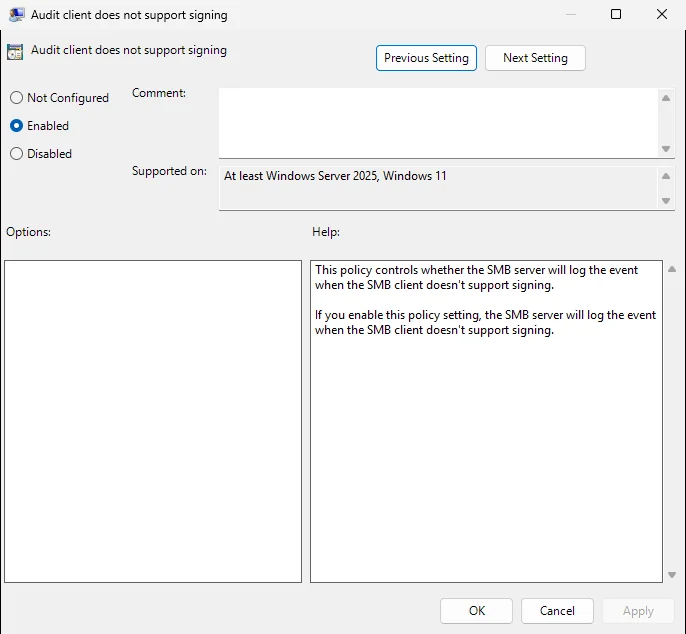
Log the clients that can't sign before you require signing
| Log | Event | Meaning |
|---|---|---|
Microsoft-Windows-SMBServer/Audit |
3021 | The SMB server observed a client that doesn't support signing |
Microsoft-Windows-SmbClient/Audit |
31998, 31999 | The SMB client observed a server that doesn't support signing or encryption |
Turn on server auditing on Windows Server 2025 file servers before you require inbound signing, so the events list the clients that would fail. On a pilot group of Windows 11 24H2 clients, client auditing lists the NAS devices and other servers that don't sign.
The read-only script below collects these events, plus the SMBv1 events used in Step 5, from one computer. It reads event logs only and skips logs that don't exist on older versions.
#Requires -Version 5.1

<#
.SYNOPSIS
    Read-only collection of SMB signing and SMBv1 audit events from one computer.

.DESCRIPTION
    Reads these events from the last Hours hours:
      - Microsoft-Windows-SMBServer/Audit 3021: the SMB server observed a client that doesn't
        support signing (Windows 11 24H2, Windows Server 2025 and the earlier versions listed
        in KB5066913, after AuditClientDoesNotSupportSigning is turned on).
      - Microsoft-Windows-SMBServer/Audit 3000: a client used SMBv1 (after AuditSmb1Access is
        turned on).
      - Microsoft-Windows-SmbClient/Audit 31998 and 31999: the SMB client observed a server
        that doesn't support signing or encryption (Windows 11 24H2 and Windows Server 2025,
        after the client audit settings are turned on).
      - Microsoft-Windows-SmbClient/Security 32000 and 32002: the client received an SMB1
        negotiate response from a remote device.
    Logs that don't exist on the computer are skipped with a warning. Nothing is changed.

.PARAMETER ComputerName
    Computer to read, for example 'FS01'. The default is the local computer.

.PARAMETER Hours
    How many hours of events to read, from 1 to 720. The default is 24.

.EXAMPLE
    .\Get-SmbAuditEvent.ps1 -ComputerName 'FS01' -Hours 72

.EXAMPLE
    .\Get-SmbAuditEvent.ps1 -ComputerName 'FS01' | Group-Object -Property Meaning | Select-Object Count, Name

.NOTES
    Read-only. Reads event logs only. Run it as an account that can read the SMB event logs
    on the target, for example a member of the local Administrators group.
#>
[CmdletBinding()]
param(
    [ValidateNotNullOrEmpty()]
    [string]$ComputerName = $env:COMPUTERNAME,

    [ValidateRange(1, 720)]
    [int]$Hours = 24
)

Set-StrictMode -Version Latest
$ErrorActionPreference = 'Stop'

$queries = @(
    @{ LogName = 'Microsoft-Windows-SMBServer/Audit'; Id = 3000, 3021 },
    @{ LogName = 'Microsoft-Windows-SmbClient/Audit'; Id = 31998, 31999 },
    @{ LogName = 'Microsoft-Windows-SmbClient/Security'; Id = 32000, 32002 }
)

$meanings = @{
    3000  = 'Client used SMBv1'
    3021  = 'Client does not support signing'
    31998 = 'Server does not support signing or encryption'
    31999 = 'Server does not support signing or encryption'
    32000 = 'SMB1 response received, SMB1 not available locally'
    32002 = 'SMB1 negotiate response received'
}

$startTime = (Get-Date).AddHours(-$Hours)

foreach ($query in $queries) {
    $log = Get-WinEvent -ComputerName $ComputerName -ListLog $query.LogName -ErrorAction SilentlyContinue
    if ($null -eq $log) {
        Write-Warning ('{0}: log {1} not found, skipped.' -f $ComputerName, $query.LogName)
        continue
    }

    $filter = @{ LogName = $query.LogName; Id = $query.Id; StartTime = $startTime }
    try {
        $events = @(Get-WinEvent -ComputerName $ComputerName -FilterHashtable $filter)
    }
    catch {
        if ($_.FullyQualifiedErrorId -like 'NoMatchingEventsFound*') { $events = @() }
        else { throw }
    }

    foreach ($record in $events) {
        [pscustomobject]@{
            ComputerName = $ComputerName
            TimeCreated  = $record.TimeCreated
            LogName      = $query.LogName
            EventId      = $record.Id
            Meaning      = $meanings[$record.Id]
            Message      = ($record.Message -split "`r?`n" | Where-Object { $_ -ne '' }) -join ' | '
        }
    }
}
.\Get-SmbAuditEvent.ps1 -ComputerName 'FS01' -Hours 72 | Group-Object -Property Meaning | Select-Object Count, Name
Count Name
----- ----
   14 Client does not support signing
    3 Client used SMBv1
Open the events to see the client name and user. For each device on the list, enable signing in its settings, update its firmware, or plan its replacement. Without a Windows 11 24H2 or Windows Server 2025 client to audit from, combine the Step 1 results with an inventory of non-Windows SMB devices.
Step 3: Require SMB signing with Group Policy (GPO)
Group Policy is the main tool for domain-joined computers: a Group Policy Object (GPO) enables the two "always" policies, and each computer applies them at the next refresh without a restart.
- In the Group Policy Management Console, create a GPO, for example SMB signing - servers, and link it to a server OU.
- Edit it and go to Computer Configuration > Policies > Windows Settings > Security Settings > Local Policies > Security Options.
- Set Microsoft network server: Digitally sign communications (always) to Enabled.
- Set Microsoft network client: Digitally sign communications (always) to Enabled.
- Run
gpupdate /forceon a pilot server, then check it with the commands from Step 1.
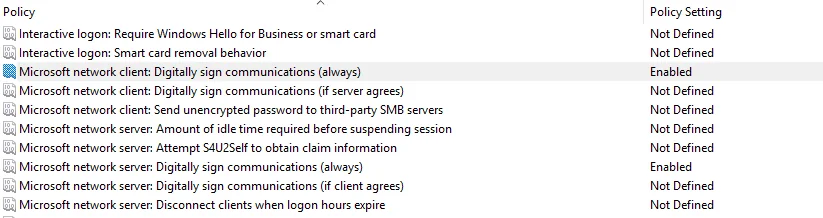
Require signing for the SMB server and client in one GPO
| Setting | Path (GPO / registry / CSP) | Value | Default | Effect |
|---|---|---|---|---|
| Microsoft network server: Digitally sign communications (always) | GPO: Security Options. Registry: HKLM\System\CurrentControlSet\Services\LanManServer\Parameters, RequireSecuritySignature (REG_DWORD). CSP: ./Device/Vendor/MSFT/Policy/Config/LocalPoliciesSecurityOptions/MicrosoftNetworkServer_DigitallySignCommunicationsAlways |
Enabled (1) | Enabled on domain controllers; disabled on other computers, except Windows 11 24H2 and later Enterprise, Pro and Education | The server refuses unsigned sessions, which blocks NTLM relay to it and guest access to its shares |
| Microsoft network client: Digitally sign communications (always) | GPO: Security Options. Registry: HKLM\System\CurrentControlSet\Services\LanManWorkstation\Parameters, RequireSecuritySignature (REG_DWORD). CSP: .../LocalPoliciesSecurityOptions/MicrosoftNetworkClient_DigitallySignCommunicationsAlways |
Enabled (1) | Disabled, except Windows 11 24H2 and later Enterprise, Pro and Education, and Windows Server 2025 | The client connects only to servers that agree to sign |
| Microsoft network server: Digitally sign communications (if client agrees) and Microsoft network client: Digitally sign communications (if server agrees) | Registry: EnableSecuritySignature under the same keys |
Leave unchanged | Not used by SMB 2 and later | SMBv1 only; Microsoft doesn't recommend using these policies |
| Audit client does not support signing | GPO: Administrative Templates > Network > Lanman Server | Enabled during the audit phase | Not configured | Logs event 3021 (Windows 11 24H2, Windows Server 2025 and the earlier versions listed in KB5066913) |
| Audit server does not support signing | GPO: Administrative Templates > Network > Lanman Workstation | Enabled during the audit phase | Not configured | Logs to Microsoft-Windows-SmbClient/Audit (Windows 11 24H2 and Windows Server 2025) |
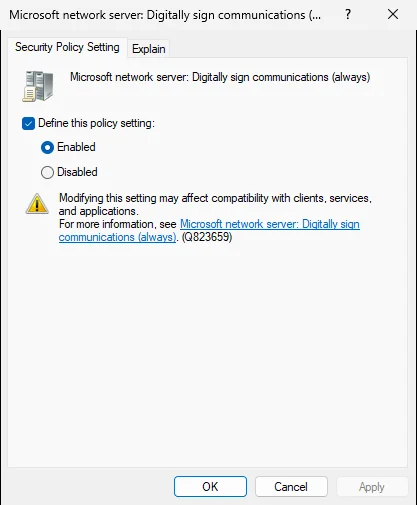
Define the server policy and set it to Enabled
Roll out in waves. Domain controllers already require inbound signing through the Default Domain Controllers Policy, so confirm that nobody turned it off, then link the client policy to the Domain Controllers OU too. Next come Tier 0 and Tier 1 servers, then file servers once their 3021 events are clear, and workstations last. When a computer doesn't show the value you expect, the gpresult and RSoP audit guide shows which GPO wins.
Step 4: Require SMB signing with PowerShell or Intune
To enable SMB signing on computers that Group Policy doesn't manage, such as workgroup servers, use PowerShell; for cloud-managed devices, use Intune. On domain-joined computers, keep the GPO as the one place where the setting is defined.
PowerShell
The script below changes configuration and supports -WhatIf and -Confirm. It wraps Set-SmbServerConfiguration and Set-SmbClientConfiguration, records the values before and after, and can also turn on the signing audit settings where the OS has them. Run it on the target computer in an elevated session.
#Requires -Version 5.1
#Requires -RunAsAdministrator

<#
.SYNOPSIS
    Requires SMB signing on the local computer for the SMB server, the SMB client or both.

.DESCRIPTION
    Records the current RequireSecuritySignature values, then runs:
      - Set-SmbServerConfiguration -RequireSecuritySignature $true   (Role Server or Both)
      - Set-SmbClientConfiguration -RequireSecuritySignature $true   (Role Client or Both)
    With -EnableSigningAudit, it also turns on the signing audit settings
    (AuditClientDoesNotSupportSigning and AuditServerDoesNotSupportSigning) where the
    operating system has them (Windows 11 24H2 and Windows Server 2025).
    Run it with -WhatIf first. It returns one object with the values before and after.

.PARAMETER Role
    Which side to change: Server (inbound connections), Client (outbound connections) or Both.

.PARAMETER EnableSigningAudit
    Also turn on the SMB signing audit settings for the same role, where available.

.EXAMPLE
    .\Set-SmbSigningRequirement.ps1 -Role Both -WhatIf

.EXAMPLE
    .\Set-SmbSigningRequirement.ps1 -Role Server -EnableSigningAudit

.NOTES
    Changes configuration. Use it for computers that Group Policy doesn't manage, or for a
    short pilot. On domain-joined computers, set the same requirement with a GPO instead.
    To undo, run Set-SmbServerConfiguration or Set-SmbClientConfiguration with
    -RequireSecuritySignature $false. No restart is needed.
#>
[CmdletBinding(SupportsShouldProcess = $true, ConfirmImpact = 'High')]
param(
    [Parameter(Mandatory = $true)]
    [ValidateSet('Server', 'Client', 'Both')]
    [string]$Role,

    [switch]$EnableSigningAudit
)

Set-StrictMode -Version Latest
$ErrorActionPreference = 'Stop'

function Get-OptionalValue {
    param($InputObject, [string]$Name)
    $property = $InputObject.PSObject.Properties[$Name]
    if ($null -ne $property) { return $property.Value }
    return $null
}

$target = $env:COMPUTERNAME
$serverBefore = Get-SmbServerConfiguration
$clientBefore = Get-SmbClientConfiguration

if ($Role -in 'Server', 'Both') {
    if ($PSCmdlet.ShouldProcess($target, 'Require SMB signing for inbound connections (SMB server)')) {
        Set-SmbServerConfiguration -RequireSecuritySignature $true -Force
    }
    $hasServerAudit = $null -ne $serverBefore.PSObject.Properties['AuditClientDoesNotSupportSigning']
    if ($EnableSigningAudit -and $hasServerAudit) {
        if ($PSCmdlet.ShouldProcess($target, 'Audit clients that do not support SMB signing')) {
            Set-SmbServerConfiguration -AuditClientDoesNotSupportSigning $true -Force
        }
    }
}

if ($Role -in 'Client', 'Both') {
    if ($PSCmdlet.ShouldProcess($target, 'Require SMB signing for outbound connections (SMB client)')) {
        Set-SmbClientConfiguration -RequireSecuritySignature $true -Force
    }
    $hasClientAudit = $null -ne $clientBefore.PSObject.Properties['AuditServerDoesNotSupportSigning']
    if ($EnableSigningAudit -and $hasClientAudit) {
        if ($PSCmdlet.ShouldProcess($target, 'Audit servers that do not support SMB signing')) {
            Set-SmbClientConfiguration -AuditServerDoesNotSupportSigning $true -Force
        }
    }
}

$serverAfter = Get-SmbServerConfiguration
$clientAfter = Get-SmbClientConfiguration

[pscustomobject]@{
    ComputerName               = $target
    ServerRequireSigningBefore = $serverBefore.RequireSecuritySignature
    ServerRequireSigningAfter  = $serverAfter.RequireSecuritySignature
    ClientRequireSigningBefore = $clientBefore.RequireSecuritySignature
    ClientRequireSigningAfter  = $clientAfter.RequireSecuritySignature
    AuditClientNoSigning       = Get-OptionalValue -InputObject $serverAfter -Name 'AuditClientDoesNotSupportSigning'
    AuditServerNoSigning       = Get-OptionalValue -InputObject $clientAfter -Name 'AuditServerDoesNotSupportSigning'
}
Preview the change:
.\Set-SmbSigningRequirement.ps1 -Role Both -WhatIf
What if: Performing the operation "Require SMB signing for inbound connections (SMB server)" on target "APP01".
What if: Performing the operation "Require SMB signing for outbound connections (SMB client)" on target "APP01".

ComputerName               : APP01
ServerRequireSigningBefore : False
ServerRequireSigningAfter  : False
ClientRequireSigningBefore : True
ClientRequireSigningAfter  : True
AuditClientNoSigning       : False
AuditServerNoSigning       : False
With -WhatIf, nothing changes, so the before and after values match. Run it again without -WhatIf to apply it. On a server, Windows Admin Center offers the same server-side switch under Settings > File Shares (SMB server) > SMB signing. The client side can be changed only through Group Policy or PowerShell.
Intune
Both policies are in the LocalPoliciesSecurityOptions Policy CSP for the Pro, Enterprise, Education and IoT Enterprise editions: the server setting from Windows 10 version 1803, the client setting from version 1809.
- In the Microsoft Intune admin center, select Devices > Manage devices > Configuration > Create > New policy.
- Choose Windows 10 and later and the Settings catalog profile type.
- In Configuration settings, select Add settings and search for the two digitally sign communications (always) settings.
- Set both to enabled (CSP value
1) and assign the profile to device groups.
The settings map to these CSP nodes, with 1 to enable:
./Device/Vendor/MSFT/Policy/Config/LocalPoliciesSecurityOptions/MicrosoftNetworkServer_DigitallySignCommunicationsAlways
./Device/Vendor/MSFT/Policy/Config/LocalPoliciesSecurityOptions/MicrosoftNetworkClient_DigitallySignCommunicationsAlways
Step 5: Remove SMBv1
SMBv1 has significant security vulnerabilities, Microsoft deprecated it in 2014, and its signing still uses MD5. Remove it after the audit shows that no client or device depends on it.
Is SMBv1 installed by default?
Not on Windows 11 or Windows Server 2019 and later after a clean installation. As of November 2026, Microsoft's SMBv1 availability article gives the details:
| Windows version | SMBv1 after a clean installation |
|---|---|
| Windows 11, all editions | Not installed |
| Windows Server 2019 to Windows Server 2025 | Not installed |
| Windows Server 2028 Preview | Not included, and it can't be enabled |
| Windows 10 Enterprise, Education and Pro for Workstations (version 1709 and later) | Not installed |
| Windows 10 Home and Pro (version 1709 and later) | Server not installed; the client is installed on Home, and on Pro before version 1809, and removes itself after 15 days without use (not after a clean install of Pro version 1803) |
SMBv1 can still be reinstalled on every edition of Windows 10 and on Windows Server 2016. In-place upgrades of Windows 10 don't remove it at once: Home and Pro uninstall an unused SMBv1 component after 15 days, while Enterprise, Education and Pro for Workstations keep it until an administrator removes it.
Audit SMBv1 use
Turn on SMBv1 access auditing on servers, then watch for event 3000 in Microsoft-Windows-SMBServer/Audit. On clients, event 32002 means the client received an SMB1 negotiate response, and event 32000 means a remote device asked for SMB1 that the client no longer has. Microsoft documents both in the Microsoft-Windows-SmbClient/Security log, which the Get-SmbAuditEvent.ps1 script from Step 2 reads.
Set-SmbServerConfiguration -AuditSmb1Access $true
Get-SmbServerConfiguration | Select-Object AuditSmb1Access, EnableSMB1Protocol
Disable and remove SMBv1
Microsoft's guide to detecting and disabling SMBv1 uses Get-WindowsOptionalFeature -Online -FeatureName SMB1Protocol to show whether the feature is installed, and Get-SmbServerConfiguration | Format-List EnableSMB1Protocol shows the server state without elevation. The script below turns off the SMBv1 server and removes the feature. It changes configuration; Disable-WindowsOptionalFeature has no -WhatIf of its own, so the script wraps it in ShouldProcess. Run it in an elevated session on the computer.
#Requires -Version 5.1
#Requires -RunAsAdministrator

<#
.SYNOPSIS
    Turns off the SMBv1 server and removes the SMB1Protocol optional feature on the local computer.

.DESCRIPTION
    Reads the current state, then:
      1. If the SMB server still accepts SMBv1, runs
         Set-SmbServerConfiguration -EnableSMB1Protocol $false (no restart needed).
      2. If the SMB1Protocol optional feature is enabled, runs
         Disable-WindowsOptionalFeature -Online -FeatureName SMB1Protocol -NoRestart.
    Disable-WindowsOptionalFeature has no -WhatIf of its own, so this script wraps both steps
    in ShouldProcess. Run it with -WhatIf first. The computer needs a restart to finish
    removing the feature; the RestartNeeded column tells you when.

.EXAMPLE
    .\Disable-Smb1Protocol.ps1 -WhatIf

.EXAMPLE
    .\Disable-Smb1Protocol.ps1 -Confirm:$false

.NOTES
    Changes configuration. Audit SMBv1 use first (AuditSmb1Access, event 3000) and update or
    retire every device that still needs SMBv1. To undo, run
    Enable-WindowsOptionalFeature -Online -FeatureName SMB1Protocol and restart; Microsoft
    strongly recommends against reinstalling SMBv1.
#>
[CmdletBinding(SupportsShouldProcess = $true, ConfirmImpact = 'High')]
param()

Set-StrictMode -Version Latest
$ErrorActionPreference = 'Stop'

function Get-Smb1Feature {
    try { Get-WindowsOptionalFeature -Online -FeatureName SMB1Protocol }
    catch { $null }
}

$target = $env:COMPUTERNAME
$restartNeeded = $false

$server = Get-SmbServerConfiguration
$featureBefore = Get-Smb1Feature

if ($server.EnableSMB1Protocol) {
    if ($PSCmdlet.ShouldProcess($target, 'Stop the SMB server from accepting SMBv1')) {
        Set-SmbServerConfiguration -EnableSMB1Protocol $false -Force
    }
}

if ($null -ne $featureBefore -and [string]$featureBefore.State -eq 'Enabled') {
    if ($PSCmdlet.ShouldProcess($target, 'Remove the SMB1Protocol optional feature (restart required)')) {
        $result = Disable-WindowsOptionalFeature -Online -FeatureName SMB1Protocol -NoRestart
        $restartNeeded = [bool]$result.RestartNeeded
    }
}

$featureAfter = Get-Smb1Feature

[pscustomobject]@{
    ComputerName       = $target
    FeatureStateBefore = if ($null -ne $featureBefore) { [string]$featureBefore.State } else { 'NotPresent' }
    FeatureStateAfter  = if ($null -ne $featureAfter) { [string]$featureAfter.State } else { 'NotPresent' }
    Smb1ServerEnabled  = (Get-SmbServerConfiguration).EnableSMB1Protocol
    RestartNeeded      = $restartNeeded
}
.\Disable-Smb1Protocol.ps1 -WhatIf
What if: Performing the operation "Remove the SMB1Protocol optional feature (restart required)" on target "WS02".

ComputerName       : WS02
FeatureStateBefore : Enabled
FeatureStateAfter  : Enabled
Smb1ServerEnabled  : False
RestartNeeded      : False
Restart the computer when RestartNeeded is True. For many computers, Microsoft also documents a Group Policy method with registry preference items: the SMB1 value under LanmanServer\Parameters for the server, and the mrxsmb10 start type and LanmanWorkstation service dependency for the client. Be careful on domain controllers: Microsoft warns that some legacy systems still need SMBv1 to reach SYSVOL.
Close the other NTLM relay paths
SMB signing protects SMB only. The same relayed authentication can be sent to LDAP or HTTP services, so close those paths and reduce NTLM itself.
- Block NTLM on the SMB client. On Windows 11 24H2 and Windows Server 2025, SMB client NTLM blocking stops the client from sending NTLM over SMB. Turn it on with Computer Configuration > Administrative Templates > Network > Lanman Workstation > Block NTLM (LM, NTLM, NTLMv2) or
Set-SmbClientConfiguration -BlockNTLM $true. The destination must accept Kerberos; Block NTLM Server Exception List allows NTLM for named servers, such as ones outside the domain. - Prefer Kerberos. Connect to shares by name, not by IP address or CNAME, so that SMB uses Kerberos.
- Protect LDAP on domain controllers. Microsoft's LDAP channel binding overview says LDAP signing protects message integrity but doesn't by itself prevent NTLM relay. Channel binding ties the authentication to the TLS session, which closes relay to LDAP over TLS. The LDAP signing and channel binding guide covers both.
- Protect HTTP services. Microsoft's KB5005413 asks that services accepting NTLM use Extended Protection for Authentication (EPA) or signing features such as SMB signing. It applies this to the HTTP services of Active Directory Certificate Services (AD CS).
- Retire NTLMv1. The NTLMv1 authentication rules find logons that still use it, the NTLMv1 step-by-step guide removes it, and the NTLMv1 roadmap white paper plans the wider move away from NTLM.
Verify
SMB signing is in place when both RequireSecuritySignature values are True and every live connection is signed or encrypted. Check a sample computer first, then the whole estate:
Get-SmbServerConfiguration | Format-List RequireSecuritySignature
Get-SmbClientConfiguration | Format-List RequireSecuritySignature
RequireSecuritySignature : True

RequireSecuritySignature : True
Then check live connections from a client. Open a share, then list the client's connections:
Get-SmbConnection | Select-Object ServerName, ShareName, Dialect, Signed, Encrypted
ServerName ShareName Dialect Signed Encrypted
---------- --------- ------- ------ ---------
DC01       SYSVOL    3.1.1     True     False
FS01       Projects  3.1.1     True     False

Confirm that live SMB connections are signed
A connection with Encrypted : True is protected as well: Microsoft's SMB security enhancements page states that SMB encryption also validates data integrity, regardless of the SMB signing settings.
| Check | Expected result |
|---|---|
| Audit script | No ServerSigningNotRequired on servers and domain controllers; no ClientSigningNotRequired once workstations are done; Smb1Feature is Disabled or Absent |
Get-SmbConnection |
Signed : True or Encrypted : True for every connection |
| Events 3021, 31998 and 31999 | None left for devices you intend to keep |
| Event 3000 | None after SMBv1 removal |
gpresult /r |
The signing GPO appears among the applied GPOs |
Roll back
Every signing change can be reversed without a restart; removing SMBv1 needs one to undo. Keep the CSV from Step 1 as the record of the previous state.
| Change | How to roll back | Notes |
|---|---|---|
| Signing GPO | Set the policy to Disabled in the GPO, then confirm with Get-SmbServerConfiguration |
Takes effect at the next refresh, without a restart |
| PowerShell change | Set-SmbServerConfiguration -RequireSecuritySignature $false or Set-SmbClientConfiguration -RequireSecuritySignature $false |
Run in an elevated session on the computer |
| Intune profile | Set the setting to disabled (0) in the profile |
Confirm on the device |
| Audit settings | Set-SmbServerConfiguration -AuditClientDoesNotSupportSigning $false and Set-SmbClientConfiguration -AuditServerDoesNotSupportSigning $false |
Turn them off when the compatibility work is done |
| SMBv1 removal | Enable-WindowsOptionalFeature -Online -FeatureName SMB1Protocol, then restart |
Microsoft strongly recommends against reinstalling SMBv1; not possible on Windows Server 2028 Preview |
If one device can't sign and you can't replace it yet, limit the exception to the few computers that must reach it, through a separate GPO with an owner and an end date.
Monitor and detect
Monitor two things: peers that still can't sign, and relay attempts against computers that don't require signing yet. The SMB audit events report SMBv1 use and peers that can't sign, not relay attempts, so the logon events on the target matter most.
| Log | Event | What it tells you | Notes and related pages |
|---|---|---|---|
Microsoft-Windows-SMBServer/Audit |
3021 | A client that doesn't support signing connected | Windows 11 24H2, Windows Server 2025 and the earlier versions listed in KB5066913 |
Microsoft-Windows-SmbClient/Audit |
31998, 31999 | The client reached a server that doesn't support signing or encryption | Windows 11 24H2 and Windows Server 2025 only |
Microsoft-Windows-SMBServer/Audit |
3000 | A client used SMBv1 | Needs AuditSmb1Access |
Microsoft-Windows-SmbClient/Security |
32000, 32002 | The client received an SMB1 negotiate response | SMBv1 inventory; 32000 means the client itself has SMBv1 disabled or removed |
| Security (target servers) | 4624, logon type 3 with NTLM | A network logon; a computer account that logs on with NTLM from an address not its own is the clearest relay trace | Detection rules for relayed NTLM logons |
| Security (domain controllers) | 5145 on IPC$ with the efsrpc, spoolss, netdfs or FssagentRpc pipe |
A coercion attempt that can start the relay; needs Audit Detailed File Share | Authentication coercion rules (above) |
Microsoft-Windows-NTLM/Operational (domain controllers) |
8004 | NTLM authentication the domain controller handled, with the server it came through | Needs Network security: Restrict NTLM: Audit NTLM authentication in this domain |
The first query summarizes the SMB audit events per computer. It needs a data collection rule that sends Microsoft-Windows-SMBServer/Audit and Microsoft-Windows-SmbClient/Audit to the Event table of a Log Analytics workspace or Microsoft Sentinel.
// SMB clients and servers that don't sign, and SMBv1 use, from the SMB audit channels.
// Needs a data collection rule that collects Microsoft-Windows-SMBServer/Audit and
// Microsoft-Windows-SmbClient/Audit into the Event table.
Event
| where TimeGenerated > ago(7d)
| where (EventLog =~ "Microsoft-Windows-SMBServer/Audit" and EventID in (3000, 3021))
    or (EventLog =~ "Microsoft-Windows-SmbClient/Audit" and EventID in (31998, 31999))
| extend Finding = case(EventID == 3021, "Client does not support signing",
                        EventID in (31998, 31999), "Server does not support signing or encryption",
                        "Client used SMBv1")
| summarize Events = count(), FirstSeen = min(TimeGenerated), LastSeen = max(TimeGenerated) by Computer, Finding
| order by Events desc
The second query lists NTLM network logons by computer accounts from the SecurityEvent table. Compare each source address with the real address of the computer named in TargetUserName; a mismatch points to a relay.
// NTLM network logons by computer accounts, the clearest trace of a relayed authentication.
// Needs Audit Logon (Success) on the servers and their Security events in the SecurityEvent table.
SecurityEvent
| where TimeGenerated > ago(1d)
| where EventID == 4624 and LogonType == 3
| where AuthenticationPackageName == "NTLM"
| where TargetUserName endswith "$"
| summarize Logons = count(), Sources = make_set(IpAddress, 20), FirstSeen = min(TimeGenerated), LastSeen = max(TimeGenerated)
    by TargetDomainName, TargetUserName, TargetServer = Computer
| order by Logons desc
Computer accounts can use NTLM for legitimate reasons, such as access by IP address, so baseline the results before you alert. The Active Directory audit policy guide shows how to enable Audit Logon and Audit Detailed File Share on the right computers.
Troubleshooting
Most failures after you require signing come from third-party devices and guest access, and the error text points to the cause.
| Symptom | Cause | Fix |
|---|---|---|
STATUS_INVALID_SIGNATURE, 0xc000a000 or "The cryptographic signature is invalid" when opening a NAS share |
The third-party server doesn't allow signing | Enable signing on the device or update its firmware; replace it if it can't sign |
| "Your organization's security policies block unauthenticated guest access", error 0x80070035 or System error 3227320323 | The share relies on guest access, which signing rejects | Create an account on the device, map the share with credentials and turn off guest access |
| "You can't connect to the file share because it's not secure... requires the obsolete SMB1 protocol" | The device supports only SMBv1 | Update or replace the device; Microsoft strongly recommends against reinstalling SMBv1 |
RequireSecuritySignature returns to False |
A GPO sets the opposite value | Find the winning GPO with gpresult /h and fix the conflict |
Set-SmbServerConfiguration doesn't know -AuditClientDoesNotSupportSigning |
The OS is older than Windows 11 24H2 or Windows Server 2025 | On the versions that KB5066913 lists, install the September 2025 or later update and use the Audit client does not support signing policy; otherwise rely on the Step 1 audit and a Windows 11 24H2 pilot client |
| File copies slow down after the change | Signing adds CPU work, more noticeable on fast networks | Measure, move busy file servers to Windows Server 2022 or later for AES-128-GMAC, and keep signing on |
| Shares reached by IP address fail after Block NTLM | Access by IP address uses NTLM, not Kerberos | Use the computer name, or add the server to Block NTLM Server Exception List |
How Forestall helps
Forestall collects the SMB state of each scanned computer, including IsSMBv2v3SignRequired, IsSMBv1Active and IsSMBPortOpen on the Computer entity in Search and Reports. Its release notes list the SMB signing findings FS1017, FS1018, FS1019 and FS1020, which it reports only for computers with a confirmed active SMBv2 or SMBv3 dialect. In GPO Audit, custom baselines can check registry values such as RequireSecuritySignature, so GPOs are compared with the state you want. Forestall Identity Risk Assessment puts these protocol misconfigurations into a remediation queue ordered by impact.
Frequently Asked Questions
What is SMB signing?
SMB signing is a feature of the Server Message Block protocol that adds a signature to every message. The signature is a hash of the message calculated with a key derived from the session key, so the receiver can detect any change made in transit. It also confirms the identities of client and server, which is why a computer that requires signing rejects relayed sessions. Every supported version of Windows and Windows Server supports it.
How do I check if SMB signing is enabled with PowerShell?
To check SMB signing with PowerShell, run Get-SmbServerConfiguration | Format-List RequireSecuritySignature for inbound connections and Get-SmbClientConfiguration | Format-List RequireSecuritySignature for outbound ones. True means signing is required. To see whether live connections are signed, run Get-SmbConnection | Select-Object ServerName, Signed, Encrypted on a client after opening a share. A connection with Encrypted : True is integrity-protected as well.
Does SMB signing stop NTLM relay attacks?
SMB signing stops NTLM relay to SMB on the computers that require it. The attacker can forward the victim's NTLM messages, but never learns the session key, so it can't sign the messages that a signing server demands. It doesn't protect other protocols: relay to LDAP over TLS needs LDAP channel binding, relay to HTTP services needs Extended Protection for Authentication, and SMB signing doesn't stop coercion itself.
Is SMB signing required by default in Windows 11 and Windows Server 2025?
SMB signing is required by default only on some Windows versions and editions. As of November 2026, Microsoft documents that Windows 11 24H2 Enterprise, Pro and Education require signing for both outbound and inbound SMB, Windows 11 24H2 Home requires neither, and Windows Server 2025 requires outbound signing only. Domain controllers require inbound signing through the Default Domain Controllers Policy on every supported version. Older versions require signing only for connections to domain controllers, so check each computer.
How do I disable SMB signing in Windows 11, and should I?
To disable SMB signing on a Windows 11 client, set Microsoft network client: Digitally sign communications (always) to Disabled, or run Set-SmbClientConfiguration -RequireSecuritySignature $false in an elevated session. Microsoft recommends against doing this to reach a third-party device. Enable signing on the device instead, give it user accounts instead of guest access, or update or replace it. Turning the client requirement off removes that protection from all of the computer's outbound SMB connections.
Does SMB signing slow down file transfers?
SMB signing can slow down file transfers. Signing costs CPU on both ends, and Microsoft notes that the effect is limited on a 1 Gb network with a modern CPU but can be greater on faster networks such as 10 Gb. The result depends on the dialect, OS version, file sizes and processor offload, so measure your busiest servers in a pilot. Windows Server 2022 and Windows 11 add AES-128-GMAC signing acceleration.
Related guides
- Active Directory hardening, every step in order: where SMB signing fits in the full hardening sequence.
- Disable LLMNR and NBT-NS: remove the poisoning that feeds NTLM relay.
- Enforce LDAP signing and channel binding: close relay to LDAP on domain controllers.
- Audit Group Policy with gpresult and RSoP: confirm which GPO sets the signing policies.
- CVE-2025-33073: reflective NTLM relay: an attack that SMB signing on the target blocks.
References
- Control SMB signing behavior (Microsoft Learn)
- What is Server Message Block signing? (Microsoft Learn)
- Microsoft network server: Digitally sign communications (always) (Microsoft Learn)
- SMB security hardening (Microsoft Learn)
- Policy CSP - LocalPoliciesSecurityOptions (Microsoft Learn)
- KB5066913: Support for audit events to deploy SMB Server hardening (Microsoft Support)
- Detect, enable, and disable SMBv1, SMBv2, and SMBv3 in Windows (Microsoft Learn)
- SMBv1 availability in Windows Server and Windows (Microsoft Learn)
- Block NTLM connections on SMB (Microsoft Learn)
- LDAP channel binding overview for Active Directory Domain Services (Microsoft Learn)
- KB5005413: Mitigating NTLM Relay Attacks on Active Directory Certificate Services (Microsoft Support)
- Adversary-in-the-Middle: Name Resolution Poisoning and SMB Relay, T1557.001 (MITRE ATT&CK)
See your identity exposure clearly.
Start with a 1-day Proof of Value in your own environment.