Windows LAPS in Active Directory: A Step-by-Step Guide
Summary
Windows LAPS (Windows Local Administrator Password Solution) is a feature built into supported Windows and Windows Server versions. It gives each device a unique, regularly rotated local administrator password and backs it up to Active Directory or Microsoft Entra ID. Deploy it by extending the schema, delegating OU rights, applying a policy with encryption, and auditing who can read passwords.
Quick steps
- Run the read-only audit script to find computers without a current password and every principal that can read passwords.
- Extend the forest schema once with
Update-LapsADSchema(Active Directory backup only). - On each OU, give computers SELF permission, give one small group read rights, and turn on auditing.
- Create a Group Policy Object or an Intune profile that sets the backup directory, encryption, the authorized decryptors and the password rules.
- Process the policy and confirm event 10018 (Active Directory) or 10029 (Microsoft Entra ID) on the device.
- Move legacy Microsoft LAPS computers to Windows LAPS, then remove the legacy client-side extension.
- Alert on password reads in Active Directory and on password recoveries in Microsoft Entra ID.
Applies to: Windows 11 21H2 and 22H2 with the April 11, 2023 update or later, Windows 11 23H2 and later, Windows 10 with the April 11, 2023 update or later while it still receives updates, Windows Server 2019 and 2022 with the April 11, 2023 update or later, Windows Server 2025, Active Directory, and Microsoft Entra ID Free or higher (as of November 2026).
What is Windows LAPS and why does it matter?
Windows LAPS is a Windows feature that sets a random password on one local administrator account per device, rotates it on a schedule, and stores it in Active Directory or Microsoft Entra ID for authorized administrators. On domain controllers it can do the same for the Directory Services Restore Mode (DSRM) account. It shipped in the April 11, 2023 Windows updates, and Microsoft now treats it as the supported way to manage local administrator passwords instead of the separately installed legacy Microsoft LAPS.
The problem it solves is password reuse. When the built-in Administrator account has the same password on every workstation, an attacker who steals the hash on one machine can reuse it for lateral movement to the other workstations. That technique is pass-the-hash, tracked by MITRE ATT&CK as T1550.002, and the shared account itself falls under Valid Accounts: Local Accounts (T1078.003).
Microsoft lists protection against pass-the-hash and lateral-traversal attacks as the first benefit of Windows LAPS. Shared local administrator passwords also appear in our list of common Active Directory misconfigurations.
LAPS creates a new target, though. Every account that can read a clear-text password, or read and decrypt an encrypted one, holds local administrator access to the computers in that scope. That is why the read-rights review in Step 1 and the monitoring at the end of this guide matter as much as the rollout.
Windows LAPS vs legacy Microsoft LAPS
Windows LAPS is a separate implementation that is native to Windows, and it doesn't need legacy Microsoft LAPS installed. Microsoft's Windows LAPS overview states that the legacy product is deprecated as of Windows 11 23H2 and that newer OS versions block its installer.
| Feature | Windows LAPS | Legacy Microsoft LAPS |
|---|---|---|
| How you get it | Built into Windows through the April 11, 2023 updates and later releases | Separate MSI from the Microsoft Download Center (released in 2016), installed as a Group Policy client-side extension |
| Status (as of November 2026) | Current; Microsoft recommends migrating to it | Deprecated on Windows 11 23H2 and later; still supported on older Windows versions until their own end of support |
| Backup target | Active Directory or Microsoft Entra ID, one per device | Active Directory |
| Password storage in Active Directory | Encrypted (domain functional level 2016 or higher) or clear text protected by ACLs | Clear text protected by ACLs |
| Password history | Up to 12 previous encrypted passwords | Not available |
| Active Directory attributes | msLAPS-PasswordExpirationTime, msLAPS-Password, msLAPS-EncryptedPassword, msLAPS-EncryptedPasswordHistory, msLAPS-EncryptedDSRMPassword, msLAPS-EncryptedDSRMPasswordHistory |
ms-Mcs-AdmPwdExpirationTime, ms-Mcs-AdmPwd |
| Processing cycle | Background task every hour, independent of the Group Policy refresh | Runs with each Group Policy refresh |
| PowerShell | LAPS module, for example Get-LapsADPassword |
Legacy cmdlets, for example Update-AdmPwdADSchema |
Active Directory or Microsoft Entra ID: where should passwords go?
The device's join state decides where it can back up its password. A device backs up to one directory only, never to both at once.
| Device join state | Backup target | Policy tool Microsoft recommends |
|---|---|---|
| Joined to Active Directory only | Active Directory | Group Policy |
| Joined to Microsoft Entra ID only | Microsoft Entra ID | Microsoft Intune |
| Microsoft Entra hybrid joined | Active Directory or Microsoft Entra ID | Intune when the device is enrolled; Group Policy is also supported |
| Microsoft Entra registered (workplace joined) | Not supported | Not applicable |
Domain controllers back up only their DSRM password, and only to Active Directory.
Before you start
Check four things before you change anything: the OS and update level, the domain functional level, who will hold each permission, and how the first rotation affects your build and support processes. Test the whole sequence in a lab first, because the schema change in Step 2 can't be undone.
Which Windows versions support Windows LAPS?
| Platform | Windows LAPS is available with |
|---|---|
| Windows 11 23H2 and later | The release itself |
| Windows 11 22H2 | April 11, 2023 update (KB5025239) or later |
| Windows 11 21H2 | April 11, 2023 update (KB5025224) or later |
| Windows 10 | April 11, 2023 update (KB5025221) or later, while the device still receives updates |
| Windows Server 2025 | The release itself |
| Windows Server 2022 | April 11, 2023 update (KB5025230) or later |
| Windows Server 2019 | April 11, 2023 update (KB5025229) or later |
| Windows Server 2016 and earlier | Not available; legacy Microsoft LAPS only |
Windows 10 reached end of support on October 14, 2025. Windows LAPS stays available only on Windows 10 devices that still receive updates, for example through Extended Security Updates. Passphrases, automatic account management and a few other options need Windows 11 24H2 or Windows Server 2025.
Domain functional level and domain controllers
Password encryption needs a domain functional level (DFL) of Windows Server 2016 or higher. Below that level, clients can store only clear-text passwords protected by ACLs, and domain controllers can't manage their DSRM password. Microsoft's Windows LAPS and Active Directory getting-started guide summarizes the support matrix:
| Domain | Clear-text passwords | Encrypted passwords | DSRM password backup |
|---|---|---|---|
| DFL below 2016 | Yes | No | No |
| DFL 2016 with one or more Windows Server 2016 or older DCs | Yes | Yes | Only on Windows Server 2019 and later DCs |
| DFL 2016 with only Windows Server 2019 and later DCs | Yes | Yes | Yes |
Permissions you need
- Schema Admins membership to run
Update-LapsADSchema(Active Directory backup only). - Rights to change permissions and auditing on the target OUs, and to create and link GPOs.
- For Microsoft Entra ID backup: at least Cloud Device Administrator to turn LAPS on in the device settings, and the Intune Endpoint Security Manager role, or a custom role with the security baseline rights, to create the Intune profile.
Plan the change window
- Windows LAPS rotates the managed account's password as soon as a policy applies. A task that signs in with the current local password, such as an OS deployment workflow, can break. Microsoft recommends a clean staging OU without a LAPS policy for new builds.
- With the default settings, Windows LAPS resets the password and signs out the session 24 hours after someone uses the managed account (
PostAuthenticationActions3,PostAuthenticationResetDelay24). Tell your support staff before rollout. - Keep another administrative path to critical servers before their local password starts rotating.
- Back up your domain controllers regularly.
Get-LapsADPasswordcan read passwords from a mounted backup when no domain controller is available. - Microsoft Entra ID keeps no copy of the password once the device object is deleted, so don't delete device objects you may still need to sign in to.
Step 1: Audit the current state
Start with a read-only inventory: which computers already have a Windows LAPS or legacy Microsoft LAPS password in Active Directory, which ones are overdue, and who can read the passwords. The script never reads a password. It reads only the two expiration timestamps, the OU permissions and the domain root permissions.
Run it on a management server or admin workstation with the ActiveDirectory module (RSAT) and the Windows LAPS PowerShell module. Use an account that can read the expiration attributes and the permissions; members of Domain Admins can. It writes three CSV files to the folder you name and returns a summary object.
#Requires -Version 5.1
#Requires -Modules ActiveDirectory, LAPS

<#
.SYNOPSIS
    Read-only audit of Windows LAPS coverage and password read rights in one Active Directory scope.

.DESCRIPTION
    For every computer object under SearchBase, reports whether Windows LAPS or legacy
    Microsoft LAPS has stored a password expiration time and whether that time has passed.
    The script never reads a password attribute. It reads only msLAPS-PasswordExpirationTime
    and ms-Mcs-AdmPwdExpirationTime, which hold timestamps.

    For every OU under SearchBase, it lists the principals that Find-LapsADExtendedRights
    returns. On the domain root, it lists the principals that hold both Replicating Directory
    Changes and Replicating Directory Changes In Filtered Set.

    Results go to three CSV files in OutputFolder. A summary object is returned.

.PARAMETER SearchBase
    Distinguished name of the OU to audit, for example 'OU=Workstations,DC=corp,DC=example,DC=com'.

.PARAMETER OutputFolder
    Existing folder for the CSV reports, for example 'C:\Reports\LAPS'.

.PARAMETER Server
    Optional domain controller to query, for example '<DomainController>'.

.PARAMETER ExpectedReaders
    Optional principals you approved as LAPS password readers, in DOMAIN\Name form.
    NT AUTHORITY\SYSTEM and the domain's Domain Admins group are always treated as expected.

.EXAMPLE
    .\Get-WindowsLapsAudit.ps1 -SearchBase 'OU=Workstations,DC=corp,DC=example,DC=com' -OutputFolder 'C:\Reports\LAPS'

.EXAMPLE
    .\Get-WindowsLapsAudit.ps1 -SearchBase 'OU=Servers,DC=corp,DC=example,DC=com' -OutputFolder 'C:\Reports\LAPS' -Server '<DomainController>' -ExpectedReaders 'CORP\LAPS-Readers-Servers'

.NOTES
    Read-only. Makes no change to Active Directory, the registry or any computer.
    Writes only the three CSV report files to OutputFolder.
    Requires the ActiveDirectory module (RSAT) and the LAPS module, which ships with
    Windows versions that include Windows LAPS.
    Run it as an account that can read the expiration attributes and the OU permissions.
#>
[CmdletBinding()]
param(
    [Parameter(Mandatory = $true)]
    [ValidateNotNullOrEmpty()]
    [string]$SearchBase,

    [Parameter(Mandatory = $true)]
    [ValidateScript({ Test-Path -Path $_ -PathType Container })]
    [string]$OutputFolder,

    [string]$Server,

    [string[]]$ExpectedReaders = @()
)

Set-StrictMode -Version Latest
$ErrorActionPreference = 'Stop'

$adParams = @{}
$lapsParams = @{}
if ($Server) {
    $adParams['Server'] = $Server
    $lapsParams['DomainController'] = $Server
}

function Get-PropertyValue {
    param($InputObject, [string]$Name)
    $property = $InputObject.PSObject.Properties[$Name]
    if ($null -ne $property) { return $property.Value }
    return $null
}

function ConvertFrom-FileTimeValue {
    param($Value)
    if ($null -eq $Value) { return $null }
    $ticks = [int64]$Value
    if ($ticks -le 0) { return $null }
    return [DateTime]::FromFileTimeUtc($ticks)
}

function Test-SchemaAttribute {
    param([string]$SchemaNamingContext, [string]$LdapDisplayName)
    $found = Get-ADObject @adParams -SearchBase $SchemaNamingContext -LDAPFilter "(lDAPDisplayName=$LdapDisplayName)"
    return ($null -ne $found)
}

# 1. Schema and domain functional level
$rootDse = Get-ADRootDSE @adParams
$schemaNc = $rootDse.schemaNamingContext
$hasWindowsLaps = Test-SchemaAttribute -SchemaNamingContext $schemaNc -LdapDisplayName 'msLAPS-PasswordExpirationTime'
$hasLegacyLaps = Test-SchemaAttribute -SchemaNamingContext $schemaNc -LdapDisplayName 'ms-Mcs-AdmPwdExpirationTime'
$hasRollbackAttribute = Test-SchemaAttribute -SchemaNamingContext $schemaNc -LdapDisplayName 'msLAPS-CurrentPasswordVersion'

$domain = Get-ADDomain @adParams
$encryptionSupported = ([int]$domain.DomainMode -ge [int][Microsoft.ActiveDirectory.Management.ADDomainMode]::Windows2016Domain)

# 2. Computer coverage (timestamps only, never passwords)
$properties = @('operatingSystem', 'lastLogonTimestamp')
if ($hasWindowsLaps) { $properties += 'msLAPS-PasswordExpirationTime' }
if ($hasLegacyLaps) { $properties += 'ms-Mcs-AdmPwdExpirationTime' }

$nowUtc = [DateTime]::UtcNow
$computers = @(Get-ADComputer @adParams -SearchBase $SearchBase -SearchScope Subtree -Filter * -Properties $properties)

$computerRows = @(foreach ($computer in $computers) {
    $windowsExpiry = ConvertFrom-FileTimeValue -Value (Get-PropertyValue -InputObject $computer -Name 'msLAPS-PasswordExpirationTime')
    $legacyExpiry = ConvertFrom-FileTimeValue -Value (Get-PropertyValue -InputObject $computer -Name 'ms-Mcs-AdmPwdExpirationTime')

    if ($null -ne $windowsExpiry -and $null -ne $legacyExpiry) { $mode = 'Both' }
    elseif ($null -ne $windowsExpiry) { $mode = 'WindowsLAPS' }
    elseif ($null -ne $legacyExpiry) { $mode = 'LegacyLAPS' }
    else { $mode = 'None' }

    $expiry = $windowsExpiry
    if ($null -eq $expiry) { $expiry = $legacyExpiry }

    if ($null -eq $expiry) { $status = 'NoPasswordInAD' }
    elseif ($expiry -lt $nowUtc) { $status = 'Expired' }
    else { $status = 'Current' }

    [pscustomobject]@{
        Name                  = $computer.Name
        DistinguishedName     = $computer.DistinguishedName
        Enabled               = $computer.Enabled
        OperatingSystem       = Get-PropertyValue -InputObject $computer -Name 'operatingSystem'
        LastLogonUtc          = ConvertFrom-FileTimeValue -Value (Get-PropertyValue -InputObject $computer -Name 'lastLogonTimestamp')
        LapsMode              = $mode
        WindowsLapsExpiresUtc = $windowsExpiry
        LegacyLapsExpiresUtc  = $legacyExpiry
        Status                = $status
    }
})

# 3. Who can read LAPS password attributes on each OU
$expected = @('NT AUTHORITY\SYSTEM', ('{0}\Domain Admins' -f $domain.NetBIOSName)) + $ExpectedReaders
$ous = @(Get-ADOrganizationalUnit @adParams -SearchBase $SearchBase -SearchScope Subtree -Filter *)

$rightRows = @(foreach ($ou in $ous) {
    foreach ($entry in @(Find-LapsADExtendedRights @lapsParams -Identity $ou.DistinguishedName)) {
        foreach ($holder in @($entry.ExtendedRightHolders)) {
            [pscustomobject]@{
                ObjectDN  = $entry.ObjectDN
                Principal = [string]$holder
                Expected  = ($expected -contains [string]$holder)
            }
        }
    }
})

# 4. Principals with both directory replication rights on the domain root
$getChanges = [Guid]'1131f6aa-9c07-11d1-f79f-00c04fc2dcd2'
$getChangesInFilteredSet = [Guid]'89e95b76-444d-4c62-991a-0facbeda640c'
$domainObject = Get-ADObject @adParams -Identity $domain.DistinguishedName -Properties nTSecurityDescriptor
$rules = $domainObject.nTSecurityDescriptor.GetAccessRules($true, $true, [System.Security.Principal.SecurityIdentifier])

$grants = @{}
foreach ($rule in $rules) {
    if ($rule.AccessControlType -ne [System.Security.AccessControl.AccessControlType]::Allow) { continue }
    if (-not ($rule.ActiveDirectoryRights -band [System.DirectoryServices.ActiveDirectoryRights]::ExtendedRight)) { continue }
    try { $name = $rule.IdentityReference.Translate([System.Security.Principal.NTAccount]).Value }
    catch { $name = $rule.IdentityReference.Value }
    if (-not $grants.ContainsKey($name)) { $grants[$name] = New-Object System.Collections.Generic.List[Guid] }
    if ($rule.ObjectType -eq [Guid]::Empty) {
        $grants[$name].Add($getChanges)
        $grants[$name].Add($getChangesInFilteredSet)
    }
    else {
        $grants[$name].Add($rule.ObjectType)
    }
}

$replicationRows = @(foreach ($name in $grants.Keys) {
    if ($grants[$name].Contains($getChanges) -and $grants[$name].Contains($getChangesInFilteredSet)) {
        [pscustomobject]@{
            Domain    = $domain.DistinguishedName
            Principal = $name
        }
    }
})

# 5. Reports and summary
$computerRows | Export-Csv -Path (Join-Path -Path $OutputFolder -ChildPath 'laps-computers.csv') -NoTypeInformation -Encoding UTF8
$rightRows | Export-Csv -Path (Join-Path -Path $OutputFolder -ChildPath 'laps-ou-read-rights.csv') -NoTypeInformation -Encoding UTF8
$replicationRows | Export-Csv -Path (Join-Path -Path $OutputFolder -ChildPath 'laps-replication-rights.csv') -NoTypeInformation -Encoding UTF8

[pscustomobject]@{
    Domain                  = $domain.DNSRoot
    DomainMode              = [string]$domain.DomainMode
    EncryptionSupported     = $encryptionSupported
    WindowsLapsSchema       = $hasWindowsLaps
    LegacyLapsSchema        = $hasLegacyLaps
    RollbackDetectionSchema = $hasRollbackAttribute
    ComputersScanned        = $computers.Count
    Current                 = @($computerRows | Where-Object { $_.Status -eq 'Current' }).Count
    Expired                 = @($computerRows | Where-Object { $_.Status -eq 'Expired' }).Count
    NoPasswordInAD          = @($computerRows | Where-Object { $_.Status -eq 'NoPasswordInAD' }).Count
    LegacyOnly              = @($computerRows | Where-Object { $_.LapsMode -eq 'LegacyLAPS' }).Count
    OUsChecked              = $ous.Count
    ReadersToReview         = @($rightRows | Where-Object { -not $_.Expected } | Select-Object -ExpandProperty Principal -Unique).Count
    ReplicationRightHolders = $replicationRows.Count
    ReportFolder            = $OutputFolder
}
Run it against one OU at a time:
.\Get-WindowsLapsAudit.ps1 -SearchBase 'OU=Workstations,DC=corp,DC=example,DC=com' -OutputFolder 'C:\Reports\LAPS'
Example output (the values are illustrative):
Domain                  : corp.example.com
DomainMode              : Windows2016Domain
EncryptionSupported     : True
WindowsLapsSchema       : True
LegacyLapsSchema        : True
RollbackDetectionSchema : False
ComputersScanned        : 412
Current                 : 287
Expired                 : 9
NoPasswordInAD          : 55
LegacyOnly              : 61
OUsChecked              : 6
ReadersToReview         : 3
ReplicationRightHolders : 4
ReportFolder            : C:\Reports\LAPS
How to read the results:
- NoPasswordInAD: the computer has never written a password to Active Directory. Check its OS version, whether a policy reaches it and the SELF permission on its OU. Devices that back up to Microsoft Entra ID also appear here, by design.
- Expired: the expiration time has passed, but the device hasn't rotated. It may be offline or failing; compare
LastLogonUtcand check its LAPS event log. - LegacyOnly: the device still runs legacy Microsoft LAPS. Plan it for Step 7.
- laps-ou-read-rights.csv: every principal other than SYSTEM, Domain Admins and your
-ExpectedReadersgetsExpected = False. Such an account can read the password attributes in that OU. Where passwords are stored in clear text, that is local administrator access to those computers, which makes it a shadow admin. - laps-replication-rights.csv: principals with both Replicating Directory Changes and Replicating Directory Changes In Filtered Set on the domain root. Forestall documents this combination as the SyncLAPSPassword edge, a path to LAPS passwords that OU reviews miss. Compare the list with the accounts you expect to replicate the directory.
Step 2: Extend the Active Directory schema
Windows LAPS needs new attributes on the computer class before devices can back up to Active Directory. Update-LapsADSchema adds them in a one-time operation for the whole forest. Skip this step if every device backs up only to Microsoft Entra ID.
Run it as a member of Schema Admins on a Windows Server 2019 or later domain controller that has Windows LAPS, or on any server with the LAPS PowerShell module. Preview first:
Update-LapsADSchema -WhatIf
Then apply it. The cmdlet asks for confirmation for each attribute it adds, and -Verbose shows its progress.
Update-LapsADSchema -Verbose
Warning: Schema additions are permanent. Microsoft's schema documentation states that a class or attribute added to the schema can't be removed.
The cmdlet doesn't add msLAPS-CurrentPasswordVersion. That attribute arrives with the Windows Server 2025 forest schema when you promote the first Windows Server 2025 domain controller. It enables OS image rollback detection on Windows 11 24H2 and Windows Server 2025 devices. If you use Microsoft Entra Connect, refresh its directory schema afterward, as Microsoft advises for any schema extension.
To verify, run the audit script again and look for WindowsLapsSchema : True, or query the schema directly:
$schemaNc = (Get-ADRootDSE).schemaNamingContext
Get-ADObject -SearchBase $schemaNc -LDAPFilter '(lDAPDisplayName=msLAPS-*)' -Properties lDAPDisplayName |
    Select-Object -ExpandProperty lDAPDisplayName
msLAPS-EncryptedDSRMPassword
msLAPS-EncryptedDSRMPasswordHistory
msLAPS-EncryptedPassword
msLAPS-EncryptedPasswordHistory
msLAPS-Password
msLAPS-PasswordExpirationTime
Step 3: Delegate OU permissions and turn on auditing
Windows LAPS protects Active Directory passwords with OU permissions first and encryption second. Grant three things on each OU: SELF permission so computers can write their own password, read permission for one small group, and auditing so that each read leaves an event.
Microsoft's Windows LAPS key concepts describe three layers of access. Give each layer its own group:
| Layer | Right | Granted by | Risk if misused |
|---|---|---|---|
| Outer | Read and set the password expiration time | Set-LapsADResetPasswordPermission |
Forces early rotations; sensitive but nondestructive |
| Middle | Read the password attributes | Set-LapsADReadPasswordPermission |
Exposes clear-text passwords, and encrypted ones to anyone who can also decrypt them |
| Inner | Decrypt encrypted passwords | ADPasswordEncryptionPrincipal policy setting |
With read rights, clear-text access to every encrypted password in scope |
Members of Domain Admins already hold read and expiration permission by default. Microsoft calls Domain Admins the most secure choice for the middle and inner layers. If help desk staff need passwords, give them a group scoped to workstation OUs only, and keep server and domain controller OUs separate.
The script below runs up to four LAPS module cmdlets for each OU. It changes configuration and supports -WhatIf and -Confirm. Run it on a management host with the LAPS module, as an account that can change permissions and auditing on the OUs.
#Requires -Version 5.1
#Requires -Modules LAPS

<#
.SYNOPSIS
    Delegates Windows LAPS permissions and auditing on one or more OUs.

.DESCRIPTION
    For each OU, the script runs these LAPS module cmdlets in order:
      1. Set-LapsADComputerSelfPermission  : computers in the OU can update their own password.
      2. Set-LapsADReadPasswordPermission  : PasswordReaderGroup can query passwords.
      3. Set-LapsADResetPasswordPermission : PasswordExpirerGroup can expire passwords (optional).
      4. Set-LapsADAuditing                : success audits when AuditedPrincipal accesses the
                                             password attributes.
    Run it with -WhatIf first. Each step asks for confirmation unless you pass -Confirm:$false.

.PARAMETER OrganizationalUnit
    Distinguished names of the OUs to configure, for example 'OU=Workstations,DC=corp,DC=example,DC=com'.

.PARAMETER PasswordReaderGroup
    Group that may query passwords in these OUs, for example 'CORP\LAPS-Readers-Workstations'.

.PARAMETER PasswordExpirerGroup
    Optional group that may expire passwords in these OUs, for example 'CORP\LAPS-Expirers-Workstations'.

.PARAMETER AuditedPrincipal
    Principals whose access to the password attributes is audited, for example 'Everyone'
    or 'CORP\LAPS-Readers-Workstations'.

.PARAMETER Server
    Optional domain controller to write to, for example '<DomainController>'.

.EXAMPLE
    .\Set-WindowsLapsOuDelegation.ps1 -OrganizationalUnit 'OU=Workstations,DC=corp,DC=example,DC=com' -PasswordReaderGroup 'CORP\LAPS-Readers-Workstations' -AuditedPrincipal 'Everyone' -WhatIf

.EXAMPLE
    .\Set-WindowsLapsOuDelegation.ps1 -OrganizationalUnit 'OU=Servers,DC=corp,DC=example,DC=com' -PasswordReaderGroup 'CORP\LAPS-Readers-Servers' -PasswordExpirerGroup 'CORP\LAPS-Expirers-Servers' -AuditedPrincipal 'Everyone' -Server '<DomainController>'

.NOTES
    Changes configuration. Adds inheritable access control entries to each OU and an audit
    entry to its system access control list. The LAPS module has no cmdlet that removes them.
    Run it as an account that can change permissions and auditing on the OUs.
#>
[CmdletBinding(SupportsShouldProcess = $true, ConfirmImpact = 'High')]
param(
    [Parameter(Mandatory = $true)]
    [ValidateNotNullOrEmpty()]
    [string[]]$OrganizationalUnit,

    [Parameter(Mandatory = $true)]
    [ValidateNotNullOrEmpty()]
    [string]$PasswordReaderGroup,

    [string]$PasswordExpirerGroup,

    [Parameter(Mandatory = $true)]
    [ValidateNotNullOrEmpty()]
    [string[]]$AuditedPrincipal,

    [string]$Server
)

Set-StrictMode -Version Latest
$ErrorActionPreference = 'Stop'

$common = @{}
if ($Server) { $common['DomainController'] = $Server }

foreach ($ou in $OrganizationalUnit) {
    if ($PSCmdlet.ShouldProcess($ou, 'Grant computers SELF permission to update their Windows LAPS password')) {
        Set-LapsADComputerSelfPermission @common -Identity $ou -Confirm:$false | Out-Null
        [pscustomobject]@{ OU = $ou; Step = 'ComputerSelfPermission'; Principal = 'SELF'; Status = 'Applied' }
    }

    if ($PSCmdlet.ShouldProcess($ou, "Grant $PasswordReaderGroup permission to query Windows LAPS passwords")) {
        Set-LapsADReadPasswordPermission @common -Identity $ou -AllowedPrincipals $PasswordReaderGroup -Confirm:$false | Out-Null
        [pscustomobject]@{ OU = $ou; Step = 'ReadPasswordPermission'; Principal = $PasswordReaderGroup; Status = 'Applied' }
    }

    if ($PasswordExpirerGroup) {
        if ($PSCmdlet.ShouldProcess($ou, "Grant $PasswordExpirerGroup permission to expire Windows LAPS passwords")) {
            Set-LapsADResetPasswordPermission @common -Identity $ou -AllowedPrincipals $PasswordExpirerGroup -Confirm:$false | Out-Null
            [pscustomobject]@{ OU = $ou; Step = 'ResetPasswordPermission'; Principal = $PasswordExpirerGroup; Status = 'Applied' }
        }
    }

    if ($PSCmdlet.ShouldProcess($ou, "Audit successful access to Windows LAPS password attributes by $($AuditedPrincipal -join ', ')")) {
        Set-LapsADAuditing @common -Identity $ou -AuditedPrincipals $AuditedPrincipal -AuditType Success -Confirm:$false | Out-Null
        [pscustomobject]@{ OU = $ou; Step = 'Auditing'; Principal = ($AuditedPrincipal -join ', '); Status = 'Applied' }
    }
}
Preview the changes:
.\Set-WindowsLapsOuDelegation.ps1 -OrganizationalUnit 'OU=Workstations,DC=corp,DC=example,DC=com' -PasswordReaderGroup 'CORP\LAPS-Readers-Workstations' -AuditedPrincipal 'Everyone' -WhatIf
What if: Performing the operation "Grant computers SELF permission to update their Windows LAPS password" on target "OU=Workstations,DC=corp,DC=example,DC=com".
What if: Performing the operation "Grant CORP\LAPS-Readers-Workstations permission to query Windows LAPS passwords" on target "OU=Workstations,DC=corp,DC=example,DC=com".
What if: Performing the operation "Audit successful access to Windows LAPS password attributes by Everyone" on target "OU=Workstations,DC=corp,DC=example,DC=com".
Run it again without -WhatIf to apply the changes. Group names must include the domain (CORP\Group or group@corp.example.com) unless they're built-in groups such as Domain Admins. Auditing Everyone records every reader, including approved ones, so narrow it if the event volume is too high for your SIEM.
The audit entry produces events only when domain controllers log Audit Directory Service Access successes. The Active Directory audit policy guide shows how to set that subcategory.
Next, review who already holds extended rights on each OU. Microsoft warns that these holders can read confidential attributes, and every Windows LAPS password attribute is marked confidential.
Find-LapsADExtendedRights -Identity 'OU=Workstations,DC=corp,DC=example,DC=com'
ObjectDN                                  ExtendedRightHolders
--------                                  --------------------
OU=Workstations,DC=corp,DC=example,DC=com {NT AUTHORITY\SYSTEM, CORP\Domain Admins, CORP\LAPS-Readers-Workstations}

Review extended right holders on every OU
Add -IncludeComputers to check the computer objects as well. Remove any entry you didn't expect in the OU's Advanced Security Settings, because the LAPS module has no cmdlet that removes permissions. Delegate an OU before you move computers into it: a computer without the SELF permission can't write its password. Never let managed computers decrypt passwords, not even their own; Microsoft recommends against it.
Step 4: Configure the Windows LAPS policy with Group Policy
A Group Policy Object (GPO) tells each domain-joined device where to back up its password and how to build it. Create a new GPO, link it to the OUs you delegated in Step 3, and configure the settings below.
The template ships with Windows as %windir%\PolicyDefinitions\LAPS.admx. If you use a Group Policy Central Store, copy the Windows LAPS template files there by hand, because Windows Update doesn't. Then open Computer Configuration > Policies > Administrative Templates > System > LAPS in the Group Policy Management Editor.
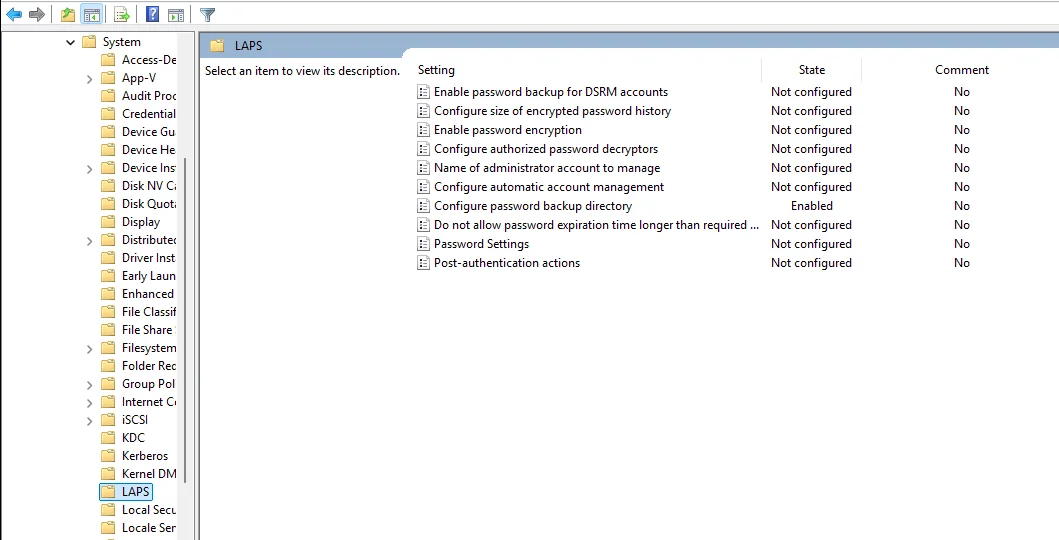
The Windows LAPS settings in the Group Policy Management Editor
Each GPO setting writes a registry value of the same name under HKLM\Software\Microsoft\Windows\CurrentVersion\Policies\LAPS. Intune writes the same settings through the Windows LAPS CSP (./Device/Vendor/MSFT/LAPS/Policies/<Setting>). The Windows LAPS policy settings reference documents every value; the Value column below is a starting point for an Active Directory deployment.
| Setting | Path (GPO / registry / CSP) | Value | Default | Effect |
|---|---|---|---|---|
BackupDirectory |
GPO: the matching policy under System > LAPS | 2 (Active Directory) |
0 (Disabled) |
Turns Windows LAPS on. While it's 0, every other setting is ignored. |
PasswordComplexity |
GPO: Password Settings | 4, or 5 to 8 on Windows 11 24H2 and Windows Server 2025 |
4 |
4 uses large and small letters, numbers and special characters. 6 to 8 create passphrases. Values 1 to 3 exist only for legacy compatibility. |
PasswordLength |
GPO: Password Settings | 14 or more (allowed: 8 to 64) |
14 |
Ignored when complexity selects a passphrase. A value the device's password policy rejects causes event 10027. |
PassphraseLength |
GPO: Password Settings | 6 or more words (allowed: 3 to 10) |
6 |
Windows 11 24H2 and Windows Server 2025 only. |
PasswordAgeDays |
GPO: Password Settings | 30 or less (allowed: 1 to 365; at least 7 for Microsoft Entra ID) |
30 |
A change doesn't move the current password's expiration date. |
AdministratorAccountName |
GPO: Name of administrator account to manage | Not configured, or the name of a custom account | Built-in Administrator, found by its RID | Windows LAPS doesn't create a custom account in this mode; you must create it. Ignored when automatic account management is on. |
PasswordExpirationProtectionEnabled |
GPO: the matching policy under System > LAPS | 1 |
1 (0 in legacy Microsoft LAPS emulation mode) |
Enforces the maximum password age that PasswordAgeDays sets. |
ADPasswordEncryptionEnabled |
GPO: Enable password encryption | 1 |
1 |
Needs DFL 2016. Microsoft highly recommends encryption for Active Directory backup. |
ADPasswordEncryptionPrincipal |
GPO: Configure authorized password decryptors | One group, for example CORP\LAPS-Decryptors-Workstations |
Domain Admins | Takes one principal; nest people in a wrapper group. An invalid name stops the backup. It can't be changed for a password that is already encrypted. |
ADEncryptedPasswordHistorySize |
GPO: the matching policy under System > LAPS | 1 to 12 |
0 |
Keeps older encrypted passwords. Useful after a VM is restored from an old snapshot. |
ADBackupDSRMPassword |
GPO: the matching policy under System > LAPS | 1, in the domain controller GPO only |
0 |
Needs encryption. Not available through the CSP. |
PostAuthenticationResetDelay |
GPO: Post-authentication actions | 1 to 24 hours |
24 |
0 turns post-authentication actions off. |
PostAuthenticationActions |
GPO: Post-authentication actions | 3 (reset the password and sign out) |
3 |
1 resets only, 5 resets and restarts, 11 also ends remaining processes (Windows 11 24H2 and Windows Server 2025). |
AutomaticAccountManagementEnabled |
GPO: the matching policy under System > LAPS | 1 with a custom account target, on Windows 11 24H2 and Windows Server 2025 |
0 |
Windows LAPS creates and configures the account (default name WLapsAdmin). Microsoft recommends this mode with a custom account and the built-in Administrator left disabled. |
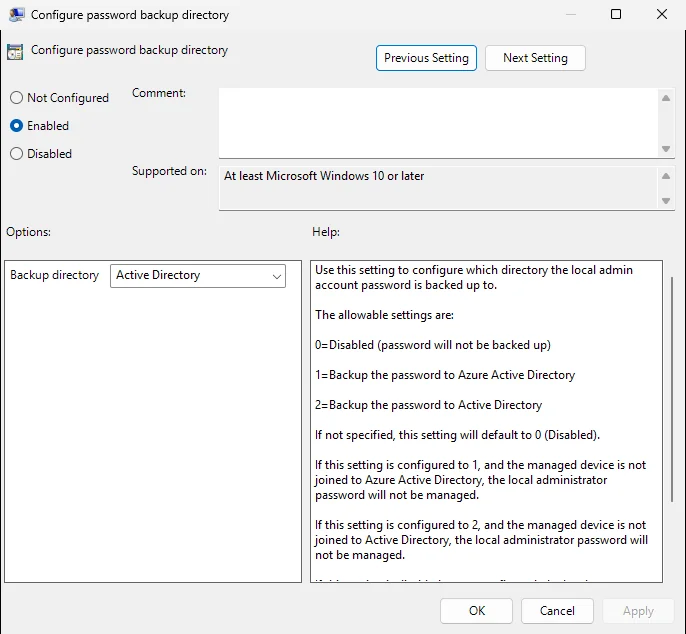
Set the backup directory to Active Directory
Two cautions apply. An older OS that receives a value it doesn't support, such as a passphrase, uses the default instead, so create separate GPOs for older and newer OS versions. For domain controllers, link a separate GPO to the Domain Controllers OU that enables DSRM backup. There the decryptor is always the domain's Domain Admins group, whatever ADPasswordEncryptionPrincipal says.
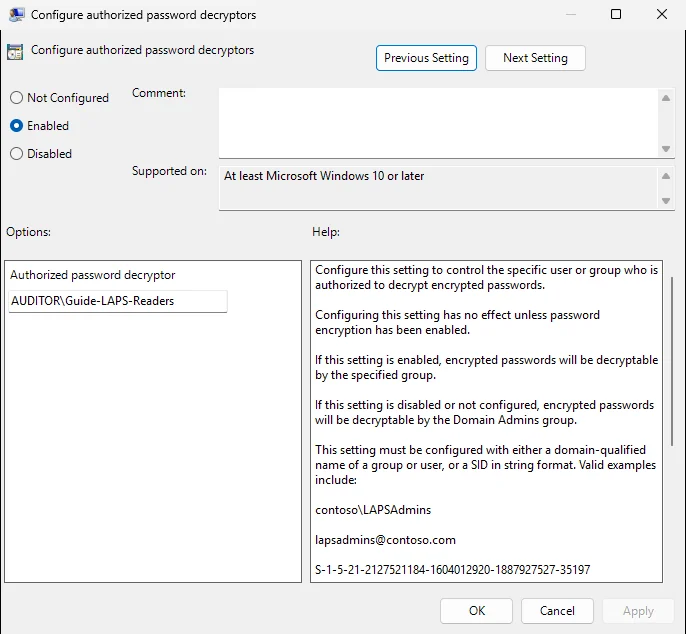
Point decryption to one dedicated group
Treat this GPO as sensitive. Anyone who can edit it can widen the authorized decryptors or turn encryption off, and the Group Policy Object modification rules watch for that kind of change. To confirm which GPO wins on a device, use the gpresult and RSoP audit guide.
Step 5: Back up passwords to Microsoft Entra ID with Intune
Microsoft Entra joined devices, and hybrid joined devices that you prefer to manage from the cloud, back up their password to Microsoft Entra ID. Turn the feature on in the tenant, then deploy an Intune profile. No schema change is needed.
- In the Microsoft Entra admin center, as at least a Cloud Device Administrator, go to Entra ID > Devices > Overview > Device settings. Set Enable Local Administrator Password Solution (LAPS) to Yes and select Save. Until you do, Microsoft Entra ID doesn't accept passwords from devices.
- In the Microsoft Intune admin center, go to Endpoint security > Account protection > Create Policy. Choose the Windows platform and the Local admin password solution (Windows LAPS) profile.
- Set Backup Directory to Microsoft Entra ID, then set the password age, complexity, length, account name and post-authentication options. The Active Directory settings, such as encryption, don't apply in this mode.
- Assign the profile to device groups, not user groups, and give each device only one LAPS profile.
Plan recovery rights next. Microsoft's Windows LAPS in Microsoft Entra ID page lists who can do what:
| Role or permission | Read the password | Read metadata (last and next rotation) |
|---|---|---|
| Global Administrator | Yes | Yes |
| Cloud Device Administrator | Yes | Yes |
| Intune Administrator | Yes | Yes |
| Helpdesk Administrator, Security Administrator, Security Reader | No | Yes |
Custom role with microsoft.directory/deviceLocalCredentials/password/read |
Yes | Needs microsoft.directory/deviceLocalCredentials/standard/read |
Custom roles need Microsoft Entra ID P1 or P2. You can also scope Cloud Device Administrator to an administrative unit that holds the devices a team supports. Conditional Access can protect recovery, but Microsoft supports it only for the built-in roles, not for custom or administrative unit scoped roles.
Step 6: Retrieve and rotate passwords
Check that each device has written its password, then practice retrieval and early rotation before you need them in an incident. Windows LAPS processes its policy every hour; to start a cycle at once, run this on the device in an elevated session:
Invoke-LapsPolicyProcessing
Retrieve and rotate in Active Directory
Get-LapsADPassword returns the password wrapped in a SecureString unless you add -AsPlainText, which Microsoft reserves for support and testing. Run it as a member of the read group, and of the authorized decryptor group for encrypted passwords:
Get-LapsADPassword -Identity 'WS01'
ComputerName        : WS01
DistinguishedName   : CN=WS01,OU=Workstations,DC=corp,DC=example,DC=com
Account             : Administrator
Password            : System.Security.SecureString
PasswordUpdateTime  : 11/27/2026 9:14:02 AM
ExpirationTimestamp : 12/27/2026 9:14:02 AM
Source              : EncryptedPassword
DecryptionStatus    : Success
AuthorizedDecryptor : CORP\LAPS-Decryptors-Workstations
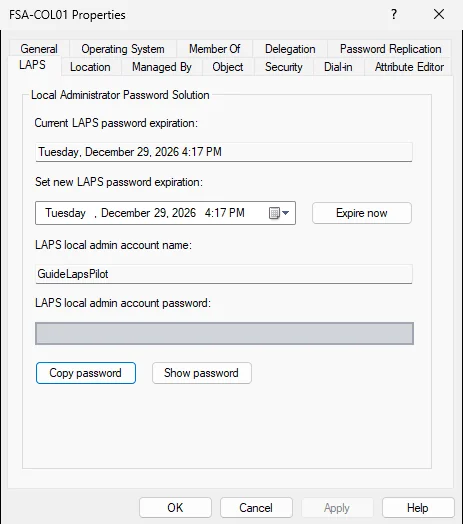
The Windows LAPS page in Active Directory Users and Computers
Source : EncryptedPassword confirms encryption. CleartextPassword means encryption is off, and LegacyLapsCleartextPassword means the password came from the legacy ms-Mcs-AdmPwd attribute, which legacy Microsoft LAPS or legacy Microsoft LAPS emulation mode writes. DecryptionStatus : Unauthorized means you can read the attribute but aren't an authorized decryptor. Add -IncludeHistory to list older encrypted passwords.
Reading an encrypted password from an audited OU writes event 4662 on the domain controller. That is the signal the LAPS password read rules use, so expect your own tests to appear in it.
To rotate early, expire the password in Active Directory. The device rotates at its next cycle.
Set-LapsADPasswordExpirationTime -Identity 'WS01'
DistinguishedName                                  Status
-----------------                                  ------
CN=WS01,OU=Workstations,DC=corp,DC=example,DC=com PasswordReset
This cmdlet has no -WhatIf, so check the identity before you run it. Add -WhenEffective to schedule a later expiration. On the device itself, Reset-LapsPassword rotates at once; Microsoft intends it for rare cases such as a suspected compromise.
If no domain controller is available, mount a backup of the directory database with dsamain.exe and query it with Get-LapsADPassword -Port <port>. Microsoft's getting-started guide notes that in Windows Insider build 27695 and later, adding -RecoveryMode to -Port recovers the password without contacting a domain controller, even from a workgroup machine. Without -Port, -RecoveryMode is a last resort for passwords that can no longer be decrypted, for example after the decryptor group was deleted, and it requires a local sign-in as a Domain Admin on a writable domain controller.
Retrieve and rotate in Microsoft Entra ID
Use the Microsoft Entra admin center, the Intune admin center or Get-LapsAADPassword, which wraps Microsoft Graph. As Get started with Windows LAPS and Microsoft Entra ID explains, the calling app needs Device.Read.All plus either DeviceLocalCredential.ReadBasic.All for metadata or DeviceLocalCredential.Read.All for the password itself.
Connect-MgGraph -TenantId '<tenant-id>' -ClientId '<application-id>'
Get-LapsAADPassword -DeviceIds 'WS02'
DeviceName DeviceId                             PasswordExpirationTime
---------- --------                             ----------------------
WS02       00000000-0000-0000-0000-000000000000 12/27/2026 9:20:11 AM
Add -IncludePasswords only when you need the password. Microsoft Entra ID doesn't let you expire a password by editing its timestamp. Rotate it on the device with Reset-LapsPassword, or from the Intune admin center. Each recovery writes the Recover device local administrator password activity to the Microsoft Entra audit log.
Step 7: Migrate from legacy Microsoft LAPS
Microsoft recommends moving every Windows LAPS-capable device off legacy Microsoft LAPS. The two can run side by side only if they manage different local accounts, because two policies on the same account isn't supported.
Microsoft's migration guide documents two approaches.
Immediate transition
- Disable or remove the legacy Microsoft LAPS policy.
- Create and apply a Windows LAPS policy, as close to the same moment as possible. Targeting the same account is the easiest option.
- Monitor the device. Windows LAPS rotates the password at once when the policy first applies.
- Remove the legacy Microsoft LAPS software.
Side by side, then cut over
- Create a second local administrator account on the device.
- Create and apply a Windows LAPS policy that manages the second account.
- Confirm that Windows LAPS works, for as long as you need.
- Disable or remove the legacy Microsoft LAPS policy.
- Remove the legacy Microsoft LAPS software.
- Remove the extra account.
If you can't change policies yet, Windows LAPS can honor existing legacy GPO settings in legacy Microsoft LAPS emulation mode. It works only when the legacy client-side extension isn't installed and no Windows LAPS policy exists on the device. It stores clear-text passwords in ms-Mcs-AdmPwd, with no encryption, history or Microsoft Entra ID backup, and domain controllers ignore it. Treat it as a temporary step.
To keep a device out of emulation mode, for example during an OS deployment, create the REG_DWORD value BackupDirectory = 0 under HKLM\Software\Microsoft\Windows\CurrentVersion\LAPS\Config. A Windows LAPS policy still takes precedence once you apply one.
To remove an MSI installation of the legacy software, run this as an administrator on the device:
msiexec.exe /q /uninstall {97E2CA7B-B657-4FF7-A6DB-30ECC73E1E28}
If someone copied and registered AdmPwd.dll by hand, unregister and delete it instead. The DllName value under HKLM\SOFTWARE\Microsoft\Windows NT\CurrentVersion\Winlogon\GPExtensions\{D76B9641-3288-4f75-942D-087DE603E3EA} shows where it lives. Finally, review who can still read ms-Mcs-AdmPwd on each OU; Forestall models that right as the LAPSPassword edge.
Verify
Verify on three levels: the device, the directory and the permissions. Start on a managed device with the read-only client check below. It reads the policy registry roots and the LAPS event channel, and it doesn't start a cycle or touch the password. Run it in an elevated session on the device.
#Requires -Version 5.1

<#
.SYNOPSIS
    Read-only check of Windows LAPS on the local computer.

.DESCRIPTION
    Reports which Windows LAPS policy root holds settings, whether the legacy Microsoft LAPS
    Group Policy client-side extension is registered, and the latest policy, cycle and
    password update events from the Microsoft-Windows-LAPS/Operational channel.
    It reads registry keys and the event log only. It doesn't start a policy cycle, rotate
    a password or read a password.

.PARAMETER Hours
    How many hours of events to read, from 1 to 720. The default is 24.

.EXAMPLE
    .\Get-WindowsLapsClientStatus.ps1

.EXAMPLE
    .\Get-WindowsLapsClientStatus.ps1 -Hours 72

.NOTES
    Read-only. Run it in an elevated session on the managed device.
#>
[CmdletBinding()]
param(
    [ValidateRange(1, 720)]
    [int]$Hours = 24
)

Set-StrictMode -Version Latest
$ErrorActionPreference = 'Stop'

# Policy roots in the order Windows LAPS queries them
$policyRoots = [ordered]@{
    'LAPS CSP'                 = 'HKLM:\Software\Microsoft\Policies\LAPS'
    'LAPS Group Policy'        = 'HKLM:\Software\Microsoft\Windows\CurrentVersion\Policies\LAPS'
    'LAPS Local Configuration' = 'HKLM:\Software\Microsoft\Windows\CurrentVersion\LAPS\Config'
    'Legacy Microsoft LAPS'    = 'HKLM:\Software\Policies\Microsoft Services\AdmPwd'
}

$activeRoot = 'None'
foreach ($rootName in $policyRoots.Keys) {
    $path = $policyRoots[$rootName]
    if ((Test-Path -Path $path) -and ((Get-Item -Path $path).ValueCount -gt 0)) {
        $activeRoot = $rootName
        break
    }
}

# Legacy Microsoft LAPS client-side extension
$cseKey = 'HKLM:\Software\Microsoft\Windows NT\CurrentVersion\Winlogon\GPExtensions\{D76B9641-3288-4f75-942D-087DE603E3EA}'
$legacyCse = $null
if (Test-Path -Path $cseKey) {
    $cseValues = Get-ItemProperty -Path $cseKey
    if ($null -ne $cseValues.PSObject.Properties['DllName']) { $legacyCse = $cseValues.DllName }
}

# Recent Windows LAPS events
$filter = @{
    LogName   = 'Microsoft-Windows-LAPS/Operational'
    Id        = 10003, 10004, 10005, 10018, 10020, 10021, 10022, 10023, 10029, 10031
    StartTime = (Get-Date).AddHours(-$Hours)
}
try {
    $events = @(Get-WinEvent -FilterHashtable $filter)
}
catch {
    if ($_.FullyQualifiedErrorId -like 'NoMatchingEventsFound*') { $events = @() }
    else { throw }
}

function Get-LatestEvent {
    param([int[]]$Id)
    $match = @($events | Where-Object { $Id -contains $_.Id } | Sort-Object -Property TimeCreated -Descending)
    if ($match.Count -gt 0) { return $match[0] }
    return $null
}

$policyEvent = Get-LatestEvent -Id 10021, 10022, 10023
$cycleEvent = Get-LatestEvent -Id 10004, 10005
$directoryEvent = Get-LatestEvent -Id 10018, 10029
$localEvent = Get-LatestEvent -Id 10020

[pscustomobject]@{
    ComputerName            = $env:COMPUTERNAME
    ActivePolicyRoot        = $activeRoot
    LegacyCseDllName        = $legacyCse
    LastPolicyEventId       = if ($policyEvent) { $policyEvent.Id } else { $null }
    LastPolicyDetails       = if ($policyEvent) { $policyEvent.Message } else { $null }
    LastCycleResult         = if ($cycleEvent) { if ($cycleEvent.Id -eq 10004) { 'Succeeded' } else { 'Failed' } } else { 'NoCycleInWindow' }
    LastCycleTime           = if ($cycleEvent) { $cycleEvent.TimeCreated } else { $null }
    LastDirectoryUpdate     = if ($directoryEvent) { if ($directoryEvent.Id -eq 10018) { 'ActiveDirectory' } else { 'MicrosoftEntraID' } } else { 'NoneInWindow' }
    LastDirectoryUpdateTime = if ($directoryEvent) { $directoryEvent.TimeCreated } else { $null }
    LastLocalPasswordUpdate = if ($localEvent) { $localEvent.TimeCreated } else { $null }
    BlockedPasswordChanges  = @($events | Where-Object { $_.Id -eq 10031 }).Count
    HoursChecked            = $Hours
}
.\Get-WindowsLapsClientStatus.ps1 -Hours 24
ComputerName            : WS01
ActivePolicyRoot        : LAPS Group Policy
LegacyCseDllName        :
LastPolicyEventId       : 10021
LastPolicyDetails       : The current LAPS policy is configured as follows: ...
LastCycleResult         : Succeeded
LastCycleTime           : 11/28/2026 8:14:05 AM
LastDirectoryUpdate     : ActiveDirectory
LastDirectoryUpdateTime : 11/27/2026 9:14:02 AM
LastLocalPasswordUpdate : 11/27/2026 9:14:02 AM
BlockedPasswordChanges  : 0
HoursChecked            : 24
Compare the results with this table:
| Check | Expected result |
|---|---|
ActivePolicyRoot |
LAPS Group Policy (GPO) or LAPS CSP (Intune). Legacy Microsoft LAPS means only a legacy policy is present; the device is in emulation mode unless LegacyCseDllName shows the legacy extension. |
LegacyCseDllName |
Empty after migration |
LastCycleResult |
Succeeded (event 10004 follows each 10003) |
LastPolicyEventId |
10021 for Active Directory, 10022 for Microsoft Entra ID, 10023 for legacy emulation mode |
LastDirectoryUpdate |
Event 10018 (Active Directory) or 10029 (Microsoft Entra ID) after a rotation, followed by 10020 |
| Audit script | Expired and NoPasswordInAD close to zero for devices that back up to Active Directory; ReadersToReview at zero |
Get-LapsADPassword |
Source : EncryptedPassword and the decryptor group you configured |
| Microsoft Entra ID | The device appears under Entra ID > Devices > Overview > Local administrator password recovery |
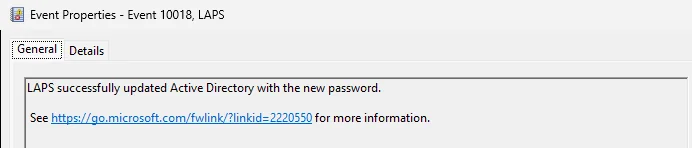
Event 10018 confirms the password reached Active Directory
Roll back
Most Windows LAPS changes can be reversed; the schema extension and a deleted Microsoft Entra device can't. Before any rollback, retrieve the current password of each device you might need to sign in to, because Windows LAPS generated it and the directory is where you read it.
| Change | How to roll back | Notes |
|---|---|---|
| Windows LAPS GPO | Set BackupDirectory to 0 (Disabled) in the GPO, or unlink the GPO |
With BackupDirectory at 0, Windows LAPS ignores every other setting |
| Intune profile | Unassign or delete the profile | Retrieve the passwords first |
| OU permissions and auditing | Remove the entries in the OU's Advanced Security Settings (Permissions and Auditing tabs) | The LAPS module has no cmdlet that removes them |
| Tenant setting | Set Enable Local Administrator Password Solution (LAPS) to No | Devices can no longer post new passwords to Microsoft Entra ID |
| Schema extension | Can't be rolled back | Microsoft doesn't support removing schema additions |
| Return to legacy Microsoft LAPS | Possible only on older Windows versions that supported legacy Microsoft LAPS; newer versions block its installer | Never let both manage the same account |
| Deleted Microsoft Entra device | Can't be recovered | The stored password is lost with the device object |
For a pilot rollback, move the computers back to an OU that the Windows LAPS GPO doesn't reach.
Monitor and detect
Monitor three sources: the LAPS operational channel on each device, the Security log on domain controllers and the Microsoft Entra audit log. Together they show whether rotation works and who reads the passwords.
| Source | Event | What it tells you | Related page |
|---|---|---|---|
Microsoft-Windows-LAPS/Operational (device) |
10003, 10004, 10005 | A policy cycle started, succeeded or failed | Use Windows LAPS event logs |
Microsoft-Windows-LAPS/Operational (device) |
10018, 10029, 10020 | Password stored in Active Directory or in Microsoft Entra ID, then set on the local account | Same |
Microsoft-Windows-LAPS/Operational (device) |
10031 | Windows LAPS blocked another process from changing the managed password | Same |
Microsoft-Windows-LAPS/Operational (device) |
10041 | The managed account was used to sign in; post-authentication actions are scheduled | Same |
| Security (domain controllers) | 4662 | Access to the encrypted password attributes (Properties contains f3531ec6-6330-4f8e-8d39-7a671fbac605) |
Event ID 4662 field reference and detection rules for LAPS password reads |
| Security (domain controllers) | 5136 | An OU or GPO changed, including its permissions | Event 5136 |
| Security (domain controllers) | 4794 | An attempt to set the DSRM administrator password | Event 4794 and DSRM password set rules |
| Microsoft Entra audit log | Recover device local administrator password activity | Someone recovered a device password | Windows LAPS password recovered from Microsoft Entra ID rules |
On a domain controller, the LAPS channel shows only DSRM events, never client events. The property set GUID f3531ec6-6330-4f8e-8d39-7a671fbac605 covers the encrypted password, its history and the DSRM attributes. The Windows LAPS schema extensions reference puts the clear-text msLAPS-Password attribute in no property set, and the legacy ms-Mcs-AdmPwd attribute comes from a separate schema extension, so reads of those need their own attribute GUID.
Reading a password without a business reason is a form of credential theft. The next step is usually a local administrator logon with that password or its hash, which the pass-the-hash detection rules cover.
The first query counts how many computers' encrypted LAPS attributes each account accessed. Run it in Microsoft Sentinel or a Log Analytics workspace that receives domain controller Security events in the SecurityEvent table.
// Windows LAPS password attribute reads on domain controllers (event 4662).
// Needs Set-LapsADAuditing on the OUs and Audit Directory Service Access (Success) on DCs.
SecurityEvent
| where TimeGenerated > ago(1d)
| where EventID == 4662
| where Properties contains "f3531ec6-6330-4f8e-8d39-7a671fbac605"
| where SubjectUserName !endswith "$"
| summarize ComputersRead = dcount(ObjectName), FirstRead = min(TimeGenerated), LastRead = max(TimeGenerated)
    by SubjectDomainName, SubjectUserName, SubjectLogonId, DomainController = Computer
| order by ComputersRead desc
The second query counts Windows LAPS password recoveries per actor and hour in the Microsoft Entra audit log (AuditLogs table).
// Windows LAPS passwords recovered from Microsoft Entra ID, per actor and hour.
AuditLogs
| where TimeGenerated > ago(7d)
| where OperationName == "Recover device local administrator password"
| where Result == "success"
| extend Actor = coalesce(tostring(InitiatedBy.user.userPrincipalName), tostring(InitiatedBy.app.displayName))
| extend Device = tostring(TargetResources[0].displayName)
| summarize DevicesRecovered = dcount(Device), Devices = make_set(Device, 50) by Actor, bin(TimeGenerated, 1h)
| order by DevicesRecovered desc
The third query needs a data collection rule that collects Microsoft-Windows-LAPS/Operational from devices, for example with the XPath Microsoft-Windows-LAPS/Operational!*. Events from that channel land in the Event table.
// Windows LAPS client failures and blocked password changes from the LAPS operational channel.
// Needs a data collection rule that collects Microsoft-Windows-LAPS/Operational into the Event table.
Event
| where TimeGenerated > ago(1d)
| where EventLog == "Microsoft-Windows-LAPS/Operational"
| where EventID in (10005, 10017, 10027, 10028, 10031)
| summarize Events = count(), LastSeen = max(TimeGenerated) by Computer, EventID
| order by LastSeen desc
A support case touches one device and has a ticket. One account that reads or recovers the passwords of many devices in a short time, or of servers and domain controllers it doesn't manage, deserves an alert.
Troubleshooting
Most Windows LAPS problems leave a specific event in the Microsoft-Windows-LAPS/Operational channel, which the table below maps to a fix. Microsoft's Windows LAPS troubleshooting guidance has the full list.
| Symptom | Cause | Fix |
|---|---|---|
| Event 10006, no password in Active Directory | Encryption is on (the default) but the DFL is below 2016 | Raise the DFL, or disable Enable password encryption for those clients |
| Event 10012 | The schema isn't extended, or the change hasn't replicated to the DC the client uses | Run Update-LapsADSchema; event 10055 names the DC, check its replication with repadmin /showreps |
| Event 10013 | The configured account doesn't exist | Create the account, or use automatic account management on Windows 11 24H2 and Windows Server 2025 |
| Event 10027 | The LAPS length or complexity conflicts with the domain or local password policy, or a third-party password filter | Compare with net accounts and gpresult /h; align the Password Settings policy |
| Event 10034 or 10035 | The authorized decryptor is an isolated name, or the client can't resolve it | Use DOMAIN\Group, group@domain or a SID; wait for a new group to replicate |
| Event 10056 or 10057 | No writable DC found, or the LDAP bind failed | Run nltest /dsgetdc:<domain> /force /writable and nltest /sc_query:<domain> |
| Event 10025, 10026, 10028, 10032 or 10059 | Microsoft Entra ID side: tenant setting off, device deleted or disabled, device registration or proxy problem | Turn on the tenant setting, run dsregcmd /status, check the system proxy with netsh winhttp show proxy |
| Event 10065 | Legacy emulation mode: the computer can't write the legacy attribute, for example after a move to an OU without the SELF permission | Grant the SELF permission on the destination OU |
| Windows LAPS doesn't apply the legacy GPO (no event 10023) | A Windows LAPS policy is present, or the legacy client-side extension is installed and manages the account itself | Check ActivePolicyRoot and LegacyCseDllName with the client script |
| A build or task sequence fails after the domain join | The policy rotated the account the workflow signs in with | Use a staging OU without a LAPS policy, or manage a different account |
| The retrieved password fails after a VM snapshot restore | The device and the directory hold different passwords | Try older passwords with -IncludeHistory; rollback detection needs Windows 11 24H2 or Windows Server 2025 and the Windows Server 2025 schema |
| No backup while the device runs in safe mode | Windows LAPS is disabled in safe mode and DSRM boot | Restart the device normally |
DecryptionStatus : Unauthorized |
You can read the attribute but aren't the authorized decryptor | Use an account in the decryptor group, or pass -DecryptionCredential |
For anything else, Get-LapsDiagnostics collects logs and traces into a .zip file. It runs a policy cycle while it collects or, with -ResetPassword, rotates the password instead.
How Forestall helps
Forestall shows who can obtain local administrator passwords as attack path edges: ReadLAPSv2Password for the Windows LAPS attributes, LAPSPassword for the legacy attribute and SyncLAPSPassword for the replication rights path. It also raises findings such as FS1163 (Non-Privileged Authorized LAPS Decryptors) and FS1164 (Everyone-Like Authorized LAPS Decryptors). Rotating local passwords doesn't remove copies of an old shared password from scripts and configuration files. Forestall Credential Discovery finds credentials exposed in SMB file shares and shows who can access them.
Frequently Asked Questions
How do I enable Windows LAPS on Windows 11?
Windows LAPS is already part of Windows 11 21H2 and 22H2 with the April 11, 2023 update or later, and of Windows 11 23H2 and later, so there's nothing to install. You turn it on with policy: a Group Policy Object or an Intune profile that sets the backup directory to Active Directory or Microsoft Entra ID. For Microsoft Entra ID backup, also enable LAPS in the tenant's device settings first.
Is Windows LAPS free?
Yes. Microsoft makes Windows LAPS available at no cost on all supported Windows platforms. Backing up to Active Directory needs no other license, and backing up to Microsoft Entra ID works with Microsoft Entra ID Free or higher. Related features have their own requirements: custom roles need Microsoft Entra ID P1 or P2, and Intune, administrative units and Conditional Access carry separate licensing.
Can Windows LAPS and legacy Microsoft LAPS run on the same computer?
Windows LAPS and legacy Microsoft LAPS can coexist during a migration only if each one manages a different local account; Microsoft doesn't support both managing the same account. If the legacy client-side extension is installed, Windows LAPS won't enter legacy emulation mode. If any Windows LAPS policy is present, Windows LAPS ignores the legacy policy. The long-term goal is native Windows LAPS on every capable device.
Does Windows LAPS work on Windows Server 2016?
No. Windows LAPS is available on Windows Server 2019 and Windows Server 2022 with the April 11, 2023 update or later, and on Windows Server 2025. Windows Server 2016 can keep using legacy Microsoft LAPS, which Microsoft supports on older Windows versions until their end of support. Domain controllers that run Windows Server 2016 can't manage their DSRM password with Windows LAPS either.
How often does Windows LAPS rotate the password?
Windows LAPS rotates the password every 30 days by default, controlled by PasswordAgeDays (1 to 365 days, and at least 7 for Microsoft Entra ID). The device checks every hour, so a password that an administrator expires in Active Directory rotates at the next hourly cycle. With the default post-authentication action, Windows LAPS also resets the password and signs out the session 24 hours after someone uses the managed account.
Who can read Windows LAPS passwords by default?
In Active Directory, members of Domain Admins can read and expire passwords by default. Encrypted passwords can be decrypted only by Domain Admins unless you configure another authorized decryptor. Anyone else needs rights granted in the directory, such as read permission on the OU. In Microsoft Entra ID, Global Administrator, Cloud Device Administrator and Intune Administrator can recover passwords by default, while Helpdesk Administrator, Security Administrator and Security Reader see only metadata.
Related guides
- Active Directory hardening, every step in order: where Windows LAPS fits in the full hardening sequence.
- Enable LSA Protection and Credential Guard: protect the credentials that pass-the-hash attacks reuse.
- Disable NTLMv1 step by step: another authentication hardening project with its own audit and rollback plan.
- Combined attack path analysis with BloodHound and Kangal: how read rights like these become attack paths.
References
- What is Windows LAPS? (Microsoft Learn)
- Key concepts in Windows LAPS (Microsoft Learn)
- Get started with Windows LAPS and Windows Server Active Directory (Microsoft Learn)
- Configure policy settings for Windows LAPS (Microsoft Learn)
- Windows LAPS schema extensions reference (Microsoft Learn)
- Get started with Windows LAPS and Microsoft Entra ID (Microsoft Learn)
- Windows Local Administrator Password Solution in Microsoft Entra ID (Microsoft Learn)
- Migrate to Windows LAPS from legacy LAPS (Microsoft Learn)
- Get started with Windows LAPS in legacy Microsoft LAPS emulation mode (Microsoft Learn)
- Use Windows LAPS event logs (Microsoft Learn)
- Windows LAPS troubleshooting guidance (Microsoft Learn)
- Use Alternate Authentication Material: Pass the Hash, T1550.002 (MITRE ATT&CK)
See your identity exposure clearly.
Start with a 1-day Proof of Value in your own environment.