Enable LSA Protection and Credential Guard: A Step-by-Step Guide
Summary
LSA protection and Credential Guard protect the credentials that Windows keeps after sign-in. LSA protection runs LSASS as a protected process, so other processes can't read its memory or inject code. Credential Guard moves NTLM hashes and Kerberos ticket-granting tickets (TGTs) into an isolated process. Audit first, enforce on clients and member servers, and keep Credential Guard off domain controllers.
Quick steps
- Run the read-only fleet check to see which computers run LSA protection and Credential Guard today.
- Review the LSASS audit events 3065 and 3066, and replace or update every LSA plug-in they name.
- Set
RunAsPPLwith Group Policy, Intune or the registry, restart, and confirm WinInit event 12. - Confirm that each device group meets the Credential Guard hardware, edition and license requirements.
- Remove dependencies on NTLMv1, MS-CHAPv2, unconstrained delegation and CredSSP single sign-on.
- Turn on Credential Guard without UEFI lock on clients and member servers, never on domain controllers.
- Verify with
Win32_DeviceGuardormsinfo32, then alert on setting changes and pass-the-hash signs.
Applies to: Windows 11, Windows 10, Windows Server 2016, Windows Server 2019, Windows Server 2022 and Windows Server 2025. Credential Guard needs Windows Enterprise or Education on clients. Microsoft documents RunAsPPL value 2 (no UEFI variable) as enforced on Windows 11 22H2 and later (as of November 2026).
What are LSA protection and Credential Guard, and why do they matter?
LSA protection is a Windows feature that runs the Local Security Authority Server Service (LSASS) as a protected process. It stops nonprotected processes from reading LSASS memory or injecting code, and it loads only plug-ins with a Microsoft signature. Credential Guard is a Windows feature that uses virtualization-based security (VBS) to hold NTLM password hashes, Kerberos ticket-granting tickets (TGTs) and saved domain credentials in an isolated process, LSAIso.exe. LSASS reaches that process through remote procedure calls, and the rest of the operating system can't read it.
Both controls exist because LSASS holds reusable credentials. Interactive, Remote Desktop, batch and service logons leave credentials in the LSA session that can authenticate to other computers. An attacker with administrative rights reads them from memory, which MITRE ATT&CK tracks as OS Credential Dumping: LSASS Memory (T1003.001).
The stolen NTLM hash then serves pass-the-hash, tracked as T1550.002, and a stolen TGT serves pass-the-ticket. Both lead to lateral movement across the domain. MITRE lists LSA protection under Privileged Process Integrity (M1025) and Credential Guard under Credential Access Protection (M1043). Each closes one path to credential theft, not all of them.
What each control protects, and what stays exposed
The two controls work at different layers. Microsoft calls them complementary: a system that runs Credential Guard can also enable and benefit from LSA protection.
| Aspect | LSA protection | Credential Guard |
|---|---|---|
| What it does | Runs LSASS as a protected process | Moves secrets into LSAIso.exe, which VBS isolates from the operating system |
| What it protects | LSASS memory and code from nonprotected processes; only Microsoft-signed LSA plug-ins load | NTLM hashes, Kerberos TGTs and saved domain credentials, even from malware with administrative rights |
| Requirements | Windows 8.1 or Windows Server 2012 R2 and later; UEFI and Secure Boot only for the UEFI variable | VBS and Secure Boot; a TPM is recommended |
| What it can break | LSA plug-ins and drivers without a Microsoft signature; debugging LSASS | Single sign-on for NTLMv1, MS-CHAPv2, Digest and CredSSP; Kerberos DES and unconstrained delegation |
| Domain controllers | Expected by the Windows Server 2025 security baseline | Not recommended by Microsoft |
How Credential Guard works lists what stays outside Credential Guard's protection:
- Copies of the same secrets elsewhere. The Active Directory database on domain controllers and the SAM for local accounts hold the same credentials. Watch for NTDS.dit extraction and DCSync separately.
- Local accounts and Microsoft accounts. A shared local Administrator password stays reusable; give every device its own with Windows LAPS.
- Kerberos service tickets, cached logon verifiers and credentials typed at an NTLM prompt. Credential Guard isolates the TGT but not service tickets, and credentials typed for NTLM stay readable in LSASS memory.
- Key loggers, physical attacks and malware that acts with a signed-in user's privileges. Credential Guard stops extraction, not use.
- Credentials that software keeps outside Windows, such as passwords in scripts and configuration files.
Which Windows versions enable LSA protection and Credential Guard by default?
Windows 11 22H2 and later turn on both controls by default when the device meets Microsoft's conditions, and Windows Server 2025 does so for Credential Guard on member servers. Microsoft documents no default enablement for older versions, so enable both explicitly there.
| Platform | LSA protection by default | Credential Guard by default |
|---|---|---|
| Windows 11 22H2 and later, new installation | On without a UEFI variable if the device is joined to Active Directory, Microsoft Entra ID or both, and can run memory integrity (HVCI) | On without UEFI lock if license, hardware and software requirements are met and it isn't explicitly disabled |
| Windows 11 upgraded to 24H2 or later | Audited for incompatibilities first, then turned on if none are found | Same rules as a new installation |
| Windows 11 Pro and Pro Education | Same rules as other client editions | Not a supported edition; can turn on if the device ran Credential Guard before, for example after a downgrade from Enterprise |
| Windows Server 2025 member server | No default documented | On without UEFI lock if domain joined, requirements met and not explicitly disabled |
| Windows Server 2025 domain controller | No default documented | Off: default enablement skips domain controllers |
| Windows 10 and Windows Server 2016 to 2022 | No default documented | No default enablement |
Microsoft's LSA protection overview applies to Windows 11 and states the default more broadly: on by default on all devices, immediately for new installations, and after a five-day evaluation period and a restart for upgrades. Enterprise policy overrides the upgrade behavior. The Windows 11, version 24H2 release notes describe the same audit-then-enable rollout. Treat the table as the documented conditions, and let the fleet check in Step 1 show what each device actually runs.
A device where an administrator explicitly disabled Credential Guard before the upgrade keeps it disabled afterward. To find a Windows 11 Pro device that will get default enablement, check for the IsolatedCredentialsRootSecret registry key under HKLM\SYSTEM\CurrentControlSet\Control\Lsa\MSV1_0.
What does Credential Guard require?
The Credential Guard overview lists the hardware, firmware and license requirements, and Microsoft's VBS hardware page adds the CPU details:
| Requirement | Detail |
|---|---|
| Virtualization-based security | A 64-bit CPU with virtualization extensions (Intel VT-x or AMD-V) and Second Level Address Translation |
| Secure Boot | Required |
| Trusted Platform Module | Recommended, version 1.2 or 2.0, discrete or firmware; it binds the protection to the hardware |
| UEFI lock | Recommended; it stops an attacker from turning Credential Guard off with a registry change |
| DMA protection | Optional; needs an IOMMU and RequirePlatformSecurityFeatures set to 3 |
| License | Windows Enterprise E3 or E5, or Windows Education A3 or A5; Windows Pro, Pro Education and SE aren't entitled |
| Virtual machines | Hyper-V generation 2 VMs on a host with an IOMMU; generation 1 isn't supported, and the host isn't covered |
Before you start
Plan for three things: the LSA plug-ins your devices load, the authentication protocols Credential Guard blocks, and the restart that every change needs. Test the whole sequence in a lab first, because settings applied with a UEFI lock can't be undone remotely.
- Inventory LSA plug-ins. Smart card drivers, cryptographic plug-ins, password filters and password change notification software load into LSASS. Each one must carry a Microsoft signature to keep working under LSA protection.
- Back up saved Windows credentials first. Credential Manager backups taken on a device with Credential Guard can't restore Windows credentials.
- Don't clear the TPM casually. Clearing it destroys the key that protects VBS data, and the saved Windows credentials in Credential Manager are deleted.
- Enable Credential Guard early in a device's life. Microsoft advises turning it on before domain join or the first domain sign-in, because secrets may already be exposed afterward.
- Permissions. You need local administrator rights on the target computers, rights to create and link Group Policy Objects, and rights to create and assign Intune configuration profiles.
Should you enable LSA protection and Credential Guard on domain controllers?
Enable LSA protection on domain controllers, but not Credential Guard. Microsoft states that Credential Guard adds no security on domain controllers and can cause application compatibility issues there, and default enablement skips them. It doesn't protect the Active Directory database either. Microsoft also doesn't support Credential Guard on Exchange Server.
LSA protection is different. The Windows security baseline for Windows Server 2025 expects RunAsPPL set to 1 or 2 on domain controllers, member servers and workgroup members. It expects LsaCfgFlags only on member servers and workgroup members. Audit domain controllers before you enforce, as you would any server.
Step 1: Audit the current state
Start with a read-only inventory of what each computer runs today. The script below reads registry values, the Win32_DeviceGuard class and two event logs on each computer through PowerShell remoting. It never touches LSASS memory, credentials or secrets.
Run it on a management server or admin workstation with WinRM access to the targets. Use an account that is a local administrator on them, and install the ActiveDirectory module (RSAT) if you use -SearchBase. It writes lsa-credential-protection.csv to the folder you name and returns one object per computer.
#Requires -Version 5.1

<#
.SYNOPSIS
    Read-only fleet check of LSA protection and Credential Guard.

.DESCRIPTION
    Connects to each computer with PowerShell remoting (Invoke-Command) and reads:
      - RunAsPPL under HKLM\SYSTEM\CurrentControlSet\Control\Lsa (LSA protection setting),
      - AuditLevel under the LSASS.exe Image File Execution Options key (LSA protection audit mode),
      - LsaCfgFlags under the Lsa key and under the DeviceGuard policy key (Credential Guard setting),
      - the Win32_DeviceGuard WMI class (VBS status, configured and running security services),
      - the WinInit events 12 to 17 in the System log since the last restart,
      - the CodeIntegrity events 3033, 3063, 3065 and 3066 that name lsass.exe in the last Days days.
    It never reads credentials, secrets or LSASS memory, and it changes nothing.
    Results go to lsa-credential-protection.csv in OutputFolder and to the pipeline.

.PARAMETER ComputerName
    Computers to check, for example 'WS01','SRV01'. Use this or SearchBase.

.PARAMETER SearchBase
    Distinguished name of an OU, for example 'OU=Workstations,DC=corp,DC=example,DC=com'.
    Every enabled computer object under it is checked. Needs the ActiveDirectory module (RSAT).

.PARAMETER OutputFolder
    Existing folder for the CSV report, for example 'C:\Reports\LSA'.

.PARAMETER Days
    How many days of CodeIntegrity events to count, from 1 to 90. The default is 14.

.EXAMPLE
    .\Get-LsaCredentialProtectionStatus.ps1 -ComputerName 'WS01','SRV01' -OutputFolder 'C:\Reports\LSA'

.EXAMPLE
    .\Get-LsaCredentialProtectionStatus.ps1 -SearchBase 'OU=Workstations,DC=corp,DC=example,DC=com' -OutputFolder 'C:\Reports\LSA' -Days 30

.NOTES
    Read-only. Makes no change to the registry, Active Directory or any computer.
    Writes only the CSV report to OutputFolder.
    Needs PowerShell remoting (WinRM) to each computer and an account that is a local
    administrator there, because Win32_DeviceGuard and some logs need elevation.
#>
[CmdletBinding(DefaultParameterSetName = 'ByName')]
param(
    [Parameter(Mandatory = $true, ParameterSetName = 'ByName')]
    [ValidateNotNullOrEmpty()]
    [string[]]$ComputerName,

    [Parameter(Mandatory = $true, ParameterSetName = 'BySearchBase')]
    [ValidateNotNullOrEmpty()]
    [string]$SearchBase,

    [Parameter(Mandatory = $true)]
    [ValidateScript({ Test-Path -Path $_ -PathType Container })]
    [string]$OutputFolder,

    [ValidateRange(1, 90)]
    [int]$Days = 14
)

Set-StrictMode -Version Latest
$ErrorActionPreference = 'Stop'

if ($PSCmdlet.ParameterSetName -eq 'BySearchBase') {
    Import-Module -Name ActiveDirectory
    $ComputerName = @(Get-ADComputer -SearchBase $SearchBase -SearchScope Subtree -Filter 'Enabled -eq $true' -Properties dNSHostName |
        ForEach-Object { if ($_.dNSHostName) { $_.dNSHostName } else { $_.Name } })
}

# Runs on each computer. Reads only.
$probe = {
    param([int]$Days)
    Set-StrictMode -Version Latest
    $ErrorActionPreference = 'Stop'

    function Get-DwordValue {
        param([string]$Path, [string]$Name)
        if (-not (Test-Path -Path $Path)) { return $null }
        $item = Get-ItemProperty -Path $Path
        if ($null -eq $item) { return $null }
        $property = $item.PSObject.Properties[$Name]
        if ($null -eq $property) { return $null }
        return [int]$property.Value
    }

    function Get-MatchingEvent {
        param([hashtable]$Filter)
        try { return @(Get-WinEvent -FilterHashtable $Filter) }
        catch {
            if ($_.FullyQualifiedErrorId -like 'NoMatchingEventsFound*') { return @() }
            throw
        }
    }

    $os = Get-CimInstance -ClassName Win32_OperatingSystem
    $cs = Get-CimInstance -ClassName Win32_ComputerSystem
    try { $dg = Get-CimInstance -ClassName Win32_DeviceGuard -Namespace 'root\Microsoft\Windows\DeviceGuard' }
    catch { $dg = $null }

    $lsaKey = 'HKLM:\SYSTEM\CurrentControlSet\Control\Lsa'
    $ifeoKey = 'HKLM:\SOFTWARE\Microsoft\Windows NT\CurrentVersion\Image File Execution Options\LSASS.exe'
    $dgPolicyKey = 'HKLM:\SOFTWARE\Policies\Microsoft\Windows\DeviceGuard'

    # WinInit events since the last restart: 12 = LSASS started as a protected process,
    # 13 = Credential Guard started, 15/16/17 = Credential Guard didn't start.
    $wininit = @(Get-MatchingEvent -Filter @{ LogName = 'System'; ProviderName = 'Microsoft-Windows-Wininit'; Id = 12, 13, 15, 16, 17; StartTime = $os.LastBootUpTime })
    $ppl = @($wininit | Where-Object { $_.Id -eq 12 } | Sort-Object -Property TimeCreated -Descending)
    $cgProblem = @($wininit | Where-Object { $_.Id -in 15, 16, 17 } | Sort-Object -Property TimeCreated -Descending)

    # CodeIntegrity events that name lsass.exe: 3065/3066 = audit mode, 3033/3063 = blocked.
    $ci = @(Get-MatchingEvent -Filter @{ LogName = 'Microsoft-Windows-CodeIntegrity/Operational'; Id = 3033, 3063, 3065, 3066; StartTime = (Get-Date).AddDays(-$Days) } |
        Where-Object { $_.Message -match 'lsass\.exe' })

    $configured = @()
    $running = @()
    $vbsStatus = $null
    if ($null -ne $dg) {
        $configured = @($dg.SecurityServicesConfigured)
        $running = @($dg.SecurityServicesRunning)
        $vbsStatus = $dg.VirtualizationBasedSecurityStatus
    }

    [pscustomobject]@{
        OperatingSystem           = $os.Caption
        BuildNumber               = $os.BuildNumber
        DomainRole                = [int]$cs.DomainRole
        IsDomainController        = ([int]$cs.DomainRole -ge 4)
        RunAsPPL                  = Get-DwordValue -Path $lsaKey -Name 'RunAsPPL'
        LsassAuditLevel           = Get-DwordValue -Path $ifeoKey -Name 'AuditLevel'
        LsaProtectedSinceBoot     = ($ppl.Count -gt 0)
        LsaCfgFlags               = Get-DwordValue -Path $lsaKey -Name 'LsaCfgFlags'
        LsaCfgFlagsPolicy         = Get-DwordValue -Path $dgPolicyKey -Name 'LsaCfgFlags'
        VbsStatus                 = $vbsStatus
        CredentialGuardConfigured = ($configured -contains 1)
        CredentialGuardRunning    = ($running -contains 1)
        CredentialGuardProblem    = if ($cgProblem.Count -gt 0) { $cgProblem[0].Id } else { $null }
        LsassAuditEvents          = @($ci | Where-Object { $_.Id -in 3065, 3066 }).Count
        LsassBlockedEvents        = @($ci | Where-Object { $_.Id -in 3033, 3063 }).Count
    }
}

$rows = @(foreach ($computer in $ComputerName) {
    try {
        $r = Invoke-Command -ComputerName $computer -ScriptBlock $probe -ArgumentList $Days

        $review = New-Object System.Collections.Generic.List[string]
        if (-not $r.LsaProtectedSinceBoot) { $review.Add('LSA protection not running') }
        if ($r.LsassAuditEvents -gt 0) { $review.Add('Audit events: check LSA plug-ins before enforcing') }
        if ($r.LsassBlockedEvents -gt 0) { $review.Add('LSA protection blocked a plug-in or driver') }
        if ($r.IsDomainController) {
            if ($r.CredentialGuardRunning) { $review.Add('Credential Guard running on a domain controller') }
        }
        elseif (-not $r.CredentialGuardRunning) { $review.Add('Credential Guard not running') }

        [pscustomobject]@{
            ComputerName              = $computer
            OperatingSystem           = $r.OperatingSystem
            BuildNumber               = $r.BuildNumber
            IsDomainController        = $r.IsDomainController
            RunAsPPL                  = $r.RunAsPPL
            LsassAuditLevel           = $r.LsassAuditLevel
            LsaProtectedSinceBoot     = $r.LsaProtectedSinceBoot
            LsassAuditEvents          = $r.LsassAuditEvents
            LsassBlockedEvents        = $r.LsassBlockedEvents
            LsaCfgFlags               = $r.LsaCfgFlags
            LsaCfgFlagsPolicy         = $r.LsaCfgFlagsPolicy
            VbsStatus                 = $r.VbsStatus
            CredentialGuardConfigured = $r.CredentialGuardConfigured
            CredentialGuardRunning    = $r.CredentialGuardRunning
            CredentialGuardProblem    = $r.CredentialGuardProblem
            Review                    = ($review -join '; ')
            Error                     = $null
        }
    }
    catch {
        [pscustomobject]@{
            ComputerName              = $computer
            OperatingSystem           = $null
            BuildNumber               = $null
            IsDomainController        = $null
            RunAsPPL                  = $null
            LsassAuditLevel           = $null
            LsaProtectedSinceBoot     = $null
            LsassAuditEvents          = $null
            LsassBlockedEvents        = $null
            LsaCfgFlags               = $null
            LsaCfgFlagsPolicy         = $null
            VbsStatus                 = $null
            CredentialGuardConfigured = $null
            CredentialGuardRunning    = $null
            CredentialGuardProblem    = $null
            Review                    = 'Not checked'
            Error                     = $_.Exception.Message
        }
    }
})

$rows | Export-Csv -Path (Join-Path -Path $OutputFolder -ChildPath 'lsa-credential-protection.csv') -NoTypeInformation -Encoding UTF8
$rows
Run it against one OU at a time and show the key columns:
.\Get-LsaCredentialProtectionStatus.ps1 -SearchBase 'OU=Servers,DC=corp,DC=example,DC=com' -OutputFolder 'C:\Reports\LSA' |
    Format-Table -Property ComputerName, RunAsPPL, LsaProtectedSinceBoot, VbsStatus, CredentialGuardRunning, Review -AutoSize
Example output (the values are illustrative):
ComputerName           RunAsPPL LsaProtectedSinceBoot VbsStatus CredentialGuardRunning Review
------------           -------- --------------------- --------- ---------------------- ------
SRV01.corp.example.com                          False         0                  False LSA protection not running; Credential Guard not running
SRV02.corp.example.com        2                  True         2                   True
DC01.corp.example.com         1                  True         2                  False
SRV03.corp.example.com                          False         1                  False LSA protection not running; Audit events: check LSA plug-ins before enforcing; Credential Guard not running

The fleet check flags computers to review
How to read the results:
- LsaProtectedSinceBoot:
Truemeans WinInit event 12 appeared after the last restart, so LSASS runs protected. Trust this column overRunAsPPL, which shows only the configured value. - RunAsPPL:
1means enabled with a UEFI variable on devices with UEFI and Secure Boot, which registry and policy changes can't undo.2means enabled without one. - VbsStatus:
0means VBS isn't enabled,1enabled but not running, and2enabled and running. These values come from Microsoft's Win32_DeviceGuard reference. - CredentialGuardRunning:
TruewhenSecurityServicesRunningcontains 1.CredentialGuardProblemshows 15, 16 or 17 when Credential Guard was configured but didn't start. - LsassAuditEvents and LsassBlockedEvents: plug-ins or drivers that would fail, or already failed, to load into a protected LSASS. Step 2 explains them.
- Domain controllers:
CredentialGuardRunning : Trueon a domain controller is a finding to fix.
Step 2: Run LSA protection in audit mode
Audit mode logs every LSA plug-in and driver that would fail to load under LSA protection, without blocking it. Run it for a full business cycle on each device group before you enforce. Microsoft's LSA protection configuration guide is the reference for every value in this step.
Audit mode is on by default on Windows 11 22H2 and later. On other versions, create the AuditLevel value with a Group Policy preference:
- In the Group Policy Management Console, create a GPO and link it to the OU that holds the computer accounts, or edit an existing one.
- Go to Computer Configuration > Preferences > Windows Settings > Registry and create a new Registry Item.
- Set Hive to
HKEY_LOCAL_MACHINE, Key Path toSOFTWARE\Microsoft\Windows NT\CurrentVersion\Image File Execution Options\LSASS.exe, Value name toAuditLevel, Value type toREG_DWORDand Value data to00000008. - Let the GPO replicate to all domain controllers, then restart the computers.
Audit events then appear in Applications and Services Logs > Microsoft > Windows > CodeIntegrity > Operational. Event 3065 means a plug-in doesn't meet the security requirements for shared sections, and 3066 means it doesn't meet the Microsoft signing level. Two conditions suppress them: Smart App Control turned on, or a kernel debugger attached.
List the audit events on one computer:
Get-WinEvent -FilterHashtable @{ LogName = 'Microsoft-Windows-CodeIntegrity/Operational'; Id = 3065, 3066 } |
    Where-Object { $_.Message -match 'lsass\.exe' } |
    Select-Object -Property TimeCreated, Id, Message
TimeCreated          Id Message
-----------          -- -------
11/27/2026 9:02:11 AM 3066 Code Integrity determined that a process (\Device\HarddiskVolume3\Windows\System32\lsass.exe) attempted to load \Device\HarddiskVolume3\Windows\System32\examplepwfilter.dll that did not meet the Microsoft signing level requirements...
For each file named in these events, ask the vendor for a version that meets the requirements. Drivers such as smart card drivers need Windows Hardware Quality Labs (WHQL) signing. Other plug-ins need the file signing service for LSA, and every plug-in must also follow Microsoft's Security Development Lifecycle guidance. Remove plug-ins you no longer use.
On Windows 11 22H2 and later, you can also stop custom security support providers from loading at all. Set Allow Custom SSPs and APs to be loaded into LSASS (under System > Local Security Authority) to Disabled. Attackers register malicious security packages for persistence, which MITRE ATT&CK tracks as T1547.005. List the custom packages you rely on before you disable them.
Step 3: Enable LSA protection (RunAsPPL)
Set RunAsPPL to 2 where Microsoft documents it (Windows 11 22H2 and later), or to 1 elsewhere, then restart. Value 1 stores the setting in a UEFI variable on devices with UEFI and Secure Boot, which makes it a lock.
| Setting | Path (GPO / registry / CSP) | Value | Default | Effect |
|---|---|---|---|---|
| LSA protection | GPO (Windows 11 22H2 and later): System > Local Security Authority > Configures LSASS to run as a protected process; registry: HKLM\SYSTEM\CurrentControlSet\Control\Lsa\RunAsPPL; CSP: ./Device/Vendor/MSFT/Policy/Config/LocalSecurityAuthority/ConfigureLsaProtectedProcess |
2 (no UEFI lock) or 1 (UEFI lock) |
Not configured; on by default only where the default-enablement conditions apply | LSASS starts as a protected process after the next restart |
| LSASS audit mode | Registry: HKLM\SOFTWARE\Microsoft\Windows NT\CurrentVersion\Image File Execution Options\LSASS.exe\AuditLevel |
8 |
On by default on Windows 11 22H2 and later | Logs events 3065 and 3066 without blocking |
| Custom SSPs and APs | GPO: System > Local Security Authority > Allow Custom SSPs and APs to be loaded into LSASS; CSP: ./Device/Vendor/MSFT/Policy/Config/LocalSecurityAuthority/AllowCustomSSPsAPs |
Disabled | Allowed | LSA doesn't load custom security packages |
With Group Policy
A Group Policy Object is the usual way to reach domain-joined computers. Use one of two methods, depending on the OS:
- Windows 11 22H2 and later: open Computer Configuration > Administrative Templates > System > Local Security Authority > Configures LSASS to run as a protected process. Set it to Enabled and choose Enabled without UEFI Lock or Enabled with UEFI Lock.
- Other versions, including Windows Server: create a Group Policy preference registry item, as in Step 2. Use Key Path
SYSTEM\CurrentControlSet\Control\Lsa, Value nameRunAsPPL, Value typeREG_DWORDand Value data00000001, or00000002on Windows 11 22H2 and later.
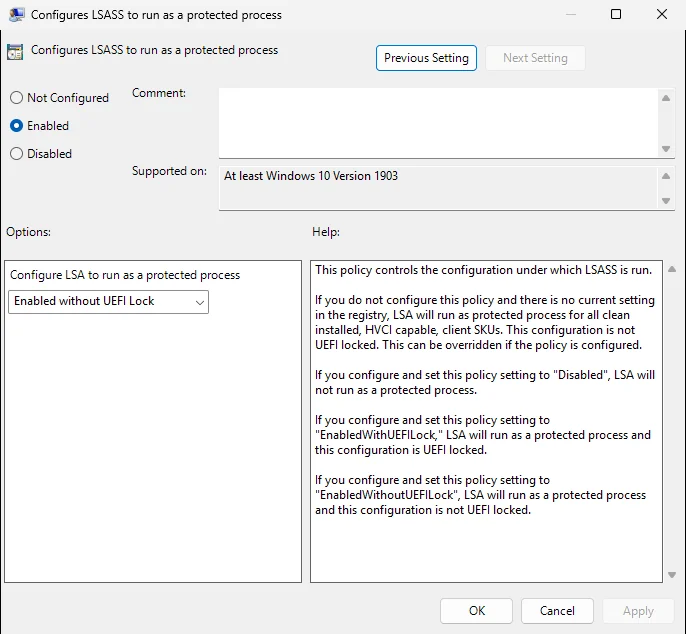
Turn on LSA protection without a UEFI lock first
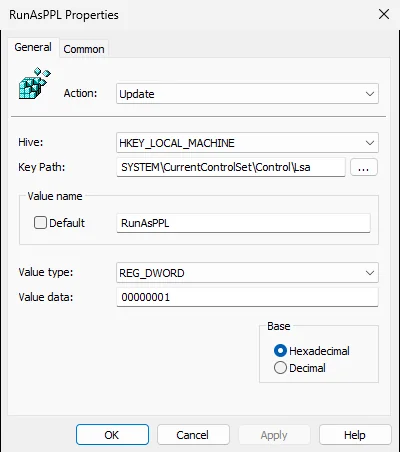
A Group Policy preference sets RunAsPPL on older versions and servers
Microsoft's configuration guide states that value 2 is enforced only on Windows 11 22H2 and later, so use value 1 on Windows 10 and on Windows Server 2022 and earlier. The Windows Server 2025 baseline accepts 1 or 2 for RunAsPPL. On every computer, confirm WinInit event 12 after the restart. To check which GPO wins on a computer, use the gpresult and RSoP audit guide.
With Intune
For Windows 11 22H2 and later, create a custom device configuration profile in the Intune admin center (Devices > Windows > Configuration profiles > Create profile, platform Windows 10 and later, profile type Templates > Custom). Add a row with the OMA-URI ./Device/Vendor/MSFT/Policy/Config/LocalSecurityAuthority/ConfigureLsaProtectedProcess, data type Integer, and value 2 (without UEFI lock) or 1 (with UEFI lock). Policy CSP - LocalSecurityAuthority documents the values, including 0 for disabled.
With the registry or a script
For pilots and lab computers, the script below writes the documented registry values for both controls. It changes configuration, supports -WhatIf and -Confirm, and refuses to enable Credential Guard on a domain controller. Run it in an elevated session on the target computer.
#Requires -Version 5.1
#Requires -RunAsAdministrator

<#
.SYNOPSIS
    Sets the LSA protection and Credential Guard registry values on the local computer.

.DESCRIPTION
    Writes the registry values that Microsoft documents for configuring one computer:
      LSA protection   : HKLM\SYSTEM\CurrentControlSet\Control\Lsa\RunAsPPL
                         (0 = off, 1 = on with a UEFI variable, 2 = on without a UEFI variable)
      LSASS audit mode : HKLM\SOFTWARE\Microsoft\Windows NT\CurrentVersion\Image File Execution Options\LSASS.exe\AuditLevel = 8
      Credential Guard : HKLM\SYSTEM\CurrentControlSet\Control\DeviceGuard\EnableVirtualizationBasedSecurity = 1
                         HKLM\SYSTEM\CurrentControlSet\Control\DeviceGuard\RequirePlatformSecurityFeatures = 1 or 3
                         HKLM\SYSTEM\CurrentControlSet\Control\Lsa\LsaCfgFlags
                         (0 = off, 1 = on with UEFI lock, 2 = on without lock)
    Disabling Credential Guard also sets LsaCfgFlags to 0 under
    HKLM\SOFTWARE\Policies\Microsoft\Windows\DeviceGuard, as Microsoft documents.
    Use Group Policy or Intune for many computers; use this script for pilots and labs.
    Every change takes effect after a restart. Run it with -WhatIf first.

.PARAMETER LsaProtection
    Audit, EnabledWithoutUefiLock, EnabledWithUefiLock or Disabled.
    Omit it to leave LSA protection unchanged.

.PARAMETER CredentialGuard
    EnabledWithoutLock, EnabledWithUefiLock or Disabled.
    Omit it to leave Credential Guard unchanged.

.PARAMETER RequireDmaProtection
    With CredentialGuard enabled, sets RequirePlatformSecurityFeatures to 3 (Secure Boot and
    DMA protection) instead of 1 (Secure Boot only).

.EXAMPLE
    .\Set-LsaCredentialProtection.ps1 -LsaProtection Audit -WhatIf

.EXAMPLE
    .\Set-LsaCredentialProtection.ps1 -LsaProtection EnabledWithoutUefiLock -CredentialGuard EnabledWithoutLock

.NOTES
    Changes configuration. Writes HKLM registry values on the local computer only.
    Settings applied with a UEFI lock can't be undone through the registry; see the
    roll back section of the guide. Refuses to enable Credential Guard on a domain controller.
    Run it in an elevated session on the target computer.
#>
[CmdletBinding(SupportsShouldProcess = $true, ConfirmImpact = 'High')]
param(
    [ValidateSet('Audit', 'EnabledWithoutUefiLock', 'EnabledWithUefiLock', 'Disabled')]
    [string]$LsaProtection,

    [ValidateSet('EnabledWithoutLock', 'EnabledWithUefiLock', 'Disabled')]
    [string]$CredentialGuard,

    [switch]$RequireDmaProtection
)

Set-StrictMode -Version Latest
$ErrorActionPreference = 'Stop'

if (-not $LsaProtection -and -not $CredentialGuard) {
    throw 'Specify -LsaProtection, -CredentialGuard or both.'
}

function Set-DwordValue {
    [CmdletBinding(SupportsShouldProcess = $true, ConfirmImpact = 'High')]
    param([string]$Path, [string]$Name, [int]$Value)
    if ($PSCmdlet.ShouldProcess("$Path\$Name", "Set REG_DWORD value to $Value")) {
        if (-not (Test-Path -Path $Path)) { New-Item -Path $Path | Out-Null }
        New-ItemProperty -Path $Path -Name $Name -PropertyType DWord -Value $Value -Force | Out-Null
        [pscustomobject]@{ Path = $Path; Name = $Name; Value = $Value; Status = 'Set' }
    }
}

$lsaKey = 'HKLM:\SYSTEM\CurrentControlSet\Control\Lsa'
$ifeoKey = 'HKLM:\SOFTWARE\Microsoft\Windows NT\CurrentVersion\Image File Execution Options\LSASS.exe'
$dgKey = 'HKLM:\SYSTEM\CurrentControlSet\Control\DeviceGuard'
$dgPolicyKey = 'HKLM:\SOFTWARE\Policies\Microsoft\Windows\DeviceGuard'

$cs = Get-CimInstance -ClassName Win32_ComputerSystem
$os = Get-CimInstance -ClassName Win32_OperatingSystem
$isDomainController = ([int]$cs.DomainRole -ge 4)
$isWorkstation = ([int]$cs.DomainRole -le 1)

if ($CredentialGuard -and $CredentialGuard -ne 'Disabled' -and $isDomainController) {
    throw 'This computer is a domain controller. Microsoft does not recommend Credential Guard on domain controllers.'
}

$changes = @()

switch ($LsaProtection) {
    'Audit' { $changes += Set-DwordValue -Path $ifeoKey -Name 'AuditLevel' -Value 8 }
    'EnabledWithoutUefiLock' {
        if (-not ($isWorkstation -and [int]$os.BuildNumber -ge 22621)) {
            Write-Warning 'Microsoft documents RunAsPPL 2 as enforced on Windows 11 22H2 and later. Confirm WinInit event 12 after the restart.'
        }
        $changes += Set-DwordValue -Path $lsaKey -Name 'RunAsPPL' -Value 2
    }
    'EnabledWithUefiLock' { $changes += Set-DwordValue -Path $lsaKey -Name 'RunAsPPL' -Value 1 }
    'Disabled' { $changes += Set-DwordValue -Path $lsaKey -Name 'RunAsPPL' -Value 0 }
}

if ($CredentialGuard -and $CredentialGuard -ne 'Disabled') {
    $platform = 1
    if ($RequireDmaProtection) { $platform = 3 }
    $flags = 2
    if ($CredentialGuard -eq 'EnabledWithUefiLock') { $flags = 1 }
    $changes += Set-DwordValue -Path $dgKey -Name 'EnableVirtualizationBasedSecurity' -Value 1
    $changes += Set-DwordValue -Path $dgKey -Name 'RequirePlatformSecurityFeatures' -Value $platform
    $changes += Set-DwordValue -Path $lsaKey -Name 'LsaCfgFlags' -Value $flags
}
elseif ($CredentialGuard -eq 'Disabled') {
    $changes += Set-DwordValue -Path $lsaKey -Name 'LsaCfgFlags' -Value 0
    $changes += Set-DwordValue -Path $dgPolicyKey -Name 'LsaCfgFlags' -Value 0
}

$changes = @($changes | Where-Object { $null -ne $_ })
if ($changes.Count -gt 0) {
    Write-Warning 'Restart the computer to apply the change.'
}
$changes
Preview, then apply:
.\Set-LsaCredentialProtection.ps1 -LsaProtection EnabledWithoutUefiLock -WhatIf
What if: Performing the operation "Set REG_DWORD value to 2" on target "HKLM:\SYSTEM\CurrentControlSet\Control\Lsa\RunAsPPL".
After the restart, look for WinInit event 12 in the System log: "LSASS.exe was started as a protected process with level: 4".
UEFI lock: decide before you enforce
A UEFI lock keeps a protection on even when an attacker with administrative rights changes the registry. It also stops you from turning it off remotely. With the lock, Windows stores the setting in a UEFI variable that registry and policy changes can't remove.
Removing the LSA protection variable needs Microsoft's Local Security Authority (LSA) Protected Process Opt-out tool (LsaPplConfig.efi) on the device. Turning Secure Boot off also resets the variable, but it resets every other Secure Boot and UEFI setting too. Microsoft advises it only when every other way fails. On devices without UEFI, or with Secure Boot off, the registry value alone decides, and a remote change takes effect at the next restart.
Start every rollout without the lock. Add it later, if at all, for devices where the protection must survive local tampering and where you accept a hands-on rollback.
Step 4: Check Credential Guard compatibility
Credential Guard has no per-application exceptions: it is either on or off. Find every dependency on the capabilities it blocks before you enable it. Considerations and known issues when using Credential Guard is Microsoft's list.
| Capability | With Credential Guard | Move to |
|---|---|---|
| Kerberos DES encryption | Blocked | AES; see the RC4 and AES guide |
| Kerberos unconstrained delegation | Blocked for signed-in, prompted and saved credentials | Kerberos constrained delegation or resource-based constrained delegation |
| NTLMv1 | Single sign-on blocked; users must type credentials | Kerberos or the Negotiate package |
| MS-CHAPv2 (PEAP-MSCHAPv2, EAP-MSCHAPv2 for Wi-Fi and VPN) | Single sign-on blocked; users reauthenticate in every session | Certificate-based EAP-TLS or PEAP-TLS |
| Digest (WDigest) | Single sign-on blocked | Kerberos or the Negotiate package |
| CredSSP | Saved and single sign-on credentials blocked; Hyper-V live migration that uses CredSSP can fail after an upgrade to Windows Server 2025 | Kerberos constrained or resource-based constrained delegation |
| Kerberos PKINIT with RSA encryption instead of Diffie-Hellman | Blocked | PKINIT with Diffie-Hellman |
| Applications that extract the Kerberos TGT, such as the Java GSS API | Fail to authenticate | Vendor update |
| Remote Desktop with saved Windows credentials | Saved credentials aren't sent; "Logon attempt failed" | Prompted credentials |
| Non-Microsoft security support providers that request password hashes | Not supported | Vendor update and testing |
NTLMv1 needs a domain-wide decision as well. The NTLMv1 guide explains how Credential Guard and NTLMv1 relate, and why Credential Guard doesn't replace the LmCompatibilityLevel policy. Event 4013 in Applications and Services Logs > Microsoft > Windows > NTLM > Operational shows each NTLMv1 attempt that Credential Guard blocked. Event 4014 shows a blocked request for a credential key.
For privileged accounts, the Protected Users group and delegation controls guide adds limits on the account side that work alongside Credential Guard. Microsoft's known issues page also names some non-Microsoft products that don't support Credential Guard; check every agent and VPN client on your devices with its vendor.
Step 5: Enable Credential Guard
Turn on Credential Guard with VBS through Group Policy, Intune or the registry, choose Enabled without lock for the first rollout, and restart. Configure Credential Guard documents each method.
| Setting | Path (GPO / registry / CSP) | Value | Default | Effect |
|---|---|---|---|---|
| Virtualization-based security | GPO: System > Device Guard > Turn On Virtualization Based Security; registry: HKLM\SYSTEM\CurrentControlSet\Control\DeviceGuard\EnableVirtualizationBasedSecurity; CSP: ./Device/Vendor/MSFT/Policy/Config/DeviceGuard/EnableVirtualizationBasedSecurity |
Enabled (1) |
Not configured | Turns on VBS |
| Platform security level | GPO: Select Platform Security Level in the same policy; registry: RequirePlatformSecurityFeatures in the same key |
1 (Secure Boot) or 3 (Secure Boot and DMA protection) |
1 in the CSP |
Sets the hardware VBS requires |
| Credential Guard | GPO: Credential Guard Configuration in the same policy; registry: HKLM\SYSTEM\CurrentControlSet\Control\Lsa\LsaCfgFlags; CSP: ./Device/Vendor/MSFT/Policy/Config/DeviceGuard/LsaCfgFlags |
2 (without lock) or 1 (with UEFI lock) |
Not configured; on by default where the default-enablement conditions apply | Starts LSAIso.exe after the next restart |
Group Policy: in a GPO linked to the client or member server OUs, open Computer Configuration > Administrative Templates > System > Device Guard > Turn On Virtualization Based Security. Set it to Enabled, choose the platform security level, and set Credential Guard Configuration to Enabled without lock. Use security group or WMI filtering to keep the GPO off domain controllers.
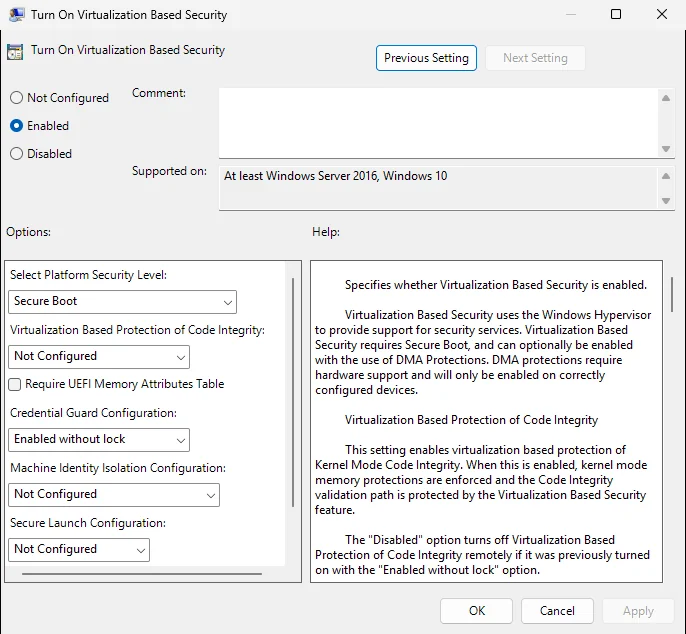
Enable Credential Guard without lock in the Device Guard policy
Intune: create a Settings catalog policy and set Device Guard > Credential Guard to Enabled without lock. An account protection profile under endpoint security, or a custom profile with the two DeviceGuard OMA-URIs above, works as well. The Intune security baseline for Windows (version 25H2, for example) defaults Credential Guard to Enabled with UEFI lock, so check that value before you assign the baseline.
Registry or script: run .\Set-LsaCredentialProtection.ps1 -CredentialGuard EnabledWithoutLock -WhatIf from Step 3, then run it again without -WhatIf. Microsoft also documents setting these values through the FirstLogonCommands unattend setting for new builds.
Windows Server 2025 also offers Credential Guard protection for machine account passwords as an opt-in. As of November 2026, Microsoft's page on Credential Guard protected machine accounts states that the feature is temporarily disabled on Windows Server 2025 and Windows 11 24H2. It has been off since the April Windows security update KB5055523, because of an issue with machine password rotation using Kerberos.
Verify
Verify each computer after its restart in three places: System Information, the Win32_DeviceGuard class and the WinInit events. Microsoft doesn't recommend checking Task Manager for LSAIso.exe instead.
- Run
msinfo32.exe, select System Summary, and confirm that Virtualization-based Security Services Running lists Credential Guard. - Query the WMI class in an elevated PowerShell session:
Get-CimInstance -ClassName Win32_DeviceGuard -Namespace root\Microsoft\Windows\DeviceGuard |
    Select-Object -Property VirtualizationBasedSecurityStatus, SecurityServicesConfigured, SecurityServicesRunning
VirtualizationBasedSecurityStatus SecurityServicesConfigured SecurityServicesRunning
--------------------------------- -------------------------- -----------------------
                                2 {1, 2}                     {1, 2}
- Read the newest WinInit events:
Get-WinEvent -FilterHashtable @{ LogName = 'System'; ProviderName = 'Microsoft-Windows-Wininit'; Id = 12, 13 } -MaxEvents 2 |
    Select-Object -Property TimeCreated, Id, Message
TimeCreated           Id Message
-----------           -- -------
11/28/2026 8:01:44 AM 13 Credential Guard (LsaIso.exe) was started and will protect LSA credentials.
11/28/2026 8:01:43 AM 12 LSASS.exe was started as a protected process with level: 4.
Compare with this table:
| Check | Expected result |
|---|---|
VirtualizationBasedSecurityStatus |
2 (VBS enabled and running) |
SecurityServicesRunning |
Contains 1 (Credential Guard); 2 means memory integrity also runs |
| WinInit event 12 | Present after each restart, with level 4 |
| WinInit event 13 | Present after each restart on clients and member servers |
| WinInit event 14 | First value 0x1 or 0x2 (configured to run), second value 0 (protect mode) |
| Windows Security app | Device security > Core isolation shows LSA protection on (Windows 11 24H2 and later) |
| Fleet script | Review empty on every computer; domain controllers show CredentialGuardRunning : False |
Roll back
Both controls roll back by policy and a restart when they run without a UEFI lock. With the lock, rollback needs hands-on work at each device. Turning Credential Guard off leaves the stored domain credentials exposed to theft again, so roll back only the devices that need it.
| Change | How to roll back | Notes |
|---|---|---|
| LSA protection, ADMX policy | Keep the policy Enabled and set the option to Disabled, then restart | Not Configured doesn't clean up the previous setting, which stays enforced |
| LSA protection, registry or preference item | Set RunAsPPL to 0 or delete it, then restart |
If a GPO set the value, change the GPO instead |
| LSA protection, Intune | Set ConfigureLsaProtectedProcess to 0, then restart |
|
| LSA protection with a UEFI variable | Set RunAsPPL to 0, then run the LSA Protected Process Opt-out tool on the device |
Turning Secure Boot off resets all Secure Boot and UEFI settings; last resort |
| Credential Guard without lock, GPO | Set Turn On Virtualization Based Security to Disabled, then restart | |
| Credential Guard without lock, Intune | Set Credential Guard to Disabled, or LsaCfgFlags to 0 |
|
| Credential Guard without lock, registry | Set LsaCfgFlags to 0 under both HKLM\SYSTEM\CurrentControlSet\Control\Lsa and HKLM\SOFTWARE\Policies\Microsoft\Windows\DeviceGuard |
Deleting the values may not disable Credential Guard |
| Credential Guard with UEFI lock | Disable the policy, then run Microsoft's SecConfig.efi procedure below |
Needs someone at the device to accept the firmware prompt |
| Credential Guard in a Hyper-V VM | On the host: Set-VMSecurity -VMName <VMName> -VirtualizationBasedSecurityOptOut $true |
|
| Default enablement before an upgrade | Disable Credential Guard explicitly before the device upgrades | An explicit setting survives the upgrade |
For Credential Guard with a UEFI lock, Microsoft documents these commands in an elevated command prompt, after you disable the policy. At the next restart, a firmware prompt asks for confirmation, and the change persists only if someone at the device accepts it.
mountvol X: /s
copy %WINDIR%\System32\SecConfig.efi X:\EFI\Microsoft\Boot\SecConfig.efi /Y
bcdedit /create {0cb3b571-2f2e-4343-a879-d86a476d7215} /d "DebugTool" /application osloader
bcdedit /set {0cb3b571-2f2e-4343-a879-d86a476d7215} path "\EFI\Microsoft\Boot\SecConfig.efi"
bcdedit /set {bootmgr} bootsequence {0cb3b571-2f2e-4343-a879-d86a476d7215}
bcdedit /set {0cb3b571-2f2e-4343-a879-d86a476d7215} loadoptions DISABLE-LSA-ISO
bcdedit /set {0cb3b571-2f2e-4343-a879-d86a476d7215} device partition=X:
mountvol X: /d
Monitor and detect
Watch two kinds of signals: whether the protections still run, and whether someone works around them. The first come from the System and CodeIntegrity logs on every computer. The second come from the Security log.
| Log | Event | What it tells you | Related page |
|---|---|---|---|
| System (source WinInit) | 12 | LSASS started as a protected process | Step 3 |
| System (source WinInit) | 13, 14 | Credential Guard started; its configuration at start-up | Verify |
| System (source WinInit) | 15, 16, 17 | Credential Guard was configured but didn't start | Troubleshooting |
Microsoft-Windows-CodeIntegrity/Operational |
3065, 3066 | Audit mode: a plug-in or driver would fail to load into LSASS | Step 2 |
Microsoft-Windows-CodeIntegrity/Operational |
3033, 3063 | LSA protection blocked a plug-in or driver | Step 2 |
| NTLM Operational | 4013, 4014 | Credential Guard blocked NTLMv1 or a credential key request | Step 4 |
| Security | 4657 | A registry value changed, such as RunAsPPL or LsaCfgFlags |
Event 4657 field reference |
| Security | 4624, logon type 9 | A logon with new credentials for outbound connections | Event 4624 field reference and pass-the-hash detection rules |
| Security (domain controllers) | 4704 | A user right such as SeDebugPrivilege was assigned |
Event 4704 and rules for sensitive user rights on domain controllers |
Event 4657 needs the Audit Registry subcategory and a SACL that audits Set Value on the Lsa and DeviceGuard keys. Event 4624 needs Audit Logon. The Active Directory audit policy guide shows how to set both subcategories.
The first query shows the start-up state of each computer. Run it in Microsoft Sentinel or a Log Analytics workspace with a data collection rule that sends the System log to the Event table.
// LSA protection and Credential Guard start-up state per computer, from the System log (WinInit).
// Needs a data collection rule that collects the System log into the Event table.
Event
| where TimeGenerated > ago(7d)
| where EventLog == "System" and Source has "Wininit"
| where EventID in (12, 13, 15, 16, 17)
| summarize LastSeen = max(TimeGenerated) by Computer, EventID
| extend Meaning = case(EventID == 12, "LSASS started as a protected process",
                        EventID == 13, "Credential Guard started",
                        "Credential Guard configured but not started")
| order by Computer asc, EventID asc
The second query finds plug-ins and drivers that LSA protection would block or blocked. It needs the CodeIntegrity Operational log in the same table.
// LSA plug-ins and drivers that would fail (3065, 3066) or failed (3033, 3063) to load into a protected LSASS.
// Needs a data collection rule that collects Microsoft-Windows-CodeIntegrity/Operational into the Event table.
Event
| where TimeGenerated > ago(30d)
| where EventLog == "Microsoft-Windows-CodeIntegrity/Operational"
| where EventID in (3033, 3063, 3065, 3066)
| where RenderedDescription contains "lsass.exe"
| extend Mode = iff(EventID in (3065, 3066), "Audit (would be blocked)", "Blocked")
| summarize Events = count(), LastSeen = max(TimeGenerated), Sample = take_any(RenderedDescription)
    by Computer, EventID, Mode
| order by Events desc
The third query alerts on changes to the protection settings. A change outside a change window, or one made by an unexpected process, deserves an investigation.
// Changes to the LSA protection and Credential Guard registry values (event 4657).
// Needs Audit Registry (Success) and a SACL that audits Set Value on the Lsa and DeviceGuard keys.
SecurityEvent
| where TimeGenerated > ago(7d)
| where EventID == 4657
| where ObjectName contains @"\Control\Lsa" or ObjectName contains @"\Control\DeviceGuard"
    or ObjectName contains @"\Policies\Microsoft\Windows\DeviceGuard"
| where ObjectValueName in~ ("RunAsPPL", "LsaCfgFlags", "EnableVirtualizationBasedSecurity")
| project TimeGenerated, Computer, SubjectDomainName, SubjectUserName, ObjectName, ObjectValueName,
    OldValue, NewValue, ProcessName
| order by TimeGenerated desc
The fourth query lists logons with new credentials (logon type 9). Microsoft's logon type reference gives runas with network-only credentials as an example of this type, and the pass-the-hash rules above treat these logons as leads. Compare TargetOutboundUserName with the user who owns the session.
// Logons with new credentials for outbound connections (event 4624, logon type 9).
// Review them as pass-the-hash leads; runas with network-only credentials also creates them. Needs Audit Logon (Success).
SecurityEvent
| where TimeGenerated > ago(1d)
| where EventID == 4624 and LogonType == 9
| summarize Logons = count(), FirstSeen = min(TimeGenerated), LastSeen = max(TimeGenerated)
    by Computer, TargetDomainName, TargetUserName, TargetOutboundDomainName, TargetOutboundUserName, ProcessName
| order by LastSeen desc
An NT hash stolen from a device without Credential Guard can also be turned into Kerberos tickets, which MITRE ATT&CK describes as overpass-the-hash under T1550.002. The RC4 downgrade (overpass-the-hash) rules cover that path on domain controllers.
Troubleshooting
Find the symptom below to get its cause and fix: the first four rows cover LSA protection, and the rest cover Credential Guard.
| Symptom | Cause | Fix |
|---|---|---|
| A smart card, password filter or other LSA plug-in stops working after LSA protection is on | The plug-in lacks a Microsoft signature or doesn't meet the requirements for shared sections | Check events 3033 and 3063, get an updated version from the vendor, or roll back on the affected devices |
| No events 3065 or 3066 in audit mode | Smart App Control is on, or a kernel debugger is attached | Turn Smart App Control off on test devices, or detach the debugger |
| LSA protection stays on after the policy is set to Not Configured | The previous setting isn't cleaned up | Set the policy option to Disabled |
RunAsPPL set to 0, but LSASS still starts protected |
The setting is stored in a UEFI variable | Run the LSA Protected Process Opt-out tool on the device |
| WinInit event 15 | Credential Guard is configured, but the secure kernel isn't running | Check VirtualizationBasedSecurityStatus and RequiredSecurityProperties; turn on virtualization and Secure Boot in the firmware |
| WinInit event 16 or 17 | LSAIso.exe failed to start, or its UEFI configuration couldn't be read |
Note the error code in the event and check firmware updates |
| Wi-Fi, VPN or 802.1x prompts for a password in every session | MS-CHAPv2 or another password-based protocol has no single sign-on under Credential Guard | Move to EAP-TLS or PEAP-TLS |
| An application fails with Kerberos delegation | It uses unconstrained delegation | Move to constrained or resource-based constrained delegation |
| Hyper-V live migration fails after an upgrade to Windows Server 2025 | Live migration uses CredSSP delegation | Configure Kerberos constrained delegation for live migration |
| Remote Desktop rejects saved credentials with "Logon attempt failed" | Credential Guard doesn't send saved Windows credentials to a remote host | Type the credentials at the prompt |
| Saved Windows credentials are gone after a TPM clear | The key that protected them was lost | Save them again; Credential Guard protects the new copies |
| Credential Guard still runs after the policy is disabled | It was enabled with UEFI lock | Run the SecConfig.efi procedure from Roll back |
How Forestall helps
In Forestall, the HAS_SESSION edge shows which users are signed in to which computers, the sessions that leave credentials in memory. The ADMIN_TO edge shows who holds local administrator rights on those computers. With GPO Audit custom baselines, you can add a Registry Settings check, for example for RunAsPPL, and compare your GPOs against it. Credential Guard doesn't protect credentials that software keeps outside Windows, such as passwords in scripts and configuration files, and Forestall Credential Discovery finds credentials exposed in SMB file shares and shows who can read them.
Frequently Asked Questions
What is Credential Guard?
Credential Guard is a Windows feature that uses virtualization-based security to protect NTLM password hashes, Kerberos ticket-granting tickets and saved domain credentials. It stores them in an isolated process, LSAIso.exe, that the rest of the operating system can't read, even with administrative rights. This blocks the theft that enables pass-the-hash and pass-the-ticket. It needs VBS, Secure Boot and, on clients, an Enterprise or Education license.
How do I check if Credential Guard is enabled?
To check whether Credential Guard is enabled, run msinfo32.exe and look for it next to Virtualization-based Security Services Running in the System Summary. In PowerShell, query the Win32_DeviceGuard class in the root\Microsoft\Windows\DeviceGuard namespace: SecurityServicesRunning contains 1 when Credential Guard runs. WinInit event 13 in the System log also confirms that it started. Microsoft doesn't recommend checking Task Manager for it.
How do I disable Credential Guard in Windows 11?
To disable Credential Guard in Windows 11, reverse the method that enabled it, then restart. Set Turn On Virtualization Based Security to Disabled in Group Policy, Credential Guard to Disabled in Intune, or LsaCfgFlags to 0 in both documented registry keys. If it was enabled with UEFI lock, also run Microsoft's SecConfig.efi procedure, which needs someone at the device to confirm a firmware prompt.
Is LSA protection enabled by default in Windows 11?
LSA protection is on by default in Windows 11 22H2 and later when the device meets Microsoft's conditions. For new installations, Microsoft lists two: the device is joined to Active Directory or Microsoft Entra ID, and it can run memory integrity. Devices that upgrade to Windows 11 24H2 or later audit for incompatible plug-ins first and turn it on if none are found. Enterprise policy overrides the default, so check WinInit event 12 to confirm.
What is the difference between LSA protection and Credential Guard?
LSA protection runs LSASS as a protected process, so nonprotected processes can't read its memory or inject code, and only Microsoft-signed plug-ins load. Credential Guard goes further: it moves NTLM hashes and Kerberos TGTs out of LSASS into an isolated process protected by virtualization-based security. LSA protection has few hardware requirements; Credential Guard needs VBS and Secure Boot. Microsoft describes the two as complementary.
Does Credential Guard stop pass-the-hash attacks?
Credential Guard stops one source of pass-the-hash attacks: extracting NTLM hashes and TGTs from LSASS memory on a protected device. It doesn't protect local accounts, the Active Directory database or the SAM, so hashes stolen from those places still work. It also doesn't stop malware from acting with a signed-in user's privileges. Pair it with unique local passwords, least privilege and detection of type 9 logons.
Related guides
- Active Directory hardening, every step in order: where LSA protection and Credential Guard fit in the full hardening roadmap.
- Protected Users group and delegation controls, step by step: limits for privileged accounts that complement Credential Guard on the device.
- Require SMB signing and block NTLM relay: stop attackers who relay authentication instead of stealing it from memory.
- How to secure the Kerberos authentication protocol: the Kerberos settings behind the delegation and encryption limits in this guide.
- Combined attack path analysis: how sessions and local admin rights turn into attack paths.
References
- Credential Guard overview (Microsoft Learn)
- How Credential Guard works (Microsoft Learn)
- Configure Credential Guard (Microsoft Learn)
- Considerations and known issues when using Credential Guard (Microsoft Learn)
- Configure added LSA protection (Microsoft Learn)
- Local Security Authority (LSA) protection (Microsoft Learn)
- What's new in Windows 11, version 24H2 (Microsoft Learn)
- Policy CSP - LocalSecurityAuthority (Microsoft Learn)
- Enable memory integrity: Win32_DeviceGuard reference (Microsoft Learn)
- Windows security baseline for Windows Server 2025 (Microsoft Learn)
- OS Credential Dumping: LSASS Memory, T1003.001 (MITRE ATT&CK)
- Use Alternate Authentication Material: Pass the Hash, T1550.002 (MITRE ATT&CK)
See your identity exposure clearly.
Start with a 1-day Proof of Value in your own environment.