Group Managed Service Accounts (gMSA): A Step-by-Step Guide
Summary
A group managed service account (gMSA) is an Active Directory account whose password domain controllers compute and rotate, so services on one or many servers run without a stored password. Setting up a gMSA account takes a KDS root key, a host group, the account itself, installation on each host and a short list of who can retrieve the password.
Quick steps
- Run the read-only audit script to list gMSAs, password readers, KDS root keys and dMSAs.
- Create the KDS root key once per forest with
Add-KdsRootKey -EffectiveImmediately, then wait 10 hours. - Create a host group and the gMSA, with AES only and the host group as the only password reader.
- On each host, run
Install-ADServiceAccountand confirm thatTest-ADServiceAccountreturnsTrue. - Set the service, scheduled task, IIS application pool or SQL Server to the gMSA with a blank password.
- Move the SPNs from the old user account to the gMSA, then disable the old account.
- Audit password reads, retrieval list changes and KDS root key reads on domain controllers.
Applies to: Active Directory forests with a Windows Server 2012 or later schema, and gMSA hosts and domain controllers that run Windows Server 2012 or later. The dMSA notes apply to Windows Server 2025 (as of November 2026).
What is a gMSA and why does it matter?
A group managed service account (gMSA) is a domain account for services whose password Windows manages. A domain controller computes the password from a Key Distribution Service (KDS) root key and the account's attributes, and the hosts you authorize retrieve it. Several servers can share one gMSA, so a load-balanced farm presents one identity. The Group Managed Service Accounts overview describes it as the multi-server form of the standalone managed service account (sMSA) of Windows Server 2008 R2, for Windows Server 2012 and later.
It replaces the classic service account: a user with a service principal name (SPN) and a password a person chose years ago. Anyone with a valid Kerberos ticket-granting ticket can request a service ticket for that SPN and try to crack it offline, which is Kerberoasting (MITRE ATT&CK T1558.003). A gMSA password is a random 240-byte value that Windows changes every 30 days by default, which Microsoft's gMSA security guidance says minimizes brute-force and dictionary risk.
The gMSA moves the risk rather than removing it. Anyone who can retrieve its password, or change who can, can use the account wherever it has rights, so a broad retrieval list makes it an over-permissioned service account. The KDS root key matters even more, because every gMSA password derives from it. Our 2021 overview of securing Active Directory service accounts covers the wider risks.
gMSA vs sMSA vs dMSA vs a user service account
Microsoft's service accounts article compares these types.
| Account type | Available since | Hosts | Who manages the password | Use it when |
|---|---|---|---|---|
| User service account | All versions | Any domain-joined server | An administrator sets and rotates it | Only when the product supports nothing else |
| Standalone managed service account (sMSA) | Windows Server 2008 R2 | One domain-joined server | Windows | One server and no farm |
| Group managed service account (gMSA) | Windows Server 2012 | Any domain-joined server you authorize | The domain controller computes it, and the hosts retrieve it | Services, IIS application pools and scheduled tasks on one or many servers |
| Delegated managed service account (dMSA) | Windows Server 2025 | Only the machine identities mapped to it in Active Directory | A randomized secret derived from the machine account credential, held by the domain controller | Replacing a user service account in place on Windows Server 2025 |
The dMSA overview notes the gMSA's limit: its password isn't bound to a machine and can be stolen, while a dMSA secret stays on the domain controller. You can't migrate a gMSA or an sMSA to a dMSA, so the gMSA remains the choice for farms and for domains without Windows Server 2025.
Before you start
Check the forest and hosts against the requirements below, decide which servers share each gMSA, and plan a cutover window for every service you move. Test the whole sequence in a lab first: the password interval can't be changed after creation, and Microsoft warns against deleting and re-creating a KDS root key.
Which requirements must the forest and hosts meet?
| Item | Requirement |
|---|---|
| Forest schema | Windows Server 2012 or later. Microsoft's original gMSA guide gives the Windows Server 2012 schema as objectVersion 52 on CN=Schema,CN=Configuration,.... |
| Domain controllers | At least one Windows Server 2012 or later domain controller in the gMSA's domain. Microsoft's current guide says domain and forest functional levels should be Windows Server 2012 or later to support gMSA features for all devices. |
| KDS root key | One per forest, created before the first gMSA. Event 4004 in the KdsSvc Operational log confirms its creation. |
| Hosts | Domain-joined Windows Server 2012 or later, with support for the Kerberos encryption types the gMSA uses. |
| Management | The Active Directory module for PowerShell on a 64-bit system: a domain controller, or a server with the Remote Server Administration Tools (RSAT). |
| Clusters | Failover clusters don't support gMSAs. A service on top of the Cluster service can use one if it's a Windows service, an application pool, a scheduled task or natively supports gMSAs. |
Which workloads can run as a gMSA?
- Windows services that Service Control Manager configures, IIS application pools, Task Scheduler tasks and products that support sMSAs, because gMSAs use the same APIs.
- SQL Server 2014 and later for standalone instances, and SQL Server 2016 and later for failover cluster instances and availability groups. On Windows Server 2012 R2, SQL Server needs KB 2998082 so services sign in without disruption after a password change.
- Other products that document gMSA support, such as Microsoft Defender for Identity and Microsoft Entra Cloud Sync.
Which permissions do you need?
- Domain Admins or Enterprise Admins to create the KDS root key.
- Domain Admins, Enterprise Admins or a delegated right to create
msDS-GroupManagedServiceAccountobjects to create gMSAs. Microsoft's current guide says Account Operators can't by default. - Local administrator rights and an elevated PowerShell session on each host for
Install-ADServiceAccount. - Rights to edit SPNs on the old service account, such as Validated write to service principal name.
Plan the change window
- In production, the first gMSA can be created 10 hours after the KDS root key, so create the key a day ahead.
- A host sees its new group membership only in a fresh Kerberos ticket: restart it or purge its tickets after you add it to the host group.
- Move each SPN during the cutover itself, because
setspn -Srefuses to add an SPN that another account holds. - Keep the old account and its rights until the service has run cleanly under the gMSA.
Step 1: Audit the current state
Start with a read-only inventory: every gMSA, who can retrieve and who can change each password list, the encryption types, the KDS root keys and any dMSAs. The script never reads a secret: it doesn't request msDS-ManagedPassword or msKds-RootKeyData, and it doesn't call Get-KdsRootKey, which returns the root key value.
Run it on a management server with the Active Directory module for PowerShell, as a member of Domain Admins. The root key class's default permissions grant access only to Enterprise Admins, Domain Admins and SYSTEM, so other accounts usually see no keys. It writes five CSV files and returns a summary object.
#Requires -Version 5.1
#Requires -Modules ActiveDirectory

<#
.SYNOPSIS
    Read-only audit of group managed service accounts (gMSAs), their password readers and the KDS root keys.

.DESCRIPTION
    For every gMSA in the domain, reports its SPNs, Kerberos encryption types, password interval,
    delegation flags, group memberships and last logon. It lists every principal in the gMSA's
    password retrieval list (msDS-GroupMSAMembership), expands groups to count user and computer
    members, and lists the principals that can change the retrieval list or the gMSA's permissions.

    It also lists the KDS root key objects with their creation and effective times, and every
    delegated managed service account (dMSA) with the account it supersedes.

    The script never reads a secret. It doesn't request msDS-ManagedPassword or msKds-RootKeyData,
    and it doesn't call Get-KdsRootKey, which returns root key values.

    Results go to five CSV files in OutputFolder. A summary object is returned.

.PARAMETER OutputFolder
    Existing folder for the CSV reports, for example 'C:\Reports\gMSA'.

.PARAMETER Server
    Optional domain controller to query, for example '<DomainController>'.

.PARAMETER StaleDays
    Days without a logon after which a gMSA is reported as possibly unused, from 1 to 3650.
    The default is 90.

.PARAMETER ExpectedWriters
    Optional principals you approved to manage gMSAs, in DOMAIN\Name form. SYSTEM, BUILTIN\Administrators,
    Domain Admins and Enterprise Admins are always treated as expected.

.EXAMPLE
    .\Get-GmsaAudit.ps1 -OutputFolder 'C:\Reports\gMSA'

.EXAMPLE
    .\Get-GmsaAudit.ps1 -OutputFolder 'C:\Reports\gMSA' -Server '<DomainController>' -ExpectedWriters 'CORP\Tier0-ServiceAccountAdmins'

.NOTES
    Read-only. Makes no change to Active Directory or any computer.
    Writes only the five CSV report files to OutputFolder.
    Requires the ActiveDirectory module (RSAT). Run it as a member of Domain Admins: by default only
    Enterprise Admins, Domain Admins and SYSTEM can read the KDS root key objects, so other accounts
    see no keys.
    Write rights are checked on the attribute itself and on all properties; property sets aren't expanded.
#>
[CmdletBinding()]
param(
    [Parameter(Mandatory = $true)]
    [ValidateScript({ Test-Path -Path $_ -PathType Container })]
    [string]$OutputFolder,

    [string]$Server,

    [ValidateRange(1, 3650)]
    [int]$StaleDays = 90,

    [string[]]$ExpectedWriters = @()
)

Set-StrictMode -Version Latest
$ErrorActionPreference = 'Stop'

$adParams = @{}
if ($Server) { $adParams['Server'] = $Server }

function Get-PropertyValue {
    param($InputObject, [string]$Name)
    $property = $InputObject.PSObject.Properties[$Name]
    if ($null -ne $property) { return $property.Value }
    return $null
}

function ConvertFrom-FileTimeValue {
    param($Value)
    if ($null -eq $Value) { return $null }
    $ticks = [int64]$Value
    if ($ticks -le 0) { return $null }
    return [DateTime]::FromFileTimeUtc($ticks)
}

function Test-SchemaObject {
    param([string]$SchemaNamingContext, [string]$LdapDisplayName)
    $found = Get-ADObject @adParams -SearchBase $SchemaNamingContext -LDAPFilter "(lDAPDisplayName=$LdapDisplayName)"
    return ($null -ne $found)
}

function Get-AccountName {
    param([System.Security.Principal.SecurityIdentifier]$Sid)
    try { return $Sid.Translate([System.Security.Principal.NTAccount]).Value }
    catch { return $Sid.Value }
}

# 1. Directory context
$nowUtc = [DateTime]::UtcNow
$rootDse = Get-ADRootDSE @adParams
$schemaNc = $rootDse.schemaNamingContext
$configNc = $rootDse.configurationNamingContext
$domain = Get-ADDomain @adParams
$forest = Get-ADForest @adParams
$schemaVersion = (Get-ADObject @adParams -Identity $schemaNc -Properties objectVersion).objectVersion
$domainSid = $domain.DomainSID.Value
$hasDmsaClass = Test-SchemaObject -SchemaNamingContext $schemaNc -LdapDisplayName 'msDS-DelegatedManagedServiceAccount'

$broadSids = @{
    'S-1-1-0'          = 'Everyone'
    'S-1-5-11'         = 'Authenticated Users'
    "$domainSid-513"   = 'Domain Users'
    "$domainSid-515"   = 'Domain Computers'
}
$expectedWriterSids = @('S-1-5-18', 'S-1-5-32-544', "$domainSid-512")

# 2. KDS root keys (metadata only, never msKds-RootKeyData)
$kdsRows = @()
$gkds = Get-ADObject @adParams -SearchBase "CN=Services,$configNc" -SearchScope OneLevel -LDAPFilter '(cn=Group Key Distribution Service)'
if ($null -ne $gkds) {
    $masterKeys = Get-ADObject @adParams -SearchBase $gkds.DistinguishedName -SearchScope OneLevel -LDAPFilter '(cn=Master Root Keys)'
    if ($null -ne $masterKeys) {
        $keys = @(Get-ADObject @adParams -SearchBase $masterKeys.DistinguishedName -SearchScope OneLevel `
            -LDAPFilter '(objectClass=msKds-ProvRootKey)' -Properties 'msKds-CreateTime', 'msKds-UseStartTime', 'whenCreated')
        $kdsRows = @(foreach ($key in $keys) {
            $effective = ConvertFrom-FileTimeValue -Value (Get-PropertyValue -InputObject $key -Name 'msKds-UseStartTime')
            [pscustomobject]@{
                KeyId             = $key.Name
                CreatedUtc        = ConvertFrom-FileTimeValue -Value (Get-PropertyValue -InputObject $key -Name 'msKds-CreateTime')
                EffectiveUtc      = $effective
                PastTenHourWait   = ($null -ne $effective -and $effective.AddHours(10) -le $nowUtc)
                DistinguishedName = $key.DistinguishedName
            }
        })
    }
}

# 3. gMSAs (never msDS-ManagedPassword)
$gmsaProperties = @(
    'dNSHostName', 'servicePrincipalName', 'msDS-SupportedEncryptionTypes', 'msDS-ManagedPasswordInterval',
    'memberOf', 'adminCount', 'lastLogonTimestamp', 'pwdLastSet', 'whenCreated', 'userAccountControl',
    'msDS-AllowedToDelegateTo', 'msDS-GroupMSAMembership', 'nTSecurityDescriptor'
)
$gmsas = @(Get-ADServiceAccount @adParams -Filter * -Properties $gmsaProperties |
    Where-Object { $_.ObjectClass -eq 'msDS-GroupManagedServiceAccount' })

$sidType = [System.Security.Principal.SecurityIdentifier]
$rights = [System.DirectoryServices.ActiveDirectoryRights]
$membershipGuid = [Guid]'888eedd6-ce04-df40-b462-b8a50e41ba38'
$groupCache = @{}
$accountRows = New-Object System.Collections.Generic.List[object]
$readerRows = New-Object System.Collections.Generic.List[object]
$writerRows = New-Object System.Collections.Generic.List[object]

foreach ($gmsa in $gmsas) {
    $uac = [int](Get-PropertyValue -InputObject $gmsa -Name 'userAccountControl')
    $etypes = Get-PropertyValue -InputObject $gmsa -Name 'msDS-SupportedEncryptionTypes'
    $etValue = 0
    if ($null -ne $etypes) { $etValue = [int]$etypes }
    $lastLogon = ConvertFrom-FileTimeValue -Value (Get-PropertyValue -InputObject $gmsa -Name 'lastLogonTimestamp')
    $memberOf = @(Get-PropertyValue -InputObject $gmsa -Name 'memberOf')
    $spns = @(Get-PropertyValue -InputObject $gmsa -Name 'servicePrincipalName')

    $accountRows.Add([pscustomobject]@{
        Name                    = $gmsa.Name
        SamAccountName          = $gmsa.SamAccountName
        Enabled                 = $gmsa.Enabled
        DNSHostName             = Get-PropertyValue -InputObject $gmsa -Name 'dNSHostName'
        SpnCount                = $spns.Count
        Spns                    = ($spns -join '; ')
        EncryptionTypes         = $etValue
        AesEnabled              = (($etValue -band 0x18) -ne 0)
        Rc4Enabled              = (($etValue -band 0x4) -ne 0)
        PasswordIntervalDays    = Get-PropertyValue -InputObject $gmsa -Name 'msDS-ManagedPasswordInterval'
        PasswordLastSetUtc      = ConvertFrom-FileTimeValue -Value (Get-PropertyValue -InputObject $gmsa -Name 'pwdLastSet')
        LastLogonUtc            = $lastLogon
        PossiblyUnused          = ($null -eq $lastLogon -or $lastLogon -lt $nowUtc.AddDays(-$StaleDays))
        AdminCount              = Get-PropertyValue -InputObject $gmsa -Name 'adminCount'
        MemberOf                = (($memberOf | ForEach-Object { ($_ -split ',')[0] -replace '^CN=' }) -join '; ')
        TrustedForDelegation    = (($uac -band 0x80000) -ne 0)
        TrustedToAuthForDeleg   = (($uac -band 0x1000000) -ne 0)
        AllowedToDelegateTo     = (@(Get-PropertyValue -InputObject $gmsa -Name 'msDS-AllowedToDelegateTo') -join '; ')
        WhenCreated             = Get-PropertyValue -InputObject $gmsa -Name 'whenCreated'
        DistinguishedName       = $gmsa.DistinguishedName
    })

    # 3a. Who can retrieve the password (msDS-GroupMSAMembership)
    $membership = Get-PropertyValue -InputObject $gmsa -Name 'msDS-GroupMSAMembership'
    if ($null -eq $membership) {
        $readerRows.Add([pscustomobject]@{
            gMSA = $gmsa.Name; Principal = '(none)'; PrincipalType = 'None'; Access = 'None'
            UserMembers = 0; ComputerMembers = 0; MembersExpanded = $false; Review = $true
        })
    }
    else {
        foreach ($rule in $membership.GetAccessRules($true, $true, $sidType)) {
            $sid = $rule.IdentityReference.Value
            $access = [string]$rule.AccessControlType
            $type = 'Unresolved'; $users = 0; $computers = 0; $expanded = $false
            if ($broadSids.ContainsKey($sid)) {
                $type = 'BroadGroup'
            }
            else {
                $sidBytes = New-Object byte[] $rule.IdentityReference.BinaryLength
                $rule.IdentityReference.GetBinaryForm($sidBytes, 0)
                $sidFilter = -join ($sidBytes | ForEach-Object { '\{0:X2}' -f $_ })
                $principal = Get-ADObject @adParams -LDAPFilter "(objectSid=$sidFilter)" -Properties objectClass
                if ($null -ne $principal) {
                    $class = @($principal.ObjectClass)[-1]
                    if ($class -eq 'computer') { $type = 'Computer'; $computers = 1; $expanded = $true }
                    elseif ($class -eq 'group') {
                        $type = 'Group'
                        if (-not $groupCache.ContainsKey($sid)) {
                            try {
                                $members = @(Get-ADGroupMember @adParams -Identity $principal.DistinguishedName -Recursive)
                                $groupCache[$sid] = [pscustomobject]@{
                                    Users     = @($members | Where-Object { $_.objectClass -ne 'computer' }).Count
                                    Computers = @($members | Where-Object { $_.objectClass -eq 'computer' }).Count
                                    Expanded  = $true
                                }
                            }
                            catch {
                                $groupCache[$sid] = [pscustomobject]@{ Users = 0; Computers = 0; Expanded = $false }
                            }
                        }
                        $users = $groupCache[$sid].Users
                        $computers = $groupCache[$sid].Computers
                        $expanded = $groupCache[$sid].Expanded
                    }
                    else { $type = $class; $users = 1; $expanded = $true }
                }
            }
            $review = ($access -eq 'Allow') -and ($type -ne 'Computer') -and
                (($type -ne 'Group') -or ($users -gt 0) -or (-not $expanded))
            $readerRows.Add([pscustomobject]@{
                gMSA            = $gmsa.Name
                Principal       = Get-AccountName -Sid $rule.IdentityReference
                PrincipalType   = $type
                Access          = $access
                UserMembers     = $users
                ComputerMembers = $computers
                MembersExpanded = $expanded
                Review          = $review
            })
        }
    }

    # 3b. Who can change the retrieval list or the gMSA's permissions
    $sd = Get-PropertyValue -InputObject $gmsa -Name 'nTSecurityDescriptor'
    if ($null -ne $sd) {
        $ownerSid = $sd.GetOwner($sidType)
        $writerRows.Add([pscustomobject]@{
            gMSA      = $gmsa.Name
            Principal = Get-AccountName -Sid $ownerSid
            Right     = 'Owner'
            Inherited = $false
            Expected  = (($expectedWriterSids -contains $ownerSid.Value) -or $ownerSid.Value.EndsWith('-519'))
        })
        foreach ($rule in $sd.GetAccessRules($true, $true, $sidType)) {
            if ($rule.AccessControlType -ne [System.Security.AccessControl.AccessControlType]::Allow) { continue }
            if ($rule.PropagationFlags -band [System.Security.AccessControl.PropagationFlags]::InheritOnly) { continue }
            $r = $rule.ActiveDirectoryRights
            $found = @()
            if (($r -band $rights::GenericAll) -eq $rights::GenericAll) { $found += 'GenericAll' }
            if ($r -band $rights::WriteDacl) { $found += 'WriteDacl' }
            if ($r -band $rights::WriteOwner) { $found += 'WriteOwner' }
            if (($r -band $rights::WriteProperty) -and
                (($rule.ObjectType -eq [Guid]::Empty) -or ($rule.ObjectType -eq $membershipGuid))) { $found += 'WriteProperty' }
            if ($found.Count -eq 0) { continue }
            $sid = $rule.IdentityReference.Value
            $name = Get-AccountName -Sid $rule.IdentityReference
            $writerRows.Add([pscustomobject]@{
                gMSA      = $gmsa.Name
                Principal = $name
                Right     = ($found -join ', ')
                Inherited = $rule.IsInherited
                Expected  = (($expectedWriterSids -contains $sid) -or $sid.EndsWith('-519') -or ($ExpectedWriters -contains $name))
            })
        }
    }
}

# 4. dMSAs (Windows Server 2025 schema only)
$dmsaRows = @()
if ($hasDmsaClass) {
    $dmsas = @(Get-ADObject @adParams -LDAPFilter '(objectClass=msDS-DelegatedManagedServiceAccount)' `
        -Properties 'sAMAccountName', 'msDS-DelegatedMSAState', 'msDS-ManagedAccountPrecededByLink', 'whenCreated')
    $dmsaRows = @(foreach ($dmsa in $dmsas) {
        $preceded = Get-PropertyValue -InputObject $dmsa -Name 'msDS-ManagedAccountPrecededByLink'
        $precededAdminCount = $null
        if ($preceded) {
            try {
                $target = Get-ADObject @adParams -Identity $preceded -Properties adminCount
                $precededAdminCount = Get-PropertyValue -InputObject $target -Name 'adminCount'
            }
            catch { Write-Warning "Could not read the superseded account $preceded; check it manually." }
        }
        [pscustomobject]@{
            Name                = $dmsa.Name
            SamAccountName      = Get-PropertyValue -InputObject $dmsa -Name 'sAMAccountName'
            State               = Get-PropertyValue -InputObject $dmsa -Name 'msDS-DelegatedMSAState'
            Supersedes          = $preceded
            SupersedesProtected = ($precededAdminCount -eq 1)
            WhenCreated         = Get-PropertyValue -InputObject $dmsa -Name 'whenCreated'
            DistinguishedName   = $dmsa.DistinguishedName
        }
    })
}

# 5. Reports and summary
$accountRows | Export-Csv -Path (Join-Path -Path $OutputFolder -ChildPath 'gmsa-accounts.csv') -NoTypeInformation -Encoding UTF8
$readerRows | Export-Csv -Path (Join-Path -Path $OutputFolder -ChildPath 'gmsa-password-readers.csv') -NoTypeInformation -Encoding UTF8
$writerRows | Export-Csv -Path (Join-Path -Path $OutputFolder -ChildPath 'gmsa-write-rights.csv') -NoTypeInformation -Encoding UTF8
$kdsRows | Export-Csv -Path (Join-Path -Path $OutputFolder -ChildPath 'kds-root-keys.csv') -NoTypeInformation -Encoding UTF8
$dmsaRows | Export-Csv -Path (Join-Path -Path $OutputFolder -ChildPath 'dmsa-accounts.csv') -NoTypeInformation -Encoding UTF8

[pscustomobject]@{
    Domain                = $domain.DNSRoot
    DomainMode            = [string]$domain.DomainMode
    ForestMode            = [string]$forest.ForestMode
    SchemaVersion         = $schemaVersion
    KdsRootKeysVisible    = $kdsRows.Count
    KdsKeyReady           = (@($kdsRows | Where-Object { $_.PastTenHourWait }).Count -gt 0)
    Gmsas                 = $gmsas.Count
    ReadersToReview       = @($readerRows | Where-Object { $_.Review } | Select-Object -ExpandProperty Principal -Unique).Count
    BroadReaders          = @($readerRows | Where-Object { $_.PrincipalType -eq 'BroadGroup' }).Count
    WritersToReview       = @($writerRows | Where-Object { -not $_.Expected } | Select-Object -ExpandProperty Principal -Unique).Count
    GmsasWithoutAes       = @($accountRows | Where-Object { -not $_.AesEnabled }).Count
    GmsasWithRc4          = @($accountRows | Where-Object { $_.Rc4Enabled }).Count
    GmsasInProtectedGroups = @($accountRows | Where-Object { $_.AdminCount -eq 1 }).Count
    GmsasTrustedForDeleg  = @($accountRows | Where-Object { $_.TrustedForDelegation }).Count
    PossiblyUnused        = @($accountRows | Where-Object { $_.PossiblyUnused }).Count
    Dmsas                 = $dmsaRows.Count
    DmsaLinksToProtected  = @($dmsaRows | Where-Object { $_.SupersedesProtected }).Count
    ReportFolder          = $OutputFolder
}
Run it once per domain:
.\Get-GmsaAudit.ps1 -OutputFolder 'C:\Reports\gMSA'
Example output (the values are illustrative):
Domain                 : corp.example.com
DomainMode             : Windows2016Domain
ForestMode             : Windows2016Forest
SchemaVersion          : 88
KdsRootKeysVisible     : 1
KdsKeyReady            : True
Gmsas                  : 7
ReadersToReview        : 2
BroadReaders           : 1
WritersToReview        : 1
GmsasWithoutAes        : 0
GmsasWithRc4           : 3
GmsasInProtectedGroups : 1
GmsasTrustedForDeleg   : 0
PossiblyUnused         : 2
Dmsas                  : 0
DmsaLinksToProtected   : 0
ReportFolder           : C:\Reports\gMSA
How to read the results:
- gmsa-password-readers.csv:
Review = Truemarks users, groups with user members, broad groups (Everyone, Authenticated Users, Domain Users, Domain Computers), unresolved SIDs and groups the script couldn't expand. A(none)row means no host can retrieve the password, and Microsoft notes that such a gMSA never rolls it. - gmsa-write-rights.csv: owners and holders of GenericAll, WriteDacl, WriteOwner or a write to
msDS-GroupMSAMembership, any of whom can add themselves to the list.Expected = Falsemarks everyone but SYSTEM, BUILTIN\Administrators, Domain Admins, Enterprise Admins and your-ExpectedWriters. - GmsasWithRc4 and GmsasWithoutAes: from
msDS-SupportedEncryptionTypes, where 0x4 is RC4, 0x8 is AES128 and 0x10 is AES256. - GmsasInProtectedGroups:
adminCountis 1, which the system sets on members of administrative groups. Microsoft's guidance is to remove gMSAs from privileged groups. - GmsasTrustedForDeleg: unconstrained delegation; review it with the Protected Users and delegation controls guide.
- PossiblyUnused: no logon within
-StaleDays.lastLogonTimestampisn't updated at every logon, so confirm on the hosts. - kds-root-keys.csv: no rows means no key, or no right to read it.
PastTenHourWaitis this script's conservative check, effective time plus 10 hours, based on Microsoft's 10-hour wait;Falsemeans the key may not be usable yet. - dmsa-accounts.csv:
SupersedesProtected = Truemarks a dMSA linked to a protected account; see the dMSA section.
Next, find where each account runs. The second script lists the services, scheduled tasks and IIS application pools on one host that use a managed account, or the accounts you name. It changes nothing and retrieves no password; run it elevated on each member server.
#Requires -Version 5.1

<#
.SYNOPSIS
    Read-only inventory of the services, scheduled tasks and IIS application pools on this computer that run as a domain service account.

.DESCRIPTION
    Without AccountName, lists every Windows service, scheduled task and IIS application pool whose
    account name ends with a dollar sign, which is how managed service accounts appear. With
    AccountName, lists only the workloads that run as those accounts, so you can also find where an
    old user service account is still used before you migrate it.

    For each service it reports whether Service Control Manager treats the account as managed,
    from the output of 'sc.exe qmanagedaccount'. IIS application pools are read only when the
    IISAdministration module is present.

    The script doesn't change any configuration, test an account or retrieve a password.

.PARAMETER AccountName
    Optional account names to match, for example 'CORP\gmsa-app$' or 'CORP\svc-app'.

.EXAMPLE
    .\Get-ServiceAccountUsage.ps1

.EXAMPLE
    .\Get-ServiceAccountUsage.ps1 -AccountName 'CORP\svc-app' | Export-Csv -Path 'C:\Reports\gMSA\APP01-svc-app.csv' -NoTypeInformation

.NOTES
    Read-only. Run it in an elevated session on the member server that hosts the service.
#>
[CmdletBinding()]
param(
    [string[]]$AccountName = @()
)

Set-StrictMode -Version Latest
$ErrorActionPreference = 'Stop'

function Test-AccountMatch {
    param([string]$Name)
    if ([string]::IsNullOrEmpty($Name)) { return $false }
    if ($AccountName.Count -eq 0) { return $Name.EndsWith('$') }
    $short = ($Name -split '\\')[-1]
    foreach ($wanted in $AccountName) {
        if ($Name -ieq $wanted -or $short -ieq (($wanted -split '\\')[-1])) { return $true }
    }
    return $false
}

# Windows services
foreach ($service in @(Get-CimInstance -ClassName Win32_Service)) {
    if (-not (Test-AccountMatch -Name $service.StartName)) { continue }
    try { $query = (& sc.exe qmanagedaccount $service.Name 2>&1 | Out-String) }
    catch { $query = '' }
    if ($query -cmatch '\bTRUE\b') { $managed = 'TRUE' }
    elseif ($query -cmatch '\bFALSE\b') { $managed = 'FALSE' }
    else { $managed = 'Unknown' }
    [pscustomobject]@{
        ComputerName   = $env:COMPUTERNAME
        Kind           = 'Service'
        Name           = $service.Name
        Account        = $service.StartName
        State          = $service.State
        StartMode      = $service.StartMode
        ManagedAccount = $managed
    }
}

# Scheduled tasks
foreach ($task in @(Get-ScheduledTask)) {
    $userId = $task.Principal.UserId
    if (-not (Test-AccountMatch -Name $userId)) { continue }
    [pscustomobject]@{
        ComputerName   = $env:COMPUTERNAME
        Kind           = 'ScheduledTask'
        Name           = ($task.TaskPath + $task.TaskName)
        Account        = $userId
        State          = [string]$task.State
        StartMode      = [string]$task.Principal.LogonType
        ManagedAccount = 'n/a'
    }
}

# IIS application pools
if (Get-Module -ListAvailable -Name IISAdministration) {
    Import-Module -Name IISAdministration
    foreach ($pool in @(Get-IISAppPool)) {
        $userName = $pool.ProcessModel.UserName
        if (-not (Test-AccountMatch -Name $userName)) { continue }
        [pscustomobject]@{
            ComputerName   = $env:COMPUTERNAME
            Kind           = 'AppPool'
            Name           = $pool.Name
            Account        = $userName
            State          = [string]$pool.State
            StartMode      = [string]$pool.ProcessModel.IdentityType
            ManagedAccount = 'n/a'
        }
    }
}
.\Get-ServiceAccountUsage.ps1 -AccountName 'CORP\svc-app'
ComputerName   : APP01
Kind           : Service
Name           : AppSvc
Account        : CORP\svc-app
State          : Running
StartMode      : Auto
ManagedAccount : FALSE
Finally, list the user accounts that carry an SPN, the accounts the Kerberoasting detection rules watch and the candidates for Step 7.
Get-ADUser -LDAPFilter '(servicePrincipalName=*)' -Properties servicePrincipalName, pwdLastSet, msDS-SupportedEncryptionTypes |
    Select-Object SamAccountName, Enabled,
        @{ Name = 'SPNs'; Expression = { $_.servicePrincipalName -join '; ' } },
        @{ Name = 'PasswordLastSetUtc'; Expression = { [DateTime]::FromFileTimeUtc($_.pwdLastSet) } },
        msDS-SupportedEncryptionTypes
Step 2: Create the KDS root key
Domain controllers need a KDS root key before they can generate gMSA passwords. You create it once per forest, in CN=Master Root Keys,CN=Group Key Distribution Service,CN=Services,CN=Configuration,DC=<forest>. Microsoft's guides check for a key with Get-KdsRootKey, which also returns the key value; this query returns only IDs and timestamps:
$config = (Get-ADRootDSE).configurationNamingContext
Get-ADObject -SearchBase "CN=Master Root Keys,CN=Group Key Distribution Service,CN=Services,$config" `
    -LDAPFilter '(objectClass=msKds-ProvRootKey)' -Properties msKds-CreateTime, msKds-UseStartTime |
    Select-Object Name,
        @{ Name = 'CreatedUtc'; Expression = { [DateTime]::FromFileTimeUtc($_.'msKds-CreateTime') } },
        @{ Name = 'EffectiveUtc'; Expression = { [DateTime]::FromFileTimeUtc($_.'msKds-UseStartTime') } }
Production: create the key and wait 10 hours
On a Windows Server 2012 or later domain controller, as a member of Domain Admins or Enterprise Admins, preview and then create the key:
Add-KdsRootKey -EffectiveImmediately -WhatIf
Add-KdsRootKey -EffectiveImmediately
Guid
----
00000000-0000-0000-0000-000000000000
Despite the switch name, you still wait: Microsoft's KDS root key article says domain controllers wait up to 10 hours from creation, so replication converges, before they allow gMSA creation. Without a parameter, the Add-KdsRootKey reference sets the effective date 10 days ahead. Confirm event 4004 in the KdsSvc Operational log and replication before the first gMSA.
Lab only: backdate the effective time
For a test environment with one domain controller, Microsoft documents backdating the effective time by 10 hours:
Add-KdsRootKey -EffectiveTime ((Get-Date).AddHours(-10))
Don't use it in production: other domain controllers may not have the key yet, and Microsoft notes that gMSA creation or use can fail until replication converges. Microsoft's dMSA setup article shows the same backdated command; use the production form anyway.
Warning: Don't delete and re-create a root key to fix a problem. Microsoft notes that the old key can stay in use because of caching. Replacing a key is a recovery procedure, covered in the security section below.
Step 3: Create the host group and the gMSA with PowerShell
Control which hosts can retrieve the password with a security group of their computer accounts, so you add or remove hosts without editing the gMSA. The script below creates the group, adds the hosts and creates the gMSA with AES only.
It changes configuration and supports -WhatIf and -Confirm. Run it as a member of Domain Admins, or as an account delegated to create gMSAs and groups in the target OU. Its first check reads KDS root key timestamps, which by default only Domain Admins and Enterprise Admins can see.
#Requires -Version 5.1
#Requires -Modules ActiveDirectory

<#
.SYNOPSIS
    Creates a host group and a group managed service account (gMSA) for one service.

.DESCRIPTION
    The script runs these steps in order:
      1. Checks that a KDS root key exists and that its effective time is at least 10 hours old
         (a conservative check based on Microsoft's 10-hour wait).
      2. Checks that no other account already holds the requested SPNs.
      3. Creates a security group for the hosts, unless a group with that name exists.
      4. Adds the host computer accounts to the group.
      5. Creates the gMSA with AES128 and AES256 only, the DNS host name, the optional SPNs and
         password interval, and the host group as the only principal allowed to retrieve the password.
    Run it with -WhatIf first. Each step asks for confirmation unless you pass -Confirm:$false.
    It doesn't install the gMSA on the hosts or change any service.

.PARAMETER Name
    Name of the gMSA, for example 'gmsa-app'. gMSA names must be unique in the forest.

.PARAMETER DnsHostName
    DNS host name of the service, for example 'app.corp.example.com'.

.PARAMETER HostGroupName
    Security group whose computer members may retrieve the password, for example 'gMSA-App-Hosts'.

.PARAMETER HostComputer
    Computer names of the hosts that run the service, for example 'APP01','APP02'.

.PARAMETER GroupScope
    Scope of a new host group: DomainLocal (default), Global or Universal.

.PARAMETER ServicePrincipalName
    Optional SPNs for the service, for example 'HTTP/app.corp.example.com'.

.PARAMETER ManagedPasswordIntervalInDays
    Optional password change interval in days, from 1 to 3650 in this script. It can be set only at
    creation. Without it, the default of 30 days applies.

.PARAMETER Path
    Optional OU for the group and the gMSA, for example 'OU=Service Accounts,OU=Tier1,DC=corp,DC=example,DC=com'.
    Without it, the gMSA goes to the Managed Service Accounts container and the group to the default
    location that New-ADGroup uses.

.PARAMETER Server
    Optional writable domain controller, for example '<DomainController>'.

.EXAMPLE
    .\New-GmsaForService.ps1 -Name 'gmsa-app' -DnsHostName 'app.corp.example.com' -HostGroupName 'gMSA-App-Hosts' -HostComputer 'APP01','APP02' -WhatIf

.EXAMPLE
    .\New-GmsaForService.ps1 -Name 'gmsa-app' -DnsHostName 'app.corp.example.com' -HostGroupName 'gMSA-App-Hosts' -HostComputer 'APP01','APP02' -ServicePrincipalName 'HTTP/app.corp.example.com','HTTP/app' -Path 'OU=Service Accounts,OU=Tier1,DC=corp,DC=example,DC=com'

.NOTES
    Changes configuration. Creates one group (if missing) and one gMSA, and adds computers to the group.
    Run it as a member of Domain Admins, or as an account delegated to create msDS-GroupManagedServiceAccount
    objects and groups in the target OU. Reading the KDS root key metadata in step 1 needs Domain Admins
    or Enterprise Admins.
    Undo with Remove-ADServiceAccount and Remove-ADGroup, after the service no longer uses the account.
#>
[CmdletBinding(SupportsShouldProcess = $true, ConfirmImpact = 'High')]
param(
    [Parameter(Mandatory = $true)]
    [ValidateNotNullOrEmpty()]
    [string]$Name,

    [Parameter(Mandatory = $true)]
    [ValidateNotNullOrEmpty()]
    [string]$DnsHostName,

    [Parameter(Mandatory = $true)]
    [ValidateNotNullOrEmpty()]
    [string]$HostGroupName,

    [Parameter(Mandatory = $true)]
    [ValidateNotNullOrEmpty()]
    [string[]]$HostComputer,

    [ValidateSet('DomainLocal', 'Global', 'Universal')]
    [string]$GroupScope = 'DomainLocal',

    [string[]]$ServicePrincipalName = @(),

    [ValidateRange(1, 3650)]
    [int]$ManagedPasswordIntervalInDays,

    [string]$Path,

    [string]$Server
)

Set-StrictMode -Version Latest
$ErrorActionPreference = 'Stop'

$adParams = @{}
if ($Server) { $adParams['Server'] = $Server }
$pathParams = @{}
if ($Path) { $pathParams['Path'] = $Path }

# 1. KDS root key: present, effective time at least 10 hours old (conservative check; metadata only, never msKds-RootKeyData)
$rootDse = Get-ADRootDSE @adParams
$kdsBase = "CN=Master Root Keys,CN=Group Key Distribution Service,CN=Services,$($rootDse.configurationNamingContext)"
$nowUtc = [DateTime]::UtcNow
$keys = @()
try {
    $keys = @(Get-ADObject @adParams -SearchBase $kdsBase -SearchScope OneLevel `
        -LDAPFilter '(objectClass=msKds-ProvRootKey)' -Properties 'msKds-UseStartTime')
}
catch [Microsoft.ActiveDirectory.Management.ADIdentityNotFoundException] {
    $keys = @()
}
$ready = @($keys | Where-Object {
    $start = $_.'msKds-UseStartTime'
    ($null -ne $start) -and ([DateTime]::FromFileTimeUtc([int64]$start).AddHours(10) -le $nowUtc)
})
if ($ready.Count -eq 0) {
    throw "No KDS root key whose effective time is at least 10 hours old was found under $kdsBase. Create the key (Step 2) and wait, or run this script as a member of Domain Admins."
}

# 2. SPNs must not exist on another account
foreach ($spn in $ServicePrincipalName) {
    $holder = Get-ADObject @adParams -LDAPFilter "(servicePrincipalName=$spn)" -Properties sAMAccountName
    if ($null -ne $holder) {
        throw "SPN '$spn' is already registered on $($holder.DistinguishedName). Remove it there first."
    }
}

# 3. Host group
$group = Get-ADGroup @adParams -Filter "Name -eq '$HostGroupName'"
if ($null -eq $group) {
    if ($PSCmdlet.ShouldProcess($HostGroupName, "Create $GroupScope security group for the hosts of $Name")) {
        $group = New-ADGroup @adParams @pathParams -Name $HostGroupName -SamAccountName $HostGroupName `
            -GroupCategory Security -GroupScope $GroupScope -Description "Hosts allowed to retrieve the password of $Name" -PassThru -Confirm:$false
        [pscustomobject]@{ Step = 'HostGroup'; Target = $HostGroupName; Status = 'Created' }
    }
}

# 4. Host computer accounts
foreach ($computerName in $HostComputer) {
    $computer = Get-ADComputer @adParams -Identity $computerName
    if ($PSCmdlet.ShouldProcess($HostGroupName, "Add computer $($computer.SamAccountName)")) {
        Add-ADGroupMember @adParams -Identity $HostGroupName -Members $computer -Confirm:$false
        [pscustomobject]@{ Step = 'HostMember'; Target = $computer.SamAccountName; Status = 'Added' }
    }
}

# 5. gMSA
$newParams = @{
    Name                                       = $Name
    DNSHostName                                = $DnsHostName
    PrincipalsAllowedToRetrieveManagedPassword = $HostGroupName
    KerberosEncryptionType                     = 'AES128', 'AES256'
    Description                                = "gMSA for $DnsHostName"
}
if ($ServicePrincipalName.Count -gt 0) { $newParams['ServicePrincipalNames'] = $ServicePrincipalName }
if ($PSBoundParameters.ContainsKey('ManagedPasswordIntervalInDays')) {
    $newParams['ManagedPasswordIntervalInDays'] = $ManagedPasswordIntervalInDays
}
if ($PSCmdlet.ShouldProcess($Name, "Create gMSA for $DnsHostName, retrievable by $HostGroupName")) {
    New-ADServiceAccount @adParams @pathParams @newParams -Confirm:$false
    [pscustomobject]@{ Step = 'gMSA'; Target = $Name; Status = 'Created' }
}
Preview the changes:
.\New-GmsaForService.ps1 -Name 'gmsa-app' -DnsHostName 'app.corp.example.com' -HostGroupName 'gMSA-App-Hosts' -HostComputer 'APP01','APP02' -WhatIf
What if: Performing the operation "Create DomainLocal security group for the hosts of gmsa-app" on target "gMSA-App-Hosts".
What if: Performing the operation "Add computer APP01$" on target "gMSA-App-Hosts".
What if: Performing the operation "Add computer APP02$" on target "gMSA-App-Hosts".
What if: Performing the operation "Create gMSA for app.corp.example.com, retrievable by gMSA-App-Hosts" on target "gmsa-app".

Preview the host group and gMSA before you create them
Run it again without -WhatIf to apply it. The New-ADServiceAccount reference documents each parameter the script sets:
| Parameter | Value in this guide | Default | Effect |
|---|---|---|---|
-DNSHostName |
app.corp.example.com |
None; required for a gMSA | The DNS host name of the service |
-PrincipalsAllowedToRetrieveManagedPassword |
gMSA-App-Hosts |
Not set | Writes msDS-GroupMSAMembership. Only these principals can retrieve the password, and Install-ADServiceAccount fails without it. |
-KerberosEncryptionType |
AES128, AES256 |
Not set | Writes msDS-SupportedEncryptionTypes. Microsoft says to always configure AES for managed service accounts. |
-ManagedPasswordIntervalInDays |
Not set, or a shorter value such as 15 | 30 days | Set only at creation and read-only afterward. Microsoft's Golden gMSA recovery article suggests considering 15 days. |
-ServicePrincipalNames |
Optional, for example HTTP/app.corp.example.com |
None | Registers SPNs on the gMSA. The script stops if another account holds one. |
-RestrictToOutboundAuthenticationOnly |
Not used | Off | Creates a gMSA for outbound connections only; connections to services that run as it fail. |
-Path |
Optional OU | The Managed Service Accounts container | Where the gMSA object is created |
gMSA names must be unique in the forest, not just the domain. Set-ADServiceAccount -PrincipalsAllowedToRetrieveManagedPassword replaces the whole list, so read it first and pass every principal you keep; with a host group, you rarely need it.
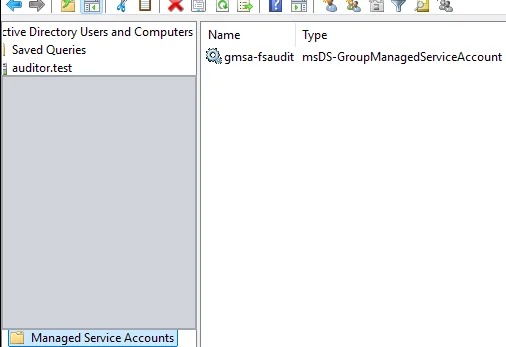
New gMSAs land in the Managed Service Accounts container by default
Step 4: Install and test the gMSA on each host
Each host needs the Active Directory module for PowerShell, which Install-WindowsFeature RSAT-AD-PowerShell adds on Windows Server, and a Kerberos ticket that contains its new group membership. Restart the host, or purge the computer account's tickets from an elevated prompt:
klist -li 0x3e7 purge
Install and test the account in an elevated PowerShell session on the host:
Install-ADServiceAccount -Identity 'gmsa-app'
Test-ADServiceAccount -Identity 'gmsa-app'
True

Test-ADServiceAccount must return True on every host
For a gMSA, Install-ADServiceAccount caches the account and checks that the host may use it; Microsoft's procedure says you must run it on every host of the service. It doesn't work against a read-only domain controller. Test-ADServiceAccount returns True when the account can authenticate with its current credentials; if it returns False, use the troubleshooting table.
Step 5: Run a service, scheduled task, IIS app pool or SQL Server as the gMSA
Every workload takes the gMSA as CORP\gmsa-app$, with the trailing dollar sign, and a blank password; the host retrieves the password itself. Grant the gMSA only the rights its service needs, through a group, as Microsoft's gMSA management guide recommends.
Windows service
- Open the service's properties in the Services snap-in and select the Log On tab.
- Select This account, enter
CORP\gmsa-app$and clear both password boxes. - Restart the service, then check it from an elevated prompt:
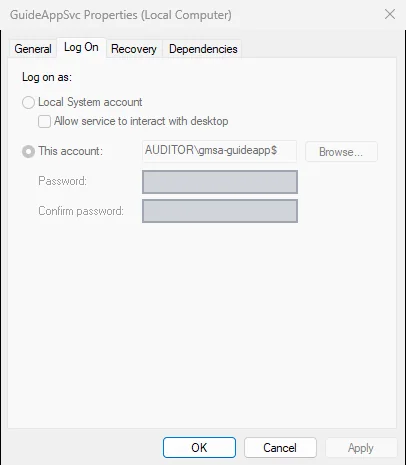
Run the service as the gMSA with a blank password
sc.exe qc AppSvc
sc.exe qmanagedaccount AppSvc
SERVICE_START_NAME should show the gMSA and qmanagedaccount should report TRUE; if it reports FALSE, run sc.exe managedaccount AppSvc true. Where a Group Policy Object defines Log on as a service, add the gMSA to it.
Scheduled task
Set the gMSA as the task principal with the Password logon type, one of the values that the New-ScheduledTaskPrincipal reference lists for -LogonType. This changes an existing task:
$principal = New-ScheduledTaskPrincipal -UserId 'CORP\gmsa-task$' -LogonType Password
Set-ScheduledTask -TaskPath '\' -TaskName 'NightlyExport' -Principal $principal
For a new task, pass the same principal to Register-ScheduledTask -Principal. Task Scheduler logs the account on as a batch user, so the gMSA needs the Log on as a batch job user right on the host.
IIS application pool
In IIS Manager, right-click the application pool and select Advanced Settings. Select Identity and the ellipsis button, choose the custom account option and enter CORP\gmsa-web$ with both password boxes empty. Recycle the pool and register its HTTP SPNs on the gMSA (Step 6).
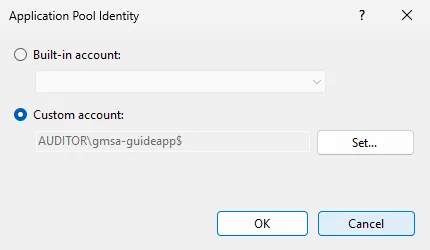
Set the application pool identity to the gMSA
SQL Server
Change the SQL Server and SQL Server Agent accounts in SQL Server Configuration Manager, which Microsoft says also sets the registry permissions the account needs. Enter CORP\gmsa-sql$ on the Log On tab and leave the password blank. Microsoft's SQL Server gMSA troubleshooting checklist then checks sc.exe qc, Test-ADServiceAccount, sc.exe qmanagedaccount and the retrieval list on every node.
Step 6: Manage SPNs for the gMSA
Each SPN must sit on the account the service actually runs as. Services that register SPNs automatically can do so for a gMSA when its permissions allow; otherwise add them yourself.
Set-ADServiceAccount -Identity 'gmsa-app' -ServicePrincipalNames @{ Add = 'HTTP/app.corp.example.com', 'HTTP/app' }
Get-ADServiceAccount -Identity 'gmsa-app' -Properties servicePrincipalName | Select-Object -ExpandProperty servicePrincipalName
HTTP/app.corp.example.com
HTTP/app
Use setspn to find who holds an SPN and to search for duplicates in the current domain:
setspn -Q HTTP/app.corp.example.com
setspn -T * -X
Once every service runs as a gMSA, a new SPN on a user account deserves an alert; the Kerberoasting rules include one for that change.
Step 7: Migrate a user service account to a gMSA
A migration swaps the identity under a running service, so plan it with a tested rollback. Our RC4 and AES Kerberos guide names this move as the permanent fix for SPN-bearing service accounts.
- Inventory. Run
Get-ServiceAccountUsage.ps1 -AccountName 'CORP\svc-app'on every host, and record the old account's SPNs, groups, file and database permissions and user rights. - Prepare. Create the gMSA (Step 3), grant it the same rights through groups, and install and test it on every host (Step 4).
- Cut over. In the change window, stop the service, remove its SPNs from the old account and add them to the gMSA:
setspn -D HTTP/app.corp.example.com CORP\svc-app
setspn -D HTTP/app CORP\svc-app
Set-ADServiceAccount -Identity 'gmsa-app' -ServicePrincipalNames @{ Add = 'HTTP/app.corp.example.com', 'HTTP/app' }
- Switch. Point the workload at the gMSA (Step 5), start it and run the Verify checks.
- Disable. Reset the old account's password to a long random value, then disable it; the object, SID and groups stay for a rollback.
Disable-ADAccount -Identity 'svc-app' -WhatIf
Disable-ADAccount -Identity 'svc-app'
- Watch. Run the old-account query from the monitoring section for a full business cycle; any hit names a dependency you missed.
- Retire. Remove the old account from its groups and delete it, the last step of Microsoft's move-to-gMSA procedure.
Search scripts and configuration files for the old password before you retire the account; a gMSA doesn't remove a password someone wrote down.
Secure gMSAs and the KDS root key
A gMSA is only as safe as the principals that can retrieve its password, the principals that can change that list, and the KDS root key. None of these paths closes when the password rotates.
Keep the retrieval list to computer accounts
Limit PrincipalsAllowedToRetrieveManagedPassword to the computer accounts that run the service, or to a group of only them. A user on that list can read the password from the directory and authenticate as the gMSA wherever it has rights. Forestall documents that path as the CanReadGMSAPassword edge, and the gMSA password read rules alert on reads by accounts that aren't computers.
Control who can change a gMSA
Write access to msDS-GroupMSAMembership, or to the gMSA's permissions, equals read access, because the writer can add itself to the list. Remove every unexpected entry in gmsa-write-rights.csv, and keep gMSAs out of privileged groups. A gMSA in Domain Admins makes every host on its retrieval list a path to domain admin rights, a classic shadow admin pattern.
Protect the KDS root key like the krbtgt account
The root key objects are readable only by Enterprise Admins, Domain Admins and SYSTEM by default, and every domain controller's database holds them. In the Golden gMSA attack that Microsoft's recovery article describes, the attacker obtains the root key's attributes plus a gMSA's SID and msDS-ManagedPasswordId. The fix is a new root key and, depending on what was exposed, new gMSAs. Treat the key like the account in our krbtgt password reset guide, and protect domain controller backups accordingly.
Microsoft suggests an audit entry (SACL) on the Master Root Keys container for successful reads of msKds-RootKeyData on msKds-ProvRootKey objects; it sees only online reads, not a key taken from a backup. When a highly privileged administrator leaves, the same article describes creating a new root key and letting the gMSAs roll to it.
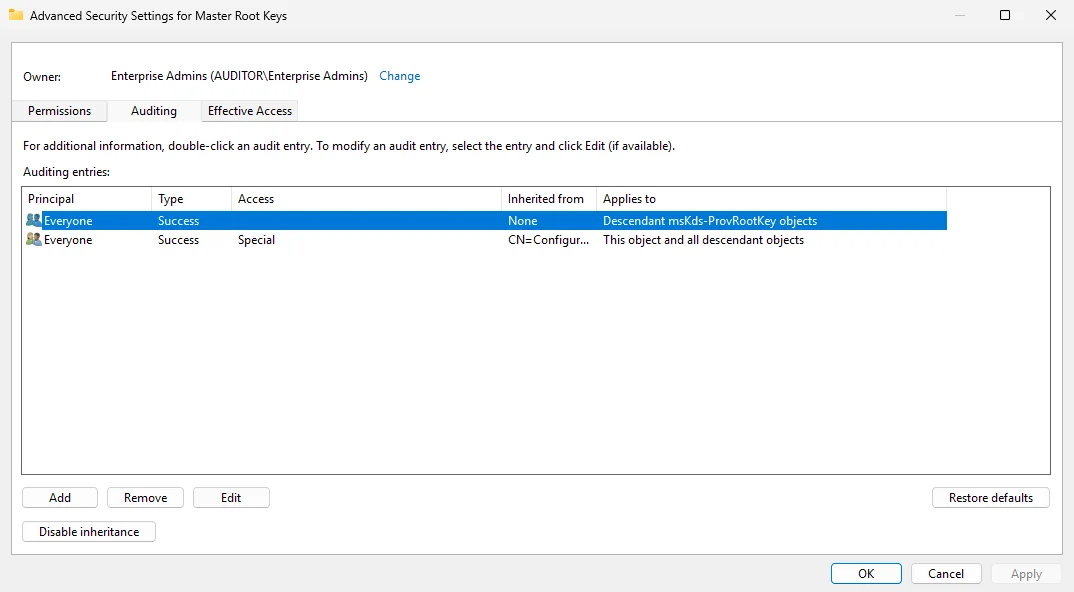
Audit reads of the KDS root key data
dMSA and the BadSuccessor vulnerability
A dMSA replaces a user service account in place on Windows Server 2025. It links to the account it supersedes through msDS-ManagedAccountPrecededByLink, and when the migration completes it takes over that account's SPNs and delegation settings. The BadSuccessor technique abuses that link, a form of account manipulation (MITRE ATT&CK T1098).
Microsoft fixed the escalation as CVE-2025-53779 on August 12, 2025, for Windows Server 2025. The advisory says the attacker needs elevated access to a dMSA's msDS-groupMSAMembership and write access to its msDS-ManagedAccountPrecededByLink, and could gain domain administrator privileges. Install that update or a later one on every Windows Server 2025 domain controller.
Limit who can create objects in OUs and write those attributes, and watch dMSA creation and link changes with the BadSuccessor detection rules. Our BadSuccessor analysis explains the background.
Verify
Check the account, each host and the Kerberos tickets clients receive, then run the audit script again.
| Check | Command | Expected result |
|---|---|---|
| gMSA object | Get-ADServiceAccount -Identity 'gmsa-app' -Properties PrincipalsAllowedToRetrieveManagedPassword, msDS-SupportedEncryptionTypes, servicePrincipalName |
Only the host group can retrieve the password, msDS-SupportedEncryptionTypes is 24 (AES128 and AES256), and the SPNs are present |
| Host | Test-ADServiceAccount -Identity 'gmsa-app' |
True on every host |
| Service | sc.exe qc AppSvc and sc.exe qmanagedaccount AppSvc |
SERVICE_START_NAME is CORP\gmsa-app$, and the managed flag is TRUE |
| Ticket | Event 4769 on a domain controller for the service's SPN | Ticket Encryption Type 0x12 (AES256), not 0x17 (RC4) |
| SPNs | setspn -T * -X |
No duplicates; the old account holds no SPN |
| Old account | The old-account query in the monitoring section | No rows after the cutover |
| Audit script | .\Get-GmsaAudit.ps1 |
ReadersToReview, WritersToReview and GmsasWithRc4 at 0 |
Roll back
Most gMSA changes can be reversed, but a few can't. Decide before the cutover which of these you'd need.
| Change | How to roll back | Notes |
|---|---|---|
| Service identity | Re-enable the old account, set a new password, move the SPNs back with setspn -S, and point the service back to the old account |
The old password was reset in Step 7, so the service needs the new one |
| gMSA on a host | Uninstall-ADServiceAccount -Identity 'gmsa-app' on the host |
Removes the cached account; the directory object stays |
| Host group membership | Remove-ADGroupMember -Identity 'gMSA-App-Hosts' -Members 'APP02$' |
Takes effect when the host's Kerberos ticket refreshes |
| gMSA object | Remove-ADServiceAccount -Identity 'gmsa-app' -WhatIf, then without -WhatIf |
Permissions granted to the deleted gMSA's SID don't resolve anymore, and a new gMSA doesn't inherit them |
| Password interval | Can't be changed | Create a new gMSA with the interval you want |
| KDS root key | Don't delete it | Replacing a key is Microsoft's Golden gMSA recovery procedure, not a rollback |
Monitor and detect
On domain controllers, watch who reads gMSA passwords, who changes retrieval lists and who touches the KDS root keys. On hosts, watch gMSA logon failures and any use of the retired account. The Active Directory audit policy guide shows how to enable the audit subcategories these events need.
| Source | Event | What it tells you | Related page |
|---|---|---|---|
| Security (domain controllers) | 4662 with e362ed86-b728-0842-b27d-2dea7a9df218 in Properties and access mask 0x10 |
A read of msDS-ManagedPassword. Needs Audit Directory Service Access and an audit entry for Read Property on the gMSAs. |
Event 4662 field reference |
| Security (domain controllers) | 4662 with aa02fd41-17e0-4f18-8687-b2239649736b in ObjectType |
Access to a KDS root key object; 26627c27-08a2-0a40-a1b1-8dce85b42993 in Properties is a read of msKds-RootKeyData |
KDS root key read rules |
| Security (domain controllers) | 5136 on msDS-GroupMSAMembership |
A change to a retrieval list. Needs Audit Directory Service Changes and an audit entry for writes. | Event 5136 |
| Security (domain controllers) | 5137 for a msDS-DelegatedManagedServiceAccount object |
A dMSA was created | Event 5137 |
| Security (domain controllers) | 4769 with Ticket Encryption Type 0x17 |
An RC4 service ticket, for example for an SPN still on a user account | Kerberoasting rules |
| Security (hosts) | 4624 and 4625 for the old account | The retired account is still in use | Old-account query below |
| KdsSvc Operational | 4004 | A KDS root key was created | Step 2 |
| System (hosts) | 7038 and 7041 from Service Control Manager | 7041 is a missing logon right; 7038 is an account, password or domain contact problem, which for a gMSA can mean the host can't retrieve the password | Troubleshooting table |
| Microsoft-Windows-Security-Netlogon/Operational (hosts) | Managed service account events | Why Install-ADServiceAccount or a password retrieval failed |
Troubleshooting table |
| Microsoft-Windows-Security-Kerberos/Operational (hosts) | 307, 308, 309 | dMSA migration, permission add and key fetch. The log is off by default. | dMSA section |
Microsoft's event 4662 reference describes ObjectName as the distinguished name of the object that was accessed, and the sample event on that page carries the value as a GUID in %{...} form. The queries below report the field as it is logged and don't join on it. Hosts appear as password readers in normal work, and the audit script appears in root key access events if your audit entry covers more than msKds-RootKeyData.
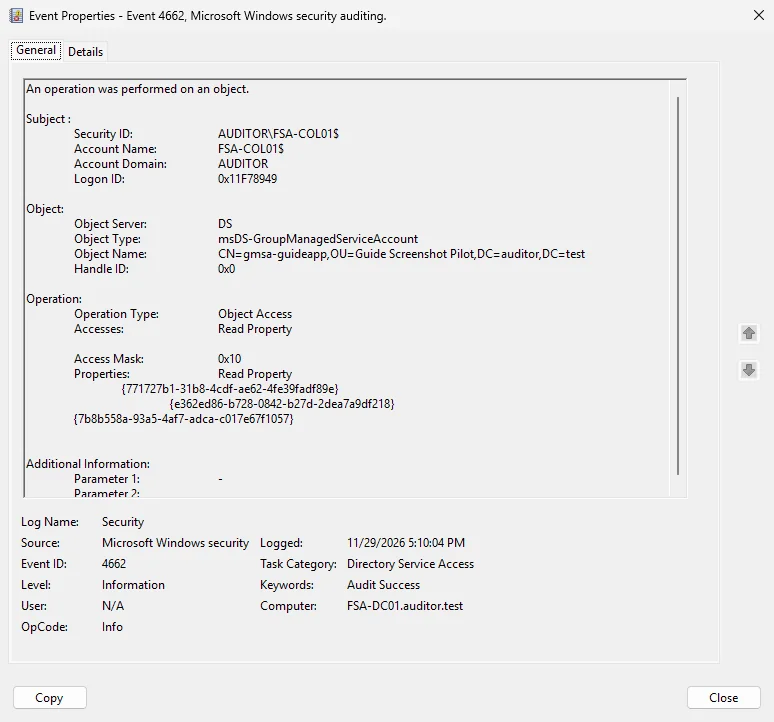
A host reading its gMSA password is normal; other readers deserve an alert
The first query lists who read gMSA passwords, non-computer accounts first. Run it in Microsoft Sentinel or a Log Analytics workspace that receives domain controller events in the SecurityEvent table.
// gMSA password reads on domain controllers (event 4662, msDS-ManagedPassword, Read Property 0x10).
// Needs an audit entry for Read Property on msDS-ManagedPassword and Audit Directory Service Access (Success).
SecurityEvent
| where TimeGenerated > ago(1d)
| where EventID == 4662
| where Properties contains "e362ed86-b728-0842-b27d-2dea7a9df218"
| where AccessMask == "0x10"
| extend IsComputer = SubjectUserName endswith "$"
| summarize Reads = count(), FirstRead = min(TimeGenerated), LastRead = max(TimeGenerated)
    by SubjectDomainName, SubjectUserName, IsComputer, gMSA = ObjectName, DomainController = Computer
| order by IsComputer asc, Reads desc
The second query lists access to KDS root key objects by accounts other than computers.
// Access to KDS root key objects (event 4662, class msKds-ProvRootKey) by accounts that aren't computers.
// Needs the audit entry Microsoft describes on the Master Root Keys container and Audit Directory Service Access (Success).
SecurityEvent
| where TimeGenerated > ago(7d)
| where EventID == 4662
| where ObjectType contains "aa02fd41-17e0-4f18-8687-b2239649736b"
| where SubjectUserName !endswith "$"
| extend RootKeyDataRead = Properties contains "26627c27-08a2-0a40-a1b1-8dce85b42993"
| project TimeGenerated, DomainController = Computer, SubjectDomainName, SubjectUserName, SubjectLogonId, ObjectName, AccessMask, RootKeyDataRead
| order by TimeGenerated desc
The third query lists retrieval list changes; the attribute name sits in the event data, not in its own column.
// Changes to a gMSA password retrieval list (event 5136 on msDS-GroupMSAMembership).
// Needs an audit entry for writes to the attribute and Audit Directory Service Changes (Success).
SecurityEvent
| where TimeGenerated > ago(7d)
| where EventID == 5136
| where EventData has "msDS-GroupMSAMembership"
| project TimeGenerated, DomainController = Computer, SubjectDomainName, SubjectUserName, SubjectLogonId, EventData
| order by TimeGenerated desc
The fourth query watches the old account after the cutover; set the account name and cutover time first.
// Activity of the old user service account after the cutover to a gMSA.
// 4624 and 4625 come from the hosts, 4769 from domain controllers. Set both values first.
let OldAccount = "svc-app";
let Cutover = datetime(2026-12-01T00:00:00Z);
SecurityEvent
| where TimeGenerated > Cutover
| where (EventID in (4624, 4625) and TargetUserName =~ OldAccount)
    or (EventID == 4769 and ServiceName =~ OldAccount)
| summarize Events = count(), LastSeen = max(TimeGenerated) by EventID, Computer, IpAddress
| order by LastSeen desc
A user account, a workstation or a server outside the host group reading the password deserves an alert, and so does any unexplained read of msKds-RootKeyData.
Troubleshooting
Most gMSA failures trace back to the retrieval list, the KDS root key, Kerberos tickets or logon rights.
| Symptom | Cause | Fix |
|---|---|---|
New-ADServiceAccount fails because no root key is available |
No KDS root key, or the key is less than 10 hours old | Create the key (Step 2) and wait, then confirm replication |
New-ADServiceAccount fails with a duplicate name in another domain |
gMSA names are unique in the forest | Choose a new name |
Install-ADServiceAccount fails, or Test-ADServiceAccount returns False |
The host isn't in the retrieval list, or its Kerberos ticket predates the group change | Check PrincipalsAllowedToRetrieveManagedPassword, then restart or run klist -li 0x3e7 purge; read the Security-Netlogon Operational log |
Test-ADServiceAccount returns False on one host only |
The host doesn't support the gMSA's encryption types | Allow AES on the host and keep AES on the gMSA |
| Service error 1069 with event 7038 | The host can't retrieve the password, or Service Control Manager doesn't treat the account as managed | Run Test-ADServiceAccount and sc.exe qmanagedaccount; if it reports FALSE, run sc.exe managedaccount <service> true |
| Service error 1069 with event 7041 | The gMSA lacks Log on as a service | Add the gMSA to that user right in the policy that defines it |
| The service fails at boot but starts manually | The service starts before the host reaches the domain | Microsoft's SQL Server guidance points to delayed start and a Netlogon dependency |
| A scheduled task doesn't run | The gMSA lacks Log on as a batch job, or the task wasn't set to the Password logon type | Grant the right, then reset the principal with New-ScheduledTaskPrincipal -LogonType Password |
| Kerberos fails or clients fall back to NTLM | The SPN is still on the old account, or it's duplicated | Run setspn -Q and setspn -T * -X, then move the SPN |
| RC4 tickets for the gMSA | msDS-SupportedEncryptionTypes lacks AES |
Set-ADServiceAccount -Identity 'gmsa-app' -KerberosEncryptionType AES128,AES256 |
| The password never rolls | The retrieval list is empty | Add the host group to the retrieval list |
PasswordLastSet or LastLogonDate shows a future date |
A known Secure Time Seeding scenario, documented by Microsoft | Create a new gMSA as an interim fix and open a support case |
How Forestall helps
Forestall models who can read gMSA passwords as the CanReadGMSAPassword attack path edge, built from msDS-GroupMSAMembership. Its GMSAs view shows each gMSA's groups, sessions, SPNs and local memberships, and flags it as a shadow admin when it can compromise admin objects through an attack path. For Windows Server 2025, the DelegatedManagedServiceAccount search entity exposes msDSManagedAccountPrecededByLink, so you can query which account each dMSA supersedes. Forestall Credential Discovery finds service account credentials left in scripts and configuration files on SMB shares, the copies a gMSA migration doesn't remove.
Frequently Asked Questions
What is a gMSA account?
A gMSA (group managed service account) is an Active Directory account for running services, scheduled tasks and IIS application pools. Windows generates its 240-byte password and changes it every 30 days by default, and domain controllers release it only to the hosts you authorize. One gMSA can serve a whole server farm, and nobody stores its password.
How do I create a gMSA in Active Directory?
To create a gMSA, first create a KDS root key once per forest with Add-KdsRootKey -EffectiveImmediately and wait 10 hours in production. Then create a security group with the host computer accounts and run New-ADServiceAccount with -DNSHostName, -PrincipalsAllowedToRetrieveManagedPassword and AES encryption types. On each host, run Install-ADServiceAccount and check that Test-ADServiceAccount returns True before you configure the service.
Is Install-ADServiceAccount required for a gMSA?
Microsoft's gMSA management guide says you must install the gMSA with Install-ADServiceAccount on each host where the service runs. For a gMSA the cmdlet caches the account on the host and checks that the host may use it, and Microsoft describes this precaching as an important validation step. Run Test-ADServiceAccount afterward; it should return True.
How often does a gMSA password change, and can I change the interval?
A gMSA password changes every 30 days by default. You can choose a different interval only when you create the account, with the -ManagedPasswordIntervalInDays parameter of New-ADServiceAccount; Windows stores it in msDS-ManagedPasswordInterval, and it's read-only afterward. To use a different interval, create a new gMSA and move the service to it. Microsoft suggests considering 15 days to shorten the window after a compromise.
Can SQL Server and scheduled tasks run as a gMSA?
SQL Server and scheduled tasks can both run as a gMSA. SQL Server supports gMSAs for standalone instances from SQL Server 2014, and for failover cluster instances and availability groups from SQL Server 2016; change the account in SQL Server Configuration Manager. A scheduled task runs as a gMSA when its principal uses the Password logon type and the gMSA holds the Log on as a batch job right. Leave the password blank in both cases.
What is the difference between a gMSA and a dMSA?
A gMSA (Windows Server 2012) shares one domain-managed password with every host you authorize, and those hosts can retrieve it. A dMSA (Windows Server 2025) binds authentication to specific machine identities, keeps its secret on the domain controller and can replace an existing user service account in place. You can't convert a gMSA to a dMSA, and Windows Server 2025 domain controllers need the CVE-2025-53779 update.
Related guides
- Active Directory hardening, every step in order: where gMSA migration fits in the full hardening sequence.
- Protected Users group and delegation controls: lock down delegation on the accounts your services use.
- Windows LAPS in Active Directory: managed, rotating passwords for local administrator accounts.
- How to secure Active Directory service accounts: the service account risks this guide removes.
References
- Group Managed Service Accounts overview (Microsoft Learn)
- Manage group Managed Service Accounts (Microsoft Learn)
- Create a Key Distribution Service (KDS) root key (Microsoft Learn)
- Service accounts (Microsoft Learn)
- New-ADServiceAccount (Microsoft Learn)
- Secure group managed service accounts (Microsoft Learn)
- Troubleshoot SQL Server setup, startup, and authentication failures with gMSAs (Microsoft Learn)
- How to recover from a Golden gMSA attack (Microsoft Learn)
- Delegated Managed Service Accounts overview (Microsoft Learn)
- CVE-2025-53779: Windows Kerberos Elevation of Privilege Vulnerability (Microsoft Security Response Center)
- Steal or Forge Kerberos Tickets: Kerberoasting, T1558.003 (MITRE ATT&CK)
- Account Manipulation, T1098 (MITRE ATT&CK)
See your identity exposure clearly.
Start with a 1-day Proof of Value in your own environment.