Reset the krbtgt Password Safely: A Step-by-Step Guide
Summary
A krbtgt password reset replaces the key that domain controllers use to encrypt and sign Kerberos ticket-granting tickets (TGTs). Reset it twice, waiting longer than the maximum ticket lifetime (10 hours by default) between the resets. That invalidates forged and stolen tickets while clients move to the new key. Microsoft's reset script checks replication and timing for you.
Quick steps
- Decide whether this is a routine rotation or a response to a suspected compromise, because the timing differs.
- Check replication with
repadminanddcdiag, then run the read-only pre-check script. - Confirm the Kerberos ticket lifetime in the Default Domain Policy and plan a wait longer than it.
- Download Microsoft's
New-KrbtgtKeys.ps1and run it in informational mode, then in a simulation mode. - Reset the password once with the script and confirm that every writable domain controller has the new key.
- Wait longer than the maximum ticket lifetime, then reset the password a second time.
- Reset the separate
krbtgt_<number>account of each read-only domain controller (RODC) as its own scope. - Watch krbtgt resets and Kerberos failures in the Security log, then repeat for every other domain.
Applies to: Active Directory Domain Services domains with writable and read-only domain controllers, and the Microsoft Entra Kerberos server key where that feature is set up (as of November 2026).
What is the krbtgt account and why does its password matter?
The krbtgt account is the built-in Active Directory account that acts as the service account of the Key Distribution Center (KDC). Windows creates it with every new Active Directory domain, gives it the relative identifier (RID) 502, and doesn't let you delete, rename or enable it. Each writable domain controller derives a secret key from its password and uses that key to encrypt the TGTs it issues. For the full Kerberos authentication exchange, see our walkthrough of the Kerberos protocol.
Because any domain controller can validate a TGT encrypted with that key, it's one of the most valuable secrets in the domain. An attacker who has its hash can forge TGTs for any account. That is a Golden Ticket attack, tracked by MITRE ATT&CK as T1558.001. The hash comes from domain-level access, such as DCSync (T1003.006), a copy of the directory database or a domain controller backup.
Microsoft compares a krbtgt reset to renewing a root certificate authority key and immediately distrusting the old one.
Why do you reset the krbtgt password twice?
The krbtgt password history holds two passwords: the current one and the previous one. After one reset, the previous password is still in that history, and Microsoft's reset script treats tickets based on the previous key as valid until they expire. The second reset pushes the old password out of the history. Microsoft Defender for Identity's guidance calls for two resets for exactly this reason: to invalidate Golden Tickets.
How long should you wait between the two resets?
Microsoft's forest recovery procedure for the krbtgt password says to wait 10 hours between the resets. Ten hours is the default of both Maximum lifetime for user ticket and Maximum lifetime for service ticket. If your domain uses a longer lifetime, wait longer than the configured value. The first reset must also have replicated to every writable domain controller before the second reset.
The four Kerberos policy settings live in the Default Domain Policy, under Computer Configuration\Windows Settings\Security Settings\Account Policies\Kerberos Policy:
| Setting | Default (Default Domain Policy) | Why it matters for the reset |
|---|---|---|
| Maximum lifetime for user ticket | 10 hours | How long a TGT can be used; the basis of the minimum wait |
| Maximum lifetime for service ticket | 600 minutes | How long a service ticket can authenticate new connections |
| Maximum lifetime for user ticket renewal | 7 days | How long a TGT can be renewed |
| Maximum tolerance for computer clock synchronization | 5 minutes | Allowed clock skew; Microsoft's script adds it to its timing check |
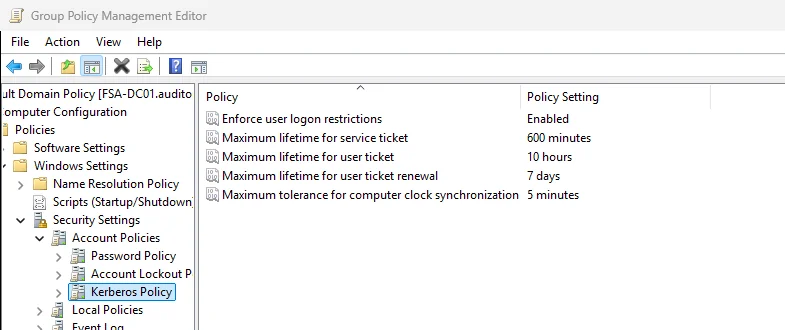
The Kerberos policy decides how long to wait between the two resets
When should you reset krbtgt: routine rotation or suspected compromise?
Reset krbtgt on a regular schedule as maintenance, and again as an incident action when you suspect that the domain or the key was compromised. Both cases use the same mechanism, but the timing and the surrounding work differ.
| Aspect | Routine rotation | Suspected compromise |
|---|---|---|
| Goal | Limit how long an unnoticed stolen key stays useful | Invalidate a key the attacker may hold |
| Wait between resets | Longer than the maximum ticket lifetime, after the first reset replicated | Microsoft Incident Response resets twice in rapid succession |
| Preparation | Change window, replication checks, simulation modes | Optionally shorten the ticket lifetime before the first reset; keep online every domain controller you plan to keep |
| Context | Planned maintenance, one domain at a time | Part of a larger, domain-wide recovery; Microsoft suggests considering professional incident response |
| Expected impact | Kept small by healthy replication and the full wait | Kerberos failures until computers and users get new tickets |
In the compromise case, Microsoft Incident Response's containment steps recommend a scripted, repeatable process. They also note that you can shorten the Kerberos ticket lifetime one or more times before the first reset, so the steps finish sooner. A change to the Kerberos policy is logged as event 4713, and our Kerberos policy change detection rules flag the opposite case, a longer lifetime.
How often should you rotate the krbtgt password?
Microsoft doesn't mandate a fixed interval. Its Active Directory accounts reference says to change the krbtgt and trust account passwords on a regular schedule, as with any privileged service account. Two primary sources give a reference point (as of November 2026). Microsoft Defender for Identity's krbtgt posture assessment lists krbtgt accounts whose password was set more than 180 days ago, and MITRE ATT&CK's Golden Ticket mitigation suggests considering rotation every 180 days.
What doesn't a krbtgt reset fix?
After a compromise, the double reset is one step in a longer recovery. It doesn't remove these exposures:
- The path to the key. An attacker who still holds replication rights or a privileged account can read the new key the same way. Close those paths first; Microsoft's initial forest recovery steps also reset every administrative account password after an attack.
- Silver Tickets. Silver Tickets are forged with the target service account's key, not the krbtgt key, so rotate those accounts too. Our guide to securing service accounts covers how.
- Group managed service accounts. The same initial recovery steps say to replace gMSA passwords after an administrative account was taken over. The gMSA guide explains the key that protects them.
- Trust keys. A trust password derives a separate inter-realm key for referral tickets. After a security breach, the initial recovery steps say you may also reset trust passwords.
- DPAPI backup keys. Microsoft has no supported way to rotate the domain's DPAPI backup keys, so a reset doesn't make them safe again.
- The Microsoft Entra Kerberos key. Microsoft Entra Kerberos, used by Windows Hello for Business cloud Kerberos trust and FIDO2 sign-in to on-premises resources, keeps its own TGT key on a Kerberos server object with a
krbtgt_AzureADuser account. Microsoft's Entra Kerberos trust guide says to rotate it only withSet-AzureADKerberosServer -RotateServerKey, on the same schedule as krbtgt and immediately after a suspected compromise.
Before you start
Plan the reset as a domain-wide change: confirm rights, replication, ticket lifetime and communication before you touch the account. Test the whole sequence in a lab first, because a reset can't be undone.
- Permissions. Microsoft requires membership in Domain Admins and in the local Administrators group, or the equivalent delegated authority. In its own forest, Microsoft's reset script checks for membership in Domain Admins of the target domain or in Enterprise Admins.
- One domain at a time. Each domain has its own krbtgt account. A forest with three domains needs three double resets.
- Every domain controller online. Microsoft Incident Response says that all domain controllers you plan to keep must be online. Remove retired domain controllers with metadata cleanup first; the script's repository notes that an offline, unremoved domain controller makes it fail.
- Expected impact. Microsoft's account reference says to assume that all computers and users can be affected. Sessions that are already authenticated keep working until they need their service ticket to reauthenticate, NTLM connections aren't affected, and a restart is the only reliable way to recover a computer.
- Password filters. A customized password filter on a domain controller, such as
passfilt.dll, can make the reset fail. The forest recovery procedure points to KB 2549833 for a workaround. - No rollback. Your safety net is preparation: a lab rehearsal, the simulation modes, a communication plan for the help desk, and current domain controller backups as part of your normal recovery plan.
Step 1: Audit the current state
Confirm that every domain controller replicates, that all writable domain controllers agree on the current krbtgt key, and how old that key is. Nothing in this step changes the directory.
Start with the replication tools on a domain controller or a management server with RSAT:
repadmin /replsummary
repadmin /showrepl * /csv > showrepl.csv
dcdiag /e /test:Replications /q
repadmin /replsummary summarizes the replication status of each domain controller. repadmin /showrepl * /csv lists the last success and the last failure of every link, which you can sort in a spreadsheet. dcdiag /e /test:Replications /q runs the Replications test on every server in the enterprise and prints only errors, including links with latency over 12 hours. Fix every failure before you continue.
The read-only script below collects the rest of the picture. It reads names, timestamps and version numbers only, never a password, hash or Kerberos key. It reports how each writable domain controller sees the krbtgt account, the replication metadata of pwdLastSet, the last successful inbound replication of every domain controller, and every krbtgt_<number> account.
Run it on a domain controller or a management server with the ActiveDirectory module, as a member of Domain Admins. It writes three CSV files and returns a summary object.
#Requires -Version 5.1
#Requires -Modules ActiveDirectory

<#
.SYNOPSIS
    Read-only pre-check before, between and after krbtgt password resets in one Active Directory domain.

.DESCRIPTION
    Collects what you need to decide whether a krbtgt reset can start, or whether the second
    reset can follow the first:
      - the domain, its functional level, the PDC emulator, and every writable and read-only DC;
      - pwdLastSet and msDS-KeyVersionNumber of the krbtgt account, as each writable DC reports them;
      - the replication metadata of pwdLastSet on the PDC emulator (originating DC, time, version);
      - the last successful inbound replication of the domain partition on every DC;
      - every other krbtgt account (krbtgt_<number> of RODCs, the Microsoft Entra Kerberos
        account, test accounts), the RODC that links to it through msDS-KrbTgtLink, and the
        accounts that no RODC links to.

    The script reads names, timestamps and version numbers only. It never reads a password,
    a password hash or a Kerberos key, and it changes nothing in Active Directory.

    Results go to three CSV files in OutputFolder. A summary object is returned.

.PARAMETER OutputFolder
    Existing folder for the CSV reports, for example 'C:\Reports\krbtgt'.

.PARAMETER Domain
    Optional DNS name of the domain to check, for example 'corp.example.com'.
    Defaults to the domain of the computer that runs the script.

.PARAMETER MaxTicketAgeHours
    The domain's "Maximum lifetime for user ticket" in hours. The default, 10, is the default
    value of that policy setting. Set it to your configured value. The script adds it to the
    current pwdLastSet to show the earliest time a second reset meets the ticket-lifetime wait.

.PARAMETER MaxReplicationLatencyHours
    Replication partners whose last successful inbound replication is older than this value
    are flagged as stale. The default, 12, is the latency that the dcdiag Replications test reports.

.EXAMPLE
    .\Get-KrbtgtResetReadiness.ps1 -OutputFolder 'C:\Reports\krbtgt'

.EXAMPLE
    .\Get-KrbtgtResetReadiness.ps1 -OutputFolder 'C:\Reports\krbtgt' -Domain 'corp.example.com' -MaxTicketAgeHours 10

.NOTES
    Read-only. Makes no change to Active Directory, the registry or any computer.
    Writes only the three CSV report files to OutputFolder.
    Requires the ActiveDirectory module (RSAT). Run it on a domain controller or a management
    server with an account that can read replication metadata on every DC, for example a
    member of Domain Admins.
#>
[CmdletBinding()]
param(
    [Parameter(Mandatory = $true)]
    [ValidateScript({ Test-Path -Path $_ -PathType Container })]
    [string]$OutputFolder,

    [string]$Domain,

    [ValidateRange(1, 99999)]
    [int]$MaxTicketAgeHours = 10,

    [ValidateRange(1, 8760)]
    [int]$MaxReplicationLatencyHours = 12
)

Set-StrictMode -Version Latest
$ErrorActionPreference = 'Stop'

function Get-PropertyValue {
    param($InputObject, [string]$Name)
    if ($null -eq $InputObject) { return $null }
    $property = $InputObject.PSObject.Properties[$Name]
    if ($null -ne $property) { return $property.Value }
    return $null
}

function ConvertFrom-FileTimeValue {
    param($Value)
    if ($null -eq $Value) { return $null }
    $ticks = [int64]$Value
    if ($ticks -le 0) { return $null }
    return [DateTime]::FromFileTimeUtc($ticks)
}

$nowUtc = [DateTime]::UtcNow

# 1. Domain and domain controllers
$domainParams = @{}
if ($Domain) {
    $domainParams['Identity'] = $Domain
    $domainParams['Server'] = $Domain
}
$adDomain = Get-ADDomain @domainParams
$pdc = $adDomain.PDCEmulator
$writableDcs = @($adDomain.ReplicaDirectoryServers)
$readOnlyDcs = @($adDomain.ReadOnlyReplicaDirectoryServers)

# 2. The domain krbtgt account as the PDC emulator sees it (timestamps and version numbers only)
$krbtgt = Get-ADUser -Identity 'krbtgt' -Server $pdc -Properties 'pwdLastSet', 'msDS-KeyVersionNumber'
$pdcPwdLastSet = ConvertFrom-FileTimeValue -Value (Get-PropertyValue -InputObject $krbtgt -Name 'pwdLastSet')
$pdcKeyVersion = Get-PropertyValue -InputObject $krbtgt -Name 'msDS-KeyVersionNumber'

$metadata = @(Get-ADReplicationAttributeMetadata -Object $krbtgt.DistinguishedName -Server $pdc -Properties 'pwdLastSet')
$pwdMetadata = $metadata | Where-Object { (Get-PropertyValue -InputObject $_ -Name 'AttributeName') -eq 'pwdLastSet' } | Select-Object -First 1

# 3. The same account as every writable DC sees it
$dcRows = @(foreach ($dc in $writableDcs) {
    $row = [ordered]@{
        DomainController = $dc
        Reachable        = $false
        PwdLastSetUtc    = $null
        KeyVersion       = $null
        MatchesPdc       = $false
        Error            = $null
    }
    try {
        $view = Get-ADUser -Identity 'krbtgt' -Server $dc -Properties 'pwdLastSet', 'msDS-KeyVersionNumber'
        $row.Reachable = $true
        $row.PwdLastSetUtc = ConvertFrom-FileTimeValue -Value (Get-PropertyValue -InputObject $view -Name 'pwdLastSet')
        $row.KeyVersion = Get-PropertyValue -InputObject $view -Name 'msDS-KeyVersionNumber'
        $row.MatchesPdc = (($row.PwdLastSetUtc -eq $pdcPwdLastSet) -and ($row.KeyVersion -eq $pdcKeyVersion))
    }
    catch {
        $row.Error = $_.Exception.Message
    }
    [pscustomobject]$row
})

# 4. Inbound replication of the domain partition on every DC
$allDcs = @($writableDcs) + @($readOnlyDcs)
$replicationRows = @(foreach ($dc in $allDcs) {
    try {
        $partners = @(Get-ADReplicationPartnerMetadata -Target $dc -Partition $adDomain.DistinguishedName)
        foreach ($partner in $partners) {
            $lastSuccess = Get-PropertyValue -InputObject $partner -Name 'LastReplicationSuccess'
            $hoursSinceSuccess = $null
            if ($null -ne $lastSuccess) {
                $hoursSinceSuccess = [math]::Round(($nowUtc - ([DateTime]$lastSuccess).ToUniversalTime()).TotalHours, 1)
            }
            [pscustomobject]@{
                DomainController       = $dc
                Partner                = (Get-PropertyValue -InputObject $partner -Name 'Partner')
                LastReplicationAttempt = (Get-PropertyValue -InputObject $partner -Name 'LastReplicationAttempt')
                LastReplicationSuccess = $lastSuccess
                HoursSinceSuccess      = $hoursSinceSuccess
                Stale                  = (($null -eq $hoursSinceSuccess) -or ($hoursSinceSuccess -gt $MaxReplicationLatencyHours))
                Error                  = $null
            }
        }
    }
    catch {
        [pscustomobject]@{
            DomainController       = $dc
            Partner                = $null
            LastReplicationAttempt = $null
            LastReplicationSuccess = $null
            HoursSinceSuccess      = $null
            Stale                  = $true
            Error                  = $_.Exception.Message
        }
    }
})

# 5. krbtgt_<number> accounts and the RODCs that link to them
$accountRows = @()
$accountRows += [pscustomobject]@{
    Name          = $krbtgt.Name
    Kind          = 'DomainKrbtgt'
    LinkedRodc    = $null
    PwdLastSetUtc = $pdcPwdLastSet
    AgeDays       = $(if ($null -ne $pdcPwdLastSet) { [math]::Round(($nowUtc - $pdcPwdLastSet).TotalDays, 0) } else { $null })
    KeyVersion    = $pdcKeyVersion
}

$secondaryAccounts = @(Get-ADUser -LDAPFilter '(&(sAMAccountName=krbtgt*)(!(sAMAccountName=krbtgt)))' -Server $pdc -Properties 'pwdLastSet', 'msDS-KeyVersionNumber', 'msDS-KrbTgtLinkBl')
foreach ($account in $secondaryAccounts) {
    $links = @(Get-PropertyValue -InputObject $account -Name 'msDS-KrbTgtLinkBl' | Where-Object { $null -ne $_ })
    $setUtc = ConvertFrom-FileTimeValue -Value (Get-PropertyValue -InputObject $account -Name 'pwdLastSet')

    if ($account.Name -like 'krbtgt?AzureAD') { $kind = 'MicrosoftEntraKerberos' }
    elseif ($account.Name -like '*_TEST') { $kind = 'TestAccount' }
    elseif ($links.Count -gt 0) { $kind = 'Rodc' }
    else { $kind = 'NotLinked' }

    $accountRows += [pscustomobject]@{
        Name          = $account.Name
        Kind          = $kind
        LinkedRodc    = ($links -join '; ')
        PwdLastSetUtc = $setUtc
        AgeDays       = $(if ($null -ne $setUtc) { [math]::Round(($nowUtc - $setUtc).TotalDays, 0) } else { $null })
        KeyVersion    = (Get-PropertyValue -InputObject $account -Name 'msDS-KeyVersionNumber')
    }
}

# 6. Reports and summary
$dcRows | Export-Csv -Path (Join-Path $OutputFolder 'krbtgt-dc-view.csv') -NoTypeInformation -Encoding UTF8
$replicationRows | Export-Csv -Path (Join-Path $OutputFolder 'dc-replication.csv') -NoTypeInformation -Encoding UTF8
$accountRows | Export-Csv -Path (Join-Path $OutputFolder 'krbtgt-accounts.csv') -NoTypeInformation -Encoding UTF8

$unreachable = @($dcRows | Where-Object { -not $_.Reachable }).Count
$notConverged = @($dcRows | Where-Object { $_.Reachable -and -not $_.MatchesPdc }).Count
$stale = @($replicationRows | Where-Object { $_.Stale }).Count

[pscustomobject]@{
    Domain                    = $adDomain.DNSRoot
    DomainMode                = $adDomain.DomainMode
    PdcEmulator               = $pdc
    WritableDCs               = $writableDcs.Count
    ReadOnlyDCs               = $readOnlyDcs.Count
    KrbtgtPasswordLastSetUtc  = $pdcPwdLastSet
    KrbtgtKeyVersion          = $pdcKeyVersion
    PwdLastSetVersion         = (Get-PropertyValue -InputObject $pwdMetadata -Name 'Version')
    LastOriginatingDC         = (Get-PropertyValue -InputObject $pwdMetadata -Name 'LastOriginatingChangeDirectoryServerIdentity')
    MaxTicketAgeHoursUsed     = $MaxTicketAgeHours
    NotBeforeNextResetUtc     = $(if ($null -ne $pdcPwdLastSet) { $pdcPwdLastSet.AddHours($MaxTicketAgeHours) } else { $null })
    UnreachableWritableDCs    = $unreachable
    WritableDCsNotConverged   = $notConverged
    StaleReplicationLinks     = $stale
    RodcKrbtgtAccounts        = @($accountRows | Where-Object { $_.Kind -eq 'Rodc' }).Count
    NotLinkedKrbtgtAccounts   = @($accountRows | Where-Object { $_.Kind -eq 'NotLinked' }).Count
    ChecksPassed              = (($unreachable -eq 0) -and ($notConverged -eq 0) -and ($stale -eq 0))
    ReportFolder              = $OutputFolder
}
Run it against the domain you plan to reset:
.\Get-KrbtgtResetReadiness.ps1 -OutputFolder 'C:\Reports\krbtgt' -Domain 'corp.example.com' -MaxTicketAgeHours 10
Example output (the values are illustrative):
Domain                   : corp.example.com
DomainMode               : Windows2016Domain
PdcEmulator              : DC01.corp.example.com
WritableDCs              : 4
ReadOnlyDCs              : 1
KrbtgtPasswordLastSetUtc : 3/2/2025 9:14:51 AM
KrbtgtKeyVersion         : 4
PwdLastSetVersion        : 4
LastOriginatingDC        : CN=NTDS Settings,CN=DC01,CN=Servers,CN=HQ,CN=Sites,CN=Configuration,DC=corp,DC=example,DC=com
MaxTicketAgeHoursUsed    : 10
NotBeforeNextResetUtc    : 3/2/2025 7:14:51 PM
UnreachableWritableDCs   : 0
WritableDCsNotConverged  : 0
StaleReplicationLinks    : 1
RodcKrbtgtAccounts       : 1
NotLinkedKrbtgtAccounts  : 1
ChecksPassed             : False
ReportFolder             : C:\Reports\krbtgt
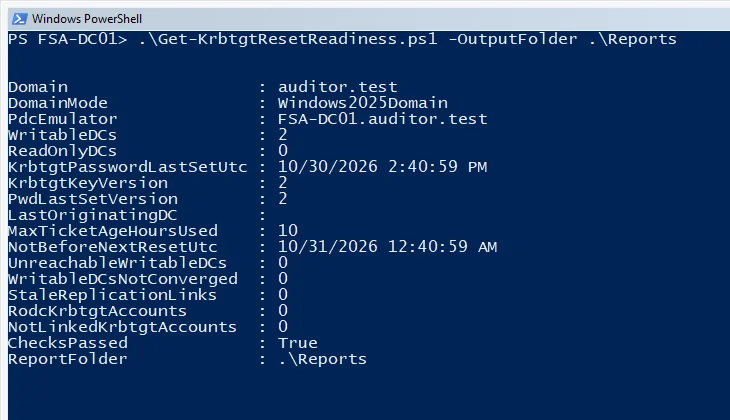
The pre-check shows replication health and the age of the krbtgt key
How to read the results:
- KrbtgtPasswordLastSetUtc shows how old the current key is. In the example, it hasn't changed for more than 600 days.
- StaleReplicationLinks above 0 means at least one link hasn't replicated in the last 12 hours, or couldn't be queried. Fix it and run the script again;
ChecksPassedmust beTruebefore a reset. - WritableDCsNotConverged counts writable domain controllers whose
pwdLastSetor key version differs from the PDC emulator. Between and after resets, this number shows whether the new key has arrived everywhere. - NotLinkedKrbtgtAccounts counts
krbtgt_<number>accounts that no RODC links to;krbtgt-accounts.csvnames them. Treat them as possible orphans from a failed RODC, and don't delete them until you've confirmed that (see Step 6).
Two more read-only checks complete the picture. First, confirm the ticket lifetime that the wait depends on, with the GroupPolicy module:
Get-GPOReport -Name 'Default Domain Policy' -ReportType Html -Path 'C:\Reports\krbtgt\default-domain-policy.html'
Open the report and read the Kerberos Policy section under Account Policies. Second, check that TGTs already use AES. Run klist on a domain-joined client and read the KerbTicket Encryption Type of the krbtgt ticket. If it shows RC4, follow the krbtgt AES validation in our RC4 to AES migration guide before you rely on the new keys, and watch for Kerberos RC4 downgrade activity.
Step 2: Get Microsoft's krbtgt reset script and run informational mode
Microsoft's reset script is New-KrbtgtKeys.ps1, published in the New-KrbtgtKeys.ps1 repository of Microsoft's archive organization on GitHub. Microsoft Incident Response links to it. As of November 2026, the repository is archived and read-only, and its README says development has ended. The README also says the code doesn't handle retired domain controllers that are offline but not removed from Active Directory.
The current file is version 2.5 (February 2020). Jared Poeppelman of Microsoft wrote the original, and Jorge de Almeida Pinto (Microsoft MVP) rewrote it to add RODC support and test accounts. The original three-mode version is kept in the repository's v1 folder. Review the file before you run it, as with any script that touches Tier 0.
The script takes no command-line parameters. It first asks whether to show its built-in description (YES or NO), then prompts for a mode, the forest, the domain and, in modes 2 to 4, a scope: the krbtgt account of all writable domain controllers, or the krbtgt_<number> account of one, several or all RODCs. Before modes 2 to 4 run, you type CONTINUE to confirm; any other answer stops the script. It needs the ActiveDirectory and GroupPolicy modules and writes a log file to its own folder.
| Mode | What it does | Changes |
|---|---|---|
| 1 | Informational: lists the writable and read-only domain controllers and whether each is reachable | None |
| 2 | Simulation: creates a temporary contact object, checks that it replicates, then deletes it | A temporary canary object; no password reset |
| 3 | Simulation: resets the password of a test krbtgt account once and monitors its replication | Test account password only |
| 4 | Real reset: resets the password of the real krbtgt account once and monitors its replication | Production krbtgt password |
| 8 | Creates disabled test krbtgt accounts (krbtgt_TEST, and krbtgt_<number>_TEST for RODCs) |
New test accounts |
| 9 | Deletes the test krbtgt accounts | Removes test accounts |
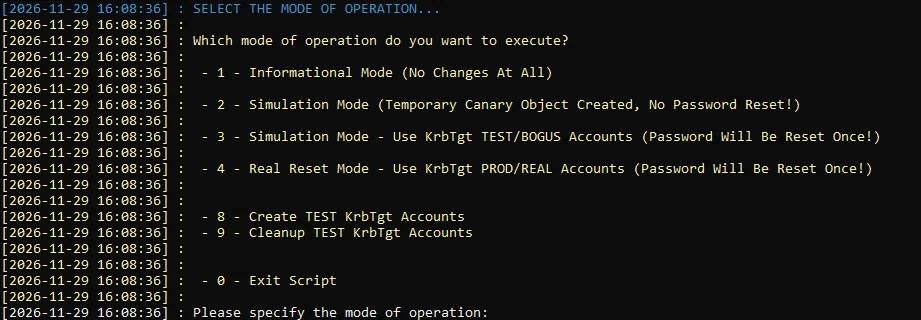
Start with mode 1, which changes nothing
In modes 2 to 4, the script does more than a manual reset would:
- It reads Maximum lifetime for user ticket and the clock skew tolerance from the Default Domain Policy, and falls back to 10 hours and 5 minutes when it can't.
- It makes the change on the PDC emulator for the writable scope, then forces a single-object replication to every reachable writable domain controller.
- It compares
pwdLastSeton each domain controller with the originating one, which shows when the change has arrived everywhere. - It warns when the previous reset happened less than the ticket lifetime plus twice the clock skew ago, and continues only if you type CONTINUE.
Start an elevated Windows PowerShell session as a member of Domain Admins on a domain controller or a management server, and run mode 1 first:
# From the folder that holds the reviewed copy of the script
.\New-KrbtgtKeys.ps1
Choose mode 1 when the script asks for the mode, then name the forest and the domain. Every domain controller should be listed as reachable. Treat any unreachable domain controller as a blocker: fix it, or remove a retired one with metadata cleanup.
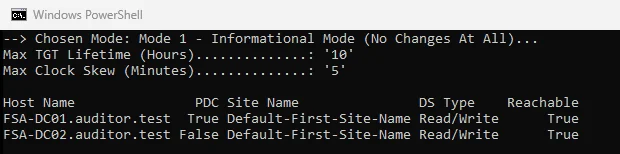
Every domain controller must be reachable before a reset
Step 3: Rehearse with the simulation modes
Run the simulation modes in production before the real reset; they don't touch the real krbtgt account. Start with mode 2, the replication test.
For a full rehearsal, run mode 8 to create the disabled test accounts, then mode 3 to reset a test account and watch the change replicate. The script adds krbtgt_TEST to the Denied RODC Password Replication Group, and each krbtgt_<number>_TEST account to the Allowed RODC Password Replication Group. The replication time it reports gives you an estimate for mode 4. Run mode 9 afterward to delete the test accounts.
Step 4: Reset the krbtgt password the first time
Run the script again, choose mode 4 and the writable scope. The script resets the krbtgt password once on the PDC emulator, forces replication and reports each domain controller's state. Record the time; you need it for the wait and for the monitoring queries.
Then confirm the result with the pre-check script from Step 1. WritableDCsNotConverged must be 0, KrbtgtKeyVersion must differ from the value before the reset, and NotBeforeNextResetUtc shows the earliest time for the second reset. Before the second reset, also check that Kerberos failures stay at their normal level (see Monitor and detect).
How do you reset the krbtgt password manually, and why is the script preferred?
Microsoft's forest recovery procedure documents a manual reset in Active Directory Users and Computers:
- Open Active Directory Users and Computers.
- On the View menu, select Advanced Features.
- In the console tree, open the domain and select Users.
- Right-click the krbtgt account and select Reset Password.
- Type and confirm any password, and select OK.
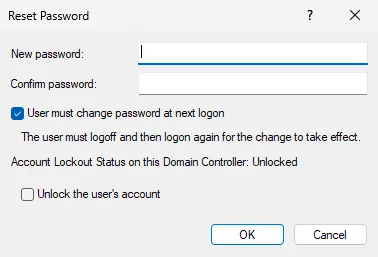
The manual method Microsoft documents for forest recovery
The password you type doesn't matter, because the system generates a strong password on its own. Microsoft documents this method as part of an Active Directory forest recovery.
In a running domain, prefer the script. It forces replication to every writable domain controller, checks that each reachable one has the new key and warns you before a second reset comes too early. With the manual method, you rely on the normal replication schedule and on your own timing.
Step 5: Wait, then reset a second time
Wait until the first reset has replicated to every writable domain controller and the maximum ticket lifetime has passed, then run mode 4 again. With default policy, that's at least 10 hours after the first reset. If you start the second reset early, the script shows the previous reset time and its timing estimate, and asks you to type CONTINUE or STOP.
Run the pre-check script one last time. WritableDCsNotConverged must be 0 again and the key version must have changed a second time. In a suspected compromise, Microsoft Incident Response resets twice in rapid succession instead, and shortening the ticket lifetime beforehand reduces the issues.
Step 6: Reset the krbtgt accounts of read-only domain controllers
Every RODC has its own krbtgt account, named krbtgt_<number>, which it uses to sign the TGTs it issues. The RODC's computer object points to it through the msDS-KrbTgtLink attribute. A reset of the domain krbtgt account doesn't change these accounts, and Microsoft's forest recovery procedure covers writable domain controllers only.
To reset an RODC's key, run Microsoft's script with the scope for one, several or all RODCs. For an RODC scope, the script resets the password on the writable domain controller the RODC replicates from when it can reach it, or on the PDC emulator otherwise, and checks only that RODC. Microsoft Defender for Identity applies the same two-reset rule to every krbtgt account it lists, so wait between the two resets here too.
Never delete a krbtgt_<number> account to clean up. Windows manages these accounts itself when you promote or demote an RODC. Deleting the wrong one stops the KDC on that RODC from starting, with error 1450, as Microsoft's RODC KDC troubleshooting article describes. The same article explains how orphaned accounts are left behind when RODC metadata isn't cleaned up.
Verify
After each reset, check four things: every domain controller has the new key, the change is logged, Kerberos still works, and nothing outside your change touched the account.
| Check | Command or source | Expected result |
|---|---|---|
| Key converged | .\Get-KrbtgtResetReadiness.ps1 -OutputFolder 'C:\Reports\krbtgt' |
WritableDCsNotConverged is 0; the key version has changed |
| Attribute metadata | repadmin /showobjmeta * "CN=krbtgt,CN=Users,DC=corp,DC=example,DC=com" |
pwdLastSet shows the same version and originating time on every domain controller |
| Reset logged | Security log of the originating domain controller | Event 4724 with the krbtgt account as target, at the time of your reset |
| KDC | System log of the domain controllers | Microsoft's account reference asks you to confirm event ID 9 from the Key Distribution Center source |
| RODC key | Get-ADUser -Identity 'krbtgt_<number>' -Server '<RODC>' -Properties pwdLastSet |
Same pwdLastSet as on the PDC emulator, after an RODC scope reset |
| Client tickets | klist purge, open a file share, then klist on a test client |
A new krbtgt ticket, issued after the reset |
klist purge deletes all cached tickets of the current logon session, so run it only on a test client. For the computer account's tickets, Microsoft uses klist purge -li 0x3e7.
Roll back
A krbtgt reset can't be rolled back: the old key is gone after the second reset, and Microsoft documents no way to restore it. What you can reverse is everything around the reset.
| Change | Can you roll it back? | How |
|---|---|---|
| First reset | No | The previous password stays in the account's password history until the second reset |
| Second reset | No | Help affected computers get new tickets instead |
| Tickets on affected computers | Not needed | Restart the computer; Microsoft calls a restart the only reliable recovery. klist purge helps for a single session |
| Shortened ticket lifetime (compromise case) | Yes | Set the Kerberos policy back in the Default Domain Policy after the incident |
| Test accounts (mode 8) | Yes | Run mode 9 to delete them |
| Canary object (mode 2) | Not needed | The script deletes it automatically |
| Trusts | Not changed by the reset | Trust passwords derive separate inter-realm keys; reset them on purpose if your recovery requires it |
Monitor and detect
Monitor two things: the reset itself, and the attacks that make a reset necessary. Domain controllers write all the events below to the Security log once the matching audit subcategories are on, plus an auditing entry on the domain object for event 4662; our Active Directory audit policy guide shows how to enable them.
| Event | What it tells you | Related page |
|---|---|---|
| 4724 | An attempt to reset an account's password; for krbtgt, a reset you should be able to match to a change | First query below |
| 4738 | A user account changed, including PasswordLastSet |
Correlate with 4724 |
| 4713 | The Kerberos policy changed, with the new and old values | Kerberos policy change rules |
| 4768 | A TGT was requested; failures carry a result code | Second query below |
| 4769 | A service ticket was requested; failures carry a failure code | Second query below |
| 4771 | Kerberos pre-authentication failed | Second query below |
| 4662 | A directory operation, including replication requests by accounts that aren't domain controllers | DCSync detection rules |
The first query lists every password reset of krbtgt and krbtgt_<number> accounts in Microsoft Sentinel or a Log Analytics workspace with domain controller events in the SecurityEvent table.
// Password resets of krbtgt and krbtgt_<number> accounts on domain controllers (event 4724).
// Needs Audit User Account Management (Success) on domain controllers.
SecurityEvent
| where TimeGenerated > ago(30d)
| where EventID == 4724
| where TargetUserName =~ "krbtgt" or TargetUserName startswith "krbtgt_"
| project TimeGenerated, DomainController = Computer, TargetDomainName, TargetUserName, TargetSid,
    SubjectDomainName, SubjectUserName, SubjectLogonId
| order by TimeGenerated asc
The second query compares Kerberos failures per domain controller and status code, hour by hour, from a day before a reset to two days after it. Compare each reset with the day before rather than with zero.
// Kerberos ticket failures per domain controller and status code, per hour, around a krbtgt reset.
// Needs Audit Kerberos Authentication Service and Audit Kerberos Service Ticket Operations (Failure).
let ResetTime = datetime(2026-01-15T20:00:00Z); // example value: replace with the UTC time of your reset
SecurityEvent
| where TimeGenerated between ((ResetTime - 1d) .. (ResetTime + 2d))
| where EventID in (4768, 4769, 4771)
| where Status != "0x0"
| summarize Failures = count() by bin(TimeGenerated, 1h), DomainController = Computer, EventID, Status
| order by TimeGenerated asc
Microsoft's event 4769 reference describes failure code 0x20 as an expired ticket, common and of little security relevance. It lists authentication data encrypted with the wrong key as one cause of 0x29.
For the attacks themselves, the krbtgt hash is taken before a Golden Ticket is used. Watch the ways it's obtained: DCSync replication requests and NTDS.dit extraction. The Golden Ticket detection rules cover the KDC events that updated domain controllers log for some forged tickets.
Troubleshooting
Most problems come from replication, timing or a stale ticket cache, and the pre-check script shows the first two.
| Symptom | Cause | Fix |
|---|---|---|
| The script reports an error for an unreachable domain controller | A domain controller is offline, or a retired one wasn't removed from Active Directory | Bring it online, or remove it with metadata cleanup, then rerun mode 1 |
WritableDCsNotConverged stays above 0 |
Replication failure between the PDC emulator and some domain controllers | Fix the errors in repadmin /showrepl * /csv, then rerun the pre-check |
| Users of one site get Kerberos errors right after the reset | Their domain controller doesn't have the new key yet | Let replication finish; restart affected computers if errors remain |
| Widespread Kerberos failures after the second reset | The second reset came before old tickets expired | Restart the affected computers (see Roll back) |
| The reset fails with an error | A custom password filter, such as passfilt.dll, is installed on the domain controller |
Follow the workaround in KB 2549833 |
| The KDC on an RODC doesn't start, error 1450 | The RODC's krbtgt_<number> account was deleted |
Restore the account as described in Microsoft's RODC KDC article |
| The script warns about timing and asks for CONTINUE | The previous reset was too recent | Type STOP and wait, unless this is a compromise response |
How Forestall helps
Forestall shows who can read the krbtgt key through replication as the DCSync edge: principals that hold both replication rights on the domain, and the GenericAll, Owner and AllExtendedRights rights that can grant them. Tier0 Analysis draws the direct and indirect relationships from Tier2 objects to Tier 0, which can point to privilege escalation paths. During an incident, Forestall Attack Path Management shows every path from a compromised identity to Tier 0, so you can close those paths before the double reset.
Frequently Asked Questions
What is the krbtgt account?
The krbtgt account is the built-in Active Directory account that acts as the service account of the Key Distribution Center. Every domain has one, created with the domain, and its well-known relative identifier is 502. Domain controllers derive the key that encrypts and signs ticket-granting tickets from its password. Because that key lets an attacker forge tickets for any account, its password is one of the most sensitive secrets in the domain.
Should the krbtgt account be disabled?
The krbtgt account is already disabled, and that's by design. Microsoft's account reference says it can't be enabled, deleted or renamed. The KDC service uses the account's keys without anyone signing in with it, so its disabled state doesn't affect Kerberos. Leave the account as it is, keep it in the Users container, and protect it by rotating its password and limiting who can read directory secrets.
How long do you wait between the two krbtgt resets?
Microsoft's forest recovery procedure says to wait 10 hours between the two krbtgt resets, the default maximum lifetime of user and service tickets. If your Kerberos policy sets a longer lifetime, wait longer than that value. The first reset must also have replicated to every writable domain controller. After a suspected compromise, Microsoft Incident Response resets twice in rapid succession instead, optionally after shortening the ticket lifetime.
Does resetting the krbtgt password log users out?
A krbtgt password reset doesn't end existing sessions directly. Microsoft says sessions that are already authenticated keep working until they need their service ticket to reauthenticate, and NTLM connections aren't affected. Tickets issued before the reset can stop working, though, and Microsoft advises assuming that any computer or user can be affected. The full wait between resets gives clients time to get tickets with the new key.
Does a krbtgt reset remove an attacker from Active Directory?
A double krbtgt reset invalidates Golden Tickets made with the stolen key, but it doesn't remove the attacker. Someone who still holds replication rights or a privileged account can read the new key the same way. After a compromise, close those paths first and reset administrative accounts, as Microsoft's initial forest recovery steps describe. Also review service account keys, gMSA passwords and trust passwords.
Do read-only domain controllers need a separate krbtgt reset?
Yes, each read-only domain controller (RODC) signs its tickets with its own krbtgt_<number> account, which a reset of the domain krbtgt account doesn't change. Microsoft's reset script has scopes for one, several or all RODCs, and the same two-reset rule applies. Don't delete these accounts to tidy up, because deleting the wrong one stops the KDC on that RODC from starting.
Related guides
- Active Directory hardening, every step in order: where krbtgt rotation fits in the full hardening sequence.
- Protected Users group and delegation controls: protect the privileged accounts whose compromise leads to a krbtgt reset.
- Group Managed Service Accounts (gMSA) step by step: the other domain secret to rotate after a compromise.
- Disable RC4 and enforce AES in Active Directory: confirm that the new krbtgt keys are used with AES.
References
- Active Directory Forest Recovery - Reset the krbtgt password (Microsoft Learn)
- Active Directory accounts (Microsoft Learn)
- Active Directory Forest Recovery - Perform the initial recovery (Microsoft Learn)
- Microsoft Incident Response team ransomware approach and best practices (Microsoft Learn)
- Account security posture assessments (Microsoft Learn)
- Maximum lifetime for user ticket (Microsoft Learn)
- New-KrbtgtKeys.ps1 (Microsoft, GitHub)
- KDC service on an RODC can't start and generates error 1450 (Microsoft Learn)
- Configure Microsoft Entra Kerberos trust (Microsoft Learn)
- 4769(S, F): A Kerberos service ticket was requested (Microsoft Learn)
- Steal or Forge Kerberos Tickets: Golden Ticket, T1558.001 (MITRE ATT&CK)
- OS Credential Dumping: DCSync, T1003.006 (MITRE ATT&CK)
See your identity exposure clearly.
Start with a 1-day Proof of Value in your own environment.