Set ms-DS-MachineAccountQuota to 0: A Step-by-Step Guide
Summary
ms-DS-MachineAccountQuota is the attribute on each Active Directory domain object that sets how many computer accounts a user can create without a delegated permission. The default is 10, so every domain user can add computer accounts. Set it to 0 once each legitimate join path has a delegated OU permission, then watch event 4741.
Quick steps
- Run the read-only audit script to read the quota, list computer accounts that carry a creator SID and list who can create computer objects on each OU.
- Match every way computers join the domain today (helpdesk, imaging, offline domain join, Windows Autopilot, failover clusters) to a named account or group.
- Grant those accounts the Create Computer objects permission on the target OUs, or pre-stage the computer accounts.
- Run
Set-MachineAccountQuota.ps1 -Value 0 -WhatIf, then run it without-WhatIfin each domain. - Confirm the value on every domain controller, then test one join with a standard user and one with a delegated account.
- Optionally limit the Add workstations to domain user right on domain controllers.
- Alert on events 4741 and 4739 from accounts outside your provisioning list.
Applies to: Active Directory domains (the attribute was first implemented in Windows 2000 Server), including domains that use Windows Autopilot hybrid join with the Intune Connector for Active Directory and domains that host Windows Server failover clusters.
What is ms-DS-MachineAccountQuota and why does it matter?
ms-DS-MachineAccountQuota is a single-valued attribute of the domain object that holds the number of computer accounts a user is allowed to create in a domain. The domain object is the root of the domain naming context, such as DC=corp,DC=example,DC=com, and only a domain administrator can update the attribute. Microsoft's KB 243327 gives the default as 10. It also names two groups that the limit doesn't cover: members of Administrators or Domain Admins, and users with delegated permission on a container to create and delete computer accounts.
How does the quota interact with the user right and OU permissions?
The quota works together with the Add workstations to domain user right (SeMachineAccountPrivilege). Its holders can create computer accounts up to the quota, and on domain controllers the effective default grants it to Authenticated Users. Authenticated Users includes every authenticated user and computer, so a computer account can spend the quota too. A user with the Create Computer objects permission on an OU or container can create any number of computer accounts, whether or not they hold the right.
The path leaves a trace on the new object. Accounts created through the user right are owned by Domain Admins, while accounts created through container permissions are owned by their creator. For an account created through the user right, the domain controller also records the creator's security ID in mS-DS-CreatorSID, and KB 243327 tells you to read that attribute to count the computer accounts a user owns.
| Path | What the creator needs | Limit | Owner of the new account |
|---|---|---|---|
| Quota | Add workstations to domain on the domain controllers (Authenticated Users by default) | ms-DS-MachineAccountQuota per user, 10 by default | Domain Admins |
| Delegated permission | Create Computer objects on the OU or container | None | The creator |
| Administrator | Membership in Administrators or Domain Admins | None | Domain Admins, when a member of Domain Admins creates the account |
| Offline domain join | The provisioning account needs one of the paths above; the joining computer needs none | As for the provisioning account | As for the provisioning account |
A delegated permission is the safer design because it's scoped to one OU and one group, which is what the Active Directory delegation model is for. Microsoft's domain join permissions article says it doesn't recommend the user right option, and the user right reference says to let only authorized IT staff add devices.
Why do attackers want the quota?
For an attacker, the quota is a free domain identity. A phished user, or a relayed session that reaches LDAP with a user's rights, can create a computer account that the attacker controls (MITRE ATT&CK T1136.002, Create Account: Domain Account). A computer account is a machine identity with its own password, which makes it a useful starting point. It's the account that resource-based constrained delegation abuse, sAMAccountName spoofing (noPac) and dNSHostName spoofing against AD CS build on.
The quota isn't the only way to get such an account. The LDAP signing and channel binding guide covers the relay step of that chain. As of November 2026, Microsoft Defender for Identity lists Set ms-DS-MachineAccountQuota to "0" as a recommended action in its identity infrastructure assessments.
What changes when the quota is 0?
At 0, users who rely on the quota can no longer create computer accounts. Administrators and holders of a delegated Create Computer objects permission keep working, because the quota doesn't apply to them. The quota is checked only when a computer account is created: Microsoft's account creation specification has the domain controller count the computer accounts whose mS-DS-CreatorSID is the caller and refuse the new account when that count isn't below the quota. Existing computer accounts aren't touched, so computers that are already joined stay joined. The change also doesn't review the computer accounts that users created earlier, which is why Step 1 lists them.
Before you start
The change itself is one attribute write per domain, but every process that joins computers through the quota stops when it lands. Plan the work in this order: audit, delegate, change, verify. Test the whole sequence in a lab first, including one join from each method you use in production.
Who joins computers in your domain today?
List each join method and the account behind it before you change anything. These are the usual ones:
- Helpdesk staff and technicians who join computers from System Properties or with
Add-Computer. - Imaging and deployment tools that join computers with a service account during a build.
- Offline domain join with
djoin, where a provisioning account creates the account in advance. - Windows Autopilot hybrid join, where the Intune Connector for Active Directory creates the account.
- Failover clusters, where the cluster name object creates a computer object for each clustered role that has a client access point.
- Users who join their own devices, which is the path this change is meant to stop.
Permissions you need
You need membership in Domain Admins, or an equivalent delegated right, to change the attribute. Granting permissions on OUs needs the right to modify their permissions. For clusters and the Intune Connector, also involve the owners of those systems, because they hold the names of the accounts that create computer objects.
Plan the change and the way back
The audit script writes CSV files and the change script writes a JSON file with the previous value, which is what you need to roll back the quota. Before you add OU permissions, save the current entries with dsacls "<OU-DN>" so you can compare them later. In a forest with several domains, the attribute lives on each domain object, so plan one change per domain.
Step 1: Audit the current state
Start with a read-only inventory of the quota, of the computer accounts that carry a creator SID and of the principals that can create computer objects. The script reads no password or other secret; it reads the quota, mS-DS-CreatorSID, timestamps, the operating system name and security descriptors.
Run it on a management server or admin workstation with the ActiveDirectory module (RSAT). Use an account that can read security descriptors, such as a member of Domain Admins. It writes three CSV files to the folder you name and returns a summary object.
#Requires -Version 5.1
#Requires -Modules ActiveDirectory

<#
.SYNOPSIS
    Read-only audit of ms-DS-MachineAccountQuota, of computer accounts that carry a creator SID and of computer creation rights in one domain.

.DESCRIPTION
    For one domain, the script reports:
      1. The ms-DS-MachineAccountQuota value on the domain object.
      2. Every computer account whose mS-DS-CreatorSID is populated, with the creator resolved
         to an account name where possible, the owner of the object, the creation time, the
         last logon time and a hint about the kind of creator: a user, an account whose name
         ends in $ (a computer or a managed service account), the managed service account of
         the Intune Connector for Active Directory (its name starts with msaODJ), or a SID that
         no longer resolves.
      3. The number of those computer accounts per creator, next to the quota.
      4. Allow entries on the domain object, on the default computers container and on every
         OU that grant Create Child for computer objects or for all child object types. Entries
         for SYSTEM, Administrators, Account Operators, Domain Admins and Enterprise Admins are
         marked WellKnownAdmin = True; every other principal is a delegation to review.

    Results go to three CSV files in OutputFolder. A summary object is returned.

.PARAMETER OutputFolder
    Existing folder for the CSV reports, for example 'C:\Reports\MAQ'.

.PARAMETER Server
    Optional domain controller to query, for example '<DomainController>'.

.EXAMPLE
    .\Get-MachineAccountQuotaAudit.ps1 -OutputFolder 'C:\Reports\MAQ'

.EXAMPLE
    .\Get-MachineAccountQuotaAudit.ps1 -OutputFolder 'C:\Reports\MAQ' -Server '<DomainController>'

.NOTES
    Read-only. Makes no change to Active Directory or to any computer.
    Writes only the three CSV report files to OutputFolder.
    Reads no password or other secret: only the quota, mS-DS-CreatorSID, whenCreated,
    lastLogonTimestamp, operatingSystem and security descriptors.
    Requires the ActiveDirectory module (RSAT). Run it on a management server or admin
    workstation as an account that can read security descriptors, for example a member of
    Domain Admins.
#>
[CmdletBinding()]
param(
    [Parameter(Mandatory = $true)]
    [ValidateScript({ Test-Path -Path $_ -PathType Container })]
    [string]$OutputFolder,

    [string]$Server
)

Set-StrictMode -Version Latest
$ErrorActionPreference = 'Stop'

$adParams = @{}
if ($Server) { $adParams['Server'] = $Server }

function Get-PropertyValue {
    param($InputObject, [string]$Name)
    if ($null -eq $InputObject) { return $null }
    $property = $InputObject.PSObject.Properties[$Name]
    if ($null -ne $property) { return $property.Value }
    return $null
}

function ConvertTo-SidObject {
    param($Value)
    if ($null -eq $Value) { return $null }
    if ($Value -is [System.Security.Principal.SecurityIdentifier]) { return $Value }
    if ($Value -is [byte[]]) { return New-Object -TypeName System.Security.Principal.SecurityIdentifier -ArgumentList $Value, 0 }
    return New-Object -TypeName System.Security.Principal.SecurityIdentifier -ArgumentList ([string]$Value)
}

$nameCache = @{}
function Resolve-SidName {
    param([System.Security.Principal.SecurityIdentifier]$Sid)
    if ($null -eq $Sid) { return $null }
    $key = $Sid.Value
    if (-not $nameCache.ContainsKey($key)) {
        try { $nameCache[$key] = $Sid.Translate([System.Security.Principal.NTAccount]).Value }
        catch { $nameCache[$key] = $null }
    }
    return $nameCache[$key]
}

function ConvertFrom-FileTimeValue {
    param($Value)
    if ($null -eq $Value) { return $null }
    $ticks = [int64]$Value
    if ($ticks -le 0) { return $null }
    return [DateTime]::FromFileTimeUtc($ticks)
}

# 1. Domain, quota and the SIDs of built-in administrative principals
$domain = Get-ADDomain @adParams
$forest = Get-ADForest @adParams
if ($forest.RootDomain -eq $domain.DNSRoot) { $rootSid = $domain.DomainSID }
else { $rootSid = (Get-ADDomain -Identity $forest.RootDomain -Server $forest.RootDomain).DomainSID }

$domainObject = Get-ADObject @adParams -Identity $domain.DistinguishedName -Properties 'ms-DS-MachineAccountQuota'
$quota = Get-PropertyValue -InputObject $domainObject -Name 'ms-DS-MachineAccountQuota'

$domainAdminsSid = '{0}-512' -f $domain.DomainSID.Value
$wellKnownAdmins = @(
    'S-1-5-18',
    'S-1-5-32-544',
    'S-1-5-32-548',
    $domainAdminsSid,
    ('{0}-519' -f $rootSid.Value)
)

# 2. Computer accounts with a populated mS-DS-CreatorSID
$computerProperties = @('mS-DS-CreatorSID', 'whenCreated', 'lastLogonTimestamp', 'operatingSystem', 'nTSecurityDescriptor')
$computers = @(Get-ADComputer @adParams -LDAPFilter '(mS-DS-CreatorSID=*)' -Properties $computerProperties)

$computerRows = @(foreach ($computer in $computers) {
    $creatorSid = ConvertTo-SidObject -Value (Get-PropertyValue -InputObject $computer -Name 'mS-DS-CreatorSID')
    $creatorName = Resolve-SidName -Sid $creatorSid

    if ($null -eq $creatorName) { $creatorKind = 'Unresolved' }
    elseif (($creatorName -split '\\')[-1] -like 'msaODJ*') { $creatorKind = 'IntuneConnectorMsa' }
    elseif ($creatorName.EndsWith('$')) { $creatorKind = 'ComputerOrServiceAccount' }
    else { $creatorKind = 'User' }

    $ownerSid = $null
    $sd = Get-PropertyValue -InputObject $computer -Name 'nTSecurityDescriptor'
    if ($null -ne $sd) { $ownerSid = $sd.GetOwner([System.Security.Principal.SecurityIdentifier]) }

    [pscustomobject]@{
        Name                = $computer.Name
        DistinguishedName   = $computer.DistinguishedName
        Enabled             = $computer.Enabled
        WhenCreated         = Get-PropertyValue -InputObject $computer -Name 'whenCreated'
        LastLogonUtc        = ConvertFrom-FileTimeValue -Value (Get-PropertyValue -InputObject $computer -Name 'lastLogonTimestamp')
        OperatingSystem     = Get-PropertyValue -InputObject $computer -Name 'operatingSystem'
        CreatorSid          = $(if ($null -ne $creatorSid) { $creatorSid.Value } else { $null })
        Creator             = $creatorName
        CreatorKind         = $creatorKind
        Owner               = $(if ($null -ne $ownerSid) { Resolve-SidName -Sid $ownerSid } else { $null })
        OwnedByDomainAdmins = ($null -ne $ownerSid -and $ownerSid.Value -eq $domainAdminsSid)
    }
})

# 3. Computer accounts per creator
$creatorRows = @($computerRows | Group-Object -Property CreatorSid | ForEach-Object {
    $first = $_.Group[0]
    [pscustomobject]@{
        CreatorSid  = $_.Name
        Creator     = $first.Creator
        CreatorKind = $first.CreatorKind
        Computers   = $_.Count
        Enabled     = @($_.Group | Where-Object { $_.Enabled }).Count
        Quota       = $quota
    }
} | Sort-Object -Property Computers -Descending)

# 4. Who can create computer objects on the domain object, the computers container and every OU
$computerClassGuid = [Guid]'bf967a86-0de6-11d0-a285-00aa003049e2'
$createChild = [System.DirectoryServices.ActiveDirectoryRights]::CreateChild
$inheritOnly = [System.Security.AccessControl.PropagationFlags]::InheritOnly
$targets = @($domain.DistinguishedName, $domain.ComputersContainer) +
    @(Get-ADOrganizationalUnit @adParams -Filter * | ForEach-Object { $_.DistinguishedName })
$targets = @($targets | Select-Object -Unique)

$rightRows = @(foreach ($dn in $targets) {
    $object = Get-ADObject @adParams -Identity $dn -Properties nTSecurityDescriptor
    foreach ($rule in $object.nTSecurityDescriptor.GetAccessRules($true, $true, [System.Security.Principal.SecurityIdentifier])) {
        if ($rule.AccessControlType -ne [System.Security.AccessControl.AccessControlType]::Allow) { continue }
        if (-not ($rule.ActiveDirectoryRights -band $createChild)) { continue }
        if (($rule.ObjectType -ne $computerClassGuid) -and ($rule.ObjectType -ne [Guid]::Empty)) { continue }
        if ($rule.PropagationFlags -band $inheritOnly) { continue }
        $sid = $rule.IdentityReference.Value
        $name = Resolve-SidName -Sid $rule.IdentityReference
        [pscustomobject]@{
            ObjectDN       = $dn
            Principal      = $(if ($null -ne $name) { $name } else { $sid })
            Sid            = $sid
            Rights         = [string]$rule.ActiveDirectoryRights
            Scope          = $(if ($rule.ObjectType -eq $computerClassGuid) { 'ComputerObjects' } else { 'AllChildObjects' })
            Inherited      = $rule.IsInherited
            WellKnownAdmin = ($wellKnownAdmins -contains $sid)
        }
    }
})

# 5. Reports and summary
$computerRows | Export-Csv -Path (Join-Path -Path $OutputFolder -ChildPath 'computers-with-creator-sid.csv') -NoTypeInformation -Encoding UTF8
$creatorRows | Export-Csv -Path (Join-Path -Path $OutputFolder -ChildPath 'creators.csv') -NoTypeInformation -Encoding UTF8
$rightRows | Export-Csv -Path (Join-Path -Path $OutputFolder -ChildPath 'create-computer-rights.csv') -NoTypeInformation -Encoding UTF8

[pscustomobject]@{
    Domain                   = $domain.DNSRoot
    MachineAccountQuota      = $quota
    ComputersWithCreatorSid  = $computerRows.Count
    EnabledWithCreatorSid    = @($computerRows | Where-Object { $_.Enabled }).Count
    DistinctCreators         = $creatorRows.Count
    UnresolvedCreators       = @($creatorRows | Where-Object { $_.CreatorKind -eq 'Unresolved' }).Count
    DelegatedCreateRights    = @($rightRows | Where-Object { -not $_.WellKnownAdmin }).Count
    ReportFolder             = $OutputFolder
}
.\Get-MachineAccountQuotaAudit.ps1 -OutputFolder 'C:\Reports\MAQ'
The output below shows the structure with example values from corp.example.com:
Domain                  : corp.example.com
MachineAccountQuota     : 10
ComputersWithCreatorSid : 37
EnabledWithCreatorSid   : 29
DistinctCreators        : 9
UnresolvedCreators      : 2
DelegatedCreateRights   : 4
ReportFolder            : C:\Reports\MAQ
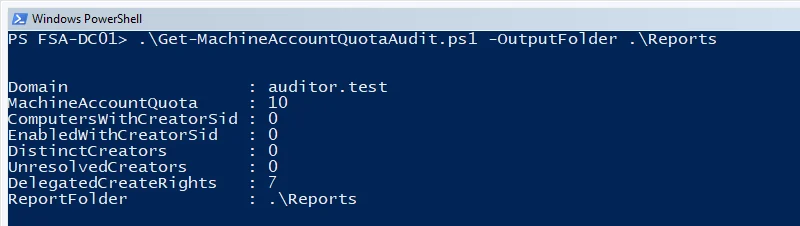
The audit script reads the quota and counts computer accounts that carry a creator SID
creators.csv groups the computer accounts by creator. This excerpt uses example values:
"CreatorSid","Creator","CreatorKind","Computers","Enabled","Quota"
"S-1-5-21-1111111111-2222222222-3333333333-1158","CORP\jdoe","User","10","8","10"
"S-1-5-21-1111111111-2222222222-3333333333-2203","CORP\msaODJ4K7QZ$","IntuneConnectorMsa","10","10","10"
"S-1-5-21-1111111111-2222222222-3333333333-1871","CORP\SQLCLU01$","ComputerOrServiceAccount","3","3","10"
"S-1-5-21-1111111111-2222222222-3333333333-1342","","Unresolved","2","0","10"
How to read the results
- User: a person or service account created these computer accounts. A row whose
OwnedByDomainAdminsisTrueincomputers-with-creator-sid.csvmatches what Microsoft documents for accounts created through the user right: the domain controller setsmS-DS-CreatorSIDto the caller and makes Domain Admins the owner. - IntuneConnectorMsa: the managed service account of the Intune Connector for Active Directory, which Microsoft names
msaODJfollowed by five random characters. A count near the quota suggests that the connector uses the quota instead of an OU permission. - ComputerOrServiceAccount: a creator whose name ends in
$, such as a cluster name object or the computer that runs the legacy Intune Connector. - Unresolved: the creator's SID no longer resolves, for example because the account was deleted. Review these computer accounts first.
create-computer-rights.csv lists every allow entry that grants Create Child for computer objects (ComputerObjects) or for all child object types (AllChildObjects). Rows with WellKnownAdmin set to False are delegations to confirm with their owners. Remove computer accounts nobody can explain, after you check that they aren't in use.
Check who holds Add workstations to domain
On a domain controller, export the effective user rights and search for the privilege. secedit /export changes no setting; it writes the file you name and a log file.
secedit /export /mergedpolicy /areas user_rights /cfg C:\Reports\MAQ\DC01-user-rights.inf
Select-String -Path 'C:\Reports\MAQ\DC01-user-rights.inf' -Pattern 'SeMachineAccountPrivilege'
C:\Reports\MAQ\DC01-user-rights.inf:12:SeMachineAccountPrivilege = *S-1-5-11
S-1-5-11 is the SID of Authenticated Users. To find the Group Policy Object (GPO) that sets the right, use the gpresult and RSoP guide.
See who created computer accounts recently
If computer account auditing is on, the Security log of each domain controller shows who created each computer account in event 4741. This read-only command counts the creators in the last 500 events on one domain controller:
Get-WinEvent -ComputerName '<DomainController>' -FilterHashtable @{ LogName = 'Security'; Id = 4741 } -MaxEvents 500 |
    ForEach-Object {
        $data = @{}
        ([xml]$_.ToXml()).Event.EventData.Data | ForEach-Object { $data[$_.Name] = $_.'#text' }
        [pscustomobject]@{
            TimeCreated = $_.TimeCreated
            CreatedBy   = '{0}\{1}' -f $data['SubjectDomainName'], $data['SubjectUserName']
            NewComputer = $data['TargetUserName']
        }
    } |
    Group-Object -Property CreatedBy | Sort-Object -Property Count -Descending | Select-Object -Property Count, Name
Count Name
----- ----
   14 CORP\svc-imaging
    6 CORP\jdoe
    3 CORP\SQLCLU01$
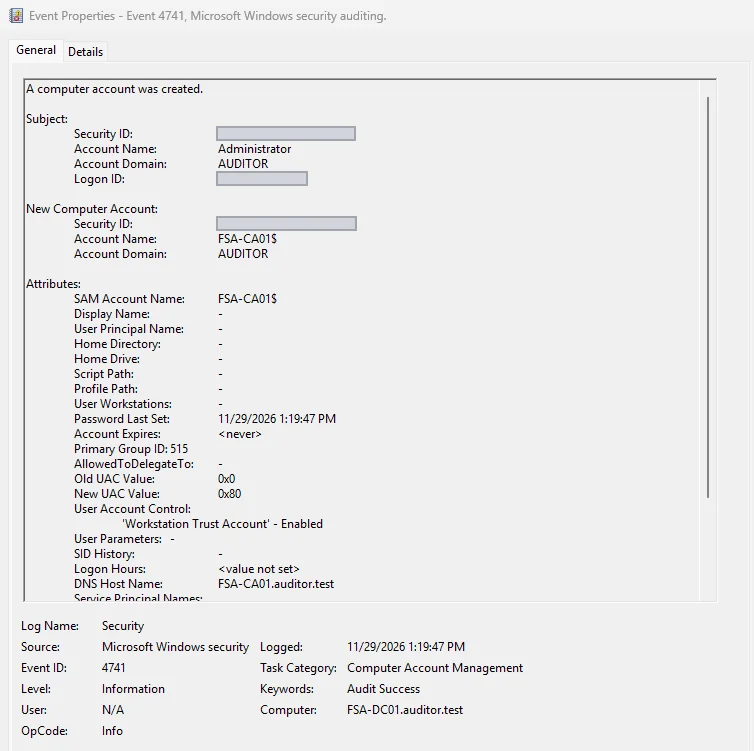
Event 4741 names the account that created each computer account
Step 2: Map every join path to a delegated permission
Each join method needs a replacement before the quota goes to 0. The table maps the common methods to the permission that replaces the quota.
| Join path | Who creates the account today | Replace the quota with | Notes |
|---|---|---|---|
| Helpdesk and technicians | Their own account | A group with Create Computer objects on the workstation OU (Step 3), or pre-staged accounts (Step 4) | The creator owns each account it creates, so keep the group small |
| Imaging and deployment tools | A service account | Create Computer objects for that account on the target OU | Don't add service accounts to Domain Admins |
| Offline domain join | The account that runs djoin /provision |
Create Computer objects on the target OU, with /machineOU on the command |
The joining computer needs no permission |
| Windows Autopilot hybrid join | The connector's managed service account, or the connector server's computer account (legacy connector) | Create Computer objects on the OU in the domain join profile | Covered in Step 3 |
| Failover clusters | The cluster name object (CNO) | Create Computer objects for the CNO on its OU, or pre-staged virtual computer objects | Covered in Step 3 |
| Users joining their own devices | The user | Nothing: route these requests to IT | This is the path the change closes |
For offline domain join, the provisioning account creates the account and saves a file that the new computer loads:
djoin /provision /domain corp.example.com /machine WS0124 /machineOU "OU=Workstations,DC=corp,DC=example,DC=com" /savefile C:\ODJ\WS0124.txt
djoin /requestodj /loadfile C:\ODJ\WS0124.txt /windowspath %windir% /localos
The file contains the machine account password, so Microsoft says to protect it like a plaintext password. The second command runs on the computer that joins, and the join completes at the next restart.
Step 3: Delegate the Create Computer objects permission
Give each join path from Step 2 the Create Computer objects permission on the OU where its computers land, and nothing broader. A dedicated group per OU keeps the scope readable, for example CORP\Workstation-Joiners on OU=Workstations,DC=corp,DC=example,DC=com.
Grant it in Active Directory Users and Computers
- In Active Directory Users and Computers, select View > Advanced Features.
- Right-click the OU, select Properties, open the Security tab and select Advanced.
- Select Add, then Select a principal, and enter the group. For a managed service account or a computer, add Service Accounts or Computers under Object Types first.
- Set Applies to to This object only, clear the other permissions and select Create Computer objects.
- Select OK and apply the change.
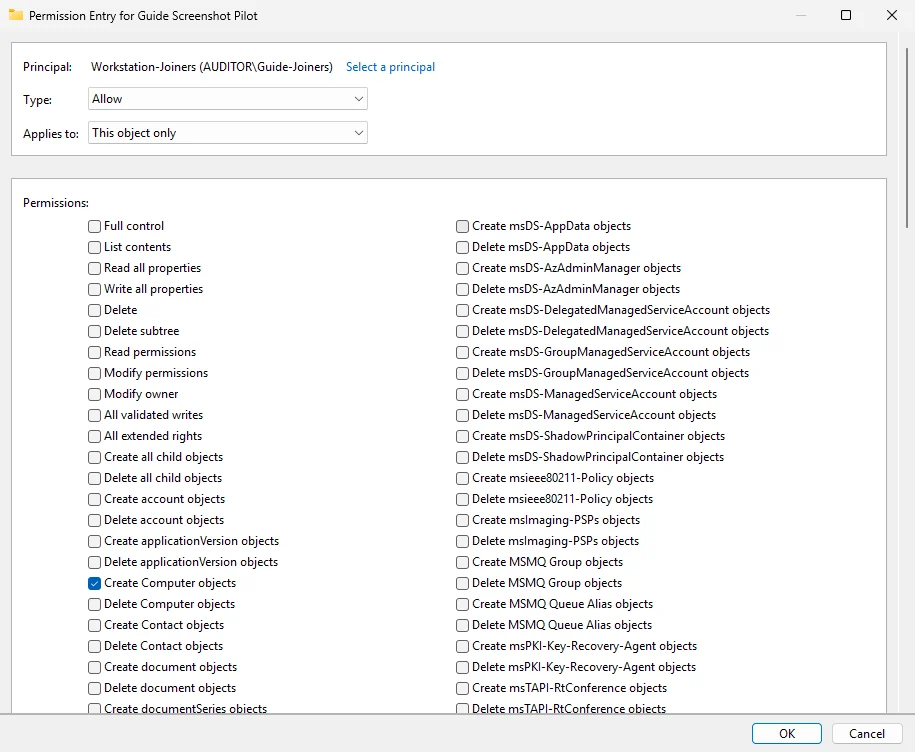
Grant only Create Computer objects, on the OU where new computers land
Grant it with dsacls
dsacls grants the same permission from the command line. CC;computer limits Create Child to computer objects, and by default the entry also applies to the OUs below.
dsacls "OU=Workstations,DC=corp,DC=example,DC=com" /G "CORP\Workstation-Joiners:CC;computer"
Run dsacls with only the OU name to display the entries and confirm that the new one is there. The Security log records the change in event 5136 when the OU's SACL audits it.
Delegated creation and KB5008383
Since the November 9, 2021 updates, users without domain administrator rights who create computer objects are subject to the checks of KB5008383 (CVE-2021-42291). Updated domain controllers audit requests that set attributes or a security descriptor beyond the caller's permissions, logging Directory Service events such as 3047 in audit mode and 3044 once enforcement blocks them. The CVE-2021-42291 detection rules watch those events. If a tool fails after enforcement, Microsoft suggests delegating narrowly scoped rights on a separate OU instead of adding the account to Domain Admins.
Windows Autopilot hybrid join
The updated Intune Connector for Active Directory joins computers with a managed service account named msaODJ plus five random characters. When the administrator who installs or configures the connector can set OU permissions, the connector grants that account the permission itself. Microsoft's Autopilot hybrid join tutorial explains the risk: without the permission, joins can work at first and stop after 10 computers.
If the connector couldn't set the permission, grant Create Computer objects with Applies to set to This object only on the OU in the domain join profile, as in the steps above. The legacy connector joins with the computer account of the server it runs on, so that computer account needs the permission on the same OU. Find the service account name in the Log On As column of the Intune ODJConnector for Active Service service on the connector server.
Failover clusters
A failover cluster's cluster name object creates a virtual computer object (VCO) for each clustered role that has a client access point. Microsoft's prestaging guide notes that a CNO in the default Computers container can create up to 10 VCOs without extra configuration. With the quota at 0, give the CNO Create Computer objects on its OU or container (This object and all descendant objects), or pre-stage each VCO and give the CNO Full Control over it.
Step 4: Pre-stage computer accounts for other joiners
Pre-staging separates the account that creates a computer account from the account that joins the computer. An administrator or a delegated account creates the account in the right OU, and a technician or build process joins with it later.
New-ADComputer -Name 'WS0123' -SamAccountName 'WS0123$' -Path 'OU=Workstations,DC=corp,DC=example,DC=com' -WhatIf
Remove -WhatIf to create the account. To reuse it, the account that joins needs these permissions on the computer object, according to Microsoft's domain join permissions article:
- Read (Read all properties, List contents)
- Allowed to authenticate
- Change password and Reset password
- Validated write to DNS host name and Validated write to service principal name
- Write account restrictions, which updates
userAccountControl
Microsoft recommends assigning these permissions when you create the account in Active Directory Users and Computers. Renaming the computer during the join also needs Write computer name (pre-Windows 2000), Write display name and Write description.
Account reuse and KB5020276
Since the October 11, 2022 updates, KB5020276 blocks a join that reuses an existing computer account unless one of these is true:
- The account that joins is the account that created the computer account.
- A member of Domain Admins created the computer account; the March 14, 2023 updates added Enterprise Admins and the built-in Administrators group.
- The owner of the computer account is listed in Domain controller: Allow computer account re-use during domain join.
The third option is a Group Policy setting under Computer Configuration\Policies\Windows Settings\Security Settings\Local Policies\Security Options. It needs the March 14, 2023 or later updates on every member computer and domain controller. Apply it to the domain controllers and add the groups that create your pre-staged accounts. Don't add the account that performs the join, Authenticated Users or other large groups.
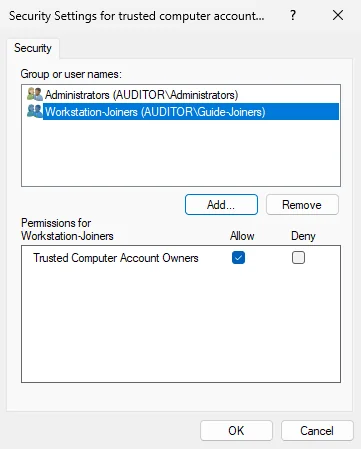
Trust only the groups that create pre-staged accounts
Step 5: Set ms-DS-MachineAccountQuota to 0
With every join path delegated, set the quota. The change script reads the current value from a writable domain controller, writes a JSON backup, sets the new value and reads it back. It supports -WhatIf and asks for confirmation, so run it with -WhatIf first.
Run it on a management server with the ActiveDirectory module, as a member of Domain Admins. It targets the PDC emulator unless you name another writable domain controller.
#Requires -Version 5.1
#Requires -Modules ActiveDirectory

<#
.SYNOPSIS
    Sets ms-DS-MachineAccountQuota on one domain and records the previous value for rollback.

.DESCRIPTION
    The script reads the current ms-DS-MachineAccountQuota value of the domain object from a
    writable domain controller (the PDC emulator unless you name one), writes a JSON backup
    with the previous value to BackupFolder, sets the new value with Set-ADObject -Replace and
    reads the value back.

    Run it with -WhatIf first. With -WhatIf the script changes nothing and writes no backup.
    To roll back, run it again with -Value set to the PreviousValue in the backup file.

.PARAMETER Value
    The new quota. Use 0 to stop users without delegated permissions from creating computer
    accounts.

.PARAMETER BackupFolder
    Existing folder for the JSON backup, for example 'C:\Reports\MAQ'.

.PARAMETER Server
    Optional writable domain controller, for example 'DC01.corp.example.com'. Defaults to the
    PDC emulator of the domain. Set-ADObject doesn't work against a read-only domain controller.

.EXAMPLE
    .\Set-MachineAccountQuota.ps1 -Value 0 -BackupFolder 'C:\Reports\MAQ' -WhatIf

.EXAMPLE
    .\Set-MachineAccountQuota.ps1 -Value 0 -BackupFolder 'C:\Reports\MAQ'

.EXAMPLE
    $backup = Get-Content -Path 'C:\Reports\MAQ\maq-backup-corp.example.com-20261128T101500Z.json' -Raw | ConvertFrom-Json
    .\Set-MachineAccountQuota.ps1 -Value $backup.PreviousValue -BackupFolder 'C:\Reports\MAQ'

.NOTES
    Changes configuration. Writes the ms-DS-MachineAccountQuota attribute of the domain object
    and one JSON backup file to BackupFolder.
    Requires the ActiveDirectory module (RSAT) and an account that can write the attribute,
    for example a member of Domain Admins. Run it once per domain.
#>
[CmdletBinding(SupportsShouldProcess = $true, ConfirmImpact = 'High')]
param(
    [Parameter(Mandatory = $true)]
    [ValidateRange(0, 2147483647)]
    [int]$Value,

    [Parameter(Mandatory = $true)]
    [ValidateScript({ Test-Path -Path $_ -PathType Container })]
    [string]$BackupFolder,

    [string]$Server
)

Set-StrictMode -Version Latest
$ErrorActionPreference = 'Stop'

$attribute = 'ms-DS-MachineAccountQuota'

if ($Server) { $domain = Get-ADDomain -Server $Server; $target = $Server }
else { $domain = Get-ADDomain; $target = $domain.PDCEmulator }

$before = Get-ADObject -Identity $domain.DistinguishedName -Server $target -Properties $attribute
$property = $before.PSObject.Properties[$attribute]
$previous = $null
if ($null -ne $property -and $null -ne $property.Value) { $previous = [int]$property.Value }

if ($previous -eq $Value) {
    Write-Verbose ('{0} is already {1} on {2}.' -f $attribute, $Value, $domain.DNSRoot)
    return [pscustomobject]@{
        Domain        = $domain.DNSRoot
        Server        = $target
        PreviousValue = $previous
        NewValue      = $Value
        Changed       = $false
        BackupFile    = $null
    }
}

$from = if ($null -eq $previous) { 'not set' } else { [string]$previous }
$action = 'Set {0} from {1} to {2}' -f $attribute, $from, $Value
$targetText = '{0} on {1}' -f $domain.DistinguishedName, $target

if ($PSCmdlet.ShouldProcess($targetText, $action)) {
    $stamp = [DateTime]::UtcNow.ToString('yyyyMMddTHHmmssZ')
    $backupFile = Join-Path -Path $BackupFolder -ChildPath ('maq-backup-{0}-{1}.json' -f $domain.DNSRoot, $stamp)
    [pscustomobject]@{
        Domain            = $domain.DNSRoot
        DistinguishedName = $domain.DistinguishedName
        Server            = $target
        PreviousValue     = $previous
        NewValue          = $Value
        ChangedBy         = [System.Security.Principal.WindowsIdentity]::GetCurrent().Name
        ChangedUtc        = [DateTime]::UtcNow.ToString('o')
    } | ConvertTo-Json | Set-Content -Path $backupFile -Encoding UTF8

    Set-ADObject -Identity $domain.DistinguishedName -Server $target -Replace @{ $attribute = $Value }

    $after = Get-ADObject -Identity $domain.DistinguishedName -Server $target -Properties $attribute
    [pscustomobject]@{
        Domain        = $domain.DNSRoot
        Server        = $target
        PreviousValue = $previous
        NewValue      = $after.PSObject.Properties[$attribute].Value
        Changed       = $true
        BackupFile    = $backupFile
    }
}
.\Set-MachineAccountQuota.ps1 -Value 0 -BackupFolder 'C:\Reports\MAQ' -WhatIf
What if: Performing the operation "Set ms-DS-MachineAccountQuota from 10 to 0" on target "DC=corp,DC=example,DC=com on DC01.corp.example.com".
.\Set-MachineAccountQuota.ps1 -Value 0 -BackupFolder 'C:\Reports\MAQ'
Domain        : corp.example.com
Server        : DC01.corp.example.com
PreviousValue : 10
NewValue      : 0
Changed       : True
BackupFile    : C:\Reports\MAQ\maq-backup-corp.example.com-20261128T101500Z.json
The script uses the same Set-ADObject -Replace call that Microsoft shows in its Defender for Identity sensor test. Without the script, this is the one-line equivalent:
Set-ADObject -Identity ((Get-ADDomain).DistinguishedName) -Replace @{ 'ms-DS-MachineAccountQuota' = 0 }
Set it with ADSI Edit
- Open ADSI Edit (
adsiedit.msc) as a domain administrator. - Right-click ADSI Edit, select Connect to and accept Default naming context.
- Expand Default naming context, right-click the object that starts with
DC=and select Properties. - Select
ms-DS-MachineAccountQuota, select Edit, enter0and select OK twice.
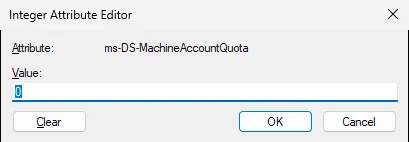
Set the attribute on the domain object of each domain
Repeat the change in every domain of the forest.
Step 6 (optional): Restrict Add workstations to domain
Restricting the user right is a second layer for the day someone raises the quota again. On domain controllers, the Default Domain Controllers Policy grants the right to Authenticated Users (SeMachineAccountPrivilege = *S-1-5-11). Set Add workstations to domain under Computer Configuration > Policies > Windows Settings > Security Settings > Local Policies > User Rights Assignment, in a GPO linked to the Domain Controllers OU.
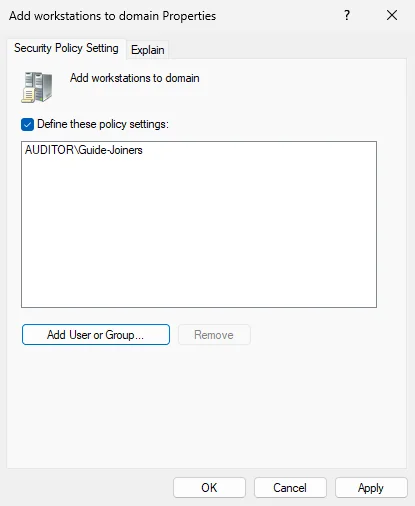
Restrict the user right as a second layer
List only the groups that should keep quota-based joins. Delegated Create Computer objects permissions keep working without the right. A change to user rights takes effect at the account's next sign-in, and Microsoft notes that existing computers aren't affected unless they leave and rejoin the domain.
Verify
Read the value from every domain controller to confirm that the change replicated.
$domain = Get-ADDomain
Get-ADDomainController -Filter * | ForEach-Object {
    $object = Get-ADObject -Identity $domain.DistinguishedName -Server $_.HostName -Properties 'ms-DS-MachineAccountQuota'
    [pscustomobject]@{ DomainController = $_.HostName; MachineAccountQuota = $object.'ms-DS-MachineAccountQuota' }
}
DomainController      MachineAccountQuota
----------------      -------------------
DC01.corp.example.com                   0
DC02.corp.example.com                   0
Then test both sides on a lab computer that isn't joined yet:
| Test | Expected result |
|---|---|
| A standard user without delegation joins the computer | The join fails, and %windir%\debug\NetSetup.log records status code 0x216d |
A member of the delegated group joins with Add-Computer -DomainName 'corp.example.com' -OUPath 'OU=Workstations,DC=corp,DC=example,DC=com' -Credential (Get-Credential) -Restart |
The join succeeds and the account appears in the OU |
| The domain controller that took the change | Event 4739 with 0 in Machine Account Quota |
Get-MachineAccountQuotaAudit.ps1 |
MachineAccountQuota is 0 and create-computer-rights.csv lists only the delegations you planned |
Roll back
Every change in this guide can be undone. Rolling back the quota doesn't remove the computer accounts that delegated groups created in the meantime.
| Change | How to roll back | Notes |
|---|---|---|
| ms-DS-MachineAccountQuota | Run Set-MachineAccountQuota.ps1 -Value <PreviousValue> with the value from the JSON backup |
The third example in the script help reads the backup file |
| OU delegation | Remove the entry in the OU's Advanced Security Settings, or run dsacls "<OU-DN>" /R "CORP\Workstation-Joiners" |
/R removes all entries for that group on the OU, not only the new one |
| Pre-staged accounts | Delete accounts that were never joined | Check that no computer uses them |
| Add workstations to domain | Remove the setting from your GPO or unlink it, so the Default Domain Controllers Policy value applies again. If you edited that policy itself, put Authenticated Users back | Check the result with the secedit export from Step 1 |
| Reuse allow list | Remove the groups from Domain controller: Allow computer account re-use during domain join | Joins that reuse accounts owned by those groups face the KB5020276 ownership check again |
Monitor and detect
Keep watching after the change, because a quota of 0 makes the remaining computer account creations rare and meaningful. Domain controllers log the events below in the Security log once the matching audit subcategories are on; the Active Directory audit policy guide sets them up.
| Event | Audit subcategory | What it tells you | Related page |
|---|---|---|---|
| 4741 | Audit Computer Account Management | A computer account was created, and Subject names the creator | Rules for computer accounts created by users, which also watch quota changes |
| 4742 | Audit Computer Account Management | A computer account changed, including its DNS host name, service principal names and account flags | Rules for a computer account turned into a domain controller account |
| 4739 | Audit Authentication Policy Change | Domain policy changed; a number in Machine Account Quota is the new quota | Quota rules on the computer account creation page |
| 5136 | Audit Directory Service Changes, with a SACL on the object | Writes to ms-DS-MachineAccountQuota, msDS-AllowedToActOnBehalfOfOtherIdentity and OU permissions |
RBCD rules linked earlier |
| 4781 | Audit User Account Management | A user or computer account name (sAMAccountName) changed |
noPac rules linked earlier |
| 3044 to 3049 (Directory Service log) | Not an audit subcategory; logged by updated domain controllers | Computer object creation, or a security descriptor change, beyond the permissions of a user without domain administrator rights | CVE-2021-42291 rules linked earlier |
The first query lists computer accounts created by accounts outside your approved list in Microsoft Sentinel or a Log Analytics workspace that receives the SecurityEvent table.
// Computer accounts created by accounts that are not computer accounts (event 4741).
// Needs Audit Computer Account Management (Success) on domain controllers.
// Add your approved provisioning accounts to the list to see only the unexpected creators.
let ApprovedCreators = dynamic(["CORP\\svc-provision", "CORP\\helpdesk-join"]);
SecurityEvent
| where TimeGenerated > ago(7d)
| where EventID == 4741
| where SubjectUserName !endswith "$"
| extend CreatedBy = strcat(SubjectDomainName, "\\", SubjectUserName)
| where CreatedBy !in~ (ApprovedCreators)
| project TimeGenerated, DomainController = Computer, CreatedBy, SubjectUserSid, NewComputer = TargetUserName, NewComputerSid = TargetSid
| order by TimeGenerated desc
The second query lists every change of the quota that event 4739 recorded.
// Changes to ms-DS-MachineAccountQuota recorded in event 4739 (Domain Policy was changed).
// Needs Audit Authentication Policy Change (Success) on domain controllers.
// Fields that didn't change hold "-", so a number in MachineAccountQuota is the new quota.
SecurityEvent
| where TimeGenerated > ago(30d)
| where EventID == 4739
| where isnotempty(MachineAccountQuota) and MachineAccountQuota != "-"
| project TimeGenerated, DomainController = Computer, ChangedBy = strcat(SubjectDomainName, "\\", SubjectUserName), NewQuota = MachineAccountQuota
| order by TimeGenerated desc
A creation by an approved provisioning account into its own OU is expected. A creation by any other user, a creation by a computer account that isn't a known cluster name object, or a quota change without a change record deserves an alert.
Troubleshooting
Most problems after the change come from a join path that still relied on the quota. Microsoft's status code 0x216d article covers the most common error.
| Symptom | Cause | Fix |
|---|---|---|
| "You have exceeded the maximum number of computer accounts you are allowed to create in this domain", status 0x216d in NetSetup.log | The account relied on the quota, or a GPO no longer grants it Add workstations to domain | Use a delegated account, or pre-stage the computer account |
| A delegated account gets the same error | The join targets an OU or container where the account has no permission, such as the default Computers container when no OU is given | Name the delegated OU in the join, or delegate on the container the join uses |
| Error 0xaac, "An account with the same name exists in Active Directory. Re-using the account was blocked by security policy." | The KB5020276 reuse checks | Join with the account that created it, add its owner to the reuse allow list, or delete a stale account |
| Autopilot hybrid joins worked for the first devices and then stopped | The connector's account used the quota instead of an OU permission | Grant Create Computer objects on the OU in the domain join profile |
| The Intune Connector reports "The MSA account couldn't be granted permission to create computer objects in the following OUs" | The installer lacked rights to set OU permissions, or an OU in the connector's configuration file doesn't exist | Grant the permission by hand; ODJConnectorUI.log has the details |
| A clustered role with a client access point can't create its computer object | The CNO has no Create Computer objects permission where it creates the VCO; in the default Computers container it relied on the quota | Grant the CNO Create Computer objects on its OU, or pre-stage the VCO |
djoin /provision fails for a delegated account |
The account has no permission on the OU it targets | Delegate on the OU and pass it with /machineOU |
Set-MachineAccountQuota.ps1 fails against a read-only domain controller |
Set-ADObject doesn't work with a read-only domain controller |
Omit -Server to use the PDC emulator, or name a writable domain controller |
| Directory Service event 3044 or 3045 after a delegated creation | KB5008383 enforcement blocked attributes or a security descriptor outside the caller's permissions | Change what the tool writes, or delegate the needed rights on a separate OU |
How Forestall helps
Forestall maps the Create Computer objects permission on OUs, domains and containers as the CreateComputer attack path edge. Its AddAllowedToAct edge shows who can write msDS-AllowedToActOnBehalfOfOtherIdentity on a computer, the write that resource-based constrained delegation abuse needs. Forestall also reports the Computers Added into Domain by Unprivileged Users finding (FS1098), and the Computers view shows each computer's creation time and parent OU. To see these paths across your own domains, start with an identity risk assessment.
Frequently Asked Questions
What is the default value of ms-DS-MachineAccountQuota?
The default value of ms-DS-MachineAccountQuota is 10. Any account that holds the Add workstations to domain user right, which domain controllers grant to Authenticated Users by default, can create up to 10 computer accounts. Members of Administrators and Domain Admins, and accounts with delegated permission to create computer objects on an OU or container, aren't limited by the quota.
How do I check the ms-DS-MachineAccountQuota value?
Read ms-DS-MachineAccountQuota from the domain object with PowerShell: Get-ADObject -Identity ((Get-ADDomain).DistinguishedName) -Properties 'ms-DS-MachineAccountQuota'. In ADSI Edit, connect to the default naming context, open the properties of the object that starts with DC= and find the attribute in the list. Each domain in a forest has its own value, so check them all.
Will setting ms-DS-MachineAccountQuota to 0 break domain joins?
Setting ms-DS-MachineAccountQuota to 0 breaks only the joins that create a new account through the quota. Members of Administrators and Domain Admins and accounts with a delegated Create Computer objects permission keep joining computers. The quota is checked only when a computer account is created, so computers that are already joined keep their accounts. Before the change, give helpdesk, imaging, offline domain join, the Intune Connector and cluster name objects their own OU permission.
Does ms-DS-MachineAccountQuota affect Windows Autopilot hybrid join?
Yes, ms-DS-MachineAccountQuota affects Windows Autopilot hybrid join when the Intune Connector for Active Directory relies on the quota. Microsoft explains that without an OU permission, the connector's joins can work at first and stop after 10 computers. With the quota at 0, the connector's managed service account, or the server's computer account for the legacy connector, needs Create Computer objects on the OU named in the domain join profile.
Is removing Add workstations to domain enough on its own?
Restricting the Add workstations to domain right stops quota-based joins only for the principals you remove, so on its own it leaves the quota open to the groups you keep. Setting ms-DS-MachineAccountQuota to 0 stops quota-based joins for every holder of the right. Doing both gives you a second layer if one of them is changed later. Neither affects accounts with a delegated Create Computer objects permission, which don't need the right.
Related guides
- Active Directory hardening, every step in order: where the quota change fits in the full hardening sequence.
- Protected Users group and delegation controls: keep privileged accounts out of reach of Kerberos delegation.
- ResetNightmare (CVE-2026-27912): an attack chain that also works from a newly created computer account.
- Combined attack path analysis with BloodHound and Kangal: how directory permissions and other relationships turn into attack paths.
References
- MS-DS-Machine-Account-Quota attribute (Microsoft Learn)
- Default limit to number of workstations a user can join to the domain (Microsoft Learn)
- Add workstations to domain (Microsoft Learn)
- MS-DS-Creator-SID attribute (Microsoft Learn)
- Active Directory domain join permissions (Microsoft Learn)
- Identity infrastructure security assessments (Microsoft Learn)
- User-driven Microsoft Entra hybrid join: Increase the computer account limit in the Organizational Unit (Microsoft Learn)
- Prestage cluster computer objects in Active Directory Domain Services (Microsoft Learn)
- KB5020276: Netjoin: Domain join hardening changes (Microsoft Support)
- KB5008383: Active Directory permissions updates (CVE-2021-42291) (Microsoft Support)
- Status code 0x216d: Your computer could not be joined to the domain (Microsoft Learn)
- Create Account: Domain Account, T1136.002 (MITRE ATT&CK)
See your identity exposure clearly.
Start with a 1-day Proof of Value in your own environment.